

Subtitles have become an essential part of the modern video-watching experience, and most major streaming platforms now offer subtitle support to enhance usability. When you’re watching videos in a noisy environment, subtitles help you clearly follow the dialogue. When viewing foreign-language movies or shows, they make it much easier to understand the storyline.
On Paramount Plus, subtitle support is well implemented. The platform provides Closed Captions (CC), which go beyond basic dialogue by also including sound cues such as background music and environmental noises. In this guide, you’ll learn how to turn on subtitles on Paramount Plus across different devices, including mobile, desktop browsers, and various smart TVs. Now, let’s take a closer look.
Hot Article
How Does Paramount Plus Subtitle Work on Different Devices
Subtitles on Paramount Plus work differently depending on the device you’re using. While all devices support captions, the way you enable, customize, and view them varies between smart TVs, mobile apps, and desktop browsers.
How to Turn on Subtitles on Paramount Plus on Smart TV
Smart TVs offer the ultimate viewing experience with big screens, but subtitle settings can sometimes feel hidden within menus. Paramount Plus provides device-specific subtitle management on Smart TVs, giving users control over language, style, and display. Below, we break down the steps for the most popular Smart TV platforms.
Step 1. Activate CC via TV Settings
You need to turn on Closed Captions in your TV settings before subtitles on Paramount Plus can work. Once enabled, this ensures that subtitles will automatically appear every time you open Paramount Plus or other supported apps.
On Roku
- Launch Paramount Plus and start playing any content.
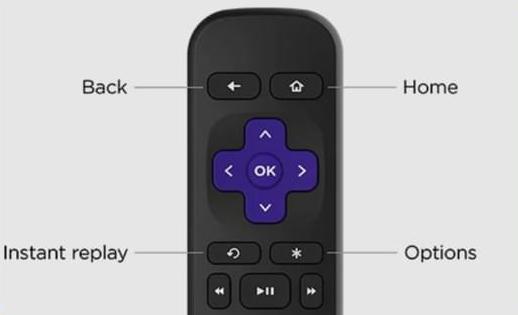
- Press the Star (*) button on the Roku remote to open the options menu.
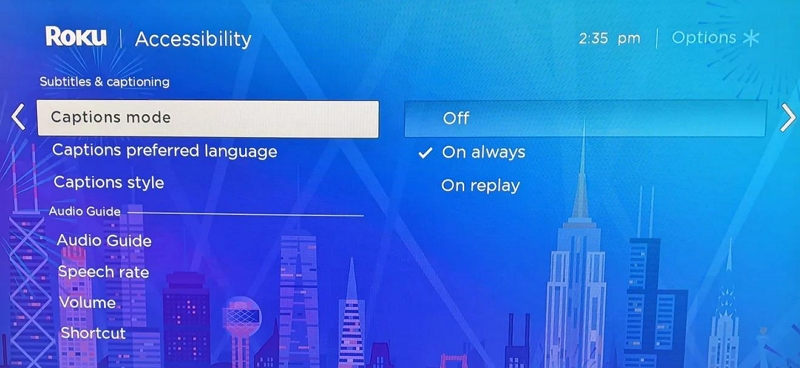
- Navigate to Accessibility or captions. Then, select Closed Captioning or similar and turn it On. In the same screen, you can also adjust the subtitle style and language.
On Apple TV
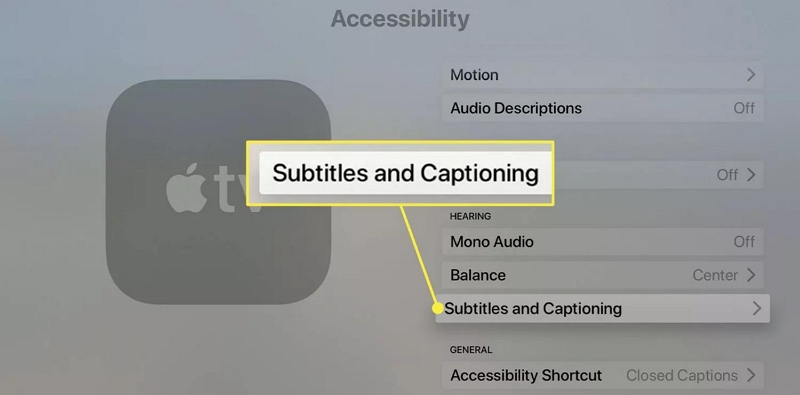
- Go to Settings > Accessibility > Subtitles & Captioning.
- Select Closed Captions and SDH and enable it. If needed, you can customize CC via the Style button.
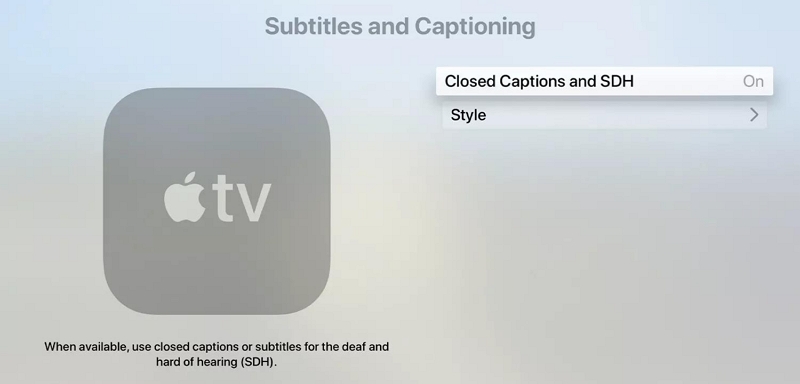
Tip: You can say “Hey Siri, turn on subtitles on Apple TV.” to activate CC on your Apple TV.
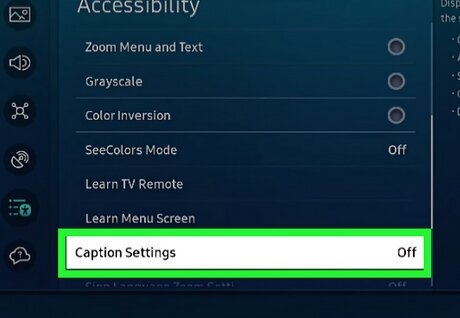
On Samsung TV
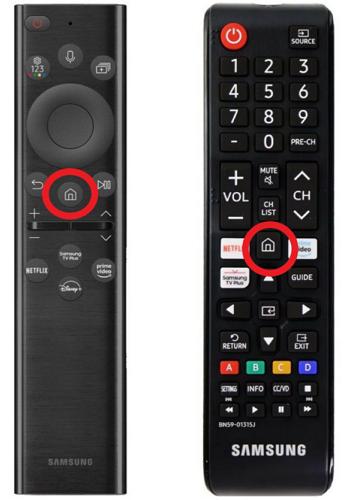
- Press the Home button on your remote.
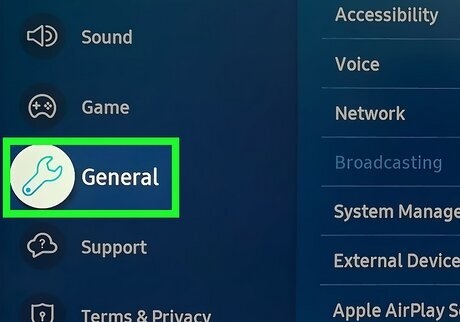
- Go to Settings > General.
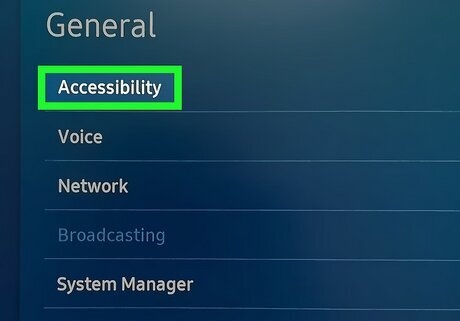
- Locate Accessibility.
- Select Caption Settings and toggle it on.
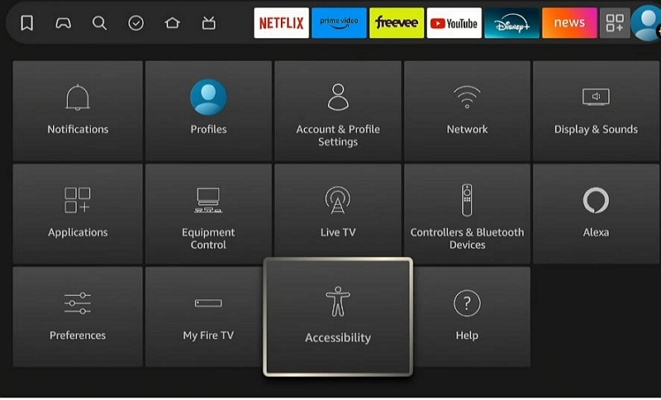
On Fire TV
- Enter Settings on your TV.
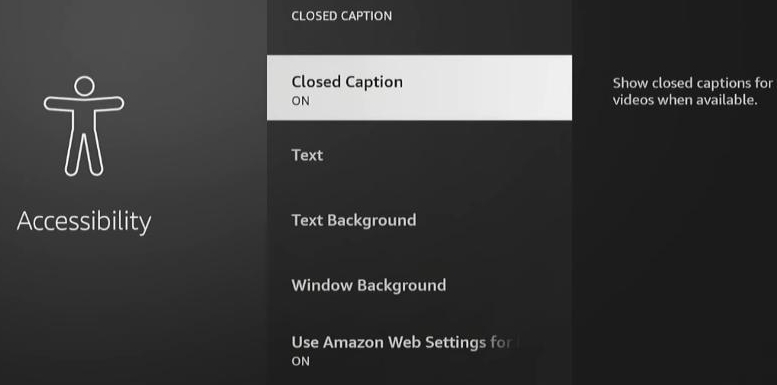
- Select Accessibility.
- Switch to Closed Caption and then turn it on. Once the feature is enabled, you will see options such as Text, Text Background, and more. You can use these to adjust the CC settings to your preference.
Step 2. Turn on CC in Paramount+ TV App
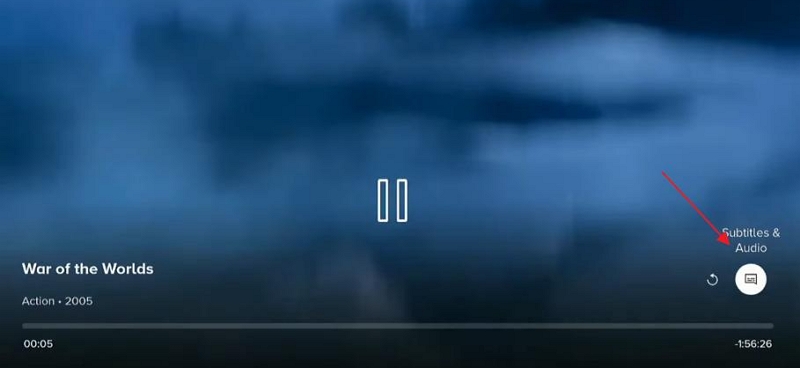
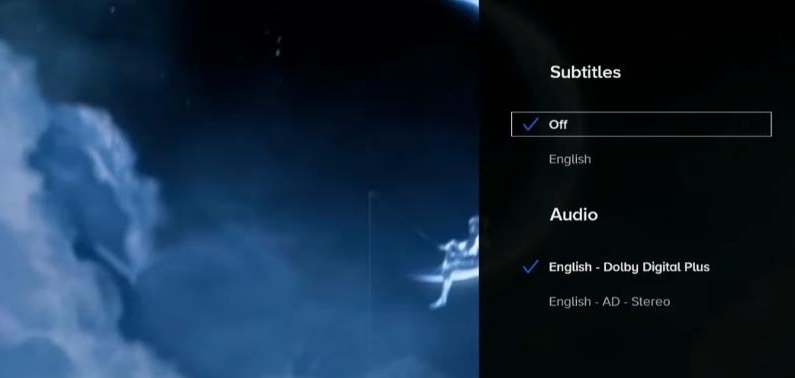
Now, it’s time to open the Paramount Plus app on your TV. Within the app, you can select the subtitle language, which generally cannot be set in the TV settings.
- Press down on the controller pad of your remote and press down again to open the subtitle options.
- Select your preferred language from the available choices.
How to Turn on Subtitles on Paramount Plus on Mobile
Watching videos on Paramount Plus on a mobile device is convenient and flexible, allowing you to enjoy your favorite shows anytime, anywhere. Unlike TVs, you don’t always need to adjust global settings first—many subtitles can be turned on directly within the app while a video is playing.
Steps to Enable Subtitles on Paramount+ on Android/iPhone
Step 1. Open the Paramount Plus app and play the video you like.
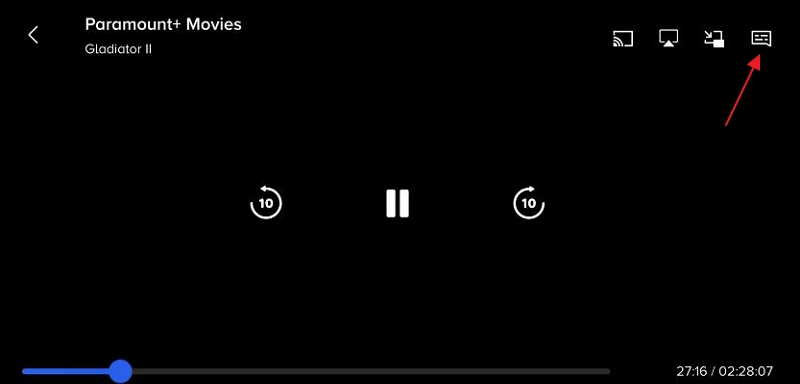
Step 2. Tap the screen and choose the speech bubble icon at the upper right corner.
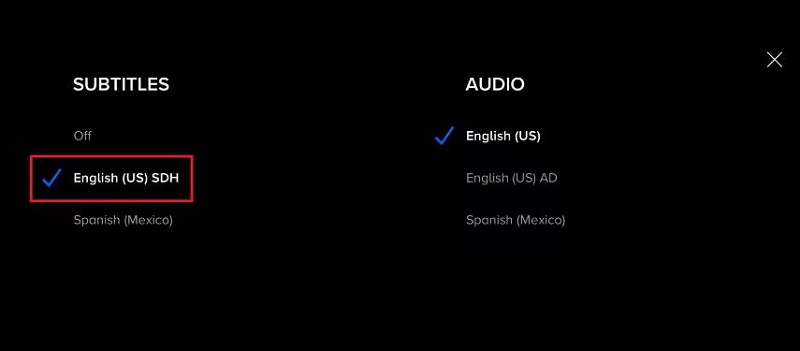
Step 3. Then, choose the desired language.
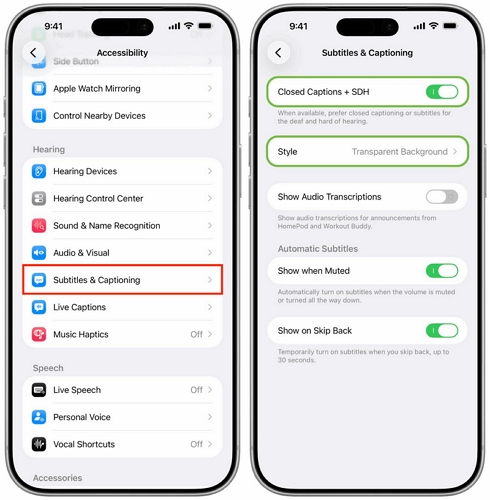
Step 4(Optional). To customize the subtitles:
On iPhone
- Go to Settings > Accessibility > Subtitles and Captioning.
- Toggle on Closed Captions + SDH.
- Tap Style to adjust the subtitle display.
On Android
- Access Settings, select Accessibility and choose Captions & Subtitles.
- From there, adjust size, style, and background opacity.
How to Turn on Subtitles on Paramount Plus on Desktop Browser
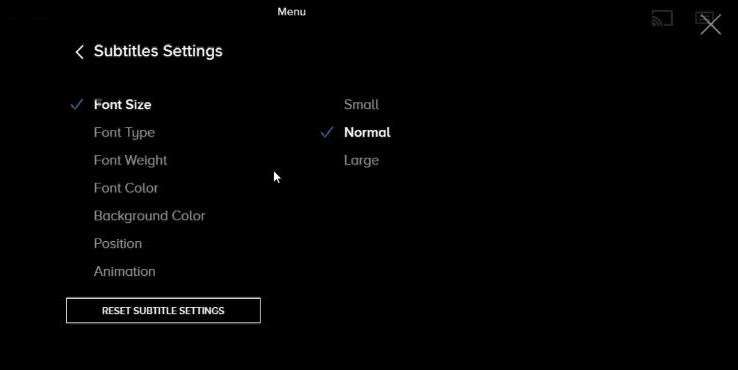
Watching on a desktop browser is popular for work-from-home scenarios or for multitasking. Subtitles here are controlled directly through the web player. Paramount Plus uses HTML5-based caption rendering, which allows precise synchronization with video playback. Unlike on TV and mobile, you can directly customize the subtitle style on the Paramount Plus web player.
Steps to Enable Subtitles on Paramount+ on Web
Step 1. Go to Paramount Plus website and log in. Next, start video playback.
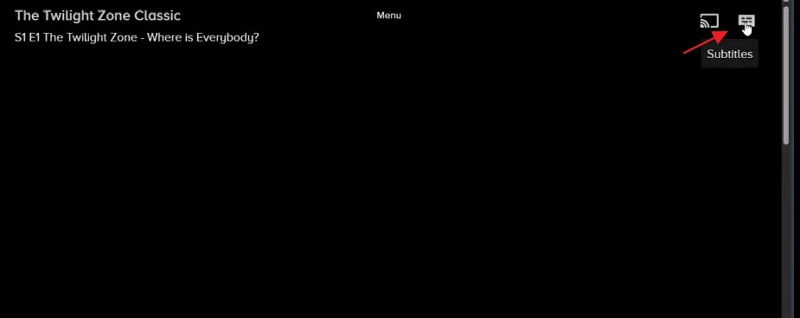
Step 2. Click the CC icon at the top-right corner of the player.
Step 3. Choose a language.
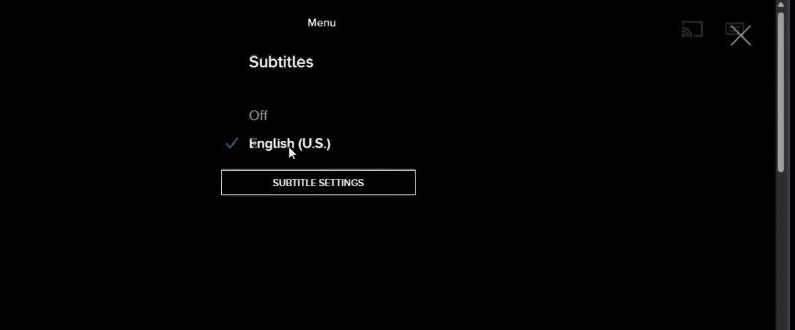
Instantly, you will see a Subtitle Settings option. Click it and you can make some customization to subtitles.
Tips:
- Desktop browsers allow keyboard shortcuts (e.g., Ctrl + Shift + C) to toggle subtitles quickly.
- Using Chrome or Edge ensures faster subtitle rendering, whereas some older browsers may lag during HD playback.
Why Are the Subtitles Not Working on Paramount Plus? (Fixes Included)
Sometimes, subtitles fail to appear even after following steps. Here, we’ve summarized the common causes and their corresponding solutions.
Pro Tips:
If subtitles appear out of sync, restarting the video or app often resolves timing issues.
Bonus: How to Watch Paramount Plus Offline with Subtitles
If you want to watch Paramount Plus offline on your mobile device, using the native app is the most convenient method. However, if you want to watch offline on a computer, unfortunately, there is no official way to do so. Don’t worry, you can still watch Paramount Plus offline on your PC using third-party tools.
Mediaio Video Converter can help you convert Paramount Plus videos to local formats like MP4. During the conversion, the high video quality is fully preserved(up to 4K), and subtitles are downloaded as well, in VTT or SRT format. Once converted, you can use desktop media players such as WMP, QuickTime, or VLC to watch the videos anytime, for personal viewing only.
To Sum Up
Enabling subtitles on Paramount Plus enhances your viewing experience, improves comprehension, and ensures accessibility across devices. Whether you’re on a Smart TV, mobile device, or desktop browser, Paramount Plus provides versatile options for turning on and customizing subtitles. Remember these key points:
- Smart TV subtitle settings vary by platform (Roku, Apple TV, Samsung, Fire TV) but can be customized for readability.
- Mobile apps offer per-video subtitle toggles and accessibility customization.
- Desktop browsers provide precise control and larger font options for prolonged viewing.
- If subtitles fail, check video tracks, CC settings and app version.
- For offline viewing, Mediaio Video Converter preserves subtitles while allowing portable playback.