

If you’re growing a brand or promoting a product, you already know YouTube Shorts is a powerful channel for marketing. YouTube Shorts move fast and UGC (user-generated content) is the ultimate cheat code. Your UGC videos should feel real and still be quick to produce, letting you save time, effort, and money without losing that human touch. The problem is how you create a UGC video effectively. And that’s where this guide comes in. It covers the best UGC video makers for creating YouTube Shorts for every kind of creator. Whether you want full AI-generated videos or videos created based on your footage, you can find the perfect UGC video makers for you right here.
If you want to save online videos offline, such as YouTube videos on your phone, the native app is a convenient choice. When you need to watch videos without an internet connection, like Paramount Plus on desktop, Mediaio Video Converter is a helpful tool.
More DetailsWhat to Consider When Choosing UGC Video Makers for YouTube Shorts
You should pick a UGC video maker that fits your workflow and helps you create the type of Shorts that connect with your viewers. Here are some core factors to evaluate them carefully for your needs.
Ease of use
This depends heavily on your comfort level.
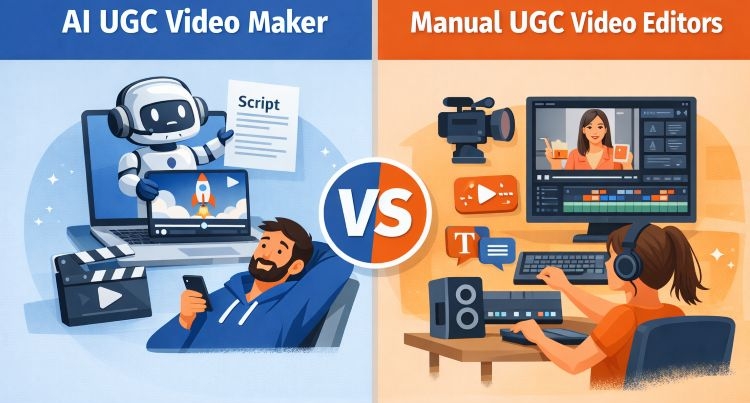
The hands-off creator
If you want the AI to do most of the work, prompt-to-video UGC tools are your best bet, like Arcads or Creatify AI. You can give it a script, and it will give you ready-to-use Shorts you can upload to YouTube.
The hands-on editor
If you still prefer timelines and keyframes, and want to work with your own footage while adding things like captions, effects, or templates, then tools like CapCut, Caption AI, or InVideo make more sense.
Features
This again comes down to your needs.
Many UGC video makers claim to be the “all-in-one” tool. But in real use, they only excel in something specific. So it’s better to choose based on that strength.
We’ve included tools across all categories—some are best for pure AI generation, others for editing, and a few are optimized to do both things, so you can pick what fits your needs and helps you create better Shorts.
Pricing
Judging a tool in 2026 based only on cost is no longer reliable.
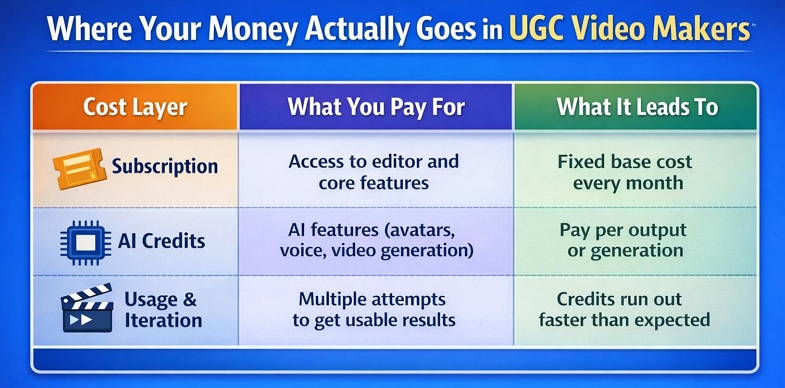
What you see upfront is usually just the subscription fee. But with AI built into almost every UGC video maker, you now have to consider a two-layer cost:
- The Subscription Fee: This is your "entry ticket" to the platform's editor and basic features.
- The AI Credit Cost: Most high-end features, like AI avatars, video generation, or voice cloning, run on credits.
And there’s a third factor people often miss—trial and error. You will often need two or three attempts to get a usable result (AI still makes mistakes!). And each attempt will consume credits. This means your "monthly credits" can disappear much faster than you think.
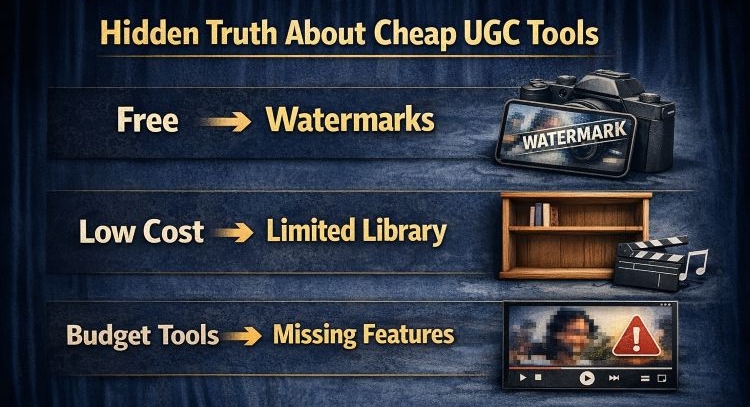
Watch for "Hidden" Barriers
A low price tag often comes with compromises that can hurt your channel's growth:
- Watermarks: Free or "Basic" tiers often force their logo onto your video. This is a dealbreaker for professional UGC.
- Limited Libraries: Cheaper tools will have smaller stock footage or music libraries, forcing you to pay for extra subscriptions elsewhere.
- Feature Gaps: Some "budget" tools lack the 2026 essentials, like AI clones or high-quality dubbing.
9 Best UGC Video Makers for Creating YouTube Shorts
So here are the best options for creating UGC Shorts. This isn’t just a simple list. You’ll also find what each tool offers, its pricing, and compatibility.
We’ve also covered how each tool feels to use and the kind of results it actually produces, so you can quickly see whether it fits the type of UGC Shorts you want to create.
1. Arcads AI
👍What Makes It the Best: Creates realistic talking-style UGC videos from a script using AI actors. No filming needed.
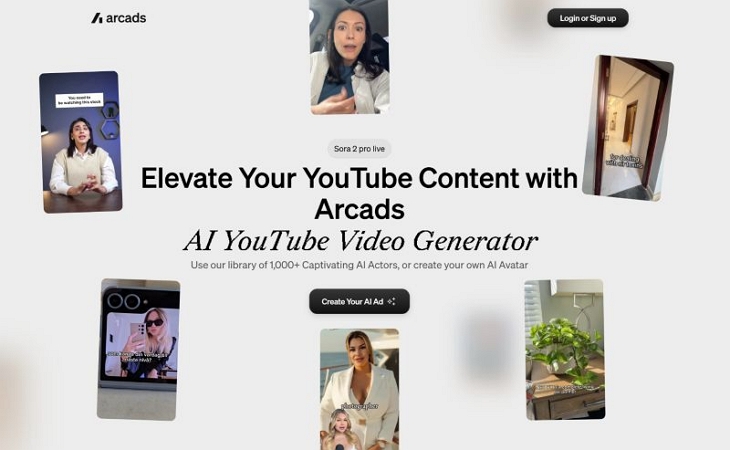
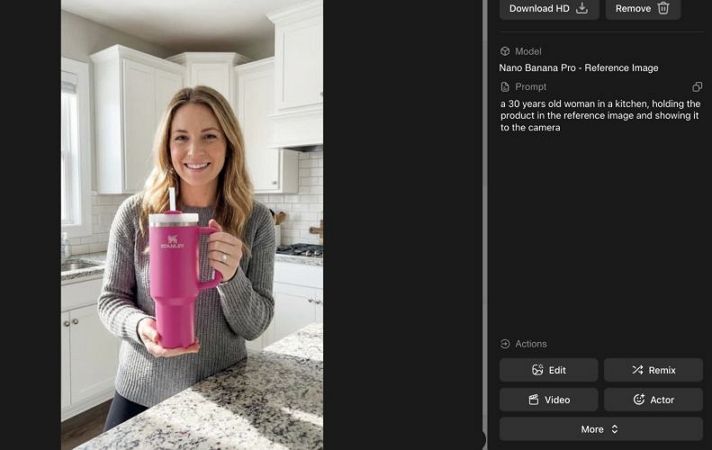
Arcads AI is built for one purpose—creating videos where a person talks directly to the camera, just like a typical YouTube Short or UGC clip. It is designed to generate everything from scratch. Still, you can get the option to upload your product as a reference or starting frame and even clone yourself into an AI actor (only with the highest plan).

Using it is also straightforward. You just sign in, choose whether to start from scratch or use a reference, then pick an AI actor. After that, select a voice and style. Once your script is added, the platform will generate a full video where the actor speaks with synced expressions and movement.
And there are filters for almost everything—gender, age, actor type, and voice. You can preview tones like enthusiastic, calm, or neutral before finalizing. You can also guide emotion directly in your script using cues like “excited” or “satisfied” to reduce the artificial feel.
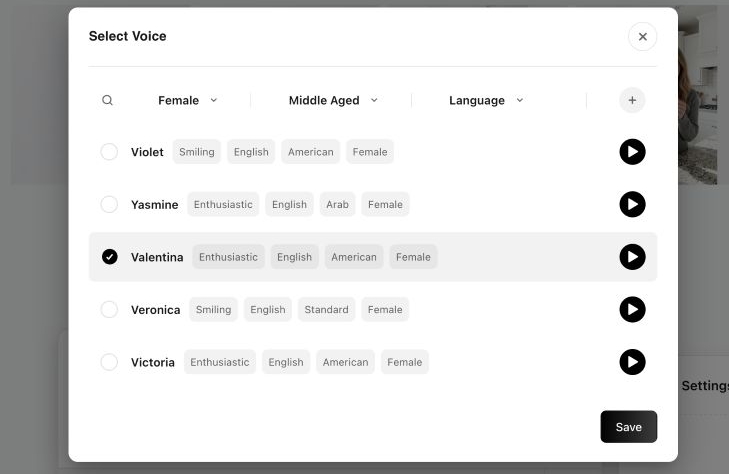
Its interface is simple even for someone new to AI tools. So, it’s easy to produce consistent YouTube Shorts without needing any filming setup.
Starter: US$110/mo (10 credits).
Creator: US$220/mo (20 credits).
2 plans above include 300 actors and 70+ languages.
Custom plan: 1,000+ actors, actor cloning, advanced features
Optimized for YouTube Shorts (9:16).
Lip sync in 70+ languages
What It Feels Like to Use Arcads AI
The biggest barrier here is pricing. Still, once you choose to use it, Arcade will deliver on what it promises. Facial expressions, hand movement, and voice delivery feel more natural than most similar tools. Even the realism when creating longer YouTube Shorts clips (1–2 minutes) stands out.
Where it needs effort is scripting. You still have to guide the output properly. Most users rely on tools like GPT, Claude, or Gemini to write better scripts before feeding them in.
Overall, it works best when you are ready to invest and want reliable, realistic AI-generated UGC but not something experimental due to its high cost.
2. Creatify AI
👍What Makes It the Best: Creates UGC-style YouTube Shorts using AI actors, product input, and AI script generation while still giving you timeline control to edit everything.
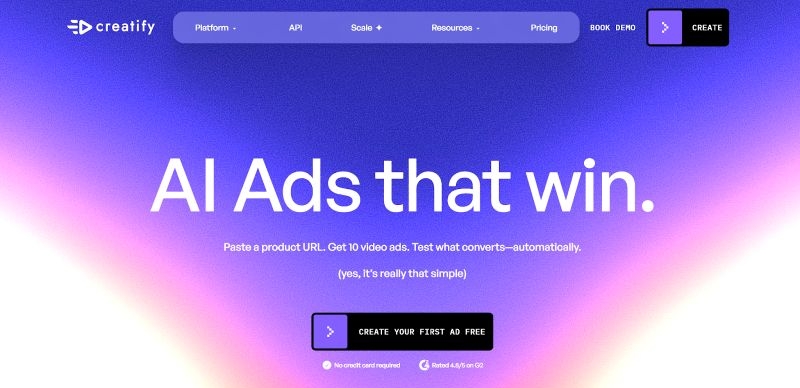
Go with Creatify AI when you want to build a complete YouTube Short from its interface, from idea to final video. Upon landing on the site, you will immediately notice that it’s designed for creating product-focused video, such as ads, promotional, marketing, etc.
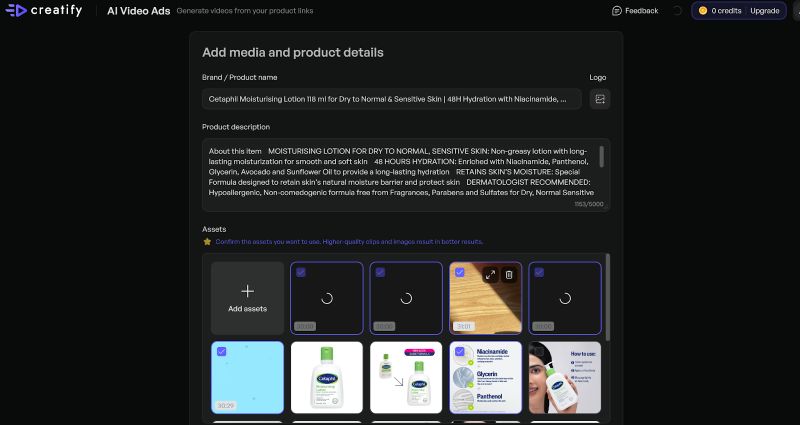
When it comes to creating a UGC-style YouTube Short, it will give you control at every step. You can choose from different AI avatars and product assets. It will even generate multiple scripts, or you can write your own.
Yes, it even generates multiple versions of the output. All of them will feature the same actor and script, but each version will come with different hooks, layouts, and styles. So, you can pick and render the version that works best.

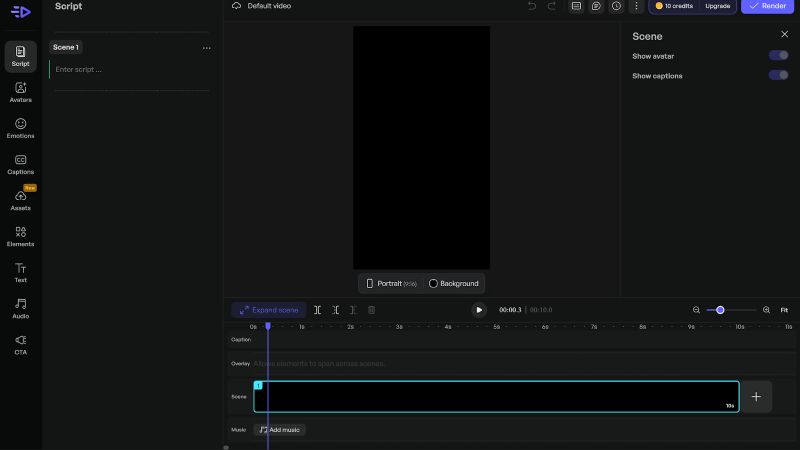
And where it clearly goes one step ahead is the timeline editor (Canva-style). You can adjust scenes, add text, insert elements, and refine the video before exporting the final YouTube Short.
Starter: US$39/mo (100 credits, up to 20 videos).
Pro: US$99/mo (200 credits, up to 40 videos).
Higher tiers available
Using Creatify AI
Creatify AI is very different from Arcads. It focuses on control but that also means it falls short when it comes to matching the realism of Arcads.
Still, you will get the readymade scripts, multiple variations, and the ability to shape tone and structure before finalizing anything. This makes it useful when you are creating content at scale and your audience is comfortable with AI-style videos (the results are not that natural).
The pricing is also more approachable. And the combination of winning templates plus timeline editing gives you more flexibility than most tools in this space.
3. CapCut
👍What Makes It the Best: Fastest way to turn your footage into UGC-style Shorts using templates and built-in effects.
CapCut has always been popular among newer UGC creators.
You can take your raw footage and turn it into a polished Short very quickly. With its newer AI features, it is being used even by advanced creators.
Take Script to Video as an example. You can submit your own script or let it generate one using AI. When you begin shooting on your phone, you will get a built-in teleprompter. You can adjust the speed, control the text, and record while reading it naturally.
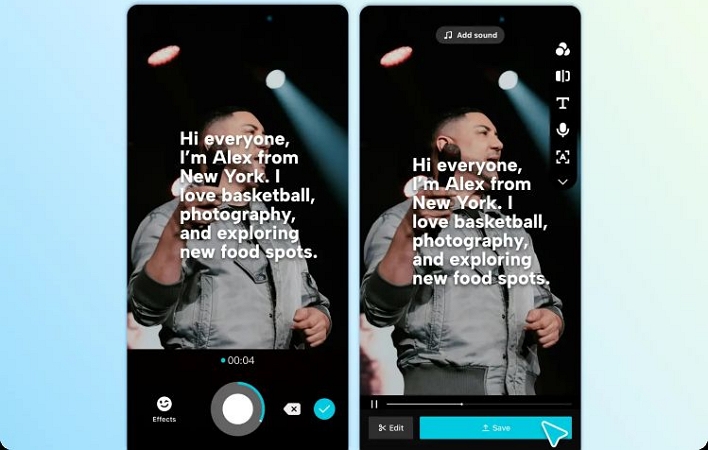
Plus, you can also shoot in parts. Record your talking clips first, then capture product shots, and combine everything later inside the editor.
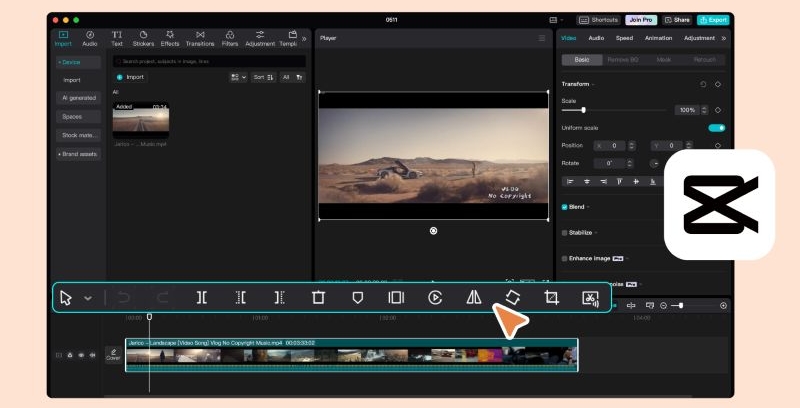
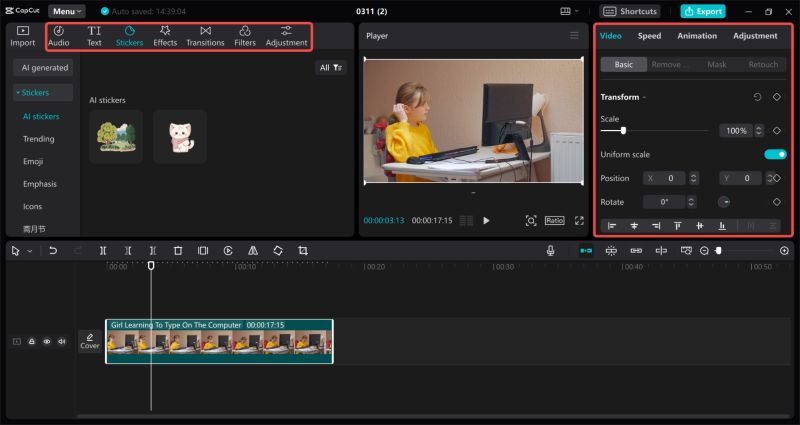
And then comes the editor, which is the core of CapCut. Even on mobile, it feels powerful while staying simple to use. When you need more control, you can switch to desktop and continue with a full timeline, better text tools, and precise edits.
Free version available with limited features without watermark.
Pro plan (US$19.99/mo) with watermark: access to premium AI tools, 1TB cloud storage, no watermark.
Team plans start higher.
Supports up to 4K and platform-optimized exports.
CapCut Review
Even though CapCut features a dedicated AI Video Generator, it is more suited when you are ready to shoot your own footage. It will give you everything to refine that footage. Templates, background music, sound effects, filters, lighting adjustments—all of it is built in. And when you need detailed control, the timeline editor lets you go deeper.
The simple-to-use interface is another strength. Even as a beginner, you can edit your footage into viral UGC-style Shorts in minutes.
4. Google Veo 3 + DaVinci Resolve
👍What Makes It the Best: Generate cinematic clips using Google Veo + combine AI that supports manual editing for you to get full control and high-quality UGC Shorts.
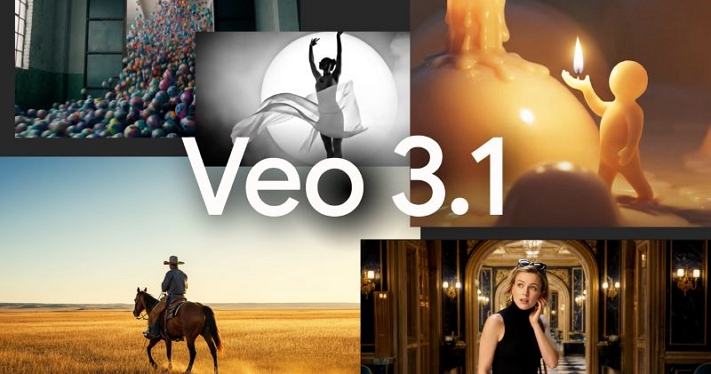
Google Veo powers many AI UGC video generators out there, so it makes sense to work directly with it.
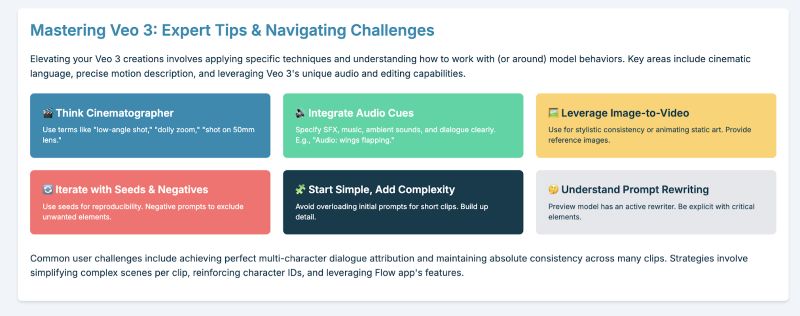
You can give clear instructions to Veo: describe the character, posture, background, lighting, camera movement, and even the timing of emotional cues. And it will generate clips for you. Veo generates clips in 8-second increments, but that works in your favor. You can focus on small details and build the UGC-style video step by step. You can also ask Veo to include your product into the scene — just upload reference images or submit a 3D-style image of your product.
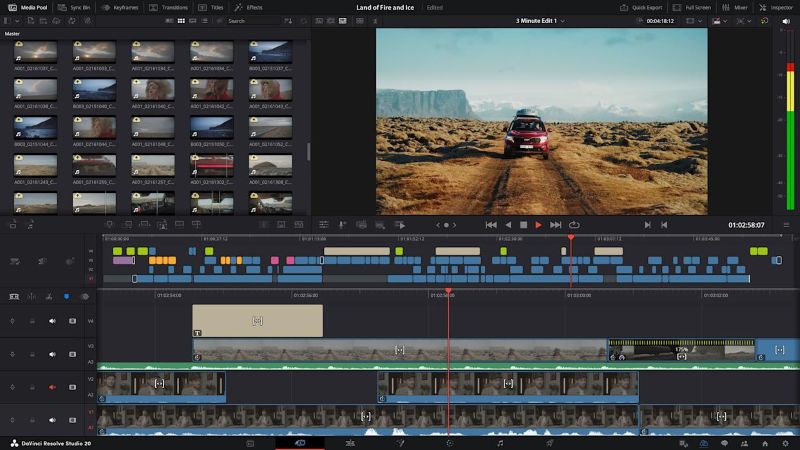
Once you have enough clips, you can move to editing. Tools like DaVinci Resolve or Clipchamp can help you create smooth YouTube Shorts using the clips. They will allow you to arrange clips, clean transitions, fix awkward moments, add text, and refine the overall flow.
Editors: DaVinci Resolve (Windows, Mac, Linux), Clipchamp (Windows/Web) or Shotcut (Windows, Mac, Linux).
Veo 3: US$0.40/sec.
Veo 3 Fast: US$0.15/sec.
Most good video editors are free, so you can pick the one convenient that is for you.
What Using Veo Is Like
This setup is not easy.
With Veo, everything depends on how clearly you write your prompts. You have to be specific. Unlike dedicated UGC video generators, there are no ready-made avatars, fixed backgrounds, or templates to rely on. You are working with text and expecting the model to understand exactly what you mean.
The second part is even more demanding—editing. Using tools like DaVinci or something similar takes time to learn. You will need some practice before you can use them well and shape the clips properly.
But this is also the only setup where you control everything and can create something that actually looks convincing and makes your YouTube Short stand out.
5. InVideo AI
👍What Makes It the Best: AI video generator with a full video editor that can create your own AI clone.
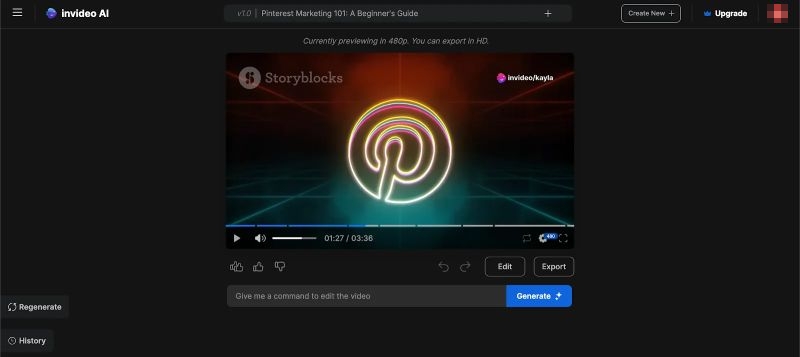
InVideo AI version 4 has completely changed how the platform works. You can now create an AI avatar of yourself by recording a short clip of around 60 seconds. That avatar can then be reused across future YouTube Shorts as your own UGC-style presence. Or, you can also choose from prebuilt actors available inside InVideo and generate videos using their footage and voice styles.
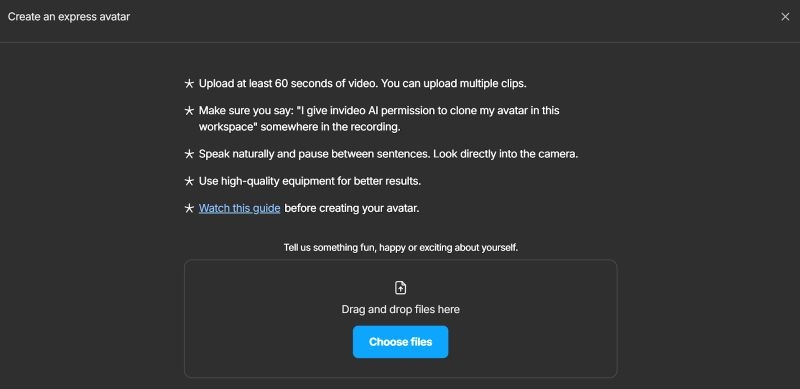
Voice cloning was already strong in earlier versions. So now, with avatar creation added, you can combine both to generate videos using your own face and voice with very little input.
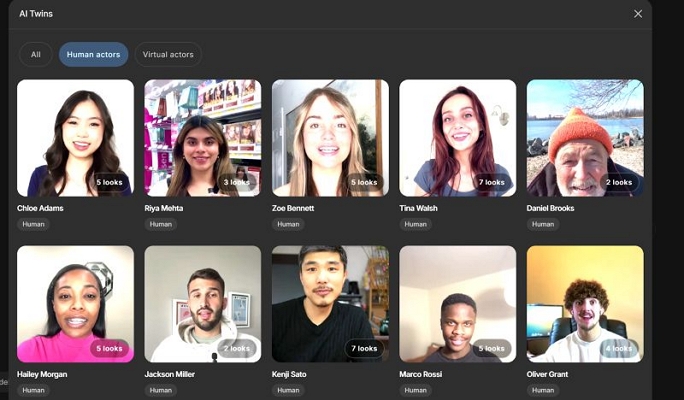
All the earlier features are still available. You can create faceless videos, use stock footage, or build clips from templates, prompts, and visuals.
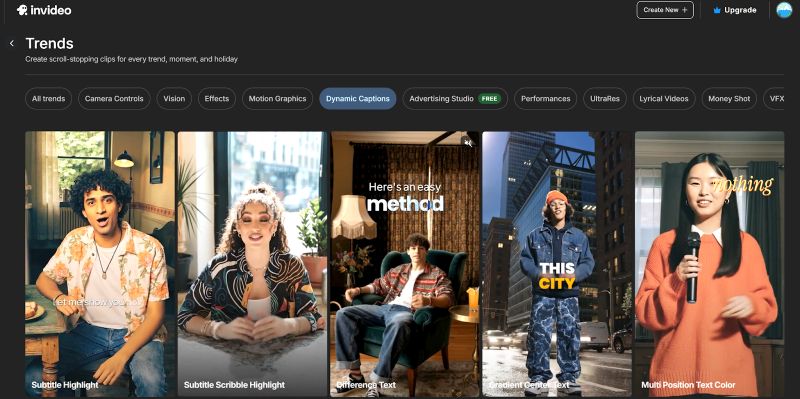
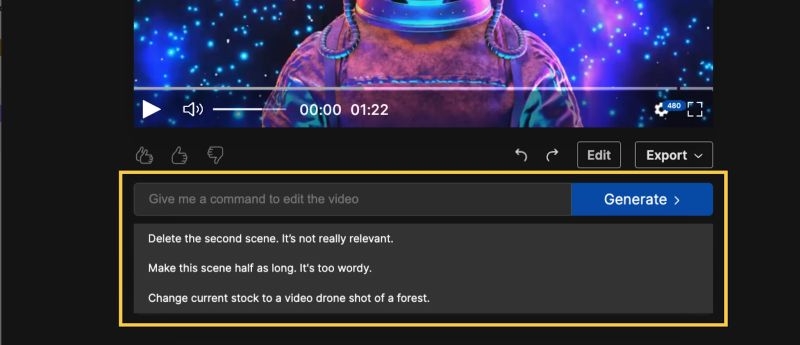
Of course, the core strength of InVideo also remains: Magic Box. It lets you refine the generated video using simple commands — remove a scene, change the voiceover, adjust tone, and more.
Overall, this setup works well if you are a beginner. You do not need to understand editing or storytelling deeply, yet you can still create clean UGC-style YouTube Shorts.
Plus: US$28/mo (10 credits, limited UGC ads).
Higher plans offer more credits and video minutes.
How It Feels to Use InVideo
InVideo AI results now feel more personal (even in the first pass), especially when you use your own avatar and voice. That said, a few issues still remain. Spelling mistakes still show up sometimes. Generation is still expensive. Credits run out quickly (often without you noticing), so you need to keep an eye on usage. Some outputs still need light refinement before they feel complete.
But overall, it has reached a point where you can rely on it for short-form YouTube content without struggling too much.
6. Captions AI (Earlier known as Mirage)
👍What Makes It the Best: One-tap AI video editing + captions + dubbing, all optimized for creating UGC Shorts directly on iPhone.
Captions AI works best when you are on iPhone. The Android and web version is not as feature-rich as the iOS experience.
On iPhone, the focus is simple—take your raw footage and turn it into ready-to-post content in one flow. The biggest advantage comes from its one-tap AI editing. You can apply transitions, subtitles, pacing, and visual effects, and other small adjustments easily. There is also an AI teleprompter, similar to CapCut, which will help you to shoot the video.
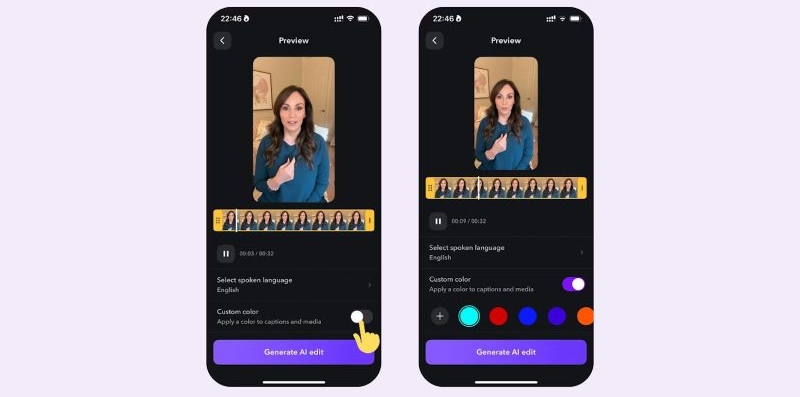
There’s also the AI generation capabilities. You can create an AI version of yourself. Either clone your own face or use available AI actors — similar to what you see in InVideo. The difference here is flexibility. You can reuse the same avatar, but change backgrounds, add objects, and generate multiple variations from it.
The strongest part is captions and dubbing. You can dub your video into 29, and generate accurate subtitles across a wide range of languages.
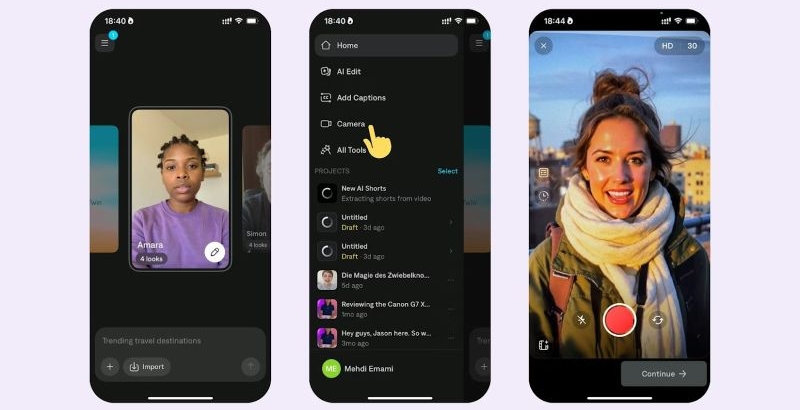
Android (known as Captions Lite)
Note: The “Captions AI” on the Play Store is a different product from another company (not Mirage Studios).
Pro: US$9.99/mo (custom avatars, more tools).
Max: US$24.99/mo (up to 30 AI twins, extended features).
See How Captions AI Works in Practice
Captions AI works best when you already have your footage and want to handle everything on your iPhone. You can apply effects, adjust text, add B-roll, and shape the video without switching tools. Here, speed is the biggest strength.
But you do not get a proper timeline. So if you want very precise edits or want to cut something at an exact frame, it will feel limiting. And it can also feel expensive for what it offers.
Still, for quick edits, captions, dubbing, and polishing UGC-style Shorts on mobile, it does the job well.
7. VEED.io
👍What Makes It the Best: Simple browser-based editor with AI tools, strong subtitles and captions options for creating polished YouTube Shorts.
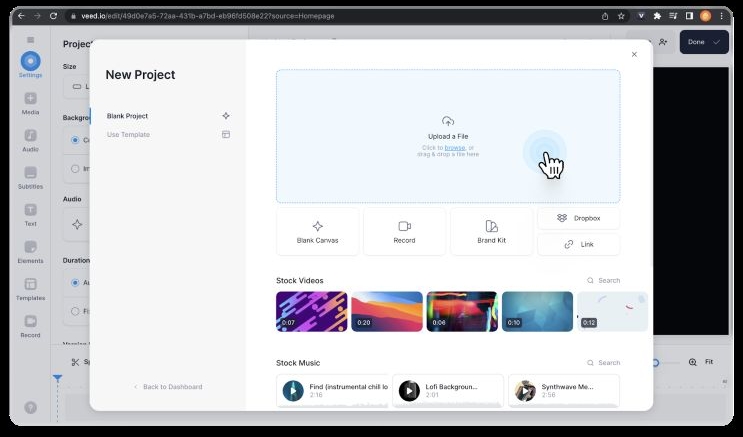
Veed does let you generate videos using AI, but that is not where it truly stands out. Its real strength is still its video editor.
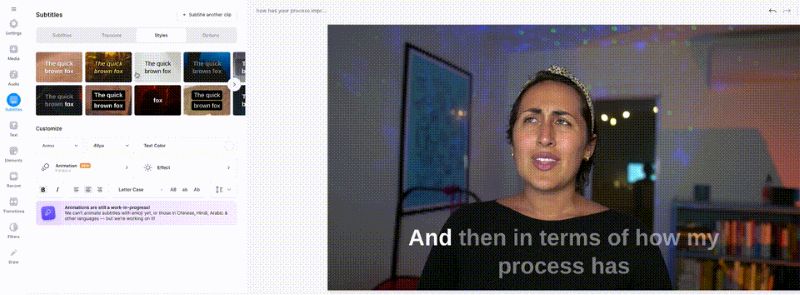
And with AI now built into the editor, a lot of the manual work is gone. You can clean up audio, remove filler words, and cut silences in one go. You can also remove backgrounds, extend frames to fit vertical formats, and even generate supporting visuals where needed. Face filters, green screen, and quick effects are all there if you want to make your Short more engaging.
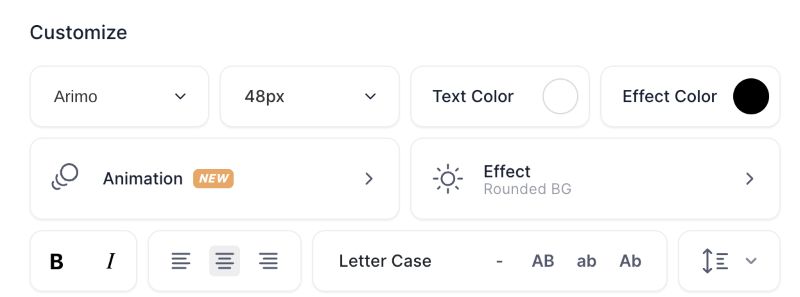
You still get the usual editing controls, such as adding text, elements and visuals, and shaping your video the way you want. And captions are where Veed really pulls ahead. They don’t just stay as plain text. You can shape them with built-in styles and animations, which fits naturally into UGC-style YouTube Shorts.
There is also a built-in translator. You can convert your video into multiple over 50 with a single click.
Lite: US$12/mo (1080p, limited AI).
Pro: US$29/mo (full features).
AI generation will require credits
What It’s Like to Use Veed
Veed works best when your goal is speed and clarity. The AI editing features cut down a lot of manual effort and save time. Its AI Video Generator and Avatar features, however, still struggle with realism.
Where Veed genuinely stands out—arguably even ahead of advanced options like Premiere Pro, is subtitles and captions. The transcription is accurate, and refining it for UGC-style content is simple.

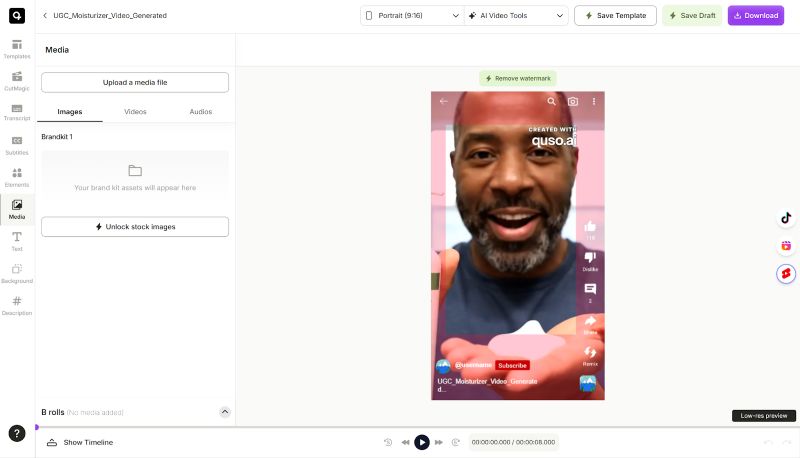
8. Quso.ai
👍What Makes It the Best: Create UGC-style Shorts by generating new videos and turning long content into multiple short clips.

Quso AI works best when you think of it in two parts.
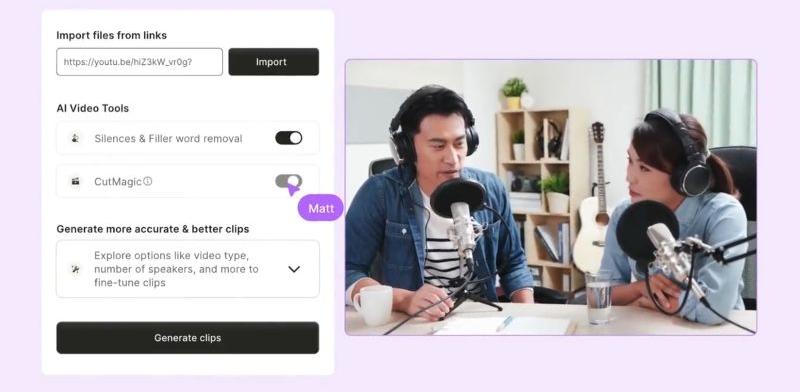
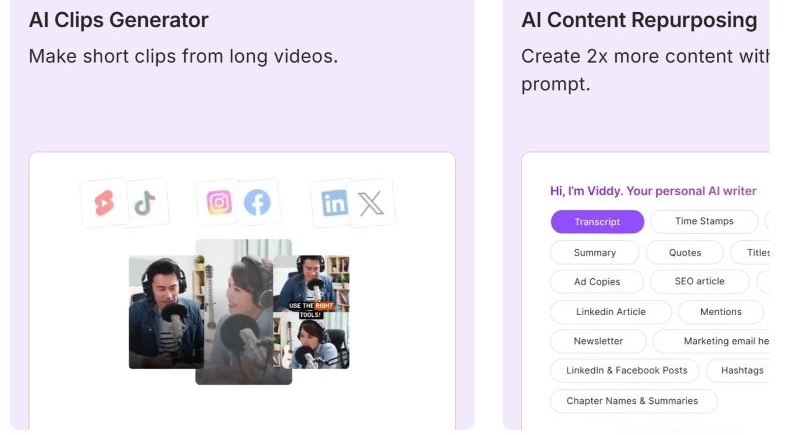
First, its most useful feature is Long Video To Short Video AI Generator. It can scan long videos and pick the most engaging moments and then it turns them into YouTube Shorts. You can even ask it to publish the clips to YouTube at a time you decide.
Second, it includes AI video generation. You can create simple videos using text or scripts, either as faceless content or basic avatar-style clips.
After generating clips or even when you upload your own videos, it also gives you a lightweight editor. You can adjust subtitles, tweak the transcript to change the video content and add small elements to shape the final Short.
Lite: US$29/mo (AI clips, captions, generator, resizing, 1080p exports).
Essential: US$39/mo (adds scheduling to multiple platforms, advanced AI access).
Higher tiers unlock most features.
Use Quso AI in Practice
Quso AI doesn’t make sense when you want to create YouTube Shorts from scratch. It works better when you already have content and let it pick and turn the most exciting parts into usable Shorts.
Its AI video generation, however, lacks realism. So, it’s best not to expect high-quality UGC-style output from it. Where it stands out is workflow. It includes a built-in social media planner. You can connect your platforms and publish across them from one place.

9. YouTube Studio
👍What Makes It the Best: Handle last-minute subtitle changes and quick edits directly inside YouTube. Post-upload editing without losing your existing views.
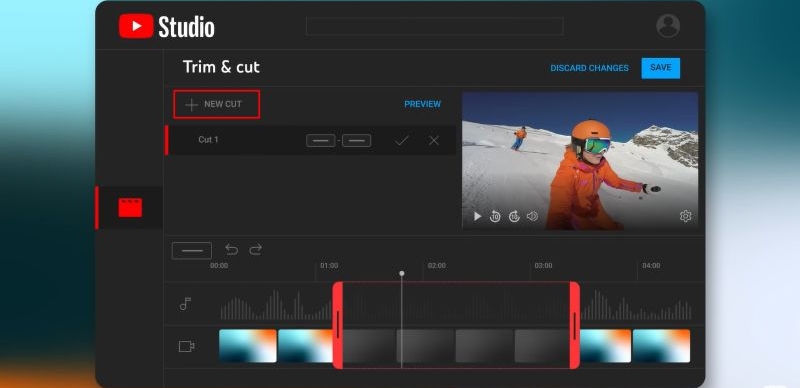
YouTube Studio built-in editor can help when something needs fixing at the last moment. It could be subtitle timing or the beginning and ending scenes you want to change. So you can fix all of that at the last minute right inside YouTube Studio.
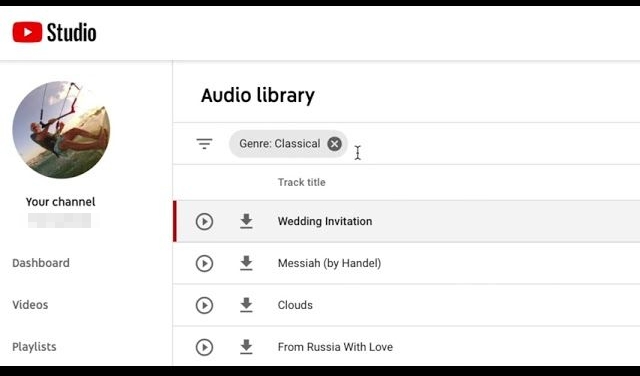
You will also get access to the Audio Library which lets you replace your audio or choose a track for your video. It is simple to use and helpful if you want to avoid copyright issues.
Another strong advantage is post-upload editing. You will get access to the same tools even after your video is live. This is really useful. For example, if some sensitive information is still visible, you can use Blur to hide it without losing your views.
And don’t forget to link Related Video. This will help your viewers jump from your Short to the full-length review or related video.
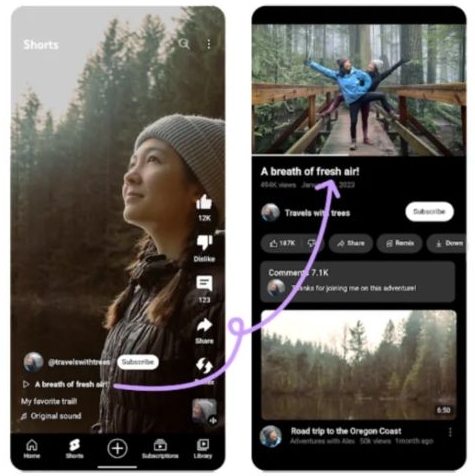
YouTube Studio Feedback
Trim & Cut, Blur, Replacing Audio, all these tools are extremely useful. And knowing how to use the tools inside YouTube Studio is non-negotiable if you are serious about building on YouTube.
The more important part is the insights. Many creators ignore this. But look at Audience Retention and Viewed vs Swiped Away. These numbers will tell you what is actually working and what is not. So you can plan your next UGC videos based on what truly resonates with the viewers.
FAQs
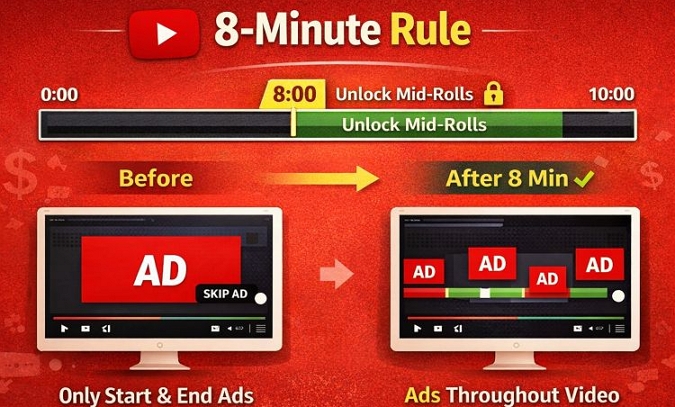
What Is the 8-Minute Rule on YouTube?
The 8-minute rule applies to long-form videos, not YouTube Shorts. Cross that mark, and YouTube will let you place mid-roll ads. So you can control how often these ads appear, instead of relying only on pre-roll or post-roll ads.
In simple terms, this increases your earning potential from the same video without depending only on views.
Can I Upload 100 Shorts a Day?
Technically, yes. But don’t do it.
With bulk tools like Quso and Creatify AI, it’s tempting to push out dozens of AI-generated Shorts in a day. But YouTube algorithms will treat “100 AI-generated videos in 24 hours” as spam and shadowban your reach.
Keep in mind that YouTube rewards consistency and engagement but not sheer volume. Successful creators follow this. You’re far better off creating one to 3 to 4 high-quality shorts a day. And focus on retention, clarity, and watch time. That’s what actually grows a channel.
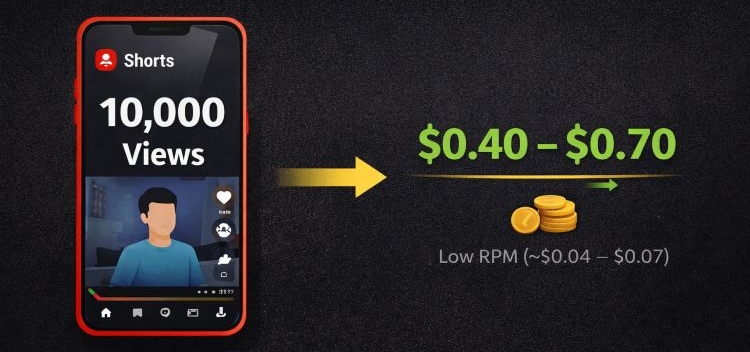
How Much Money Do 10,000 Views on YouTube Shorts Make?
After your channel is qualified for YouTube Partner Program, your Shorts views will generate revenue. But the RPM (Revenue Per Mille—what you earn per 1,000 views) is quite low. Shorts are built for fast swiping, so viewers don’t stay long and that keeps earnings down.
On average, Shorts RPM sits around US$0.04 to US$0.07. So for 10,000 views, you’re looking at roughly US$0.40 to US$0.70. That’s why UGC video makers make sense. You don’t have to spend much to create content, and you can still use Shorts to drive affiliate clicks, sell products, and grow your channel.
How Many Views on Shorts to Make US$1000?
Shorts revenue comes from the YouTube Shorts pool, not traditional ads, so there’s no fixed number.
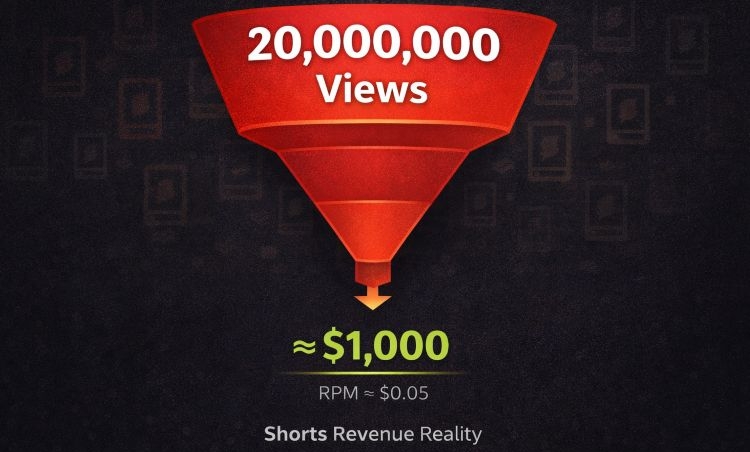
But you can get a rough idea: if your average RPM is US$0.05 per 1,000 views, you would need 20 million views in a month to reach US$1,000. That’s a massive number, and it depends heavily on retention. So keep an eye on your Viewed vs Swiped Away metrics in YouTube Studio.
In practice, it makes more sense to combine Shorts with affiliate links, product promotion, and long-form videos—those are far more reliable for income.
Conclusion
So these are the best tools you can use to create UGC-style YouTube Shorts.
Pick what fits your style of working:
- Go with AI generators like Creatify AI or Arcads AI to generate full videos quickly.
- Use a mix of tools like VEO, DaVinci Resolve, or similar setups when you want AI footage but still want control over editing. And this approach works best right now when you want to make your AI-generated content usable.
- Then come tools like CapCut, Captions AI, VEED, or even the basic tools inside YouTube Studio. These take your normal footage and turn it into something more polished with captions, effects, and structure that hold attention.