

You turn on NordVPN, load a YouTube video, and it plays perfectly, but the video stops dead for exactly 60 seconds. This “one-minute cutoff” on YouTube isn’t an internet problem. It’s a common VPN conflict that NordVPN users run into more often than they expect.
In this guide, you will find out how to fix the "YouTube videos won't play after one minute" NordVPN issue step-by-step. We have gathered all the fixes that usually resolve this within minutes. We have also included advanced solutions like converting YouTube videos to MP4 using Mediaio Video Converter.
Temporary Ways to Watch YouTube with NordVPN Without Interruption
Sometimes you just want to watch the YouTube video immediately before following advanced solutions, like troubleshooting DNS or messing with protocols.
In those cases, you can try these temporary workarounds first. The methods below work on almost all devices where you use the YouTube and NordVPN combination.
Way 1. Watch in Incognito Window
This is the fastest workaround for desktop and mobile users.
The one-minute cutoff often happens, because your browser’s cookies or cache act as a paper trail. And when Google detects a mismatch between your browser data and the VPN’s IP address, it will terminate the stream.
Opening the video in an Incognito window will solve this problem. Incognito mode starts an anonymous session, with zero cookies and zero cache, so YouTube has nothing to compare against your VPN connection.
On Desktop:
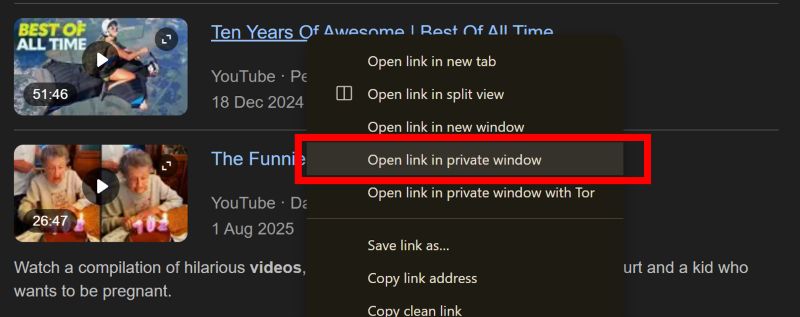
- Right-click the YouTube title or thumbnail.
- Choose Open link in Incognito window or select Open link in new private window (on Firefox or Safari).
On Mobile:
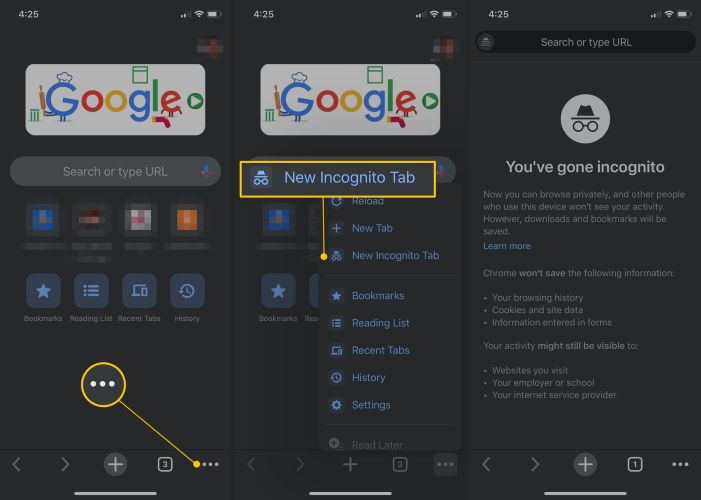
The YouTube app won’t work for this method. So, copy the video link using the Share option. Then, paste it into your mobile browser. There:
- Long-press the video thumbnail.
- Choose Open in Incognito tab.
The video will load in a private session and play normally without interruption.
Way 2. Watch in Embed Window
This method is meant only for desktop users.
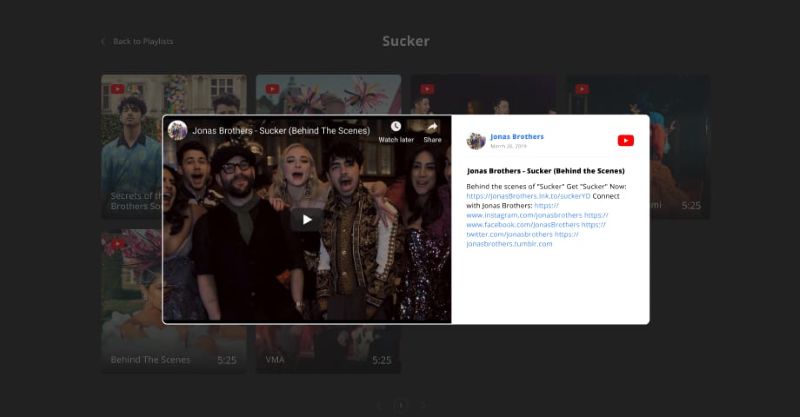
The Embed option is normally used to play a YouTube video on another site, like a blog or a Reddit post. But it also lets you access a video preview window which is a simplified, stripped-down player. So you can watch the same YouTube video, just inside the embed preview, without the usual tracking or location checks that often trigger playback limits when NordVPN is on.
There is one limitation to note: not every video allows embedding, as creators can disable it. Still, most public videos do support embedding.
How to Use the Embed Window:
- Open the YouTube video.
- Click the Share button below the video.
- Choose Embed (<>) from the share menu.
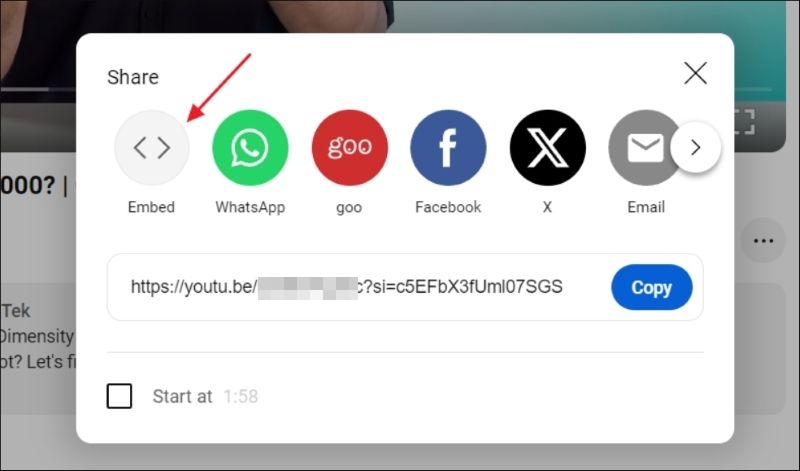
- A pop-up will appear showing the embed code and a video preview.
- Click Play directly inside the preview window.
The video will start playing right there.
Way 3. Switch to App from Browser or Vice Versa
This is a simple toggle fix and often works across devices, especially on mobile phones, tablets, and smart TVs.
Sometimes YouTube fails only inside the app while NordVPN is active. Other times, the browser version is the one that breaks. Switching between the two can reset how YouTube validates your connection and stop the one-minute playback cutoff.
On phones and tablets: open the same video in your mobile browser.
On smart TVs: try opening YouTube through the TV’s built-in browser (if your model supports it).
Fix YouTube Videos Won't Play for More than One Minute with NordVPN
The temporary workarounds are fine to watch a video or two. But if most YouTube videos stop at the one-minute mark, it’s time to fix the issue properly. This section will help you do that. Here’s a quick overview of the fixes:
Fix 1. Disable Threat Protection (DNS Filtering)
NordVPN’s Threat Protection feature (also known as DNS filtering) blocks intrusive ads, trackers, and malicious websites. However, this filtering can sometimes be too aggressive.
In some cases, YouTube video streams are mistakenly flagged as ads or tracking requests, and the connection gets cut. That’s why the video often plays for only about a minute — the initial buffer loads, then playback suddenly stops.
Turning off this feature usually resolves the issue immediately. And if it works for you, you can report this as a “false positive” to NordVPN support, so they can whitelist the affected YouTube domains.
For now, follow the steps below based on your device.
On Computer (Windows & macOS)
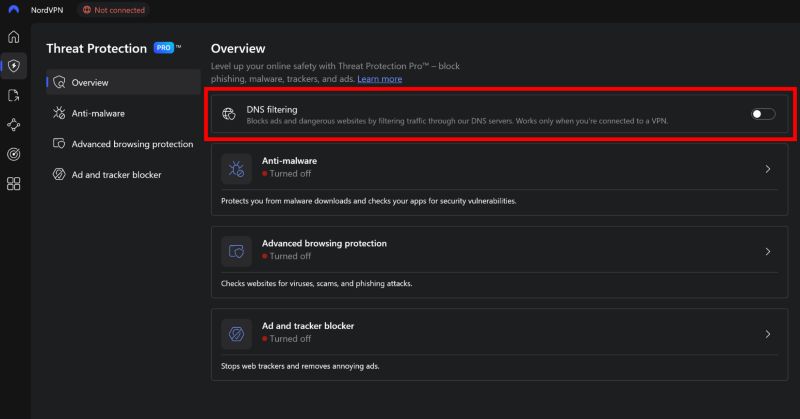
The desktop version of NordVPN offers the most control through Threat Protection Pro. It includes a dedicated toggle for DNS filtering, so you can stop YouTube blocking without disabling other security features.
- Open the NordVPN desktop app.
- Click the shield icon on the left sidebar (Threat Protection).
- You’ll land on the Overview page. Turn off DNS filtering here.
- Reload YouTube and test the playback.
Note:
If disabling the DNS filtering toggle alone doesn’t fix the problem, turn off the remaining Threat Protection toggles one by one, such as ad blocking or advanced browsing protection. Then test again.
On Mobile (Android & iOS)
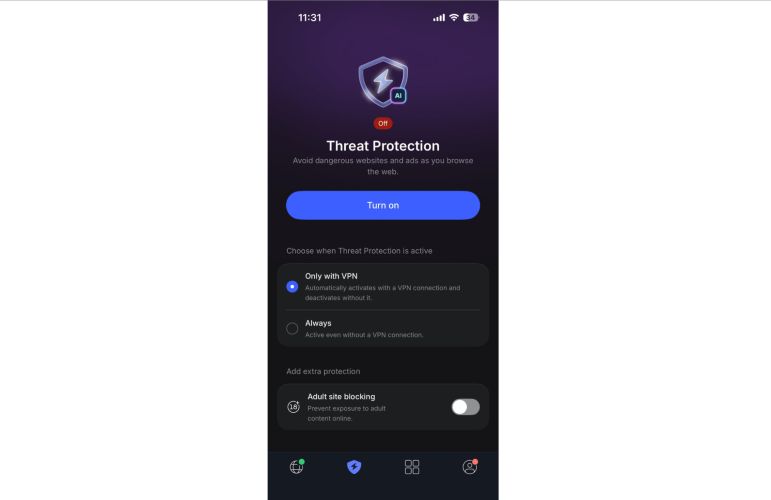
On mobile devices, there isn’t a separate DNS filtering control. Everything is bundled into the main Threat Protection feature itself. So you’ll need to disable the feature entirely to find if it is the culprit. Here are the steps:
- Connect to any VPN server inside NordVPN. (This matters—Threat Protection won’t change state unless a VPN session is active.)
- Head to the shield icon at the bottom.
- Turn Threat Protection off.
After switching it off, disconnect the VPN. Reconnect again if needed. This will force NordVPN to refresh its DNS state properly. Now return to the YouTube app. The video won’t stop after a minute anymore.
Browser Extension
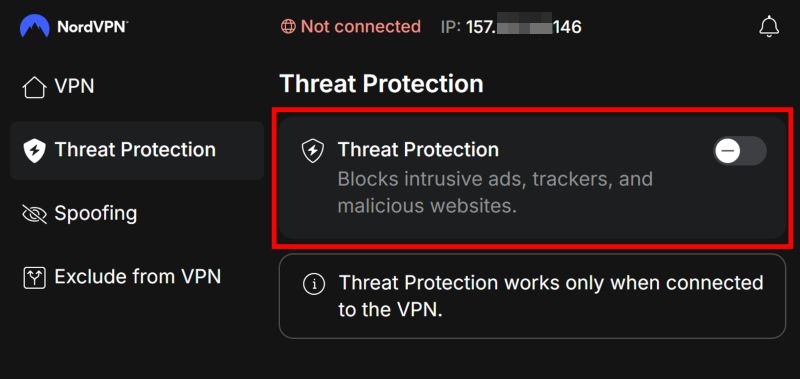
The browser extension interface is more straightforward. Follow these steps:
- Open the NordVPN extension.
- From the side panel, go into Threat Protection.
- Turn Threat Protection off and refresh the YouTube tab.
The video should now play past the 1-minute mark.
Safari on macOS:
- Open the NordVPN extension.
- Go to Settings. Move into Privacy & Security.
- Disable Threat Protection from there.
Test the video again.
Fix 2. Turn off Ad Blocker
On mobile and browser extensions, disabling Threat Protection already shuts down ad blocking in the background. On the desktop, it works differently. You get separate controls and they need to be handled directly.
Do This on Windows or macOS:
- Open the NordVPN desktop app.
- Head into Threat Protection from the left side. You’ll land on the overview page.
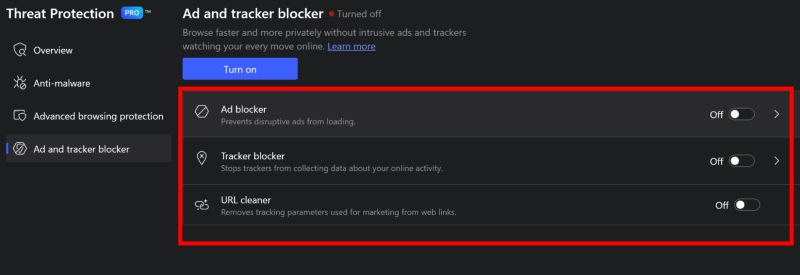
- From the sidebar, choose Ad and tracker blocker. This opens the detailed controls.
- Turn Ad blocker off. Make sure the status switches to off.
- Turn Tracker blocker off next.
- Finally, turn off URL cleaner as well.
If you prefer the quick route, use the Turn off button at the top. That shuts down all three at once.
Once done, disconnect the VPN. Reconnect again. Then try YouTube. If the video no longer stops after a minute, you’ve found the cause.
Fix 3. Use No Channel Account
This workaround happens inside YouTube itself and it behaves a lot like switching to Incognito.
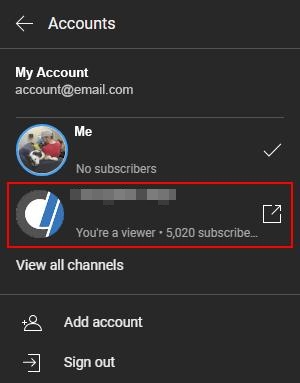
Some users have noticed a pattern: the playback issue with NordVPN shows up only when the YouTube account is tied to a channel. That matters because channel-linked accounts carry extra metadata: ads, session checks and account signals. All of that can trigger NordVPN’s filtering and cut the stream short.
And if you don’t have a YouTube channel in the first place, skip this fix. It won’t apply to you. However, if you do have a channel, switching accounts can clear the issue instantly.
On YouTube Mobile (Android or iOS)
- Head to your profile picture (bottom-right corner).
- Choose Switch account.
- Pick another Gmail account. Or add one using the + option.
- Once switched, search for the same video again.
Start playback with NordVPN still connected. For many users, the video continues to play past the usual cutoff.
On Desktop or Browser
The idea stays the same — you’ve to perform an account-level reset.
- Keep NordVPN connected.
- Select your profile picture on YouTube (top-right corner).
- Choose Switch account. Then select a secondary, non-channel account.
- Refresh the page. Play the video again.
If the stream holds steady this time, the channel metadata was the trigger.
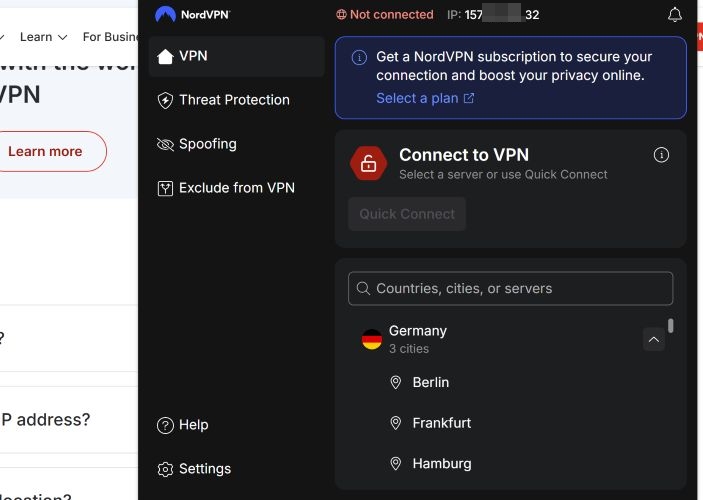
Fix 4. Change VPN Location
The issue could also be with the specific server you are currently connected to. Even if other websites are working perfectly with that location server, YouTube may not work specifically.
Google regularly blacklists ranges of IP addresses used by popular VPNs — not entire countries, but individual servers. When that happens, videos will throttle or quietly stop after buffering, even if everything else works fine.
Switching location forces NordVPN to assign a fresh IP address. Often, that’s enough to restore smooth playback.
Mobile App (Android and iOS):
- Open the NordVPN app.
- Disconnect from your current server.
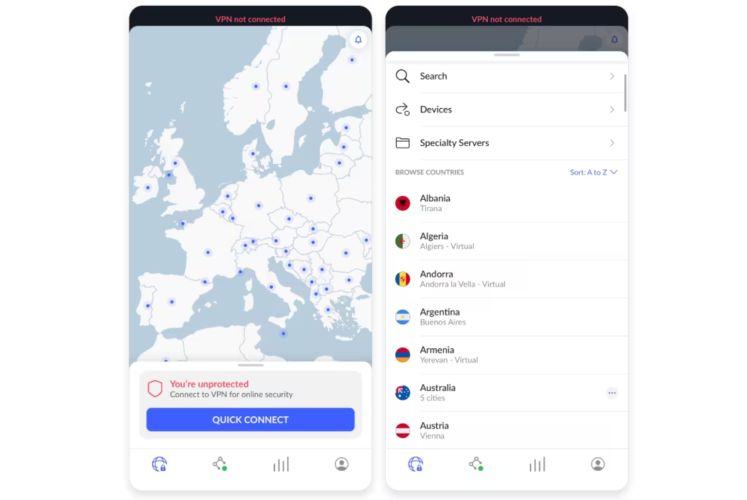
- Do not just tap Quick Connect. Instead, use the map or scroll down to the server list.
- Select a specific pin or tap the three-dot menu at the far right.
- Select a specific city (Example: If US New York is failing, then try US Salt Lake City).
Desktop App (Windows and macOS):
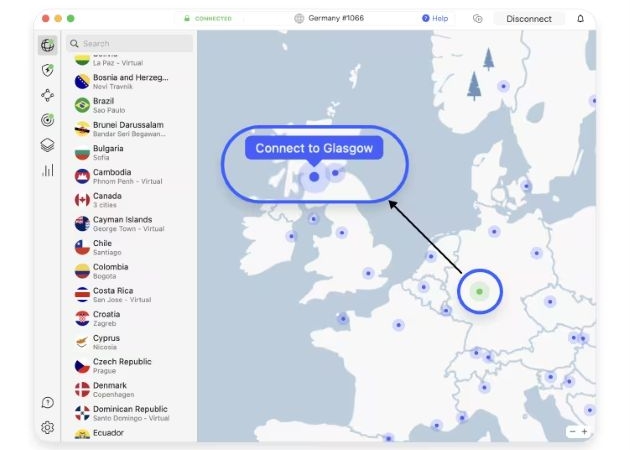
- Open the NordVPN app or map view.
- Click the Refresh icon (circular arrow) next to Quick Connect to instantly cycle to a new location from the same region.
- Or, you can click on a country name in the left sidebar and select from the individual cities manually.
Browser Extension:
- Click on the VPN extension icon.
- From the countries list, simply click on the arrow button.
- Select one of the cities. Or switch countries entirely.
Fix 5: Clear Browser/App Data (When Incognito Works)
Remember the Incognito trick? If that worked, NordVPN isn’t the problem in most cases.
What’s happening instead is simple. Your browser remembers where you were before the VPN connected — sometimes from minutes ago. YouTube sees those stored cookies, then sees you suddenly coming from Switzerland. That mismatch can flag and kill the stream, especially for region-restricted videos.
So clearing old data will remove the conflict. Once that’s gone, YouTube accepts the VPN location as the truth.
On Mobile (Android & iOS)
Mobile apps don’t expose cookie controls, like browsers do. You deal with cache instead.
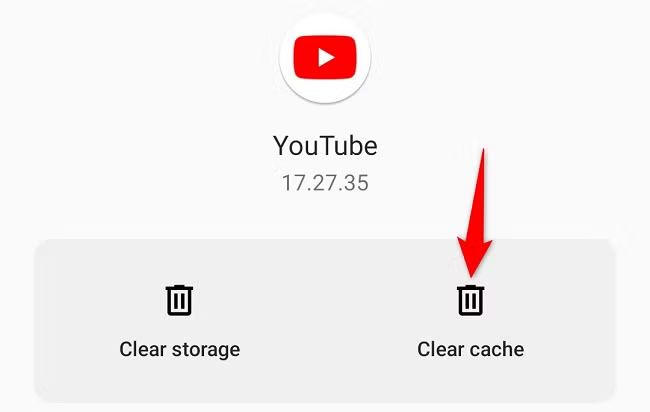
👉Android
- Long-press the YouTube app icon.
- Open App info.
- Choose Clear cache.
Don’t touch Clear data, as that will sign you out completely.
👉iOS
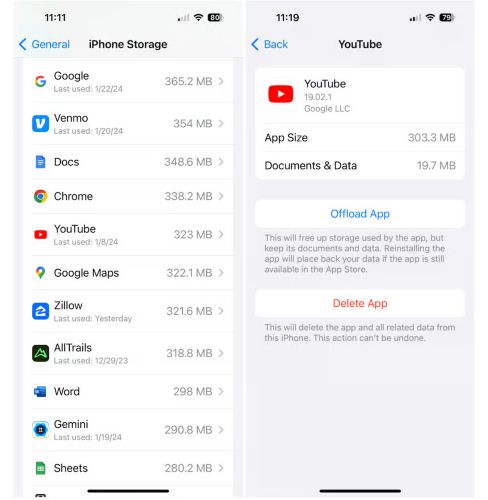
Apple doesn’t offer a cache button. Offloading is the clean workaround.
- Open Settings. Go to General and enter iPhone Storage.
- Scroll down and select YouTube.
- Tap Offload App. Wait a moment, then reinstall it.
This removes temporary files only. Your login and settings stay intact.
On Desktop Browsers
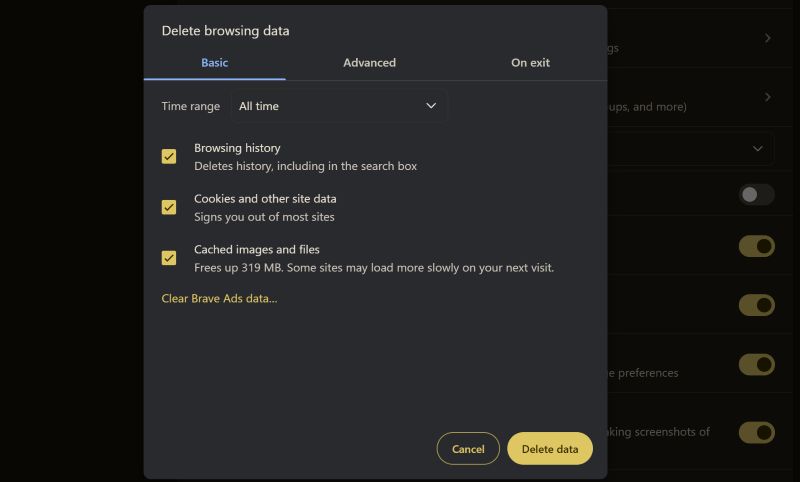
You can erase stored cookies and cached images for all sites at once. Or, you can choose to remove the YouTube data alone.
Quick Method (All Browsers)
- Press Ctrl + Shift + Delete (Windows) or Cmd + Shift + Delete (Mac).
- Select Cookies and Cached images and files.
- Choose Clear Data and Confirm.
Reload YouTube and test again.
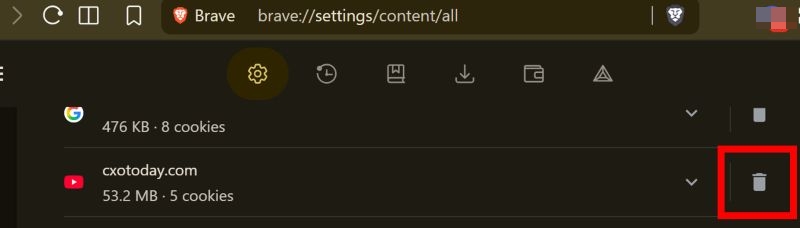
YouTube-only Cleanup (Chrome, Edge and Brave)
- Open browser Settings.
- Go to Privacy & security > Site settings.
- Choose View permissions and data stored across sites.
- Find YouTube and select Delete next to it.
Only YouTube data will be wiped. Everything else will stay untouched.
Fix 6. Disable NordVPN
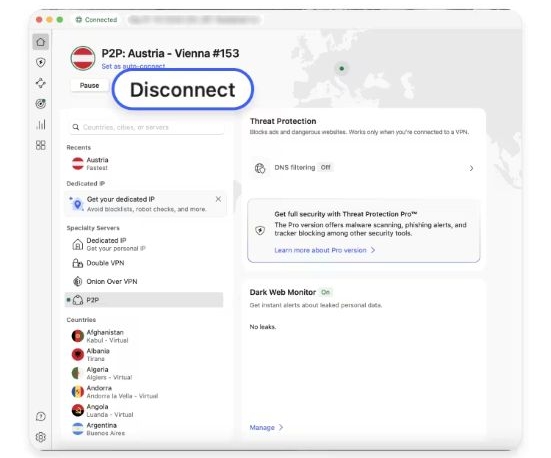
You can also pause the VPN connection.
- Simply tap the Disconnect button on your app.
- When the menu pops up, you can select Pause for 5 minutes or turn it off completely.
That's it. Switch to the YouTube app or page, reload, and chances are you can watch it.
Fix 7. Switch to Another VPN Service
If you need a VPN connection to watch the YouTube video in question, like if it is a region-restricted video, switch to another service.
Different providers handle traffic differently. For instance, Surfshark has a Nexus system that rotates IP packets. ExpressVPN uses specific lightweight protocols. If the video plays uninterrupted after switching, you can continue with the new provider. Or, you can also contact NordVPN support to resolve the issue quickly.
How to Save YouTube Videos for Offline Watching
When it comes to watching YouTube offline, you may think of downloading videos via the official app. In fact, you can save YouTube videos as MP4 or other formats. Mediaio Video Converter lets you do exactly that. Mediaio is a dedicated YouTube converter enables you to convert and save any video, including YouTube Originals in formats of your choice, like MP4, MKV, or MOV. You can also choose from multiple output quality options, from 480p, 720p, all the way up to 4K. It works flawlessly with geo-restricted videos. Plus, there is no limit on how many videos you can download.
Final Words
Now you know exactly why YouTube videos keep stopping at about 1 minute and how to deal with it.
If you want to watch YouTube offline, Mediaio Video Converter gives you a solid option. You can save YouTube videos as MP4 in up to 4K quality and watch them anytime without interruptions. There’s no need for YouTube Premium, and you’re free to download as many videos as you want for personal use.