

Since the Switch screen is similar to or even slightly larger than your phone’s, you might wonder: “can you watch YouTube on Nintendo Switch?” This feature comes in handy when your phone is low on battery or if you just want to use your old Switch as a media player. In this post, we’ll break down the answer for you. Whether you’re curious if your Switch model 1 or 2 supports YouTube playback, you’ll find all the details here.
You May Also Like
Can You Watch YouTube on Nintendo Switch?
Yes, but only on certain models.
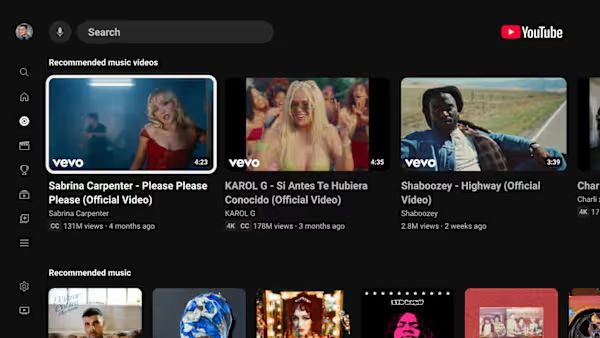
The YouTube app on Switch is a Nintendo-hosted web client. It is not the full YouTube platform you get on phones, smart TVs, Xbox, or PlayStation. That means features and video quality are more limited.
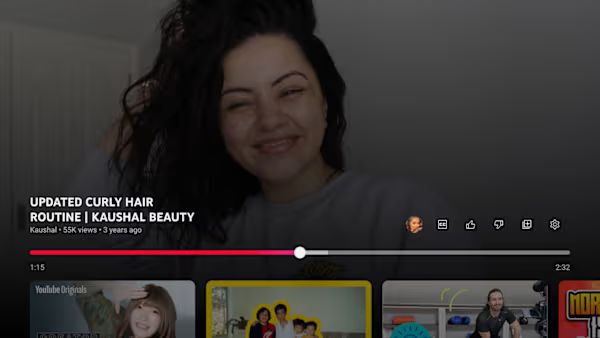
You can watch YouTube in three modes.
- Handheld mode: Use the Switch screen with a stream optimized for smaller displays. Video quality is capped to 720p.
- Tabletop mode: The Switch stands on a surface and still uses its own screen. Video behavior stays the same as handheld.
- TV mode: The Switch is docked and connected to a television. Output goes up to 1080p, but the YouTube app remains internally capped.
Still, you get a few unique benefits. One of them is 360-degree videos. You can pan around inside those videos using the Joy-Con sticks. This makes VR-style and travel clips far more interactive than a phone screen.
You install YouTube like any other Switch app. It is completely free to use. The usual YouTube rules still apply.
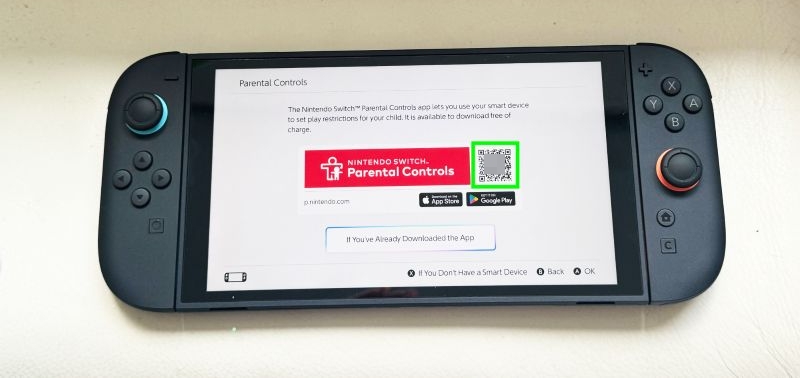
Note: If a Nintendo parental control profile is set to child or tween, YouTube stays locked. Teen and unrestricted profiles open the app normally.
YouTube-Compatible Nintendo Switch Models
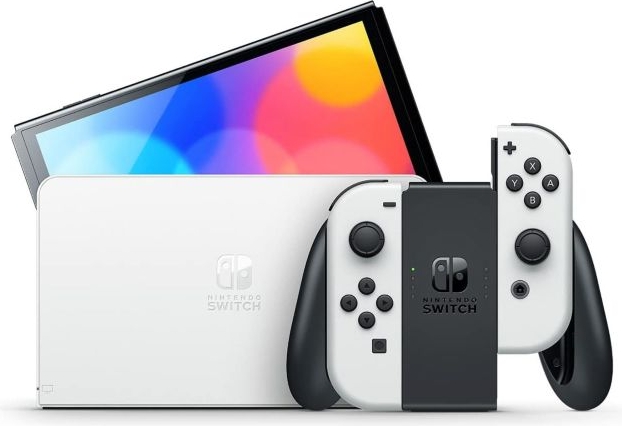
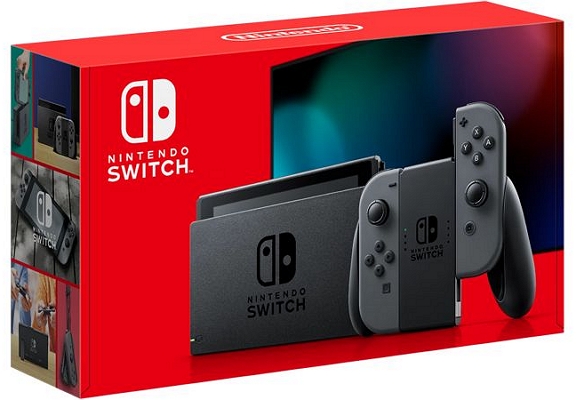
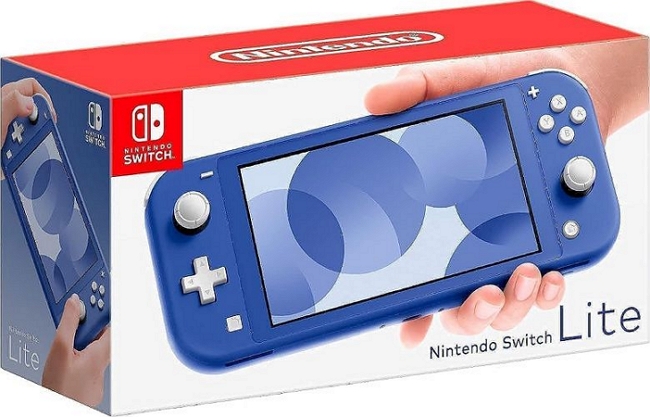
YouTube is only available on certain Nintendo hardware: Nintendo Switch family (standard, Lite, and OLED). That means the first-generation Nintendo Switch line is supported. You can identify your model directly from the console’s model code:
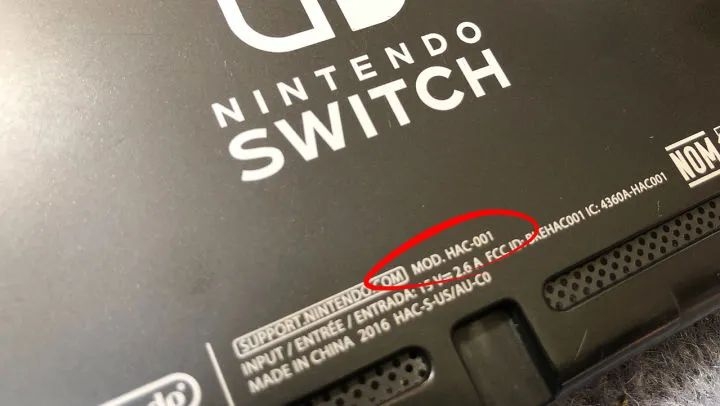
If your Switch model is listed below, you can use YouTube on it.
- HEG-001: Nintendo Switch – OLED Model
- HAC-001: Standard model (both Version 1 and Version 2 are supported)
- HEG-001: Nintendo Switch Lite
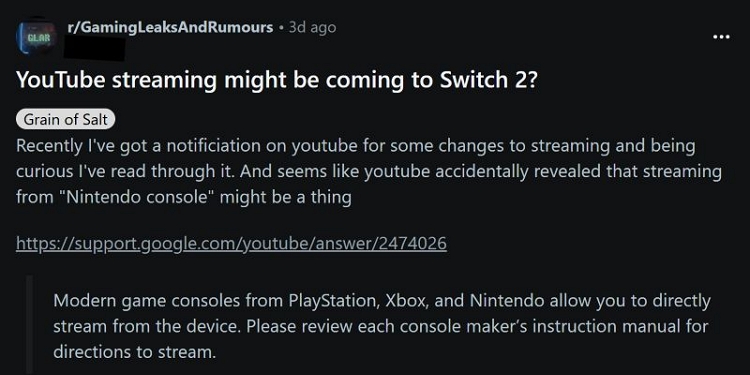
Some users on Reddit and YouTube have noticed that newer YouTube terms mention support for Nintendo Switch 2, but right now that is only a rumor. There is no confirmed YouTube app for the next-generation Switch yet.
YouTube Playback on Nintendo Switch: Pros and Cons
YouTube on Switch does not mean it behaves like a mobile app on your mobile phone. It has its own strengths and limits.
You can link your phone to the Switch and use your phone’s keyboard to search, which is far faster than typing with a controller. Input lag and UI stutter:
The Switch interface is not as snappy as PS5 or Xbox. Menus feel slower and you do not get a smooth 60-FPS UI.
When docked, YouTube turns into a proper TV-style experience instead of a handheld app. Resolution limits:
On all models, including OLED, YouTube does not go beyond 720p. Even 1080p or 4K videos are downscaled.
You can tap or drag the progress bar with the controller to skip through long videos. Error-code headaches:
Errors like 2-ARVHA-0000 are not rare and often require reinstalling YouTube, reconnecting Wi-Fi, or fixing system time.
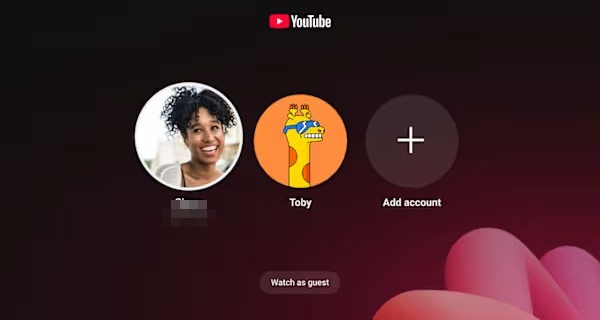
You can choose profiles and use your own YouTube account normally. -
When you use your phone as a remote, Switch’s Bluetooth audio compensation prevents noticeable lip-sync delays. -
Is YouTube on Nintendo Switch Free?
Yes. The YouTube app itself is free to download from the Nintendo eShop if it is listed in your region. You can also sign into YouTube on your Switch with your free account. There are ads during playback and videos cannot be downloaded on the Switch. Note that even YouTube Premium users cannot save videos offline on this device.
Tip: Signing in is optional, but using your account is better because it gives you watch history, subscriptions, and synced recommendations.
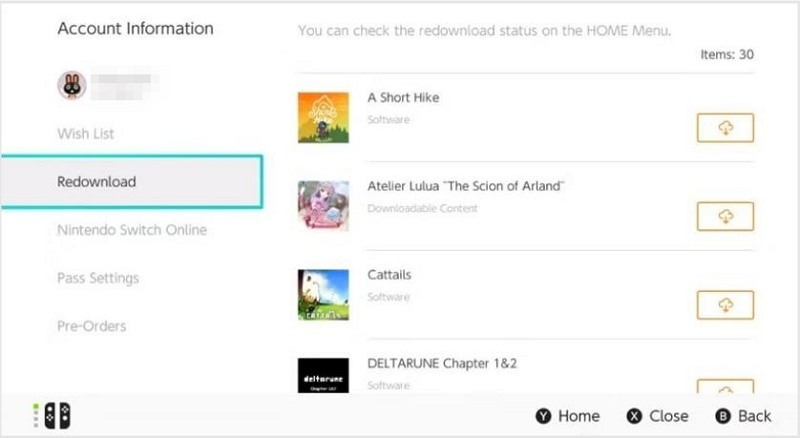
Note: Some users hit a strange eShop bug where YouTube shows as “Purchased” instead of a download button. This usually happens when another user profile on the console owns the license. The fix is to either remove old profiles or open the Re-download section of the eShop under each profile and download YouTube from there.
How to Watch YouTube on Nintendo Switch
Watching YouTube on a Nintendo Switch begins inside the same place where you download games. The eShop is where the YouTube app lives. Once it is installed, the rest feels very close to using YouTube on a smart TV. Before proceeding, connect your Switch to an internet connection first.
Download YouTube from Nintendo eShop
Step 1. On the Home screen, move down to the bottom row. Select the Nintendo eShop — the orange shopping-bag icon. Then press A.
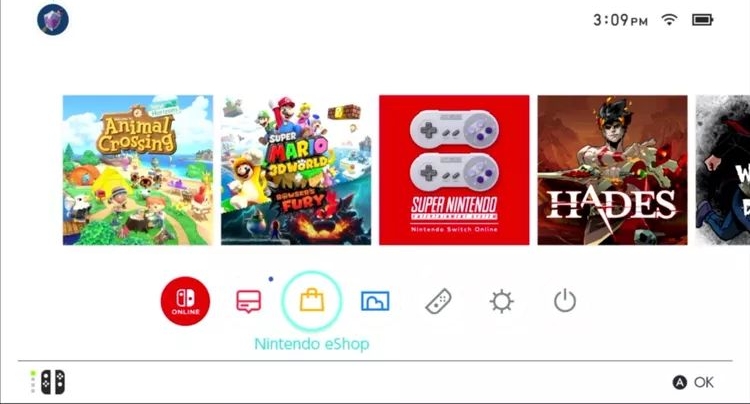
Step 2. Choose the user profile. This ties the YouTube installation to that specific Nintendo account.
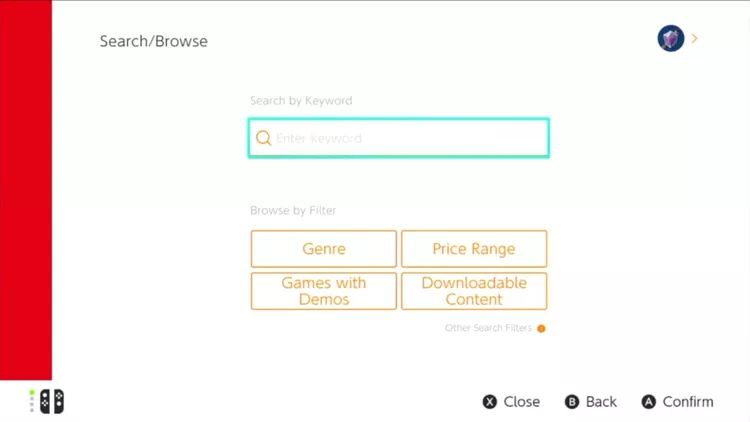
Step 3. Press Left on the D-pad once the store loads. Or you can use the joystick to highlight Search/Browse. Press A to activate.
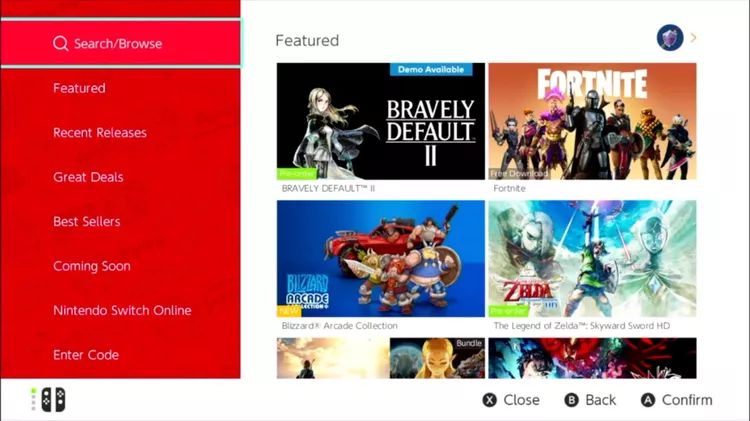
Step 4. Type YouTube, then press the (+) button on the right Joy-Con to run the search.
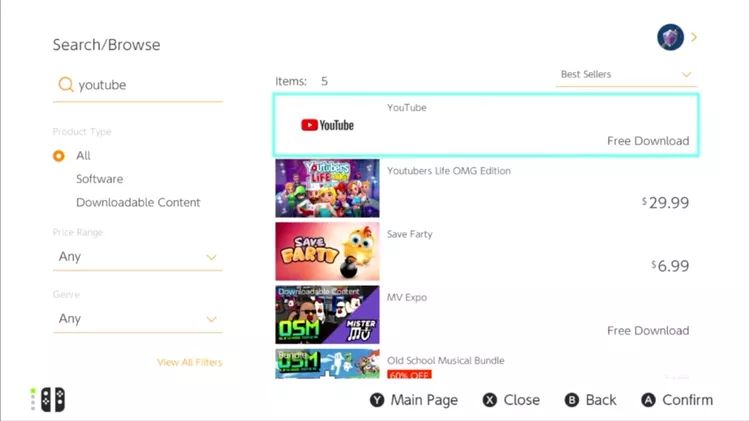
Step 5. The YouTube app should appear at the top of the results list. Highlight it and press A.
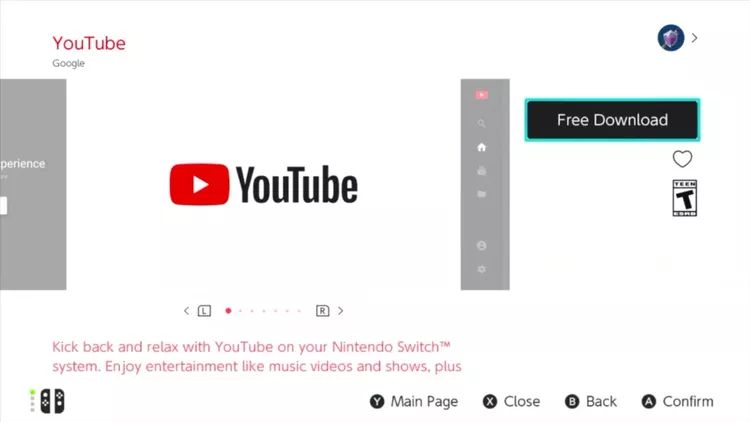
Step 6. On the right side of the screen, choose Free Download.
Step 7. On the confirmation page, press A again on Free Download.
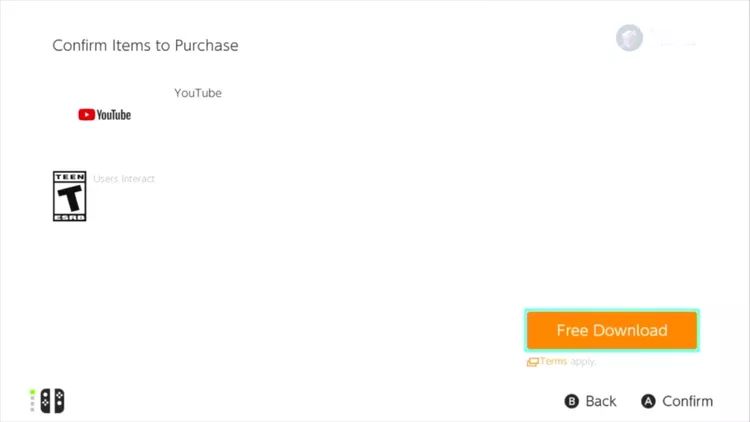
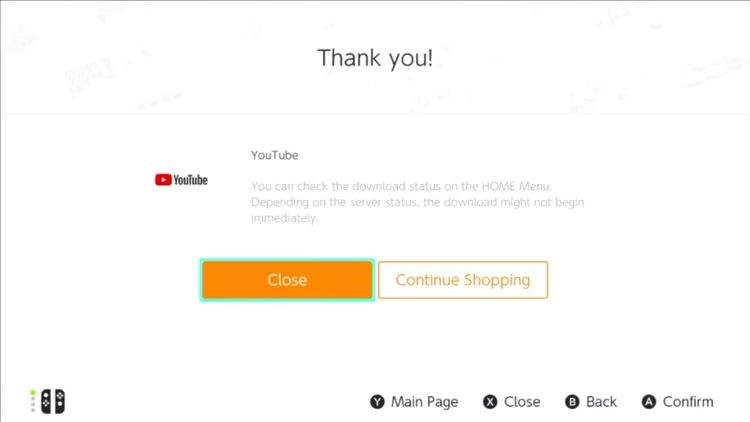
When the “Thank you” screen appears, select Close. The app will begin downloading in the background.
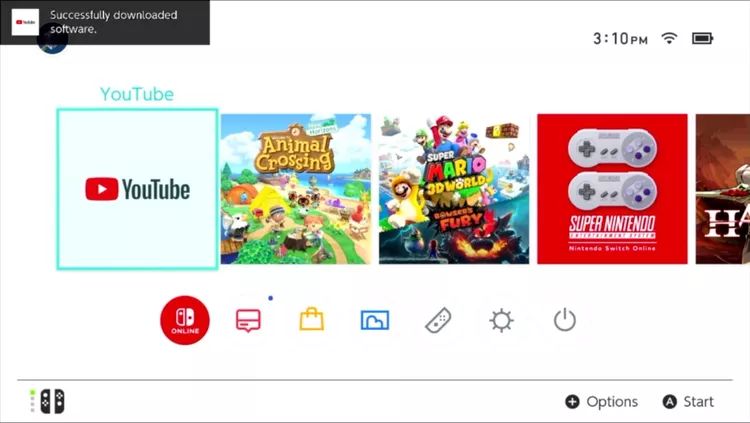
Step 8. Back on the Home screen, the YouTube tile will appear here. Select it and press A to launch.
Note: If YouTube does not appear in your eShop search results:
- There are Parental restrictions.
- You’re on an unsupported console (Switch 2).
Sign into Your YouTube Account
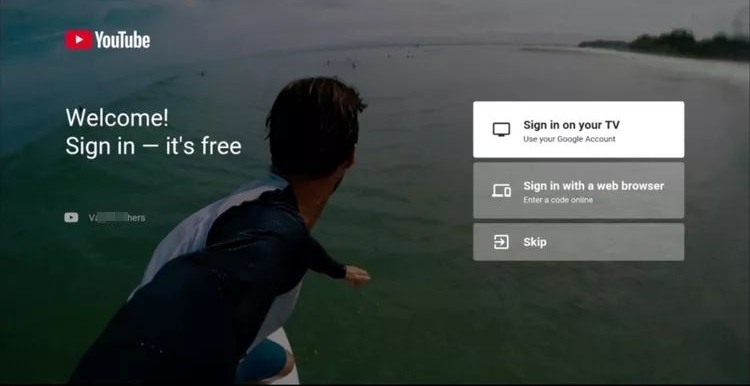
Step 1. When YouTube opens for the first time, you will see three options:
- Sign in on your TV
- Sign in with a web browser
- Skip
The fastest and smoothest method is Sign in with a web browser. Highlight the option and press A to select it.
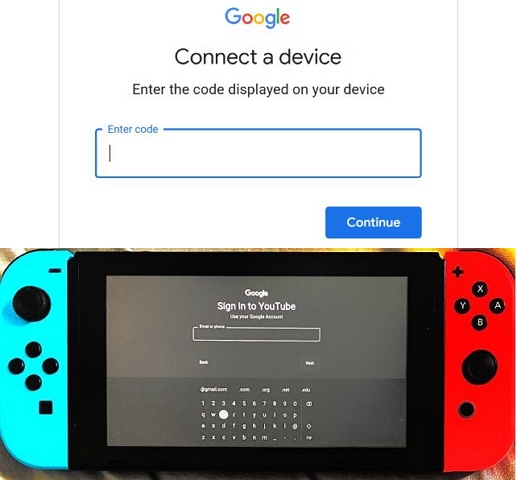
Step 2. You’ll see a six-digit code on the Nintendo screen. Use your phone, tablet, or computer to visit m.youtube.com/activate in a browser.
Step 3. Enter the six-digit code shown on the Switch screen in the activate site. Then, approve the sign-in using your Google account. Your YouTube account will connect instantly.
Start Enjoy YouTube Videos on Switch
How you watch YouTube depends on which Switch mode you're using.
- Handheld or Tabletop mode uses the built-in touchscreen for YouTube playback.
- Tabletop mode works the same way as handheld mode, but you can use the Joy-Cons as the remote.
- TV mode activates when you slide the Switch into its dock. The video instantly jumps to your television, which also unlocks higher resolution.
To Adjust Video Quality
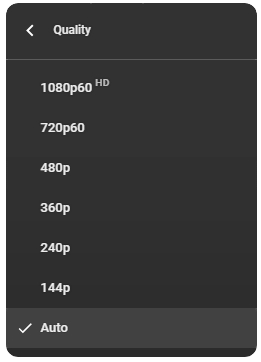
By default, the Switch runs YouTube on Auto quality. This often drops to 480p to save battery and bandwidth. To lock in higher resolution, do this while a video is playing:
- Press Up to open the overlay.
- Move to the three-dot menu.
- Select Quality > Advanced.
- Choose 1080p in TV mode or 720p in handheld mode.
This prevents YouTube from constantly lowering your video clarity.
Tip: How to Save YouTube Videos for Offline Watching
There is no offline watching feature in the Nintendo YouTube app, but there come times when you are watching something on the console and want to save it for offline viewing on other devices. Maybe it is a YouTube Original you want to watch on a long road trip or while camping away from home. In that case, you can basically add the videos to your YouTube library by using the Like button or Save to Playlist option on the Nintendo while watching. Then, you can download the videos in two ways.
Option 1: YouTube Premium
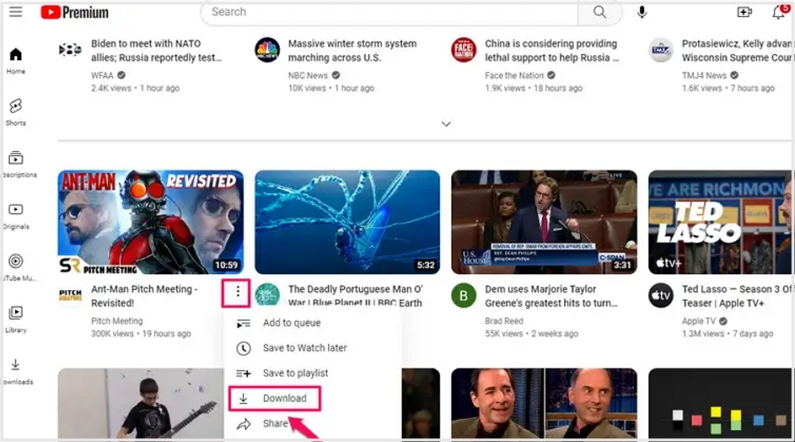
If you have YouTube Premium:
- Simply go to your other devices like your phone or tablet app.
- Go to the Liked Videos or other playlists that you saved from your Nintendo. Simply click the download button on your device to download for offline viewing.
Option 2: Mediaio Video Converter
If you want to save the videos you added on the Switch YouTube app as local files, you can use Mediaio Video Converter . It allows you to download any content on YouTube, be it a live stream or YouTube Originals, in up to 4K quality and save them onto your computer. Since these are in local formats like MP4, MKV or MOV, you can transfer them to other devices for personal use. You can even choose how the subtitles are preserved.
FAQs
A lot of confusion surrounds how YouTube really works on the Switch. So these will clear most common doubts.
Can You Watch YouTube on Nintendo Switch Without Wi-Fi?
No. Not even with YouTube Premium.
The Nintendo Switch version of YouTube behaves like a web-based TV app. So every video must stream live from the internet. This is why the download button never appears inside the YouTube app on Nintendo.
Can You Watch YouTube While Playing Games on Switch?
No. The Nintendo Switch runs Horizon OS. This system allows only one active app at a time. So when a game opens, YouTube will close. This also means:
- Picture in picture is not supported.
- Background audio from YouTube Music is not supported.
- Screen recording does not work while YouTube is open.
Keep in mind that Nintendo also does not allow live streaming games to YouTube from the console. The YouTube app is only for watching.
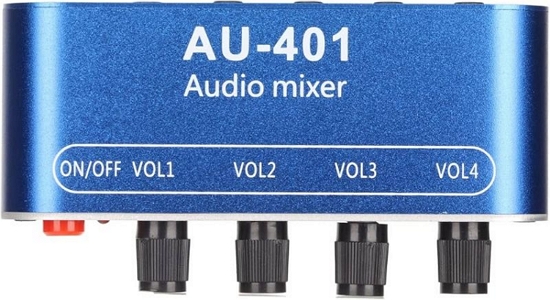
There is one workaround though if you really want to listen to YouTube songs while playing. You can use a 3.5 mm audio mixer (around US$15). Here is how it works:
- One cable runs from the Switch into the mixer.
- Another cable runs from your phone that is playing YouTube or YouTube Music into the mixer.
- Your headphones plug into the mixer.
Both audio streams combine into one output, letting you hear the game and YouTube at the same time.
When Will Nintendo Switch 2 Support YouTube?
Right now, there is no official statement.
Some updates inside the YouTube app suggest that Google is still optimizing for Switch-style devices, but Nintendo has not announced native YouTube support for Switch 2.
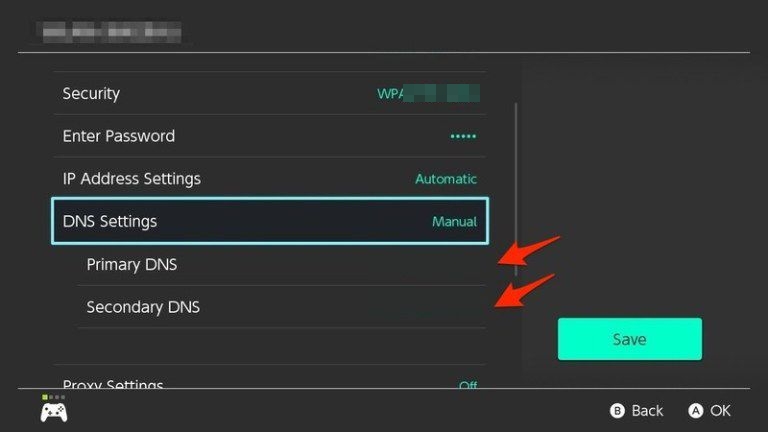
For now, there is one loophole, which is use a custom DNS to open a browser page and access YouTube web player for video playback.
Primary DNS is 045.055.142.122. This is called SwitchBru DNS. To set SwitchBru DNS as the custom one:
- Open System Settings > Internet > Internet Settings.
- Pick your Wi-Fi network.
- Choose Change Settings.
- Set DNS to Manual. Then, enter the primary DNS as 045.055.142.122 and save it.
The connection will fail and then redirect you to a Google browser page. From there, you can visit youtube.com and watch videos. However, video quality is unstable in this mode. Crashes and errors are common.
Conclusion
Now you do not have to ask "Can you watch YouTube on Nintendo Switch?"—that is how you can watch YouTube on the supported models for now. Hopefully, the Switch 2 release is coming soon. We have discussed all the tricks and tips too, aside from just watching, like listening to YouTube Music while playing games. So everything is covered.
Of course, if you want to save YouTube videos offline: you can first Like them or add them to a Playlist on Nintendo Switch for now, then save them on other devices. The best way to do that is using Mediaio Video Converter. It allows you to save videos in up to 4K so that you can play it with any local media player, like VLC media player.