

You can’t copy a YouTube embed code and paste it into an email and expect the video to play. Email clients like Gmail or Outlook don’t allow this. And there's no way to bypass that rule.
So, how do you embed a YouTube video in an email? Well, there are a few workarounds, and we’ll cover all of them. Some work well for quick sharing. Others are better for campaigns or newsletters. If you need to do this regularly, we’ll also show tools that automate most of the process.
How Do You Embed a YouTube Video in an Email
Here’s a quick comparison of all the methods to insert YouTube video in an email. Each one requires a different level of effort and time and suits different purposes. This overview will help you choose the best one for your situation.
• Just copy, paste and send
• Works everywhere • Looks plain and uninviting
• Easy for people to skip
• No visual element to attract clicks
• Catches attention instantly
• Much better chances of getting clicks
• Works across all email apps • Takes a bit more effort to set up
• You need a thumbnail or GIF
• Have to link it manually
• Creates video preview automatically
• Keeps emails clean and consistent • Needs setup and permissions
• Some tools require extra steps (like MP4 for Outlook)
How to Embed a YouTube Video in an Email Using Plain Link
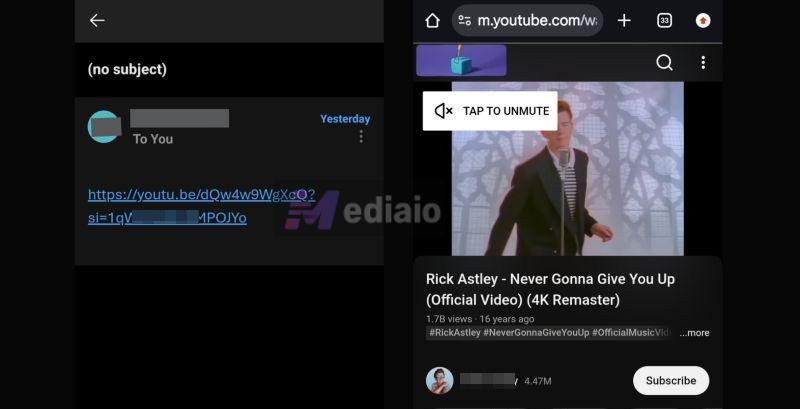
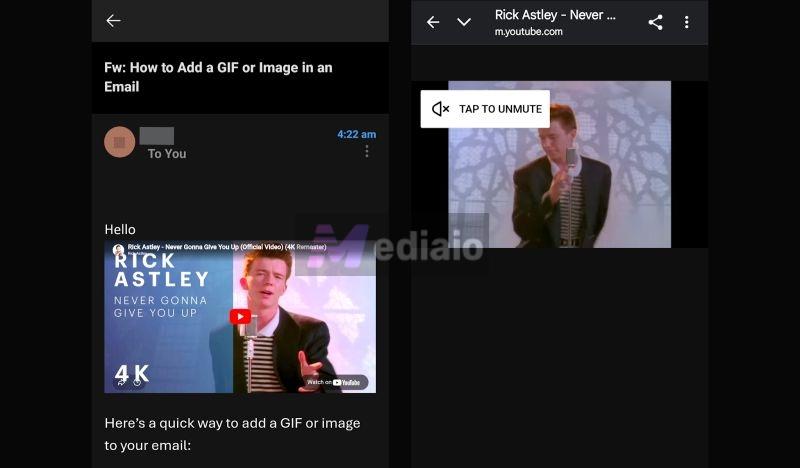
This is the most straightforward method. You can just copy the YouTube video’s URL and paste it into the message box. Gmail and Outlook will turn it into a clickable link. So when the recipients click it, the video will open on YouTube page in a new browser tab.
But that also means this method is not ideal for marketing emails. A raw link in your newsletter will look messy. And it doesn’t give any visual reason for receivers to click.
Still, it’s quick, but it only works when you just want to share a video with a friend or coworker, like a song, a tutorial, or a troubleshooting guide.
Steps on Gmail
You can follow these steps from the Gmail desktop or the mobile app. The steps are same:
Step 1. Open your YouTube video. Click Share below the player. Then click Copy.
Step 2. Go to Gmail. Click Compose.
Step 3. Write your email.
Now, when it comes to adding the plain video link, you have two options:
- You can paste the link directly (quick, but looks messy).
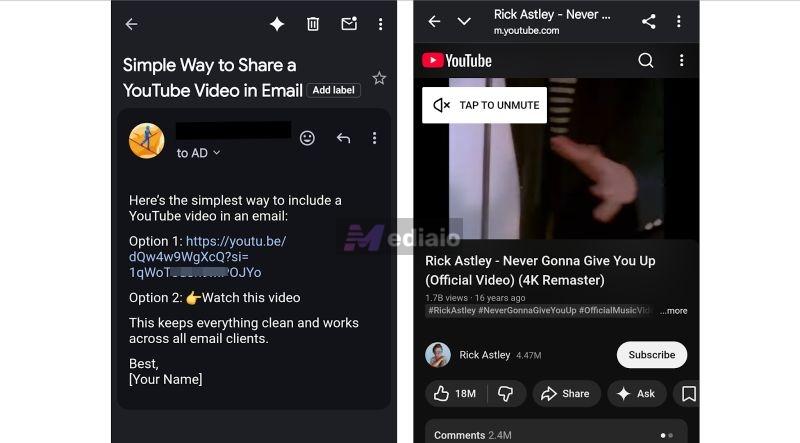
- Or write a clear CTA like Watch this video, then highlight it. Press Ctrl + K (on desktop) or tap the Insert link icon on mobile. This will open the link box. Paste the YouTube URL and tap Apply.
The text will turn blue—that’s your hyperlink.
Step 4. Click Send.
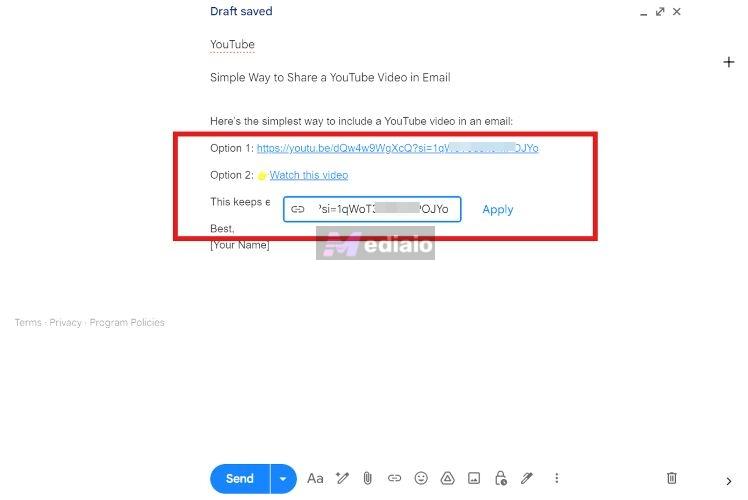
What happens next depends on where your recipient open the email:
On Gmail desktop: a small preview appears at the bottom with the video thumbnail.
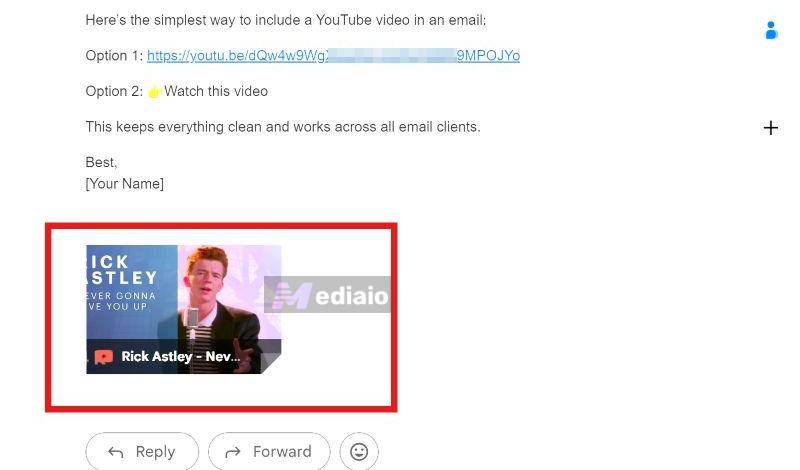
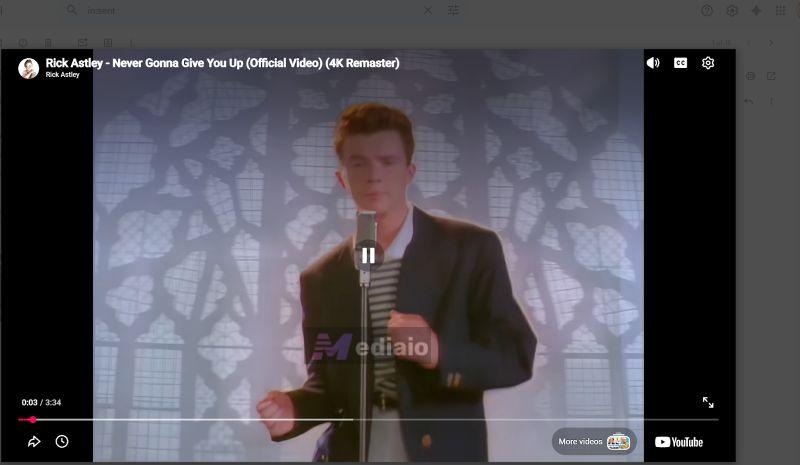
Clicking it opens the video in a pop-up inside Gmail itself, so they can watch it right there.
On mobile, it’s different. It will just appear as a link to the viewer. When the reader taps it, they will be redirected to YouTube to watch it.
Steps on Outlook
You can follow these steps on Outlook—mobile, web, or desktop app:
Step 1. Open Outlook. Click New Email at the top left.
Step 2. Write your message. For inserting the video link, you have two options:
- You can paste the plain YouTube link directly.
- Or you can hyperlink it.
- On the desktop, write something like “Watch this video”, highlight it, and press Ctrl + K. This will open the Insert Link popup. In Display text, you can adjust what the user sees. In the Address/URL box, paste your YouTube link. Then click OK.
- On mobile, tap where you want to place the link and long press. You will see options. Tap Add Link. When the Edit Link box opens, enter your display text like Watch this video. Finally, paste the YouTube link and tap Save.
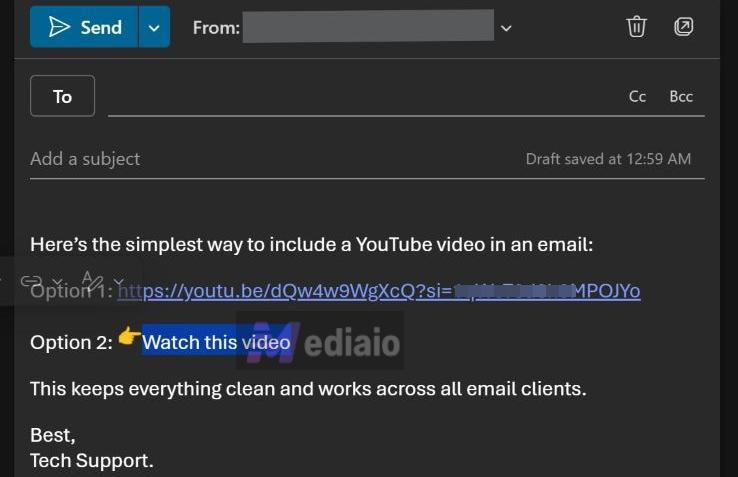
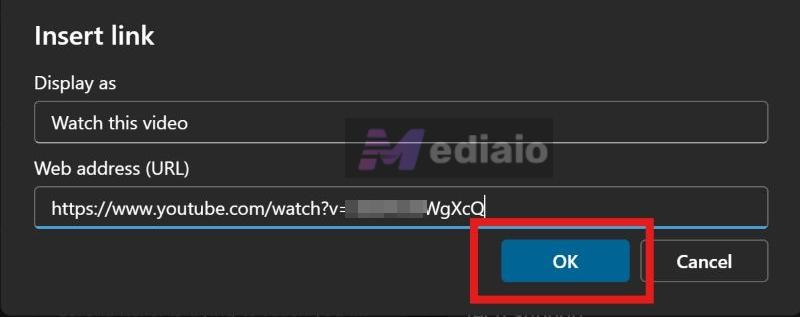
That’s it. Your link is now clean and clickable.
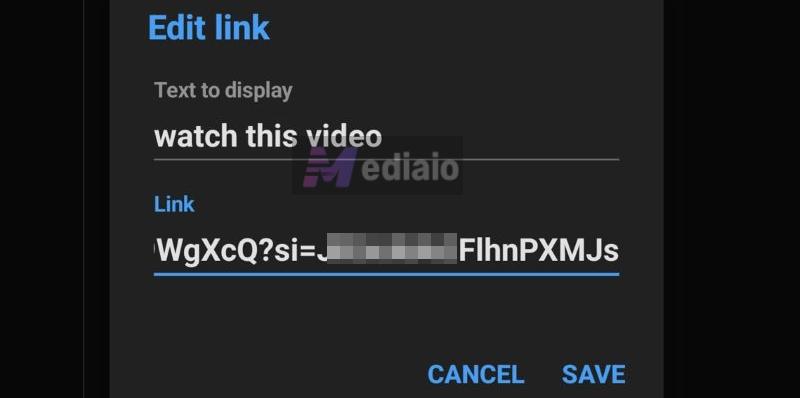
Step 3. Click Send.
On both desktop and mobile, including Outlook Web, the person on the other end will see either a plain URL or a clickable hyperlink. There is no video preview like on Gmail desktop. So they will be redirected to YouTube to view the video.
How to Add a YouTube Video to an Email Using Hyperlinked GIF/Image
Another approach is to create a “YouTube-style Embed” in your email. The rule stays: you cannot embed the video directly, but you can add a visual block that resembles the YouTube video. Just add a thumbnail or a short GIF that looks like a YouTube video. Then, make that image clickable. In other words, link it to your YouTube video.
Both Gmail and Outlook allow you to do this effortlessly. Best of all, it will display perfectly in your receiver's inbox, because virtually every email client supports image previews.
Of course, clicking it will still redirect the viewers to the YouTube tab, but you will get the visual appeal and don’t have to use the boring “blue plain text link” like the method above.
To use this method, you will first have to save the asset (thumbnail image or GIF) on your computer. Here is how to get that done:
Create a Thumbnail:
- Go to the YouTube video you want to share.
- Click on the Share button.
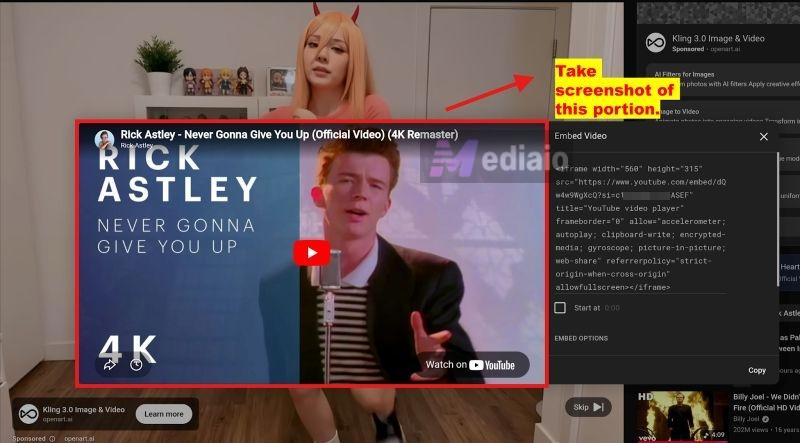
- From the list of options, choose Embed.
- Now, take a screenshot of that embed portion.
This captures the video preview along with the natural YouTube play button and the Watch on YouTube message. This will clearly signal to everyone that it’s a video.
Generate a GIF:
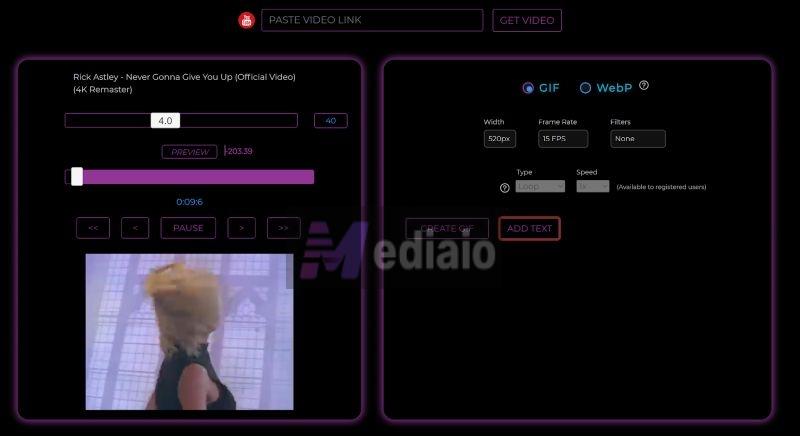
You can take any short portion of the video you want. Simply copy the YouTube URL and paste it into an online converter like Giphy or GIFRun. Many of the good tools allow you to add text, select the exact portion you want to use, and even set the frame rate—though usually, the default settings work just fine.
Here’s a tip: Keep GIFs short (2–3 seconds) and under 2 MB so they load fast on emails, even on slower connections.
Add YouTube Video to Gmail via Hyperlinked GIF/Image
Now that your thumbnail or GIF is ready, here’s how to put it to use:
Step 1. Start by writing your email—your message or your newsletter.
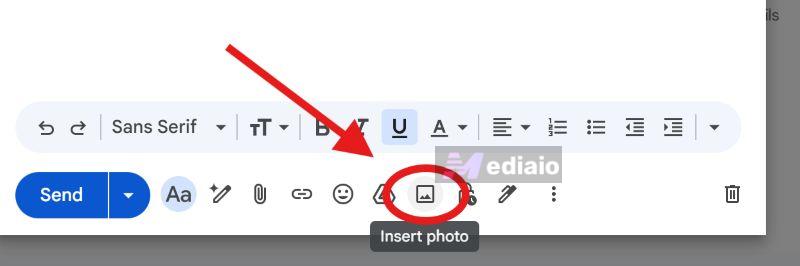
Step 2. Click on the Insert photo icon in the bottom toolbar.
Step 3. Upload your thumbnail or GIF using the file picker.
Step 4. Once it appears, click on the image (Tip: Stick with Best fit so it doesn’t look oversized).
Step 5. Place your cursor before the image, then drag across it so the image gets highlighted in blue, just like text.
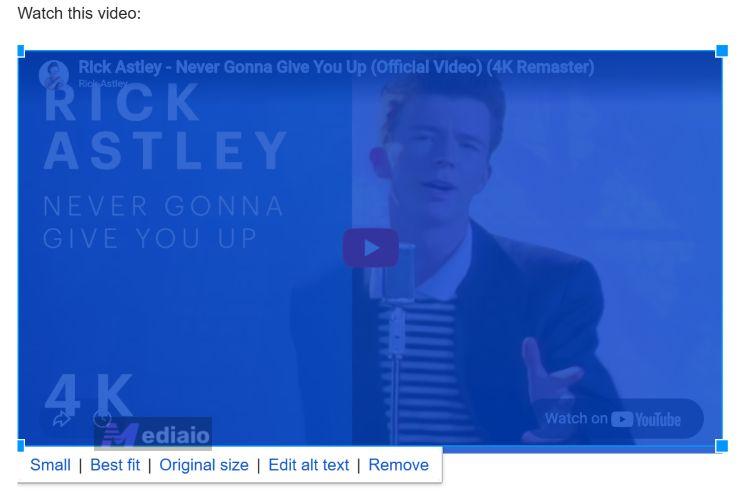
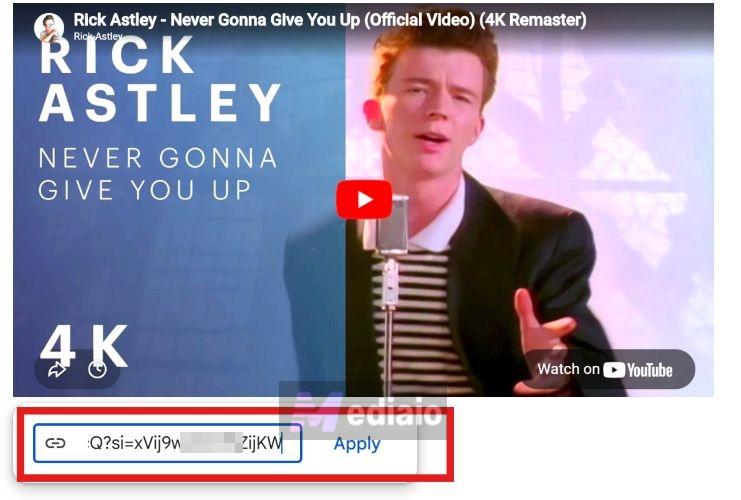
Step 6. Press Ctrl + K. This will open the link box. Paste your YouTube URL and click Apply. Done. Now your image behaves like a clickable video.
Step 7. Click Send.
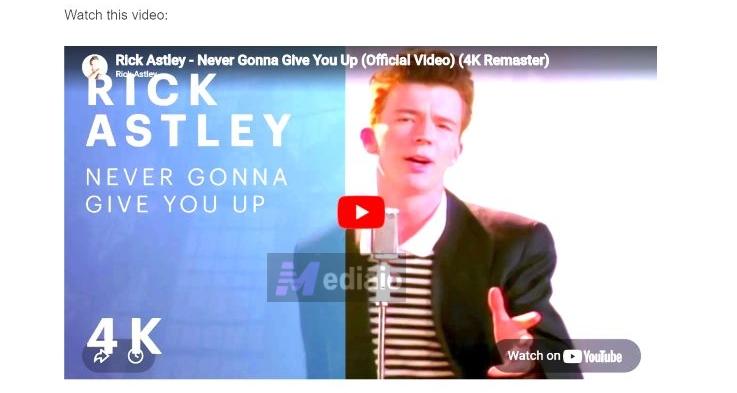
On both desktop and mobile, the user will see a large thumbnail or GIF inside the email. It will look like a video preview. And clicking the block will take them directly to the YouTube page, where the video plays automatically.
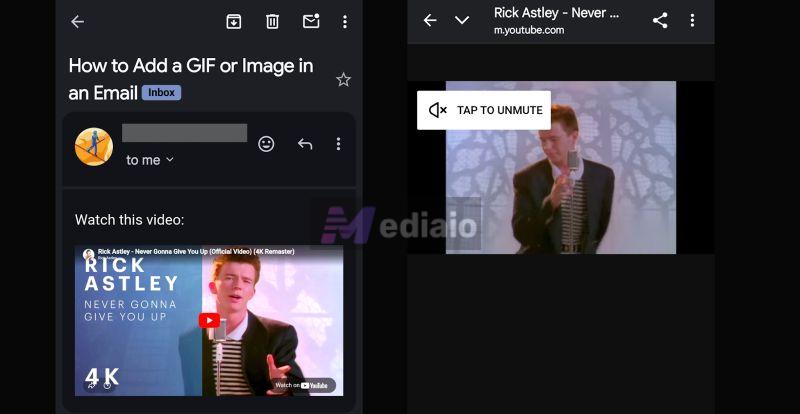
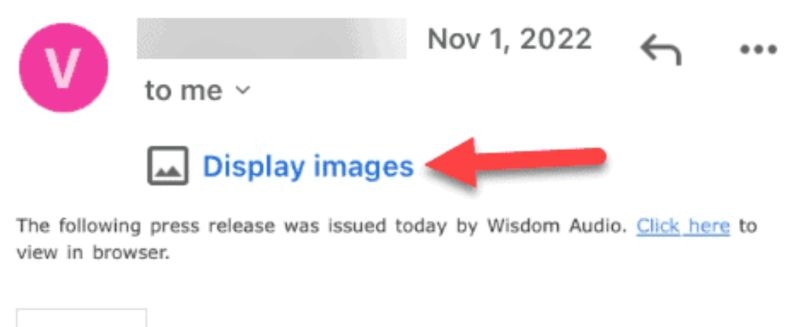
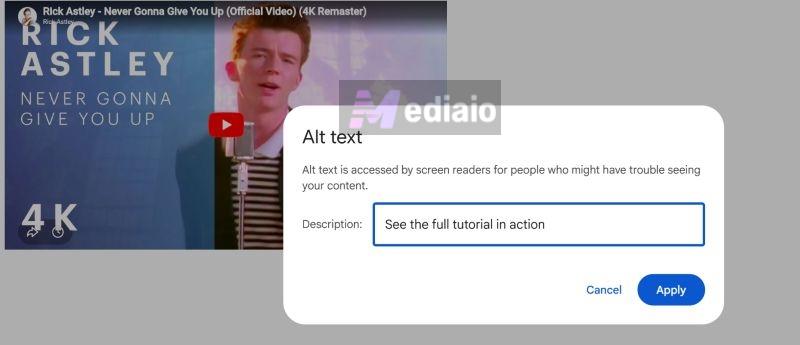
Note: If the recipient keeps images turned off in their email settings, especially on mobile. In those cases, your thumbnail or GIF won’t load. Instead, the email will show your alt text and give them an option to load the image manually.
So treat alt text as your fallback—write something clear and action-driven to encourage the reader to click.
Embed YouTube Video to Outlook Using Hyperlinked GIF/Image
Once you have your visual asset ready, here is how you turn it into a clickable video block on Outlook’s desktop:
Step 1. Compose your email. Click the space where you want the video block to appear.
Step 2. Switch to the Insert tab in the ribbon. Click Pictures. Pick your saved thumbnail or GIF.
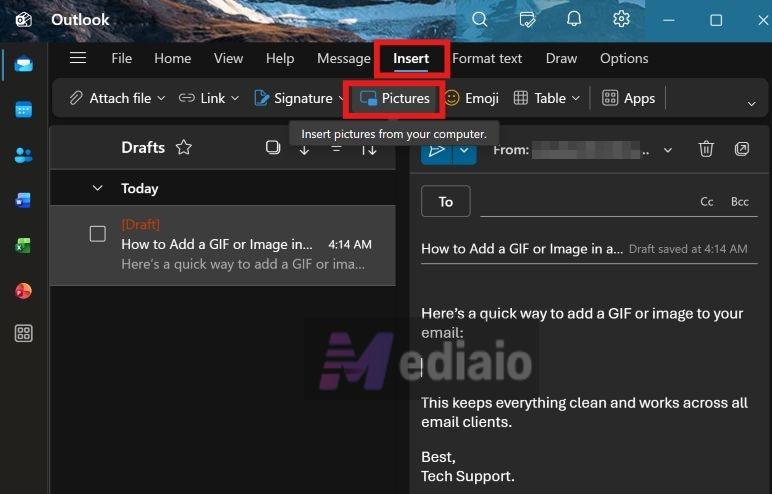
Step 3. Once the image loads, click it to select. Now, go back to that same ribbon menu under the Insert tab and select Link.
Step 4. An Insert link box will pop up. Locate the field labeled Web address (URL) and simply paste your full YouTube video link right there. Click OK to apply the hyperlink.
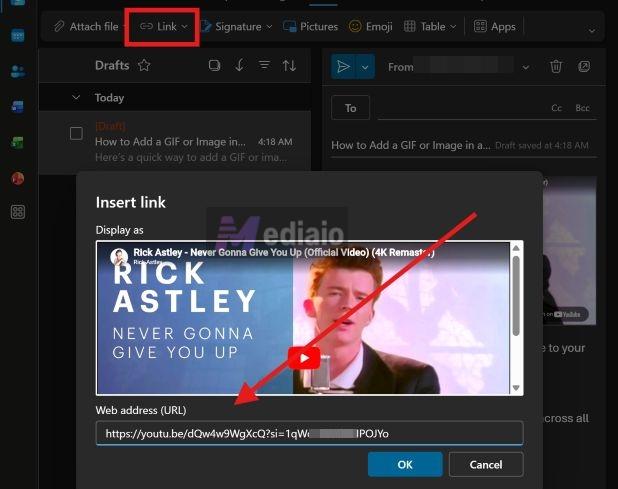
That is it. You can now send your email.
Whether your viewers view the mail on a mobile app or a desktop computer, they will see that large visual preview. Clicking that image will drop them directly onto the YouTube page with video playing automatically.
How to Insert a YouTube Video into an Email Using Third-party Tool
You can also use email optimization tools to embed YouTube videos into your emails, but note that these video email tools don’t directly work with YouTube video. Instead, they let you add a video block inside your email. Simply put, attach a local YouTube video file with a play button overlay. When someone clicks it, the video opens on a hosted page, not inside the email itself. The advantage here is that the video file is hosted on these platforms. So, the video will play on a clean page without YouTube ads or its cluttered interface, allowing viewers to focus entirely on the video.
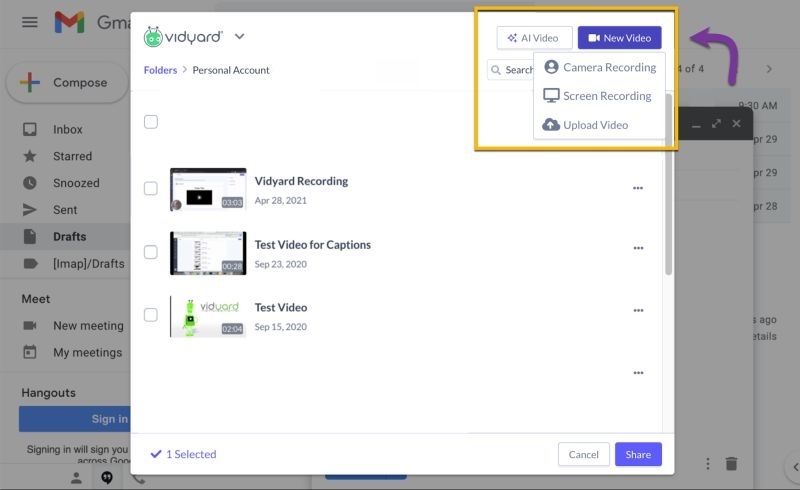
These tools are suitable if you’re running serious marketing campaigns. Tools like Vidyard, Hippo Video, Loom, and BombBomb are some examples. They come as Outlook plugins or browser extensions that you can install and use inside your email.
To follow this method, however, you’ll need a local copy of your YouTube video first. That means converting the YouTube video into an MP4 using Mediaio Video Converter. Here’s how it comes together:
Step 1. Prepare Your Video File
- Convert your YouTube video into MP4 using Mediaio Video Converter.
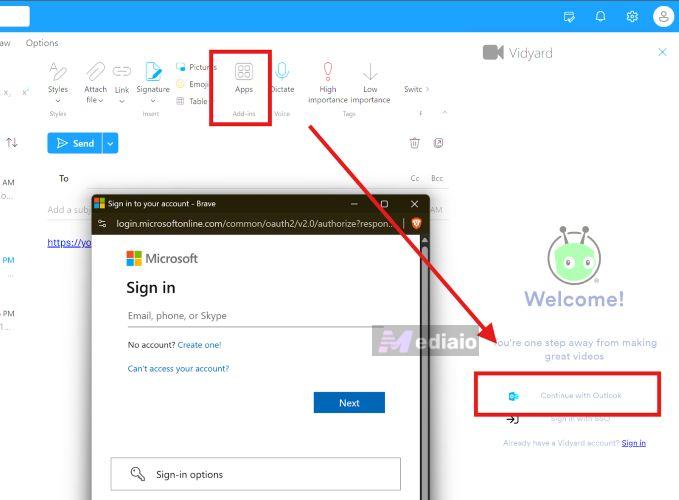
Step 2. Install the Email Tool—Vidyard, BombBomb, or Similar
- For Outlook: Add the plugin (use the Apps button).
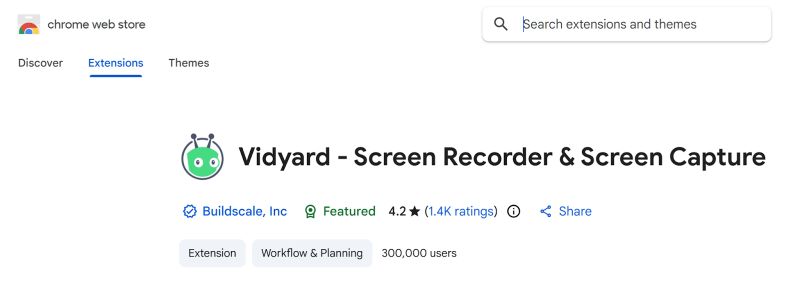
- For Gmail: Search the extension on Chrome Web Store. Add it to your browser.
Step 3. Upload the YouTube Video as MP4 and Send
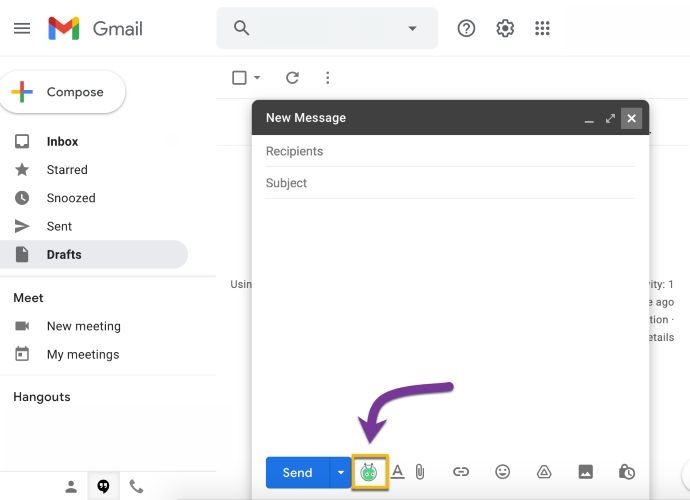
- Open your email composer. You will see the added tool’s icon (Vidyard, BombBomb) inside the toolbar.
- Click it, choose Upload option, and select your MP4 file.
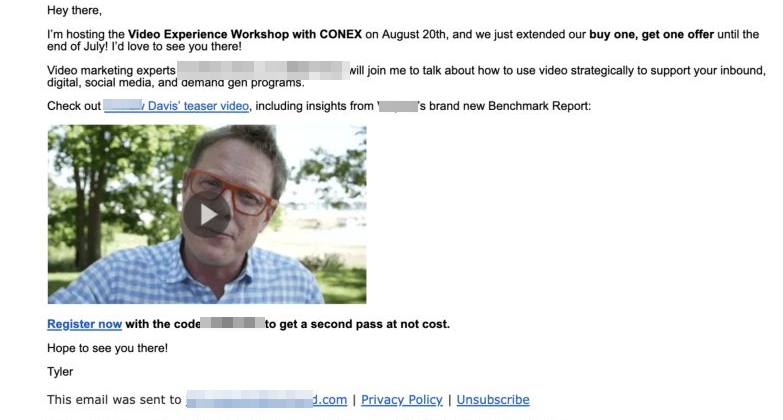
- The tool will automatically insert a thumbnail with a play button into your email. The video link will redirect the viewers to their platform.
A Faster Way to Create YouTube-like Embeds in Gmail
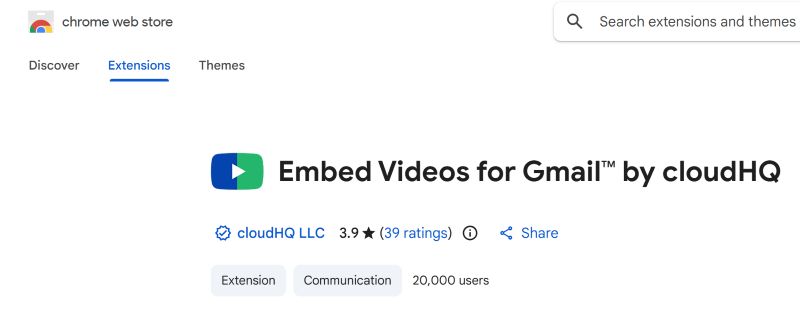
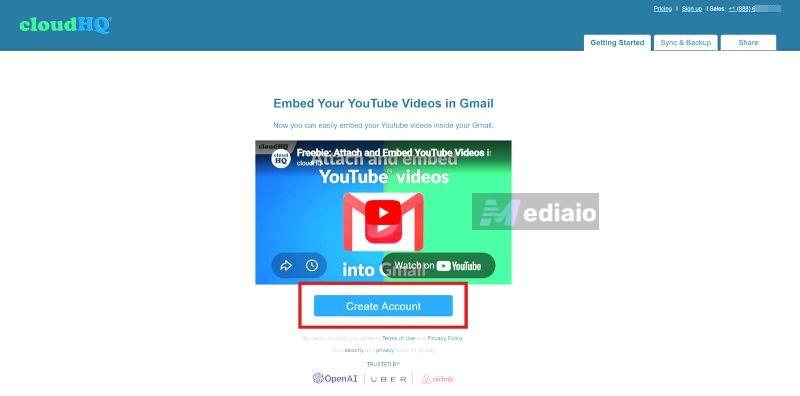
If you use Gmail, there’s a simple Chrome extension that makes this much easier: Embed Videos for Gmail by cloudHQ. You can just paste your YouTube link, and it automatically turns it into a video-style preview inside your email.
Behind the scenes, it works like the “YouTube-style embed” setup—an image with a clickable link. But you don’t have to build it yourself. It will pull a clean thumbnail, add a proper play button on top, and insert it into your email already linked.
And the good part—it’s free to use and doesn’t add any watermark. So it makes sense if you’re doing this repeatedly and want to save time without changing how your emails look. Now let’s see how to use it.
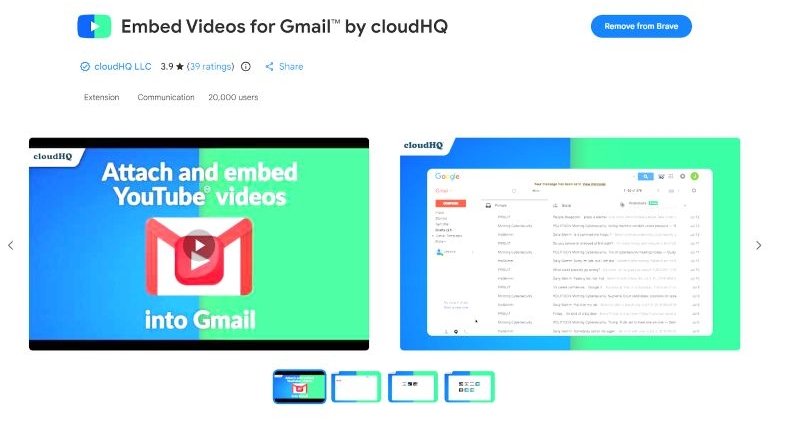
Step 1. Go to the Chrome Web Store. Search for Embed YouTube Videos in Gmail by cloudHQ. Add it to your browser.
Step 2. Click on the extension icon. Connect your Google account to cloudHQ. Make sure to allow necessary permissions.
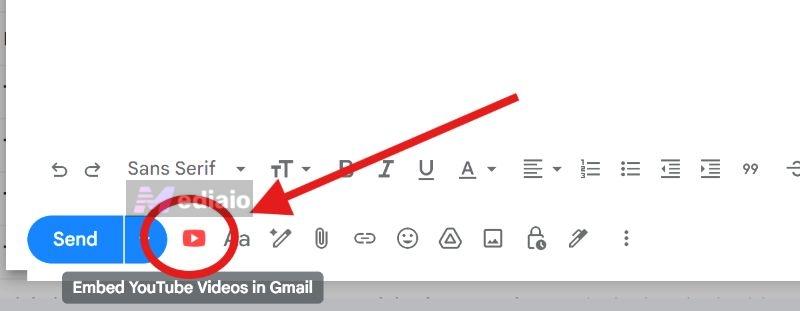
Step 3. After setup, open Gmail and click Compose. You will now notice a new YouTube icon inside the email toolbar — this is the cloudHQ video option. Click on it.
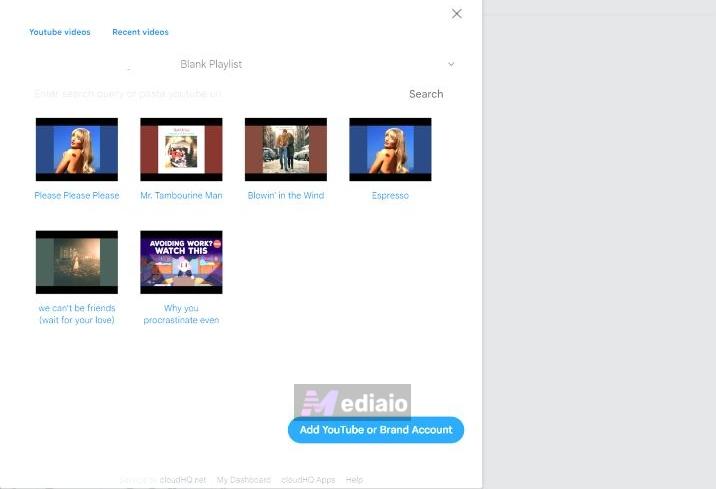
Step 4. A pop-up will appear showing your available videos or connected sources. You can also paste a YouTube link if needed.
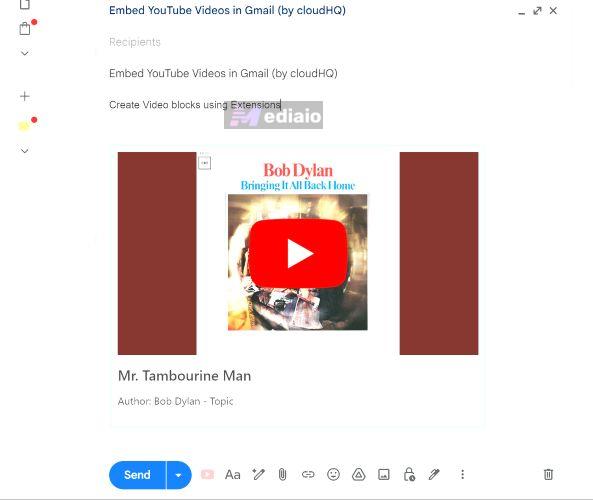
Step 5. Select the video you want. cloudHQ will automatically insert the video preview into your email, with the thumbnail, play button, and link already applied. Now just finish writing your email and click Send.
On the receiver’s side, it will appear like a proper video preview inside the email. And they will be redirected to a YouTube page upon clicking the Play button.
In all, the behavior is the same as we’ve discussed earlier —it is just that cloudHQ makes it much easier to set up on your side.
Tip: Convert YouTube Videos to MP4 for Cleaner Email Delivery
For sending video emails that open on a clean page instead of YouTube’s cluttered interface, you will first have to convert the YouTube video into an MP4 file. A simple way to handle that is with Mediaio Video Converter.
Mediaio allows you to quickly save any YouTube video into a high-quality MP4 (up to 4K resolution), so you can easily upload it directly into your email campaigns. This is useful when you want the viewers to see the video without pre-roll ads or distractions.
Bonus perk about Mediaio: Besides using it for your email workflow, Mediaio is also an incredible tool for personal use. It lets you save content from over 1000 other streaming services — like Netflix, Hulu, Prime Video, etc. So, you can save your favorite TV shows and movies in local formats and keep them on your computer.
FAQs About Embedding YouTube Videos in Emails
Why Can’t You Embed a YouTube Video Directly in an Email?
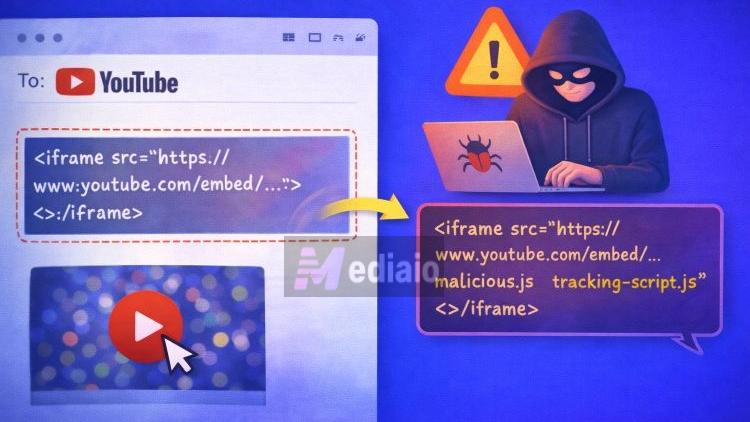
This is because YouTube embeds rely on HTML <iframe> code. And these embeds can be easily manipulated to run malicious scripts or track user behavior in unsafe ways.
Why Can’t You Use a Normal HTML Video Tag in Emails Either?
Even though HTML5 video sounds like a solution, most email clients still don’t support it properly. Gmail and Outlook ignore it completely.
A few apps like Apple Mail or Samsung Mail do support it, but you can’t depend on that. Your video email will work for you, but not for the person receiving it. In many cases, the video won’t play at all.
Why Should You Include a YouTube Video in Your Email?
Because videos are great at capturing attention. You don’t have to force your audience to read a long block of text.
And it works well for all purposes: product promotions, tutorials, or welcoming a new subscriber, because you don’t have to tell, you can just show.
Conclusion
So by now, one thing is clear—you can’t directly use a YouTube embed inside an email. To capture attention and drive clicks, create the “YouTube-style embeds”: add a hyperlinked GIF or Image. There’s still one drawback with this, your viewer is taken to YouTube, along with ads and suggestions.
Mediaio Video Converter solves that problem by letting you turn the YouTube video into an MP4 file. From there, you can use just about any video email tools and host the video on a clean page.