

The Echo Show comes with a screen, which makes it perfect for watching videos, be it recipes while you’re cooking, quick how-to in the kitchen, or a few cat memes before bed.
That’s exactly why people expect YouTube to be there. However, no matter how much you dig through the menus, the familiar red YouTube icon never appears. That naturally leads to one question: can you watch YouTube on Echo Show? The answer is yes. And in this guide, we’ll show you how YouTube works on your Echo Show model, whether it’s Echo Show 5, 8, 10, 15, or 21.
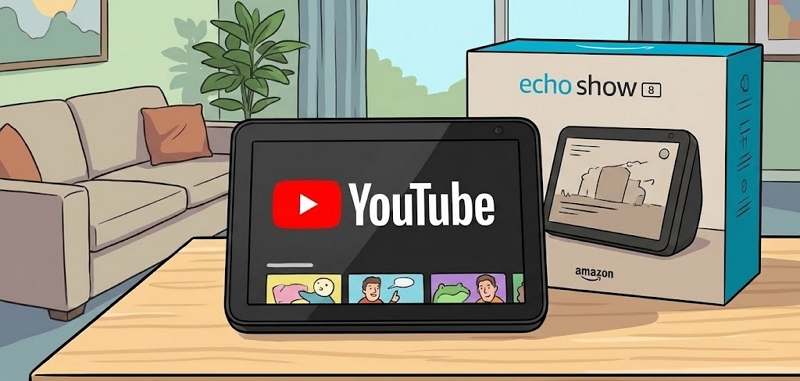
Can You Watch YouTube on Echo Show?
Yes, as mentioned above, YouTube does work on Echo Show. The only thing that changes is how it works, which depends on the model you own. Meanwhile, keep in mind that Echo Show only supports streaming YouTube online.
How to Watch YouTube on Echo Show
Amazon splits the YouTube watching experience (stream through the browser or the official app) depending on the device you own. Here, you can follow the steps for your Echo Show model to watch YouTube in the most convenient way.
Way 1. Use Browser
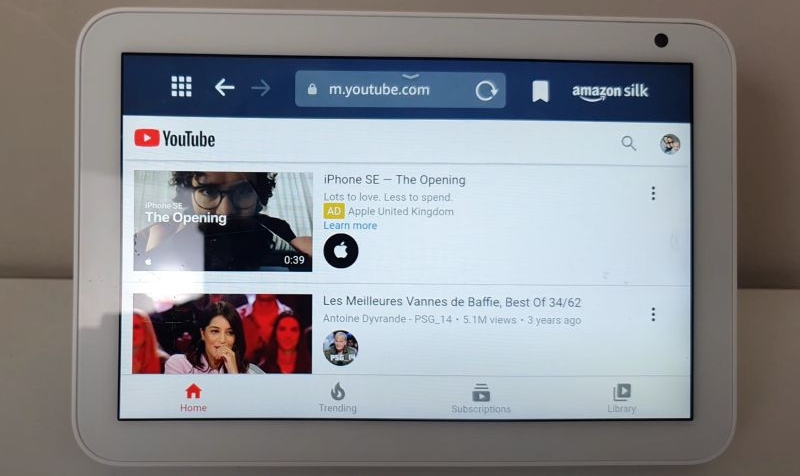
Most Amazon Echo Show devices lock the YouTube experience to the browser itself. So the experience will be completely online.
However, this comes with its own caveats. If you tap the back button, the YouTube audio will cut off. You have to stay on the page to listen to YouTube or watch it. And even when you have a kitchen timer set and it goes off while playing YouTube, the playback will stop. You will have to reload the page to watch the content again, because resume doesn't work for some reason.
Supported Echo Models
All Echo Show models can basically run the browser. However, the experience depends on the hardware.
Echo Show 5 (All Generations): The performance is very sluggish. The touch inputs can feel a little slow too.
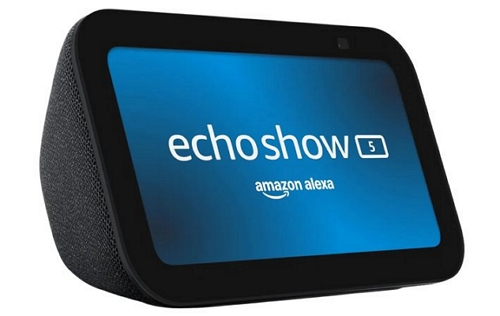
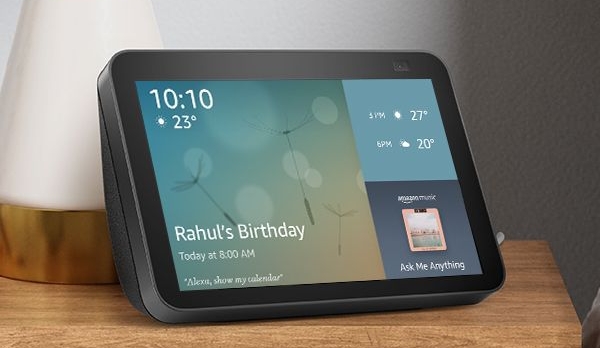
Echo Show 8 (All Generations): “No buffer, no lag" experience, because of the fast processor.
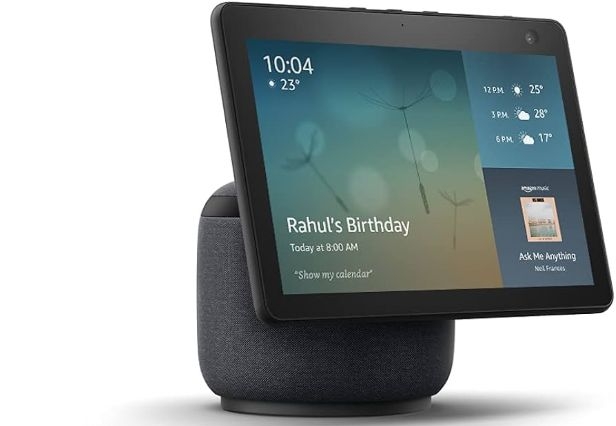
Echo Show 10 (2nd & 3rd Generation): Works perfectly for browser-based YouTube.
The browser method will also work on Echo Show 15 and 21, but there are far better ways (like getting the YouTube app experience itself). So you can usually avoid the browser approach if you’ve those models.
Steps to Stream YouTube on Echo Show via Browser
You have three ways to launch YouTube through the browser. Which one you use depends on how much you want to use YouTube or your convenience.
Option 1: Access YouTube by Typing the Website
- Ask Alexa to open the Silk browser.
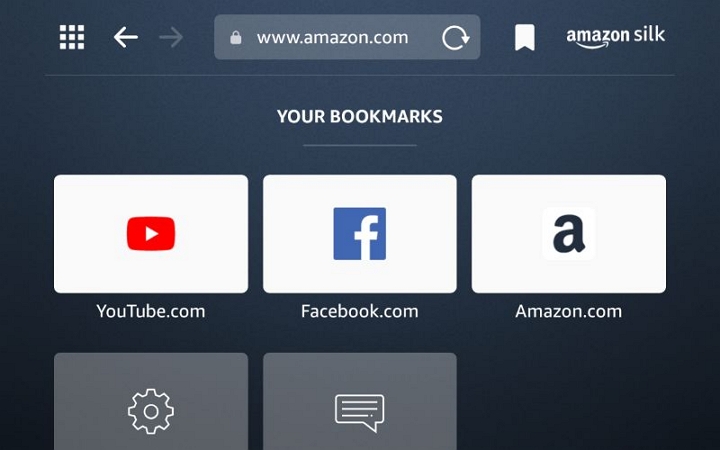
- Tap the address bar. Type YouTube.com. You can start the playback without login or sign in to personalize the feed. Switch to full screen if needed.
Option 2: Use the Video Shortcut
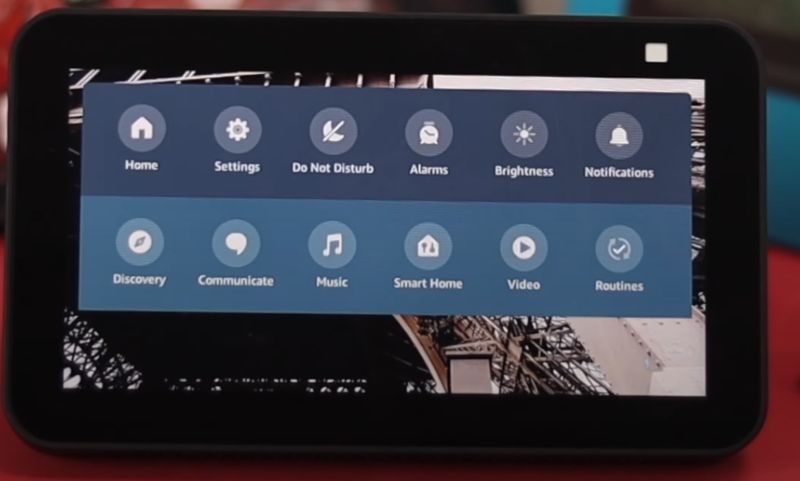
- Swipe down from the top of the Echo Show screen.
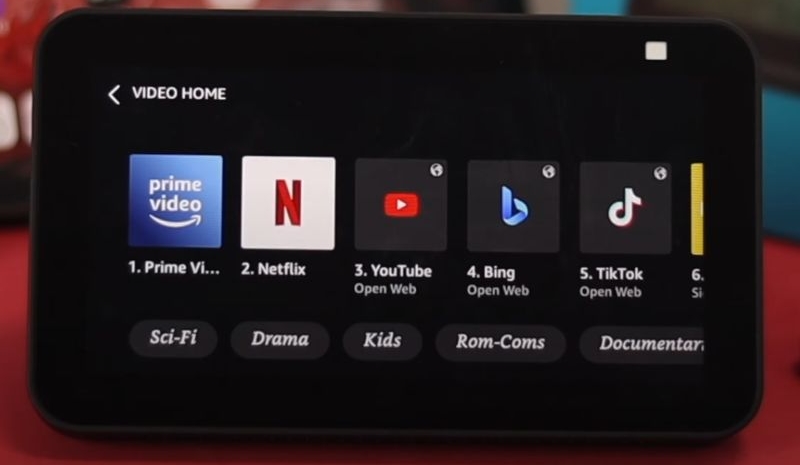
- Select Video from the menu.
- On the Video home, you will usually find the YouTube tile. This will still open inside the Silk browser itself. However, it simply skips typing the address part. You can sign in usually.
Option 3: Ask Alexa to Open YouTube
- You can also say "Alexa, open YouTube."
- Alexa will ask you whether it can use the Silk browser. Simply say Yes.
You still sign in manually the first time. Later, saying “Alexa, open YouTube” will take you straight back. This is especially quick when following a recipe or checking a short video.
Way 2. Use YouTube App
Some Echo Show models are fully integrated to give you a Fire TV experience. Here, you can get a proper TV-style YouTube interface with account sign-in and smoother navigation.
Compatible Echo Models
- Echo Show 15: All units updated with Fire TV integration.
- Echo Show 21: Newer model and it follows the Echo Show 15's path.
How to Play YouTube Videos on Echo Show with App
The YouTube app experience here mirrors what you see on a smart TV. You get a TV-style layout, account profiles, and better voice handling. Remote support is a major advantage too.
However, one limitation still applies. Background play is still not supported, even when you have YouTube Premium. So if you hit the back button or hit the home button to check your calendar, YouTube will stop playing.
That said, here are the steps to access and play YouTube videos on Echo Show 15 and 21.
The recent Echo Show 15 and 21 units actually come with the YouTube app due to Fire TV experience. If you’re using an older Echo Show 15 and can’t find YouTube on it. You can update the Echo Show 15 by going to Settings > Device Options to get the new “Fire TV experience” support.
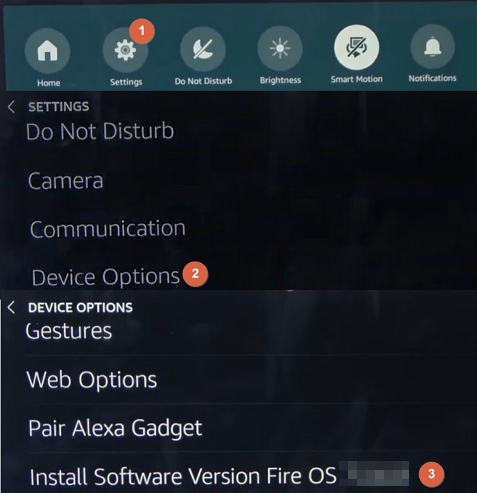
Then, follow these steps:
- Swipe down and select the Fire TV button. You can also say: “Alexa, open Fire TV.”
- You will land on the standard Fire TV home interface.
- Note: If you use Fire TV on another device with the same Amazon account, the profile will sync automatically. Otherwise, follow the usual sign-in flow.
- Then, select All Apps. You will find YouTube listed under Apps & Games.
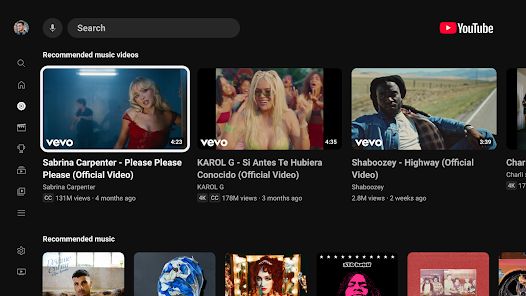
- Open YouTube to continue. You will be led to the same experience that you have of YouTube on the Smart TV.
- Touch input and Remote: You can either use the touch inputs to continue. However, if you’re far away or sitting, you can use the remote that comes with these models.
- Voice commands also work when you include “on YouTube” in your request. For instance: say, “Alexa, show me the latest meme videos on YouTube.”
- You can also cast from your YouTube app on your iPhone and Android, because your Echo Show will be recognized as a "TV" on your Wi-Fi network.
Other Streaming Services You Can Watch on Echo Show
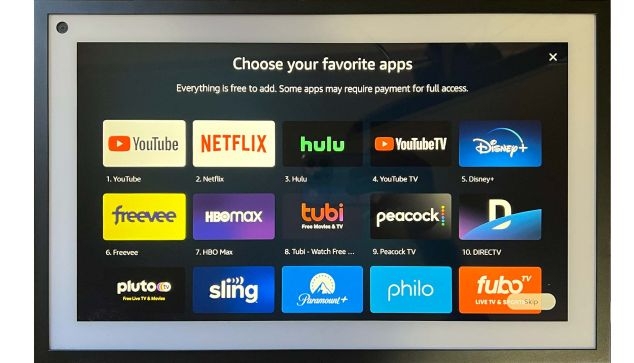
Your Echo Show devices can double as a TV for many services, depending on your local streaming networks. Just like with YouTube, the model you own will determine everything. Only some Echo Shows give you a TV-like experience. Here is a 2026 complete compatibility.
The Fire TV Class (Echo Show 15 & 21)
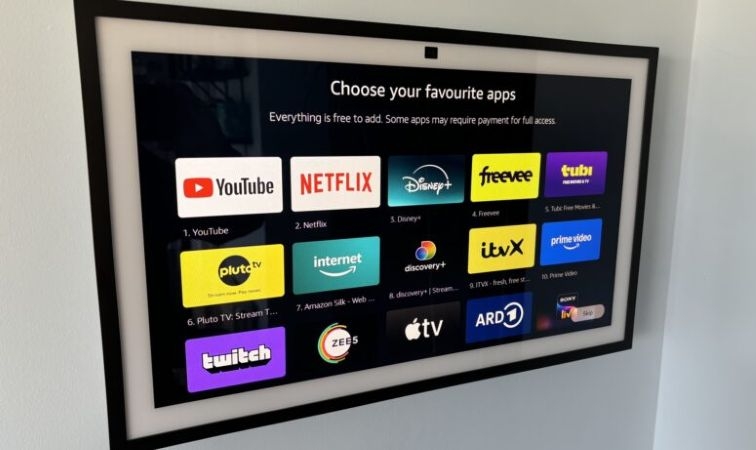
These models will give you true TV experiences. They come with loads of apps. You can also add the ones you like to the Home screen.
For instance, you will find the usual ones: Netflix, Disney+, Tubi, Pluto TV, Apple TV, Prime Video, Paramount, and the list continues. They are free to add, but some do require their own subscriptions to access content.
Other Alexa Devices (Echo Show 5, 8, 10)
These are a mixed bag. They do have native support for some apps. However, they run on a lighter operating system, so experiences differ. Some services have built-in skills (native support), while others force you to use the Silk Browser.
Here is a simple table that will make this easier:
 Native Support
Launch directly from Video Home or Alexa. Best Overall. Voice commands work great ("Alexa, play Fallout"). X-Ray works (to see actor names).
Good streaming quality, though Echo Show 5 is limited by its size.
 Dedicated App
Native support on Echo Show 5, 8, and 10. Solid. Alexa can open it. You have to rely on touch inputs to pick a title.
 Native (Mostly)
Integrated into the Video Home dashboard. Works well on 8 & 10. Sluggish on the Echo Show 5.
 Browser Only
No app. Must use Silk (disneyplus.com). Buggy. Users report it is very buggy on the 5 and 8. It requires constant sign-ins even on the 10th.
 Browser Only
Access via Silk. Frustrating. Similar experience to Disney+. Available on 5, 8, and 10, but lacks the app polish.
 Browser
Have a skill, but often redirects. Mixed. You can say "Alexa, open TikTok." It will take you to the browser view.
Tip: Download YouTube Videos for Offline and Personal Use
If you want offline content from streaming services like YouTube, Netflix, Hulu and Prime Video for offline playback, you can use Mediaio Video Converter. Unlike with native apps or official websites, Mediaio enables you to save videos as offline files for personal use.
As an all-in-one video converter, Mediaio lets you save content from major streaming videos like YouTube and other 1,000 sites as MP4, MKV, and MOV files. You can download movies and TV series in up to 4K quality on your computer and then transfer them to your phone, Amazon tablets, or the Fire TV via the USB drive.
Final Words
That brings us to the end of this guide. You have seen how to watch YouTube on any Echo Show model. The rules are simple. If you are on the 5, 8, or 10, you will have to get used to the YouTube browser experience. On Echo Show 15 and 21, you do get the app experience. And remember: if you need offline content from any streaming services, including YouTube, use Mediaio for Video to get the content up to 4K quality.