

Although Amazon Fire tablet is the king of budget entertainment, it doesn’t come with the YouTube app. You won’t even find YouTube listed in the Amazon Appstore. So, can you watch YouTube on your Fire tablet? Yes! In the next section, we’ll break down the answer and show you multiple methods to watch YouTube on Fire tablets, including Fire 7, Fire 8, HD 10, or Max 11. You will also learn how to install YouTube Kids on a Fire Kids tablet and set it up on your child’s profile.
Can You Watch YouTube on Amazon Fire Tablet?
Yes. Every Amazon Fire tablet can play YouTube videos. This guide covers three different methods. Depending on your Fire tablet model, performance will vary with each one. Here’s a quick overview:
Fire HD 8: Good. Generally cap at 720p. Minor UI lag.
Fire 7: Basic. Often limited to 480p to prevent freezing. Expect noticeable stuttering. Work Best For: Casual viewers who want instant access.
Limitation: No offline downloads, unless using the Desktop Mode trick.
Fire HD 8: Moderate. Work well, but battery drains faster.
Fire 7: Avoid. The system lacks the RAM to run the Play Store smoothly, causing severe lag and crashes. Work Best For: Users who need their subscriptions, history, and notifications synced perfectly.
Limitation: Risks breaking Amazon Kids+ controls or slowing down older devices.
Resolution: Support up to 4K. 1080p or 720p is ideal for Fire Tablets. Work Best For: Travel, flights, and camping where Wi-Fi is unavailable.
Limitation: Avoid if no SD Card available. As video files fill internal storage quickly. a microSD card is highly recommended.
How to Watch YouTube on Amazon Fire Tablet
Let’s go through each method in detail.
Way 1. Use Silk Browser
Amazon Silk browser is the fastest way to access YouTube. It works without installing extra software. By default, YouTube opens in the mobile web version. That means the interface is less fluid than the dedicated app.
While the Silk browser handles video streaming well, YouTube playback is limited. You wouldn’t even get 1080p on many models like Fire 8, HD 8 Plus, and Fire HD 10. Plus, expect lags when on older Fire models (like Fire 7).
Ads are present by default if you do not have Premium. And that is why some users prefer Opera (available in the Amazon Appstore).
Steps to Watch YouTube on Silk
Step 1. Open Silk browser (the internet icon).
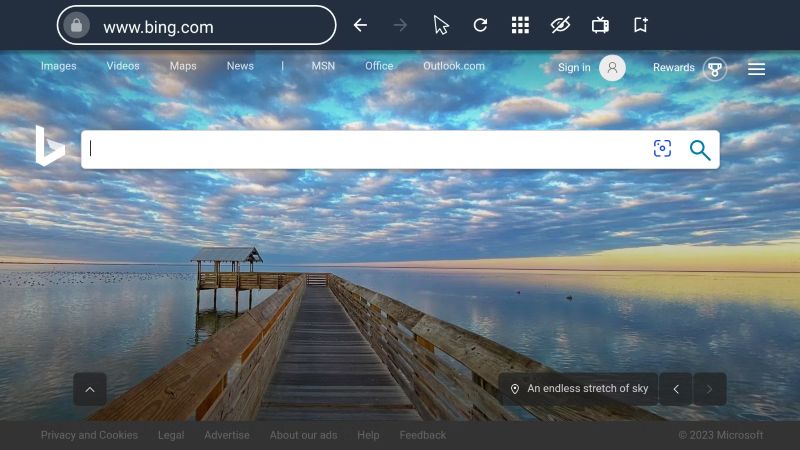
Step 2. Type YouTube.com in the address bar and search.
Step 3. The page will load the YouTube mobile web app experience. You can search for videos and watch as you want.
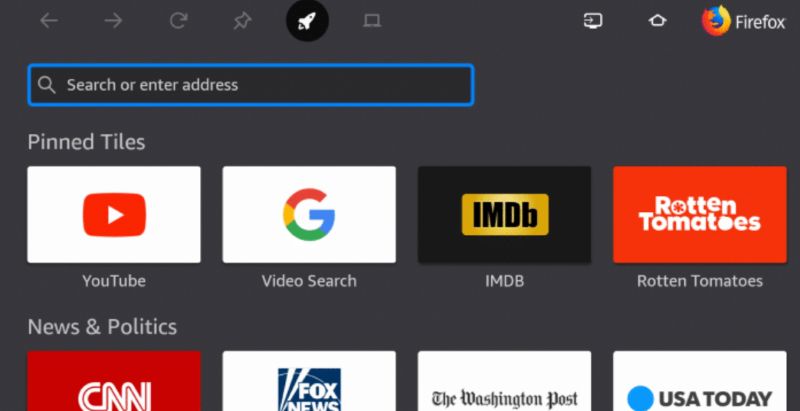
Browser-Based Offline Downloads (For Fire HD 10 and later models)
This method works for some Fire HD 10 users with YouTube Premium. It does not work on child profiles or when parental controls enabled. Here is how it works:
- Open YouTube in Silk. Tap the menu icon (three vertical dots) in the top right—not the YouTube menu.
- Select Desktop site from the list. The page will reload and look exactly like the PC version.
- Sign in with your Premium account.
- Open the video you want. You will see the official Download button right below the player. Tap it. The video saves to your browser storage.
Note: You must watch these inside the Silk browser. If you clear the browser cache, the videos will be deleted.
Way 2. Sideload YouTube on Fire Tablet
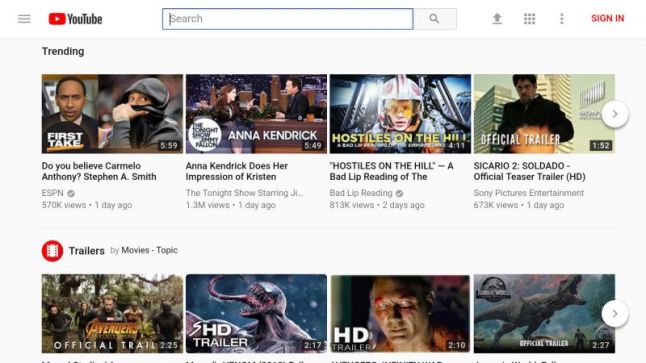
The reason you cannot install YouTube as an app on the Fire tablet is that it isn’t listed in the Amazon App Store. However, Fire tablets run on Fire OS, which is actually built on Android (AOSP). This means you can install the Google Play Store app on Fire tablets easily and install most of the apps that you do on Android devices, including YouTube.
You will have to download a bunch of Google Play services, but all of those are necessary. For those wondering if you can directly download the YouTube APK—no, because you need Google Play services for YouTube to work.
As for safety and performance of Google service installation:
- Fire HD 10 (2021/2023) and Fire Max 11 have enough RAM to run Google services smoothly.
- Older devices like Fire 7 or Fire 8 will see the system slow down. Many users also claim faster battery drain.
- Amazon Fire OS updates can break the Play Store, so you will have to reinstall the files.
- You will be sourcing the links from APKMirror, which is quite safe, but still a third-party site.
- Aside from that, there are no major vulnerabilities like your file system crashing or anything else. It is quite safe to use and it depends on how comfortable you are with installing the app.
Steps to Install YouTube on Fire Tablet via Sideloading
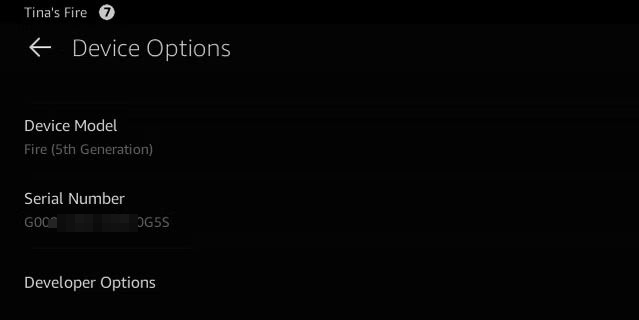
Step 1. First, you need to know your Fire tablet model and Fire OS version.
- Open Settings.
- Go to Device Options > System.
- Look at Device Model and Fire OS version.
This will tell you exactly which APK file versions to download in the next step.
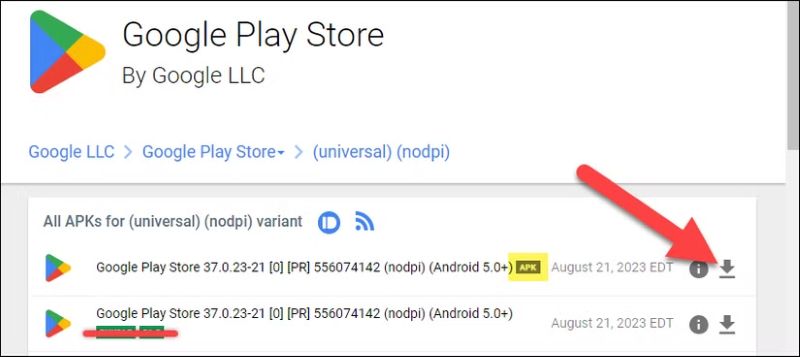
Step 2. Open the Silk browser and visit apkmirror.com.
You will be downloading four APK files:
- Google Account Manager
- Google Services Framework
- Google Play Services
- Google Play Store
Use your Fire model and Fire OS version from Step 1 to match the correct files.
Note: You’ll always have to install the latest version of "Google Play Services" and "Google Play Store."
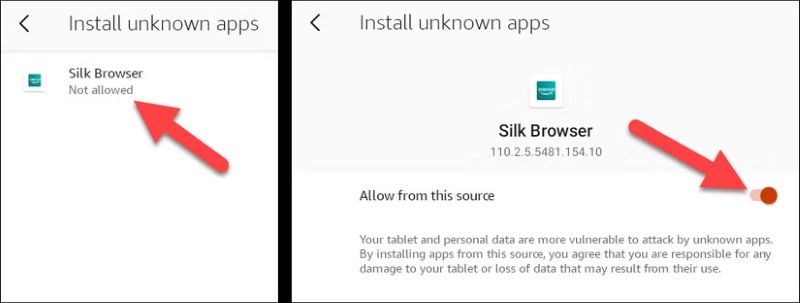
Step 3. Open Settings app of your Fire tablet. Go to Security and Privacy and turn on Apps from Unknown Sources for Silk Browser.
Now APK files can be installed on your Fire tablet.
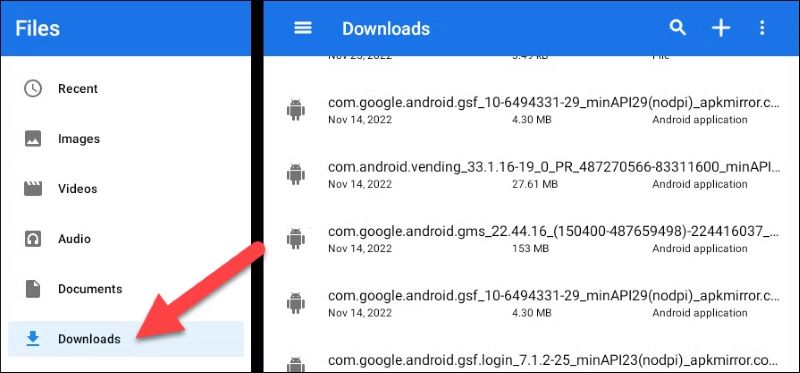
Step 4. Install the 4 files you downloaded before in the correct order. The order matters here. Also, do not open anything while installing.
- First, install Google Account Manager and close the installer when it finishes.
- Next, install Google Services Framework and return to your downloads.
- Then, install Google Play Services and exit after it completes.
- Finally, install Google Play Store.
None of these apps should be opened yet.
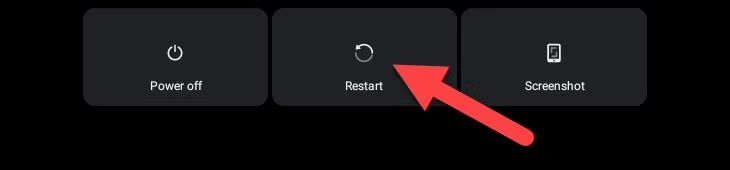
Step 5. Press and hold the Power button. Choose Restart. Tablet reboot will allow Google services to attach to the Fire OS.
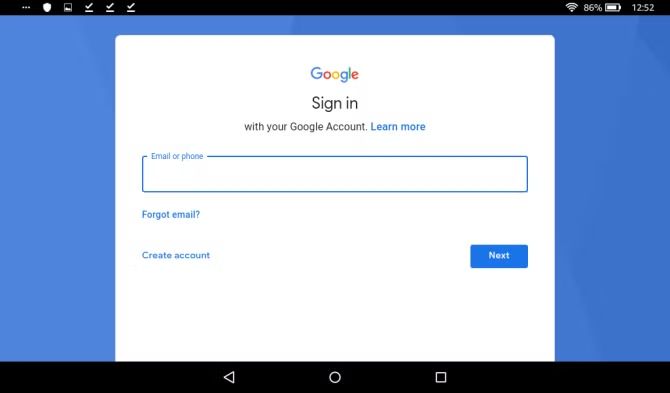
Step 6. After the tablet turns back on, you will see the Play Store icon. Open it, sign in with your Google account and search for YouTube. Finally, install it.
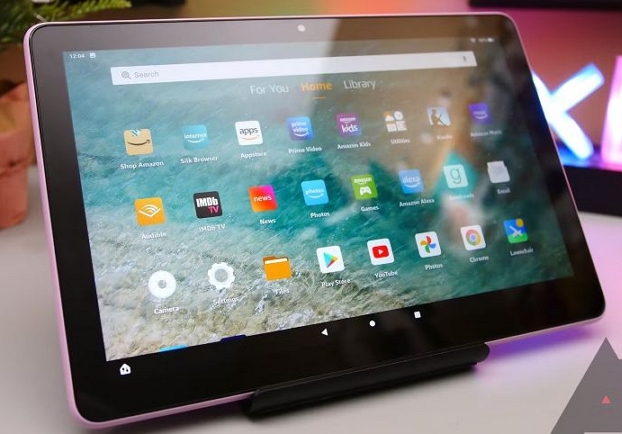
That’s it! You now have a YouTube app on your Fire tablet. It’s time for you to enjoy your favorite videos.
Way 3. Watch YouTube Videos Locally
Another convenient way to watch YouTube videos on your Fire tablet is as local MP4 files. That is, you can first download YouTube videos onto your computer and then transfer them to your Fire tablet.
Step 1: Save YouTube Videos Offline
Mediaio Video Converter is designed to help you save YouTube videos as offline files for personal use. It lets you save any content from YouTube, such as music videos, live streams, YouTube Originals, your favorite highlights, podcasts, or any videos and save them in up to 4K quality on your computer. You can choose formats like MP4, which is supported by FireOS and native media player.
Mediaio also comes with a built-in YouTube browser, so you do not have to copy or paste any links to save content. Whether downloading one video or batch downloading an entire playlist, it can do that in one go. You will get very high-quality, properly organized files on your computer which you can easily transfer to your Fire tablet.
Step 2: Transfer Offline Videos to Fire Tablet
Fire tablets (7, 8, 10) come with limited storage (32 or 64 GB), but they all support microSD cards (some even up to 1TB). So you can utilize one if you have a large collection. Here is how to transfer local YouTube videos to Fire tablet:
- Connect your Fire tablet to the computer.
- Select File Transfer (MTP) on the notification screen.
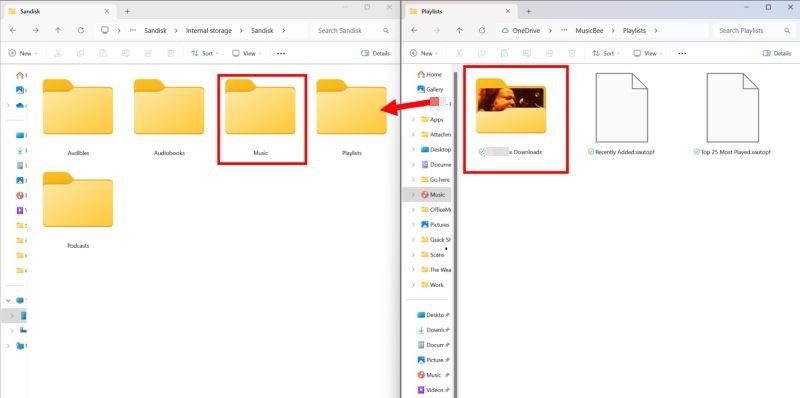
- Drag and drop the downloaded files from your Mediaio movies folder to the Video folder on your Fire tablet. Or, you can create a dedicated folder like "YouTube Offline" to make the transfer happen.
Step 3: Start Enjoying YouTube on Fire Tablet
Now you will not need the YouTube app for video playback at all on your Fire tablet. Simply:
- Open the Files app.
- Navigate to the folder where you dropped your videos (like YouTube Offline).
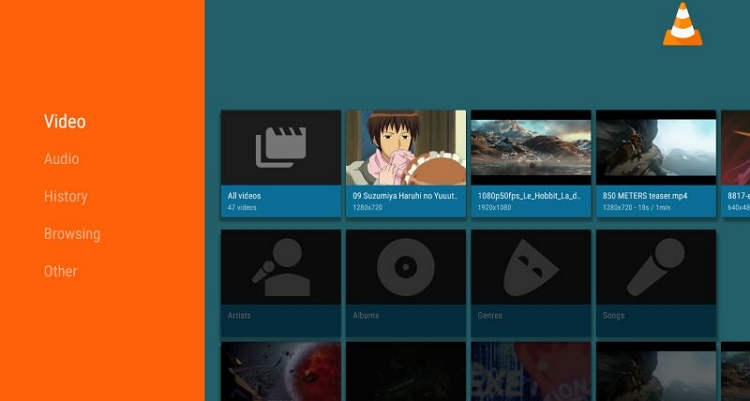
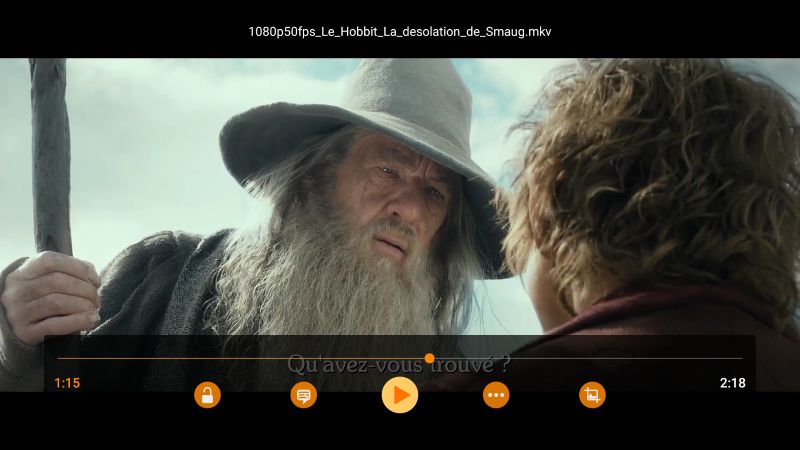
- Tap a video to play. It will open with the default player. For a better experience, get VLC for Fire from the Amazon Appstore. VLC is completely free and comes with advanced features (SRT subtitles that Mediaio downloads).
FAQs
These FAQs cover a few extra tips for using YouTube and YouTube Kids effectively on Fire devices.
How to Get YouTube on Amazon Kid Tablet?
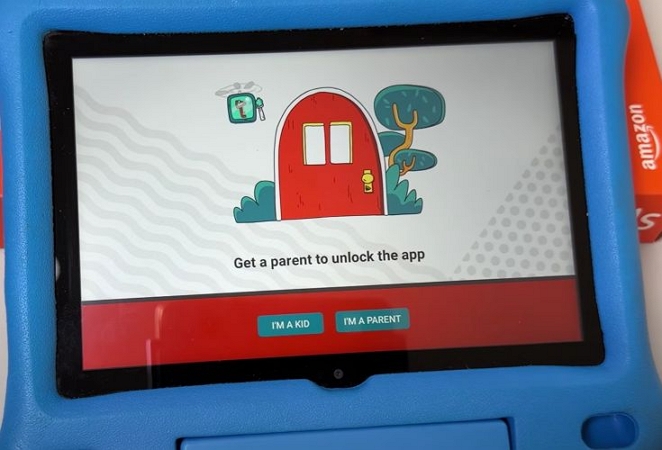
The setup takes a few extra steps, but this is the only way to install the official YouTube Kids app inside the child’s profile.
What You Need
- An Amazon Fire Kids tablet
- A computer (Windows or Mac)
- A USB cable
- Wi-Fi connection
- The Go Apps Launcher (US$1.99 one-time app)
Steps to Install YouTube Kids on Amazon Kid Tablet
Step 1. Switch to the parent profile on the Fire tablet.
- Open the Amazon Appstore.
- Search for Go Apps Launcher. Buy and install it.
- This app allows Android apps like YouTube Kids to appear inside the Kids profile.
Step 2. Allow Silk Browser to Install Unknown Apps. Also, check your Fire Kids Tablet model.
Step 3. Open Silk Browser. Go to: tinyurl.com/installYTKids
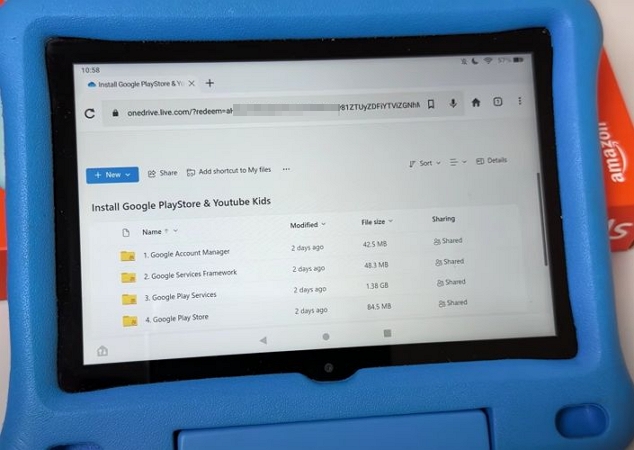
Step 4. You will see six folders. You only need to install the one that matches your Fire Kids tablet model. Download and install the files in the correct order.
- Download Google Account Manager and let it finish installing.
- Next, bring in the Google Services Framework that matches your Fire model.
- After that, install the correct Google Play Services build.
- Once those are in place, add the Google Play Store.
- Then install the YouTube Kids support files.
- Finally, install YouTube Kids itself.
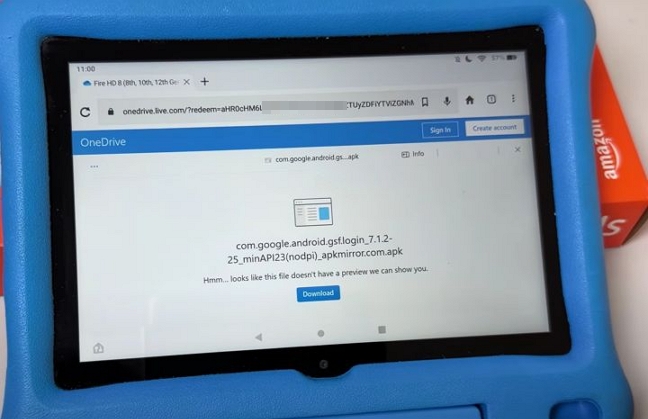
After installing each profile, press the Cancel button to exit.
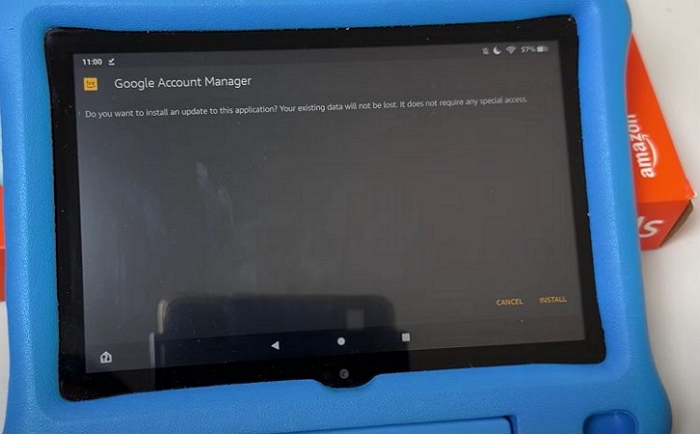
At this point, both YouTube Kids and Play Store will be available on the parent profile. Do not open them yet.
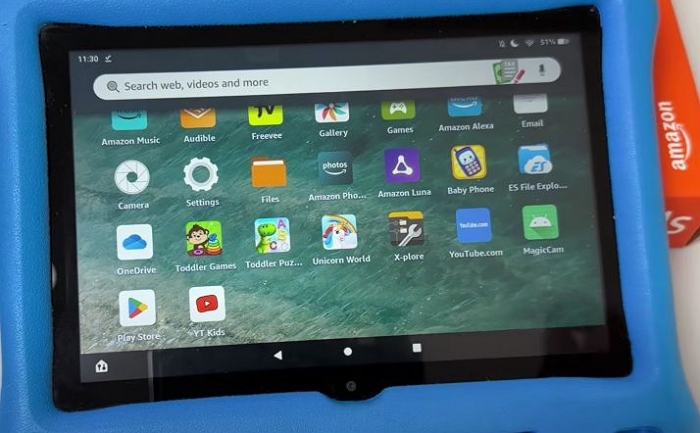
Step 5. Enable Developer Mode. For this:
- Head into Settings and move into Device Options.
- From there, open About Fire Tablet and press the Serial Number seven times until Developer Mode unlocks.
- Go back and enter Developer Options, then switch on USB Debugging.
Step 6. Connect the tablet to your computer using a USB cable. On the tablet, tap Allow USB debugging.
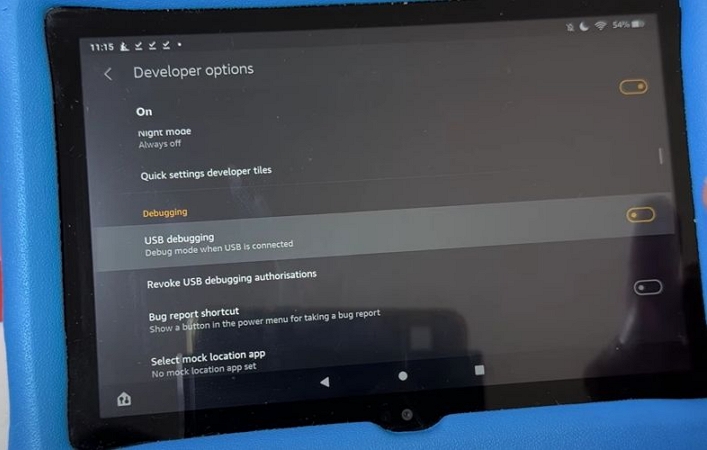
Step 7. Now on the computer, go to the link: tinyurl.com/installYTKids
Download Android SDK Platform Tools for Windows or Mac. Extract the folder.
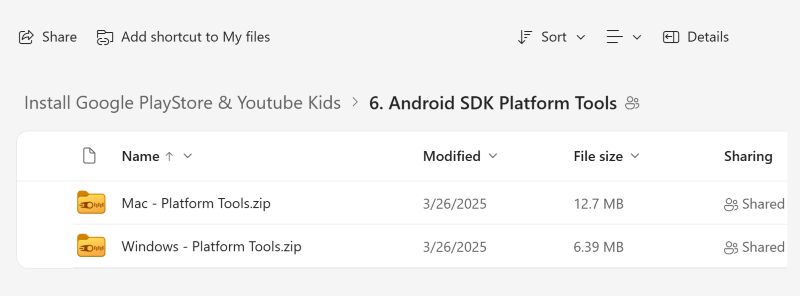
1. Open Terminal and go to the folder: cd ~/Downloads/platform-tools
2. Check ADB is working: ./adb version
3. Check device connection: ./adb devices
4. Find child’s profile ID: ./adb shell pm list users
5. Finally, you can install YouTube Kids & required services (replace 12 with child’s profile ID):
- ./adb shell cmd package install-existing --user 12 com.google.android.apps.youtube.kids
- ./adb shell cmd package install-existing --user 12 com.google.android.gms
- ./adb shell cmd package install-existing --user 12 com.android.vending
- ./adb shell cmd package install-existing --user 12 com.google.android.gsf
- ./adb shell cmd package install-existing --user 12 com.google.android.gsf.login
This will install YouTube Kids into the Kids profile.
Step 8. Enable Go Apps in the Kids profile
- Switch to the Kids profile.
- Open Settings and go to Manage Content, then choose Share from Library.
- Sign in with the parent account.
- Enable Go Apps Launcher.
- Turn Wi-Fi off and back on once to refresh the profile.
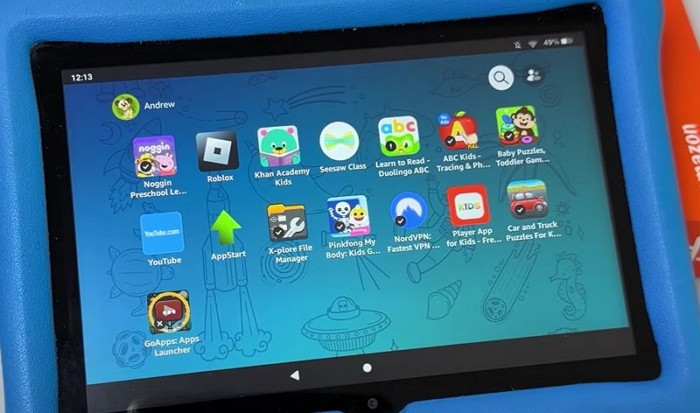
Step 9. Launch YouTube Kids
- Open Go Apps Launcher and tap All Apps.
- Find YouTube Kids and tap the Star icon to favorite it.
Now the app will appear on the main screen.
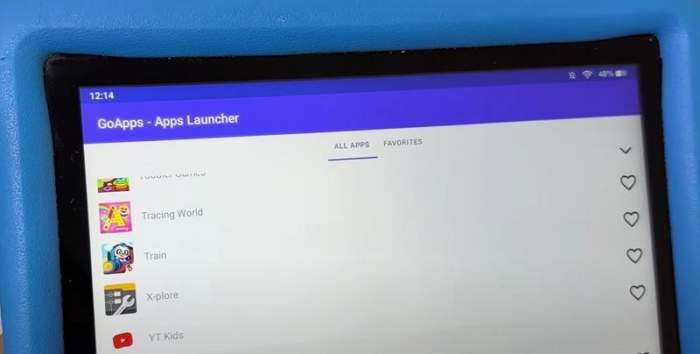
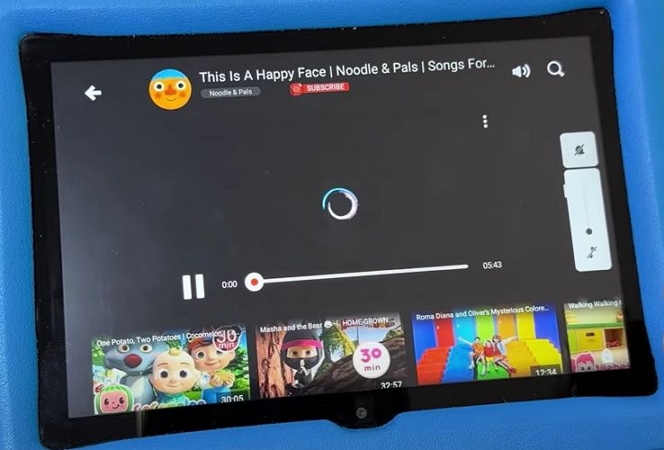
Tap YouTube Kids. Set it up once. YouTube Kids will now run directly inside the child’s profile. If you have more child profiles, repeat the computer step and use their profile number.
Can You Get YouTube on Amazon Fire Stick?
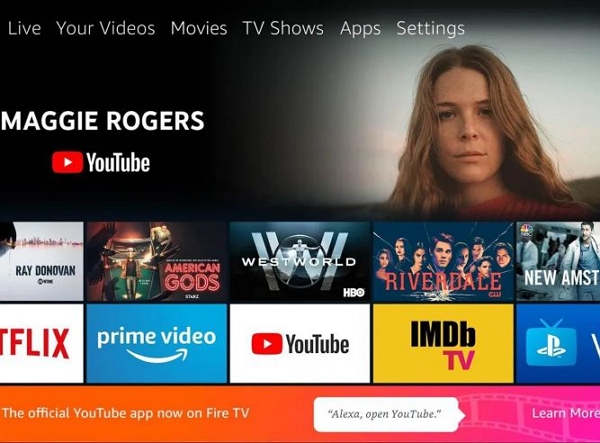
Yes. Unlike Fire tablets, Fire TV devices have the official YouTube app directly in the Amazon Appstore. So you do not need to sideload the Play Store. Follow these steps:
- Open Appstore.
- Hold the voice button on the Fire TV remote.
- Say, “Alexa, find YouTube.”
- Download the official YouTube app.
This will add the YouTube app on your Fire TV. Plus, the YouTube app gives you the full TV version of YouTube. You will get 4K streaming, multiple user profiles, and the full living-room experience.
How to Add YouTube to a Child Profile on Amazon Fire Tablet?
You do not need Google Play Store for this. You just have to allow the web version of YouTube inside the child profile. Follow these steps:
- Open the parent profile first.
- Go to Settings > Profiles & Family Library.
- Select the child profile you want to change.
- From the options on the left, choose Manage Web Settings.
- When the menu appears, tap Add Website.
- Enter www.youtubekids.com or www.youtube.com.
- Make sure Web Browser Access is turned on for the child.
Switch back to the Child’s profile. Now, when the child opens the browser, YouTube appears as an approved site. All other parental controls will stay active.
Conclusion
So there you go. That is how to watch YouTube on Fire tablets, on any model. Accessing it from the browser is the only option that Amazon gives you. For occasional viewing, it is good. Side-loading the app is useful when you have serious use of YouTube. Mediaio Video Converter is suitable for offline viewing on Fire tablets, allowing you to download any video from YouTube in high quality and watch it without buffering.