

Camtasia is a powerful screen recording and video editing tool, but not everyone finds it ideal. Many users struggle with its high price, heavy system requirements, and steep learning curve. If you’re looking for a budget-friendly, easier alternative, we’ve tested and compared the 10 best Camtasia alternatives for 2026.
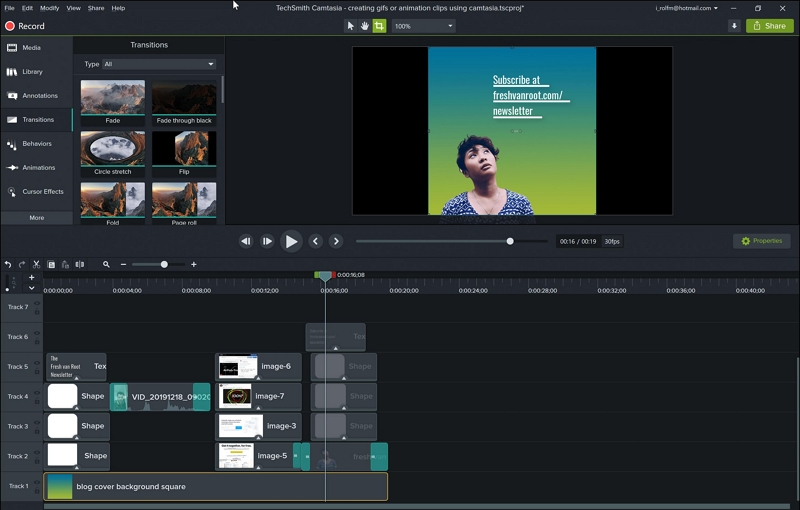
Camtasia Studio Complete Review
Camtasia has long been one of the most recognized tools for screen recording and video editing. With it, you can create tutorials, product demos, presentations, and even 4K training videos without needing advanced editing knowledge.
When I tested Camtasia, the recording process felt smooth: you can capture your entire screen, webcam, system audio, and microphone in just a few clicks. The built-in editor makes trimming, adding annotations, and polishing clips straightforward. Its newer AI features—like text-based editing, transcription, voiceovers, and translation—do help speed up workflows, although some still feel basic compared to specialized AI tools.
How to use Camtasia?(record + edit + export easily)
Step 1: Download and install Camtasia on your PC.
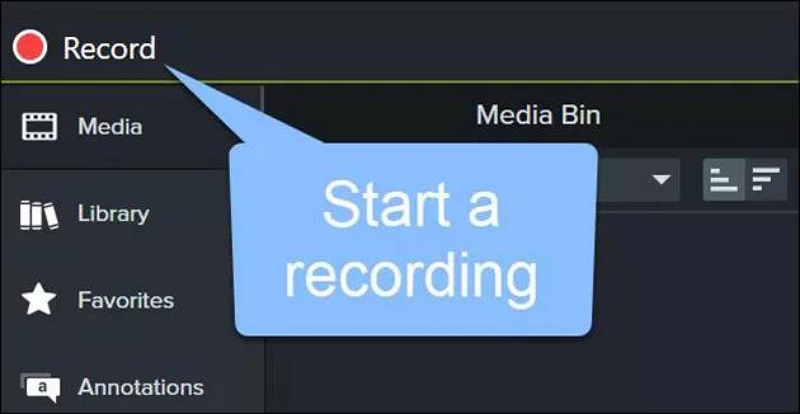
Step 2: Open the program and select Record from the top-left menu.
Step 3: Choose Full Screen (or a custom region), and adjust audio/camera settings.
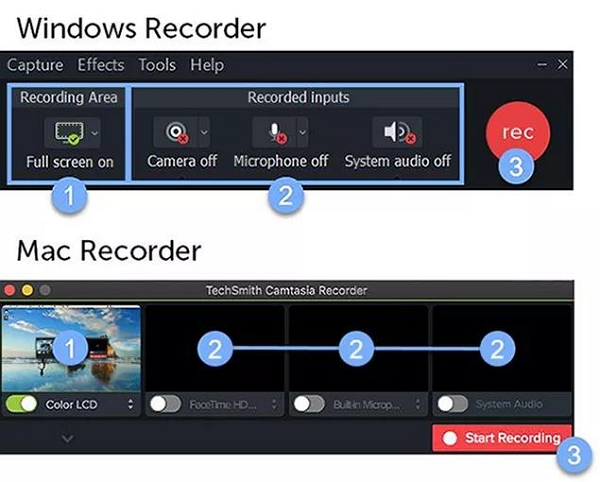
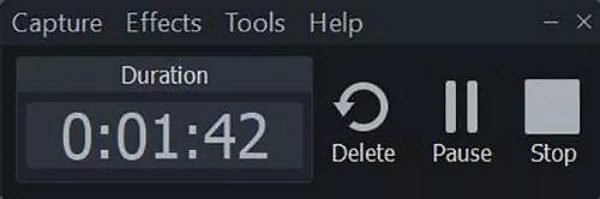
Step 4: Click Rec to start recording, then stop when finished.
Step 5: Your video opens in the Camtasia editor, where you can cut, add effects, and export.
Overall, Camtasia strikes a balance between ease of use and editing power. But like any tool, it has limitations—and not every type of user will find it ideal.
Why Are Users Looking for Camtasia Alternatives?
Through my experience and feedback from other creators, these are the groups that most often switch to alternatives:
Camtasia’s one-time fee is higher than most modern editing tools.
Beginners Wanting Free or Lightweight Tools
If you’re just starting your video editing journey, Camtasia’s price can feel steep. Many beginners prefer free or lightweight editors that keep things simple.
Advanced Editors Hitting a Ceiling
Professionals who need color grading, advanced effects, or complex layered timelines often find Camtasia too limited and move on to tools like Premiere Pro or DaVinci Resolve.
Content Creators Needing Flexibility
YouTubers, streamers, and social media creators often want cloud-based or mobile editing. Since Camtasia only runs on Windows and macOS, it’s not ideal if you need Linux, Chromebook, or smartphone support.
Educators & Businesses Concerned About Pricing
Teachers and trainers who regularly create tutorials often struggle with Camtasia’s licensing cost, especially when multiple seats are needed. Budget-friendlier tools can make more sense.
Users Facing Export or Performance Issues
Some users report long rendering times, performance hiccups, or frustrations with watermarks in the trial version. For time-sensitive projects, smoother exporting is a must.
With these limitations in mind, it’s no surprise that many users are actively searching for alternatives that are more affordable, cross-platform, or feature-rich.
Best Free Camtasia Alternatives in 2026
Let’s dive into the list of the best free Camtasia alternatives in 2026.
1. OBS Studio
>OBS Studio (https://obsproject.com/) is one of the most popular free Camtasia alternatives, especially among streamers. Unlike Camtasia, which focuses on screen recording and editing, OBS shines with its live broadcasting features. You can record your screen, system audio, and microphone while simultaneously streaming to platforms like YouTube, Twitch, or Facebook.
When I tested OBS, I liked how flexible it was—you can create multiple “scenes” by combining different sources (desktop, webcam, game capture, etc.) and switch between them seamlessly. However, the interface can feel overwhelming at first, especially for beginners who just want simple recording.
Key Features
- Multi-source scenes for combining screen, webcam, and overlays.
- Built-in audio mixer with filters for noise suppression and gain.
- Studio Mode for creating professional live transitions.
- Exports to MP4, MKV, MOV, and more.
Pricing: Free
Best for streamers, gamers, or advanced users who want maximum control over recording and live broadcasting—without paying for Camtasia.
2. ShareX
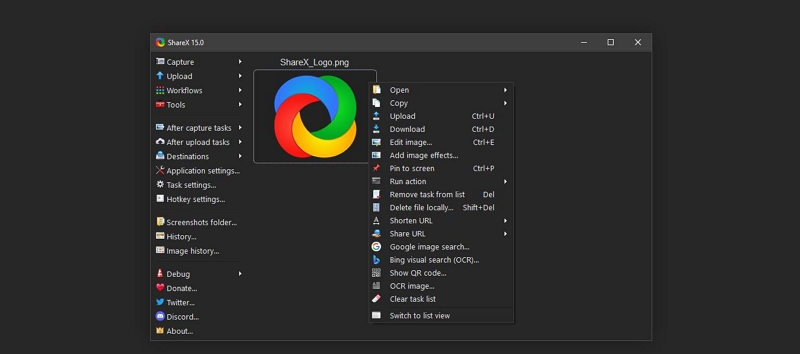
ShareX (https://getsharex.com/) is another free, open-source Camtasia alternative that stands out for its lightweight design and wide range of productivity tools. Unlike Camtasia, which focuses on advanced editing, ShareX keeps things simple: you can capture your entire screen, a window, or a custom region using customizable hotkeys.
When I tested ShareX, I found it extremely fast and resource-friendly. It also surprised me with extra utilities like a color picker, GIF recorder, and even an image editor. However, the interface feels outdated, and it may take beginners some time to get comfortable with the menus.
Key Features
- Record full screen, windows, or custom regions.
- Auto-capture mode for scheduled screenshots/recordings.
- Built-in tools like color picker, video thumbnailer, and image editor.
- Customizable workflow for automation.
Pricing: Free
Best for users who want a lightweight, no-cost tool with powerful screen capture options and don’t mind a steeper learning curve compared to Camtasia.
3. VSDC Free Video Editor
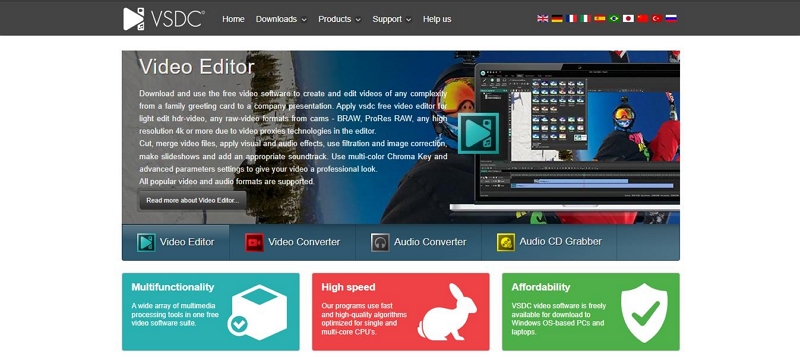
VSDC Free Video Editor (https://www.videosoftdev.com/) is a powerful Windows-only Camtasia alternative that combines screen recording and advanced video editing in one package. It’s especially popular among budget-conscious creators because the free version has no watermark and still includes plenty of professional-grade editing tools.
When I tested VSDC, I found the timeline-based editor surprisingly flexible—you can cut, merge, add transitions, and layer multiple tracks with ease. The built-in chroma key and wide effects library make it possible to create YouTube-ready videos without spending a dime. The only downside is that rendering can be slower than Camtasia, and macOS users are left out.
Key Features
- Full video editing suite: zoom, color correction, charts, 360° video editing.
- Supports all major video/audio formats and codecs.
- Huge library of transitions, filters, and visual effects.
- Built-in screen recorder and voiceover support.
- Chroma key for green screen editing.
Pricing: Free (Pro version available with advanced features)
Best for Windows users who want a free yet feature-rich editor and don’t mind a slightly steeper learning curve compared to Camtasia.
4. Eassiy Screen Recorder Ultimate
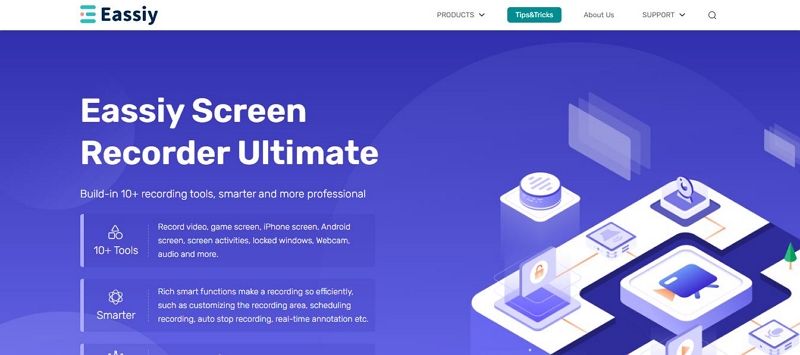
At the top of our free Camtasia alternatives list is Eassiy Screen Recorder Ultimate (www.eassiy.com/screen-recorder-ultimate.html). Unlike Camtasia, which can feel heavy and pricey, Eassiy focuses on flexibility and automation. During my test, I found it surprisingly smooth for recording tutorials and gameplay, with smart features that Camtasia doesn’t natively offer.
You can schedule recordings, set auto-stop or auto-split, and even capture mobile screens directly from your PC. The editing tools aren’t as advanced as Camtasia’s timeline editor, but they’re enough for trimming, compressing, and converting videos quickly.
Key Features
- Record any screen area with system and microphone audio, up to 8K quality.
- Built-in iOS and Android recorder for capturing mobile screens.
- Noise cancellation for cleaner voice recordings.
- Multiple camera overlay styles (rectangle, circle, ellipse).
Pricing
- Frequently offer free trials
- Monthly Plan: $19.99/month
- Annual Plan: $29.99
- Perpetual Plan: $69.99
- Family Plan: $149.99
Best for beginners or educators who want an affordable, easy-to-use recorder with automation features that Camtasia lacks.
5. ActivePresenter
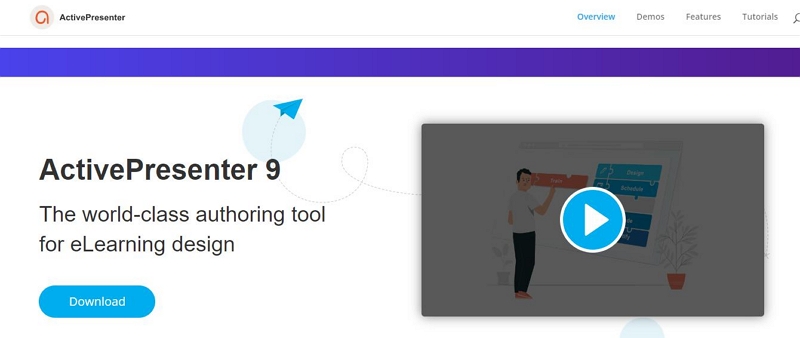
ActivePresenter (https://atomisystems.com/activepresenter/) by Atomi Systems is an all-in-one Camtasia alternative designed for educators, trainers, and businesses that need to build interactive eLearning content. While Camtasia is great for general video editing, ActivePresenter stands out for its ability to add quizzes, annotations, and HTML5 exports, making it especially useful for online training modules and software tutorials.
When I tested it, I found the smart annotation feature impressive—it automatically generated descriptions of on-screen actions, which saved me a lot of manual work. The timeline-based editor is fairly capable for trimming, cutting, and adding effects, though it feels less intuitive than Camtasia for quick edits.
Key Features
- Smart screen capture with powerful editing tools.
- Full-motion recording with simultaneous system + microphone audio.
- Auto-generated annotations based on actions in the target app.
- Supports interactive elements like quizzes and HTML5 export.
Pricing
- Standard: $199/license
- Pro: $399/license
Best suited for educators and corporate trainers who want to create interactive, professional training content beyond simple screen recordings.
6. Flashback Express
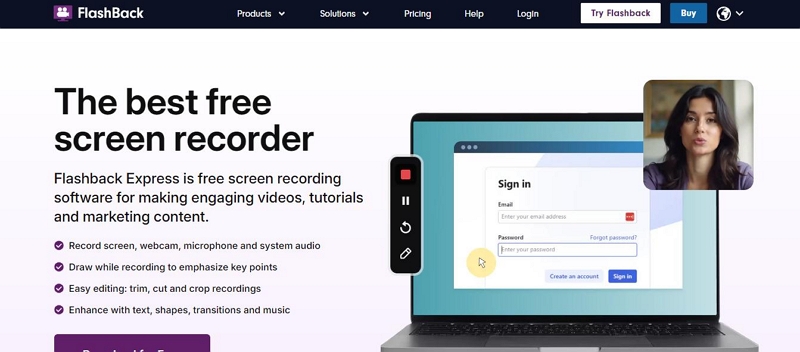
FlashBack Express (https://www.flashbackrecorder.com/express/) is a Windows-only Camtasia alternative that’s perfect for beginners and casual creators. It lets you record your screen, webcam, and microphone simultaneously, making it ideal for tutorials, product demos, or walkthroughs. Unlike many free tools, FlashBack Express imposes no time limits or watermarks, which is a big plus for clean professional-looking recordings. The trade-off is that it lacks advanced timeline editing found in Camtasia.
When I tested it, I found recording smooth and annotations easy to add, though I did miss Camtasia’s robust timeline editing when trying more complex edits.
Key Features
- Trim, cut, and crop recordings easily.
- Capture full screen or a custom area.
- Record system audio with high clarity.
- Annotate on-screen while recording.
Pricing
- 1 Year - $12/year
- Lifetime - $19
Best for beginners or educators who need straightforward recording without watermarks or time limits.
7. Loom
Loom (https://www.loom.com/)is a cloud-based Camtasia alternative designed for simplicity and speed. It lets you record your screen, webcam, and audio in just a few clicks, making it ideal for quick tutorials, feedback, and asynchronous presentations. Unlike Camtasia, which focuses on in-depth editing, Loom prioritizes fast sharing and collaboration.
When I tested Loom, I loved how quickly I could record and send clips to teammates. The trimming tools are simple but effective, and integrations with Slack, Gmail, and Google Workspace make sharing effortless. The main limitation is that videos over five minutes or advanced AI features require a paid plan.
Key Features
- Lightning-fast screen recorder with intuitive editing.
- Transcription support in 50+ languages.
- Share or embed videos directly to Slack, Gmail, and Google Workspace.
- AI-powered automation for recording and editing (Business plan).
Pricing
- Free
- Business - $15/month
- Business + AI - $20/month
Best for teams and creators who need fast, cloud-based recording for quick tutorials or feedback, without complex editing.
8. Clipchamp
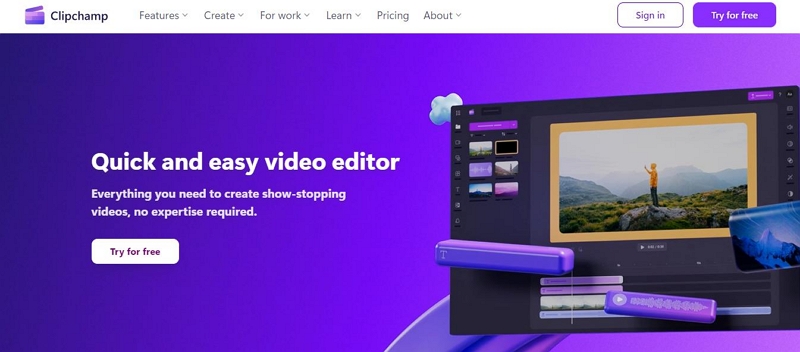
Clipchamp (https://clipchamp.com/en), now owned by Microsoft, is a web-based Camtasia alternative ideal for beginners who want fast and accessible video creation. Unlike Camtasia, which requires installation and a steeper learning curve, Clipchamp runs directly in your browser with a simple drag-and-drop interface.
When I tested Clipchamp, I found the in-browser editing surprisingly smooth, and the built-in templates and stock footage helped me quickly create social media and training videos. The only drawback was slower export times, especially for longer or high-resolution projects.
Key Features
- Stylish effects and transitions for video editing.
- Access to 200+ royalty-free music tracks.
- AI subtitles for accurate captions.
- Built-in video tools: trimmer, cropper, resizer.
Pricing
- Free: basic editing and recordings.
- Premium: $9/month for advanced features and AI tools.
Best for beginners or casual creators who need quick, browser-based video editing with templates and AI tools.
9. ScreenFlow
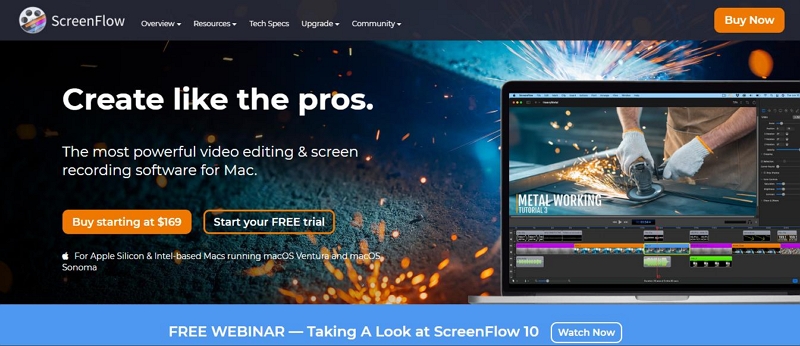
ScreenFlow (https://www.telestream.net/screenflow/) is a Mac-only Camtasia alternative designed for professional creators who want powerful screen recording and video editing in one package. Unlike Camtasia, which works on Windows and Mac, ScreenFlow focuses solely on macOS and provides a rich timeline editor, transitions, animations, and support for closed captions.
When I tested ScreenFlow, I found its timeline editing and stock media library very intuitive for creating high-quality YouTube tutorials and marketing videos. However, some advanced features like multi-device recording and extra effects are only available in the Super Pak editions.
Key Features
- Multiple recording modes: full screen, camera, or custom area.
- Built-in video editor with advanced enhancements.
- Multi-device screen recording mode.
Pricing:
ScreenFlow: $169
ScreenFlow Super Pak: $229
ScreenFlow Super Pak+ - $259
Best for professional Mac users, educators, YouTubers, and marketers who need high-quality recording and editing with advanced timeline features.
10. CamStudio
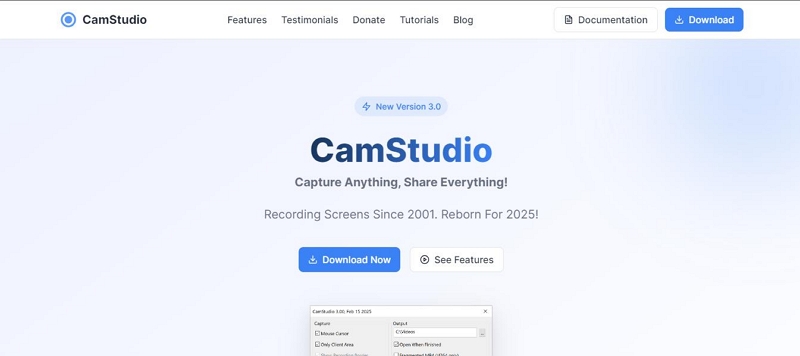
CamStudio (https://camstudio.org/) is a free, open-source Camtasia alternative for Windows users who need a simple, lightweight screen recorder. While it doesn’t include a timeline editor or advanced effects, it’s perfect for basic instructional videos, presentations, or quick tutorials.
When I tested CamStudio, I found it very easy to use and surprisingly lightweight, but exporting in AVI or SWF felt outdated for modern video platforms. Users who need more advanced editing will need to process the recordings in external software.
Key Features
- Add captions and basic annotations.
- Record screen activity in AVI format.
- Set recording limits by time or file size.
- Advanced resolution controls to fine-tune recordings.
Pricing: Free.
Best for budget-conscious Windows users who need simple, no-frills screen recording and are comfortable using external editors for advanced processing.
Looking for a Camtasia Alternative for Browser-Based Video Workflows?
Some users explore Camtasia alternatives not for complex timeline editing, but for handling browser-based video content in a more controlled and flexible way. This usually includes tasks like format compatibility, subtitle handling, or preparing videos for different screen sizes and devices.
In these scenarios, Mediaio Video Converter can serve as a general-purpose video processing tool rather than a traditional screen recorder. It focuses on video format management, subtitle handling, and playback preparation, which can complement screen recording tools like Camtasia or OBS.
When testing Mediaio Video Converter, we found it particularly useful for managing video files efficiently after recording—especially when dealing with long-form content or multilingual subtitles.
As with any third-party software, users should always ensure their workflows comply with platform terms of service and applicable local regulations.
Camtasia vs Its Top Alternatives – Detailed Comparison
Here’s a clear comparison of Camtasia and its top alternatives, including platforms, key features, best use cases, and watermark info:
Conclusion
There’s no doubt that Camtasia is a powerful tool for creating professional videos. However, if you’re looking for alternatives, the tools mentioned above cover a wide range of needs.
- For free screen recording, OBS Studio and ShareX are reliable and no-cost options.
- For all-in-one e-learning solutions, ActivePresenter is perfect for tutorials, quizzes, and interactive content.
- For quick and easy cloud recording, Loom offers simplicity and fast sharing.
From my experience, these alternatives not only meet different budgets but also provide features that Camtasia users may find missing or restrictive. Choosing the right one depends on your workflow, platform, and video goals.