

Imagine watching YouTube on your PS5 screen while farming resources in Minecraft or waiting through a DPS queue in Overwatch 2. These moments still need your hands on the controller, but they do not demand your full attention. Yet, PlayStation does not officially allow YouTube playback during gameplay.
Still, it is possible. This guide shows how to watch YouTube while playing games on PS5. You’ll also find how to watch YouTube videos offline or listen to YouTube music in the background while playing games.
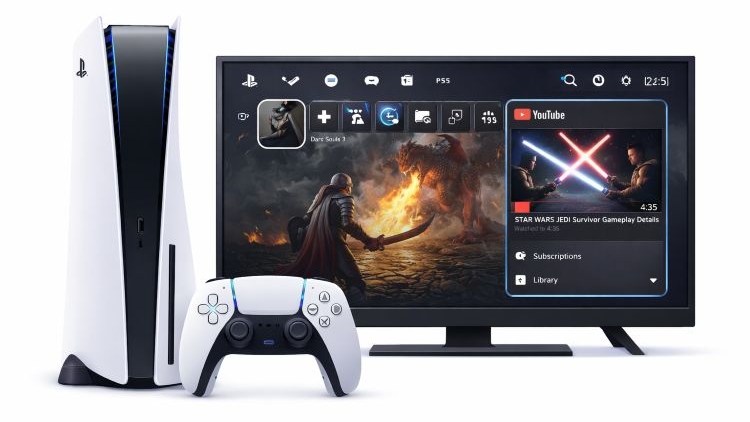
How to Watch YouTube While Playing Games on PS5
The PlayStation itself does not have a dedicated "multitasking" mode like Xbox old “Snap” feature. If you try to launch the YouTube app while a game like Call of Duty is running, the system will ask you to exit the game first.
However, the PS5 software includes a “Pin to Side” system. This is the same system used for things like party chats, which lets you access the hidden web browser on the PlayStation. So you will have to access YouTube as a web page rather than in an app.
While this "Pin to Side" is similar to Picture-in-Picture, it will be locked to the HUD while you play, left or the right edge of the screen.
Here’s how to reach YouTube through the PS5’s hidden browser:
Step 1. Open Game Base
Move to the Control Center by using the PS button on your DualSense. Navigate to Game Base (the speech bubble icon) and press X.

Step 2. Send a Message
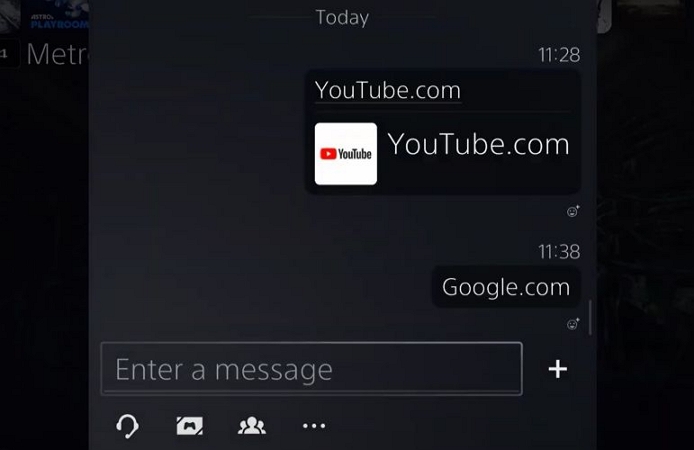
Scroll to the Messages tab inside Game Base. Open any existing chat or start a new message to a friend or to your second account. Type bing.com using the on-screen keyboard.
Step 3. Launch the Hidden Browser
Once you send the message, bing.com will turn into a clickable link. Simply click that so that the hidden webpage will load inside the message window itself.
- Note: Directly going to Google.com or YouTube.com doesn't always work reliably.
Step 4. Play a Video
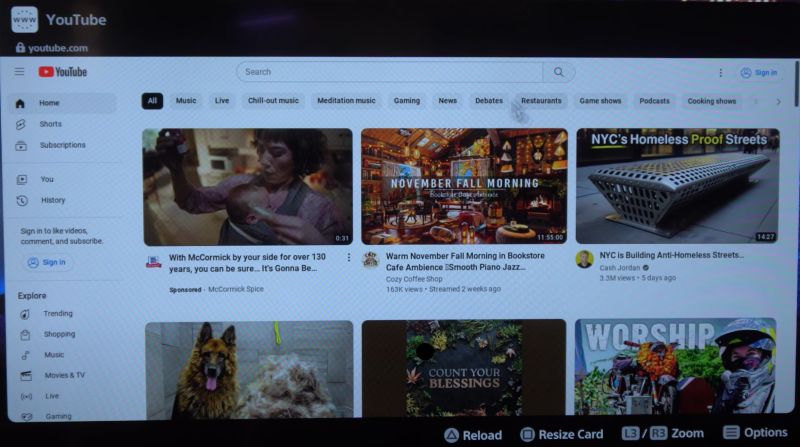
Use the on-screen keyboards to type youtube.com. Select a video thumbnail and press X to play it.
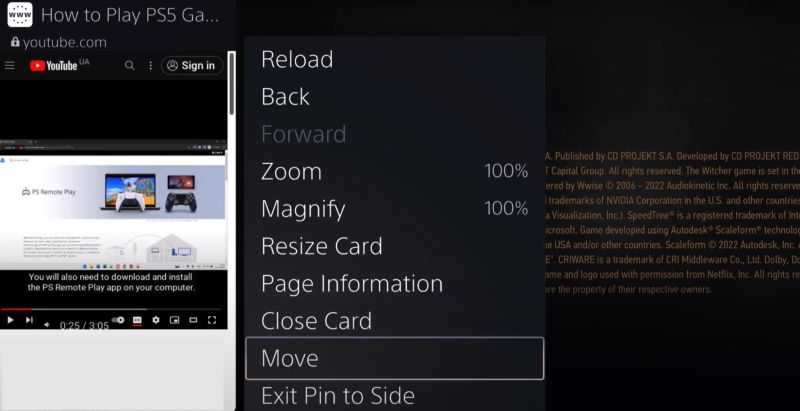
Step 5. Use Pin to Side
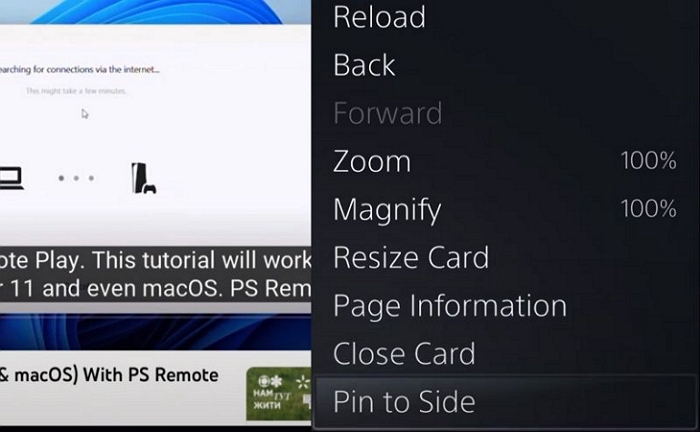
While on the browser window, press the Options button. A compact menu will pop up. Choose Pin to Side. Then, pick Left or Right for placement.
The video will switch neatly to that side of the screen.
Step 6. Start Your Game
Double press the PS button to go to the last game. Press X to resume the game, or you can start one from the home screen.
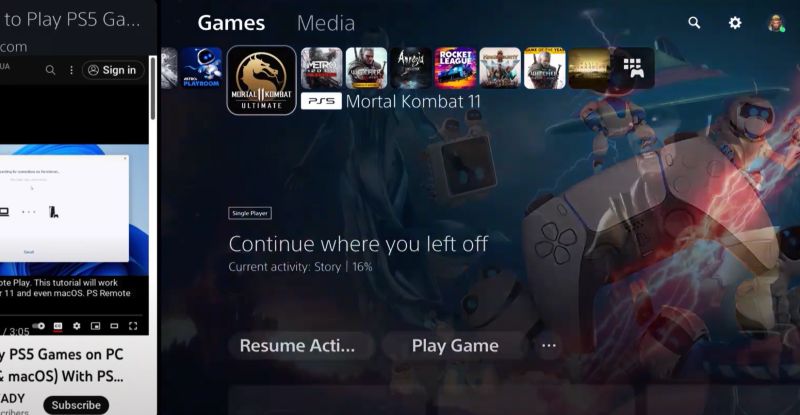
Step 7. Control Playback
Bring up the Control Center again. Move over to the video window.
And you can also double tap the PS button to bounce quickly between the game and the video.
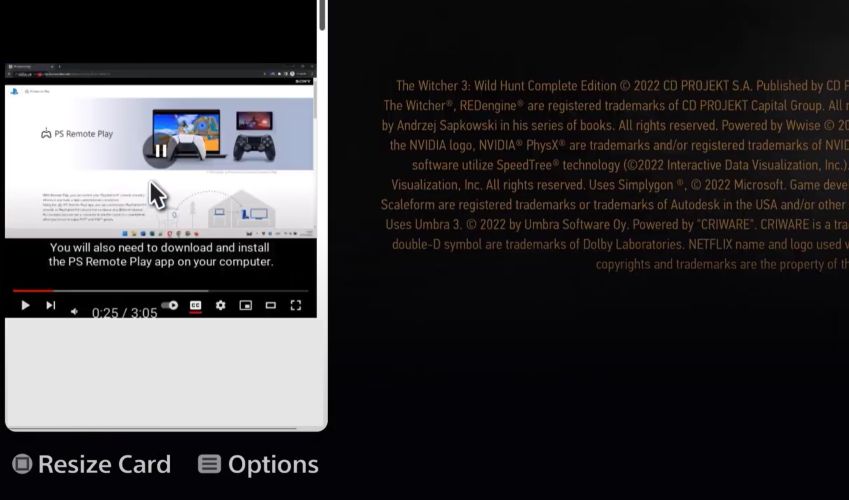
Step 8. Close the Window
Press the Options button on the video window. Choose Exit Pin to Side to fill the screen with only the gameplay.
You don’t need capture cards.
No computer is required.
Everything runs using the PS5’s own system. Take up Screen Space
Blocks ¼ (20-25%) of your view.
Fixed vertical column.
Cover mini-maps in shooters.
Cannot be resized.
Great for loading screens like Farming in Minecraft.
Perfect for DPS queues.
No Separate Volume Control
Play both audio at max volume.
No slider to lower browser sound.
Game audio can drown out video.
Must lower game volume manually.
Audio from the game and the pinned video play directly through your headset.
No extra earbuds or external devices are required.
The controller speaker stays silent. Switch Between Game and Video
You have to stop playing to control video options.
Double-tap PS Button to switch.
Risky during fast-paced or online matches.
You can view guides or walkthrough videos while playing.
Helpful for trophy hunters and puzzle-heavy games.
Keep guides open while playing.
No phone distraction. No Ad-Blocking
Basic and bare-bones browser.
No uBlock or extensions.
Ads will play.
Skipping ads will require pausing the game.
How to Watch YouTube Offline on PS5
To watch YouTube videos offline on the PS5, you can download them as local formats onto a USB drive and play them via the console's Media Gallery. Mediaio Video Converter allows you to do just that.
Mediaio comes with a built-in YouTube browser, so you can sign in to your own account. Then you can choose what you want to download—long gameplay videos, guides, YouTube Originals, or anything else and save it onto the USB drive The output quality of the video will be up to 4K quality and you can choose the format between MP4 and MKV (all of which are supported by PS5). It also gives you granular controls over the codec, something that is very important on the PS5. Choose H.264 which plays smoothly on the PS5.
This setup is useful when you don’t want to switch between your TV interface and PS5 all the time. Plus, you can do frame-by-frame gameplay analysis easily. For instance, you can switch to Media Gallery and see the offline YouTube clip, then return to the game to apply what you just saw.
After saving the YouTube videos onto the USB drive, plug it into the backside of the PS5. Then, follow these steps:
Step 1. On the home screen, scroll fully to the right to open the Game Library.
Step 2. Inside Game Library, move to and select Media Gallery.
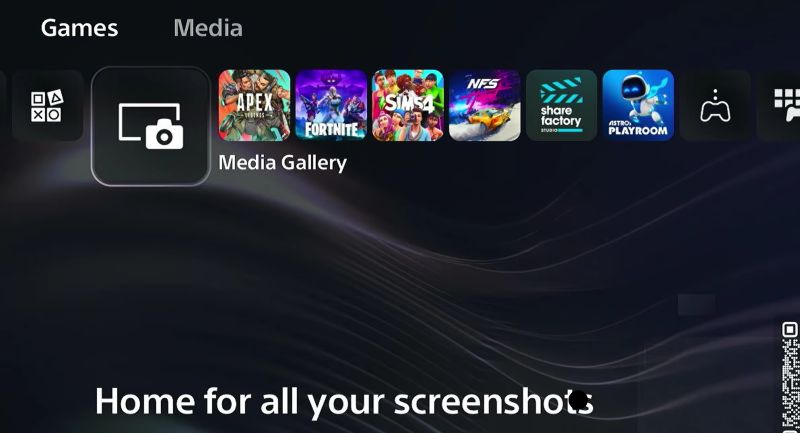
Step 3. Within Media Gallery, switch to the USB tab.
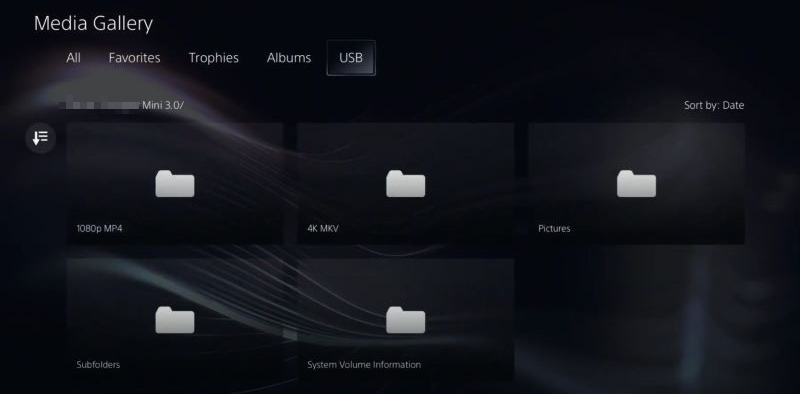
Step 4. There you will see the video folder you created earlier. Play it.
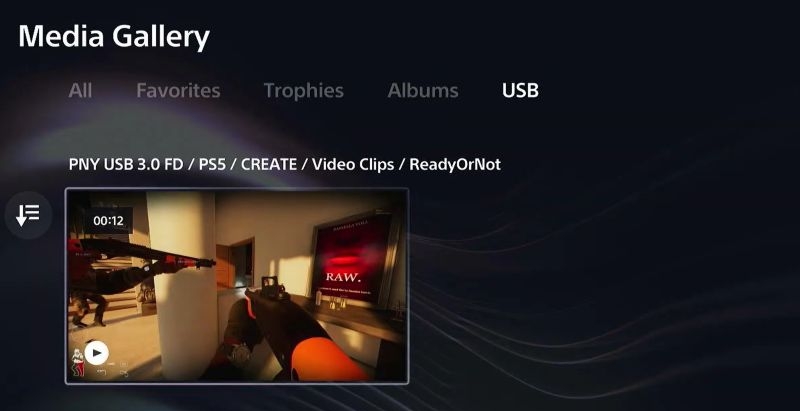
No streaming compression.
Native resolution playback.
Visuals look crisp.
Perfect for cinematic clips. Media Gallery pauses the game
Cannot watch while playing.
Completely offline.
No buffering spikes.
No mid-roll ads.
Instant seeking/rewinding (via DualSense buttons). Require a computer first
Save video files to USB.
"Media Gallery" offers precise control.
Pause on exact frames.
Study boss mechanics closely. Strict Format Rules
USB must be exFAT.
Wrong codec (like H.265) = Black screen.
Embed text directly.
Great for instructional guides.
Readable font size.
Storage Limits
4K files are huge, but Mediaio offers multiple video output options: 1080p and 4K.
Can You Listen to YouTube Music on PS5 While Playing Games?
No. There is no native way to play YouTube Music in the background on the console.
You can play YouTube Music using the browser method covered earlier, though it will take up one-quarter of the screen, shrinking your game’s display.
For true background music playback on PS5:
- You can choose from one of the supported services (Spotify or Apple Music).
- Or, if you really want to play your YouTube Music playlist and albums as background music, there is one workaround. You can convert the YouTube Music tracks onto a USB drive as MP3 using Mediaio Video Converter. After that, you can play the YouTube Music tracks as background music.
Here's how both of these methods work.
Option 1: Use Native Apps (Spotify or Apple Music)
Both Spotify and Apple Music are integrated into the PS5 Control Center. You can run them from the quick menu itself without leaving the game. Here’s how:
Step 1. Start your game first.
Step 2. Press the PS button to open the Control Center. Select the Music icon.
Step 3. Link Account If you are not signed in, select the Spotify or Apple Music icon. A QR code will appear on the TV. Scan it with your phone to authorize the login.
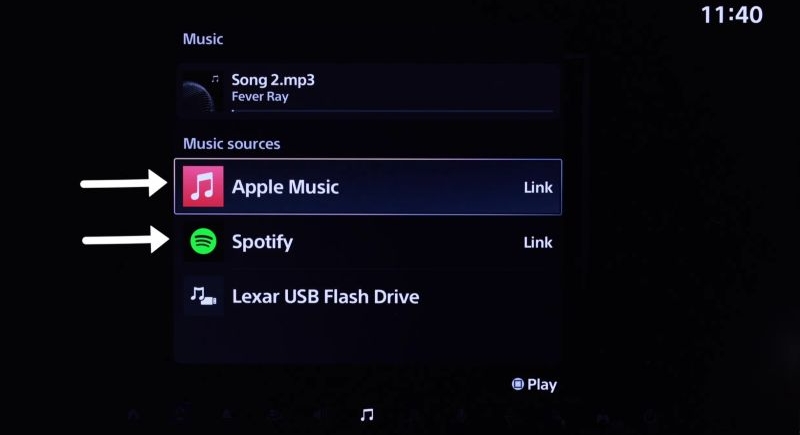
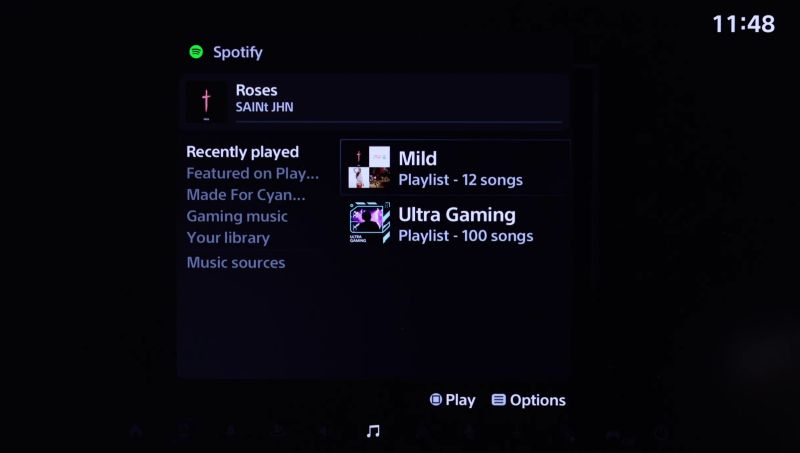
Step 4. You will see playlists and albums appear. Simply choose the desired songs to play.
Option 2: Use Local YouTube Music Files via USB
Mediaio Audio Converter is the sister app to Mediaio Video Converter and follows the same idea. It completes the whole music conversion workflow within the software, from account login to audio download.
The audio quality is up to 320kbps and the format is selectable. Besides, all the metadata also stays intact. Song titles, artist names, album artwork, and track order are preserved, which makes browsing music on the PS5 much easier.
With Mediaio, YouTube Music will play in the background while you’re in a game, without ads, buffering, or screen space being taken up.
Here’s how this way works
Step 1. Save your YouTube Music tracks to a USB drive.

Step 2. Plug the USB drive into your PS5.
Step 3. Start the game you want to play.
Step 4. Press the PS button. Navigate to the Music tab.
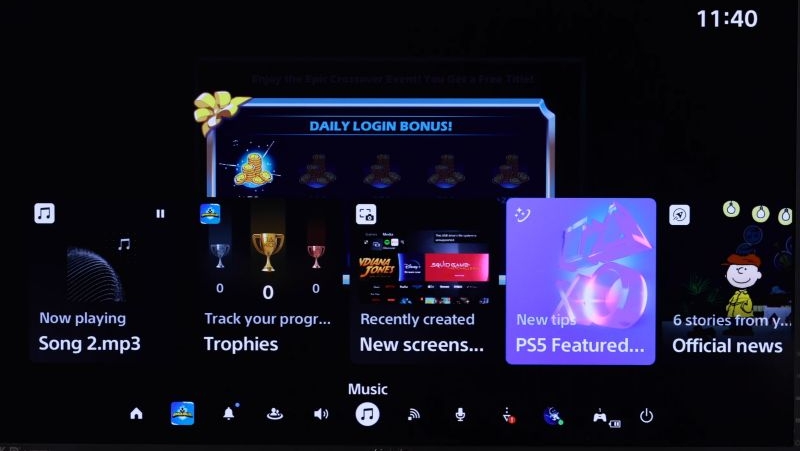
Step 5. You will see the inserted USB drive listed there. Select it to view all folders and songs on the drive.
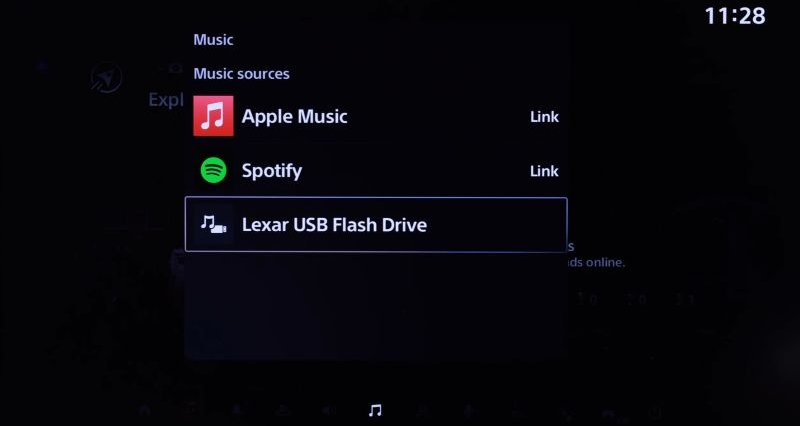
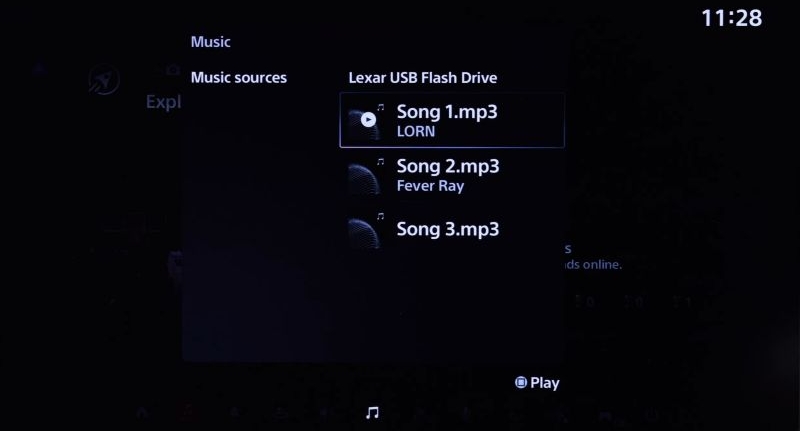
Step 6. Highlight any track and press X to play it.
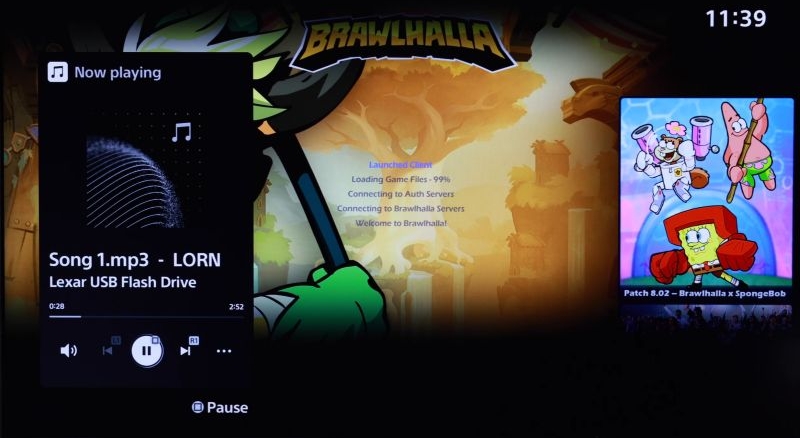
You can pause, play the next track, shuffle or repeat without pausing your game.
Conclusion
Watching YouTube while playing a game is not tricky once you understand how to access the hidden web browser. There is nothing difficult about it.
For offline YouTube video viewing, the option is just as clear. You just have to save it as an MP4 or MKV file using Mediaio Video Converter. The PS5’s Media Gallery really gives you top-notch options to watch 4K video smoothly.
The same idea applies when you want to listen to YouTube Music as well. You can use Mediaio Audio Converter to convert your favorite playlists and albums to MP3 and listen to them through a USB while playing your games on the console.