

Have a Roku device and you love YouTube? Why not connect them for a bigger-screen experience? It does not matter whether you have a Roku TV or a streaming stick. You can watch YouTube on Roku TV. This article covers five methods to do it. Some work directly on the TV. Others rely on your phone or other devices, letting you watch with or without network. If the official YouTube app glitches or freezes on your Fire TV, we will also show you how to fix that in the final section.
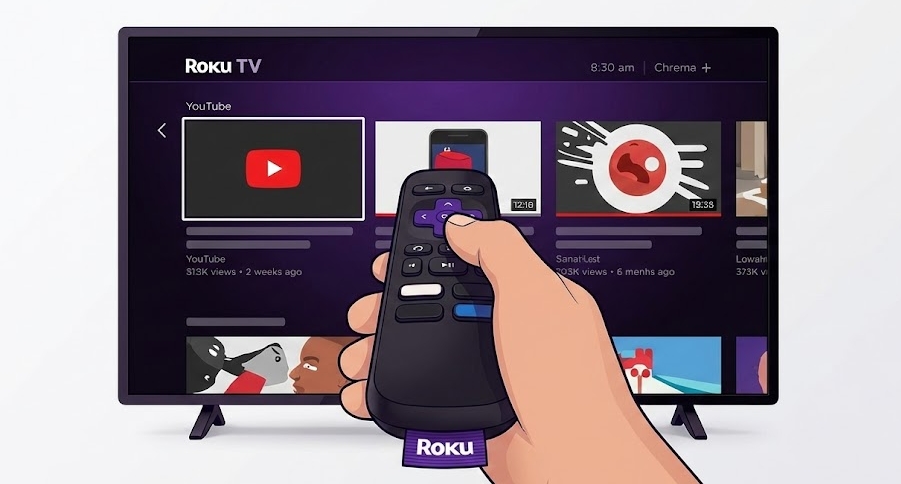
Watch YouTube on Roku TV: Ways Overview
You can watch YouTube on Roku TV in more than one way. Each method is suitable for different situations. Here’s a quick overview. So you can jump straight to the method that matches how you want to watch YouTube.
Way 1. Watch YouTube on Roku TV Using TV’s YouTube App
Installing and using the YouTube app directly on a Roku TV comes with its own benefits. The main benefit is that the app runs independently on the TV itself. Everything happens directly on the Roku TV over Wi-Fi, which is why this is also the most beginner-friendly option.
This section covers how to install the official YouTube app on Roku TV and then sign in with your account for streaming videos.
Step 1. Get YouTube on Roku TV
There are three different paths to install the YouTube app on Roku. You can choose any one depending on whether you are using the TV directly, your phone, or a computer.
Option 1. Via Channel Store
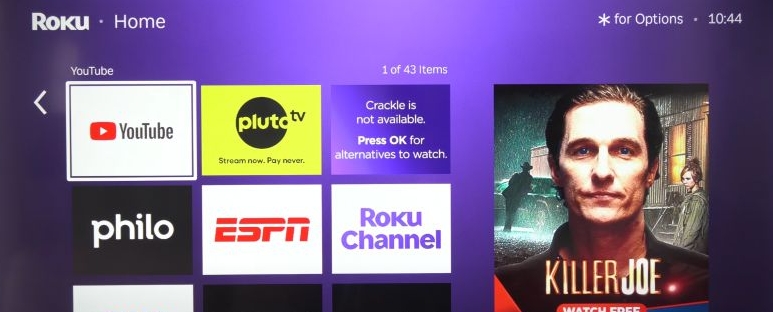
When you are already sitting in front of the TV, installing YouTube from Roku’s Streaming Channels section is the most direct way to do it. Nothing else is required besides the remote. Here’s how it works:
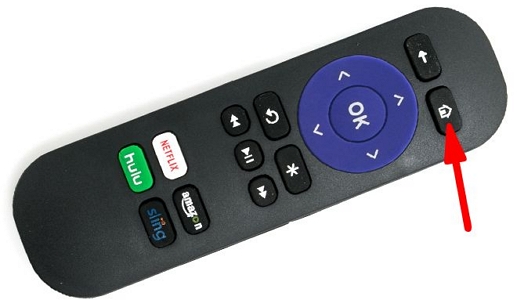
1. Press the Home button (house icon) on your Roku remote.
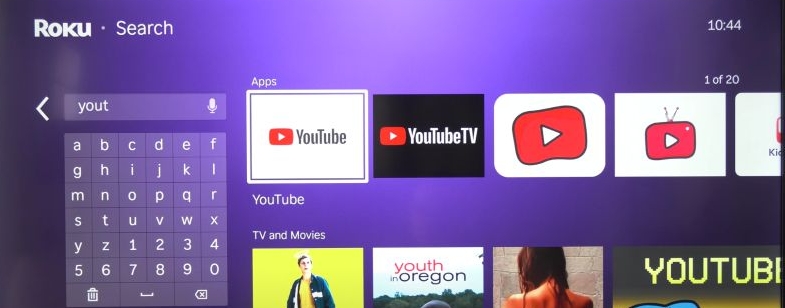
2. Move to Search Channels and type YouTube.
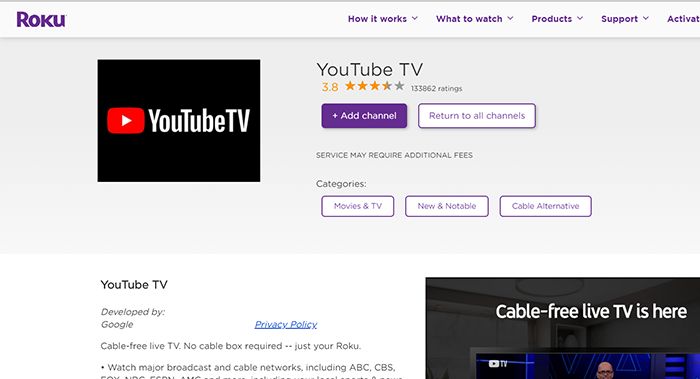
3. You will see both YouTube and YouTube TV listed. Select the standard YouTube app.
4. Highlight the app and press OK on the remote. Select the Add app or Add channel button.
5. Wait for the download and installation bar to finish.
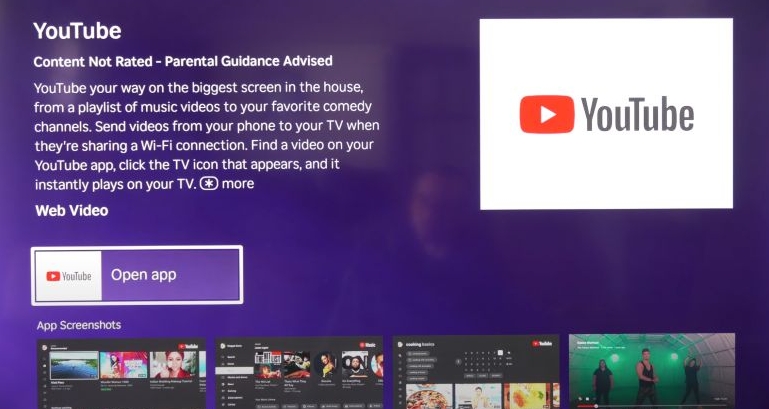
Once it completes, open YouTube immediately or find it later on the home screen under installed apps.
Option 2. Through Roku Site
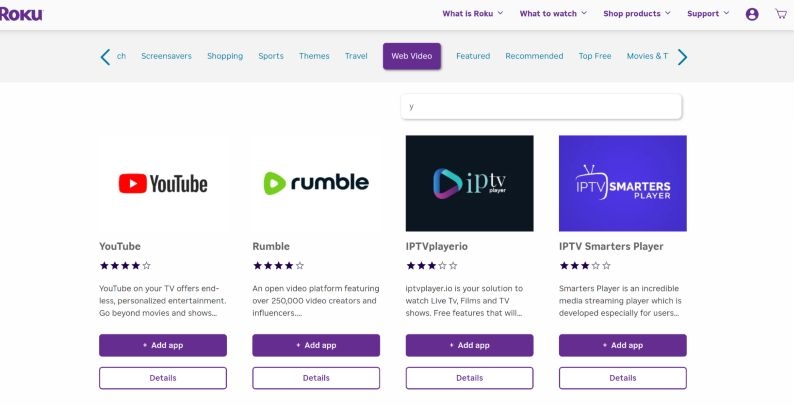
Use this method when you remember your Roku login and prefer not to type using the TV remote. That is, you sign in to your Roku account in a browser and install or remove apps there. Roku will sync the changes to your device automatically. Here’s how to do it:
- Visit the official Roku Channel Store. Sign in to your Roku account.
- Look up for YouTube in the Search channels box.
- Select the standard YouTube app from the results.
- Click Add app. On the app’s detail page, confirm again by clicking Add app once more. After that, Roku handles the rest. The YouTube app will sync automatically and appear on your TV, usually within 24 hours.
Option 3. Use Roku App
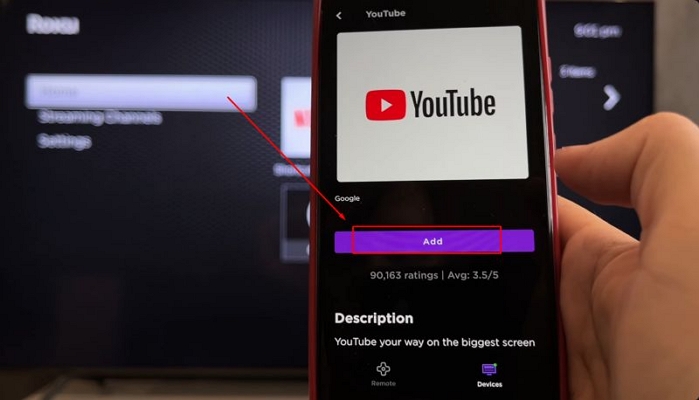
The Roku mobile app, available on both Android and iOS offers more than basic playback control. You can also use it to add channels to your Roku unit. Follow these steps:
- Launch the Roku mobile app. Make sure your phone is on the same Wi-Fi as your Roku device.
- Tap the Search tab. Type and look for YouTube under Roku apps or recommended results.
- Tap Add. Enter your Roku PIN if one is set. If no PIN is enabled, the app will be installed right away.
Step 2. Login and Enjoy YouTube on Roku TV
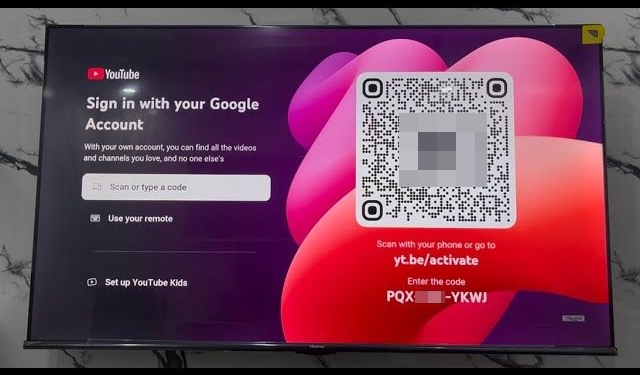
Any of the previous steps leads to the same destination. Once you launch the YouTube app on your TV, the interface presents two distinct choices for you to login YouTube.
Option 1: Scan or Type a Code
You will immediately see a QR code displayed alongside a unique alphanumeric string. From here, you have two simple paths:
- Scan: Open your smartphone camera and scan the QR image.
- Type: Navigate to yt.be/activate and enter the characters shown on the TV to sign in directly.
Option 2: Use Your Remote
If you prefer manual control, select Use your remote. This allows you to type your Google account credentials using the TV controller. It is the perfect method if you intend to sign in with a completely different account on your TV than the one you signed in on the phone.
Tip: How to Uninstall YouTube on Roku TV
You can remove the YouTube app from the TV direct, website, or the mobile app. Doing it directly from the home screen is better.
Important: Are you reinstalling YouTube app to fix a glitch? Then, make sure to restart your TV after you uninstall. This will clear the temporary cache before installing the app again.
Here’s the removal process:
- Go to the Roku home screen.
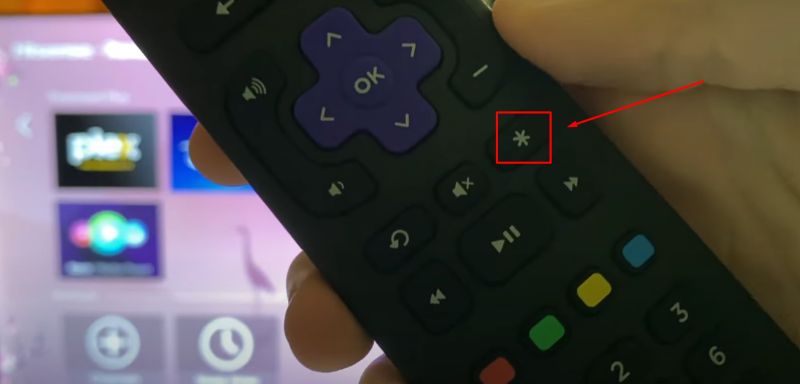
- Find the YouTube tile in the app section. Use your arrow keys to highlight it. Look for the box around the icon.
- Press the Star button on your remote. A generic menu will slide out from the right.
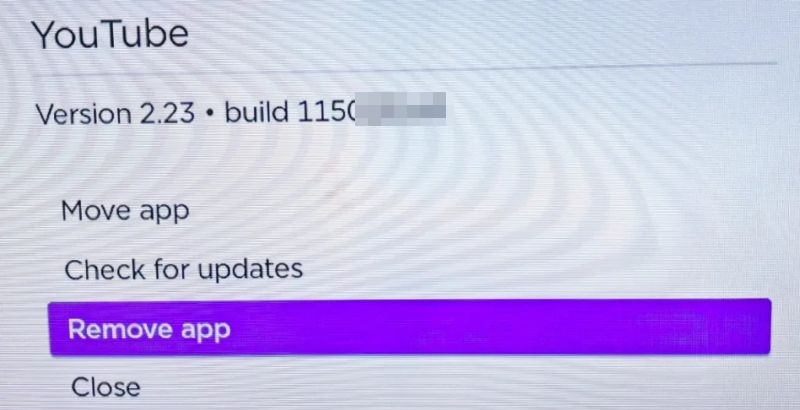
- Select Remove app. On older devices, this says Remove channel.
- Confirm the action when asked.
Can't see the "Remove App" option? You might have YouTube Premium. This happens if your subscription is billed through Roku. You must turn off auto-renew or cancel the current billing cycle first. After that, Roku will allow you to uninstall. Be careful: you won't see this restriction if you are looking at the mobile app.
Way 2. Stream YouTube on Roku TV via YouTube App Cast
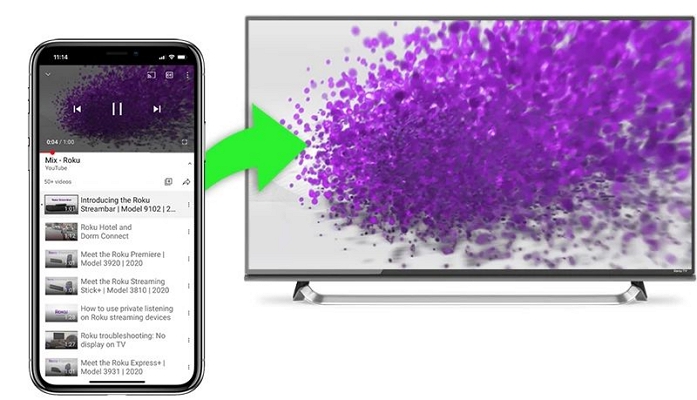
Casting allows you to use the YouTube app on your phone and tell Roku to play the same content. The selection happens on your phone, but the playback itself runs directly on the Roku TV.
Roku will play directly from the YouTube servers. So the YouTube app is required even on your TV. Both devices must also be on the same Wi-Fi network and the frequency band (5GHz or 2.4GHz).
This is not screen mirroring. Once you start the playback, you can even turn off your phone or use it to call or open another app while the playback will continue on your Roku TV.
Here is how to watch YouTube on Roku via cast:
- Open YouTube on your phone and play a video.
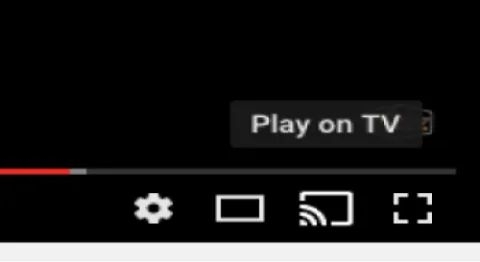
- Tap the video to reveal the controls. You will see the cast icon. Tap on that. A "Play on TV" option or your device name will show. Simply select that.
- The playback will switch automatically to your TV.
From here, you can use your mobile to control the playback, including volume or skip videos. Alternatively, you can manage everything directly via the remote, like if you have put your mobile onto charging or simply want to use the TV remote after starting the playback.
Way 3. Play YouTube on Roku TV with AirPlay
AirPlay is native to the Apple ecosystem. Unlike casting, this works differently. Casting only tells Roku which YouTube video to fetch from the internet. AirPlay sends the YouTube stream from your Apple device to the Roku.
Not all Roku devices support Apple AirPlay though. The general rule is that you need a 4K capable device running on Roku 9.4 or higher. Some Roku TVs and Express models need Roku OS 10.0 or later. On Apple’s side, AirPlay 2 is required. That means iOS 12.3+ or macOS 10.14.5+.
To Use AirPlay to Watch YouTube on Roku:
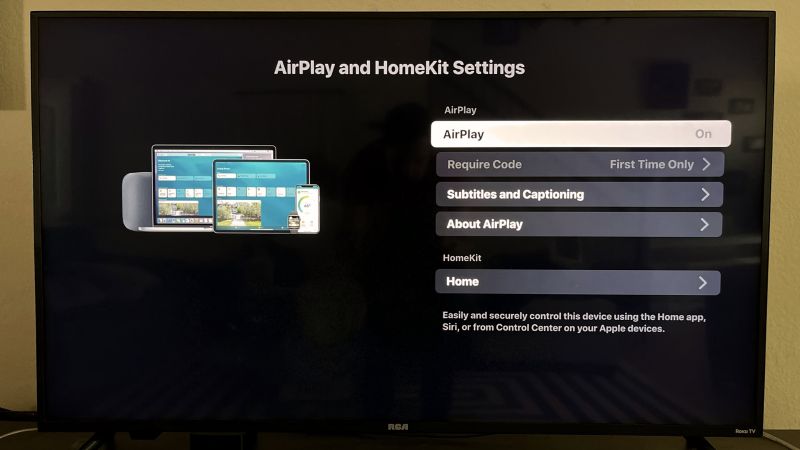
1. Enable AirPlay on Roku TV
You have to first enable this feature on your Roku TV. This also helps you confirm whether your TV really supports this or not. To verify and enable:
- Go to Settings.
- Navigate to Apple AirPlay and HomeKit from the left side menu options.
- Turn the AirPlay option on. If you need, you can configure the pin and other features.
2. Stream YouTube Videos on Roku
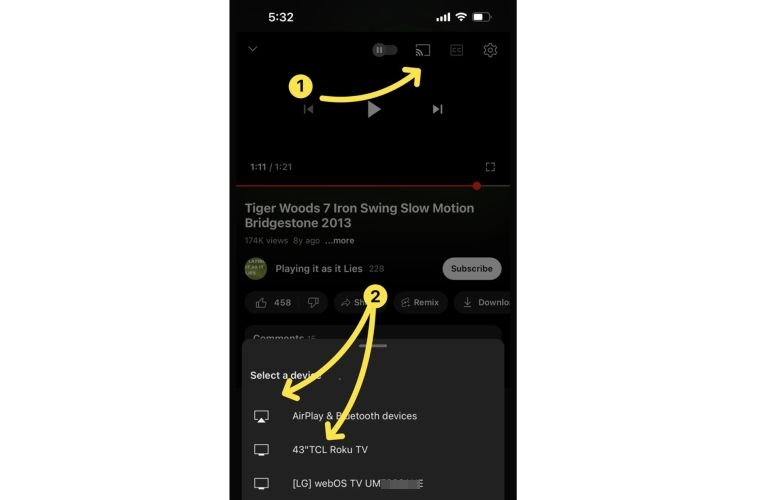
- Open YouTube on your iPhone or iPad.
- Play the video and press the same cast icon itself. It will work as AirPlay.
- From the list of devices, select your Roku TV.
You can also access the control center and select your Roku TV from the list.
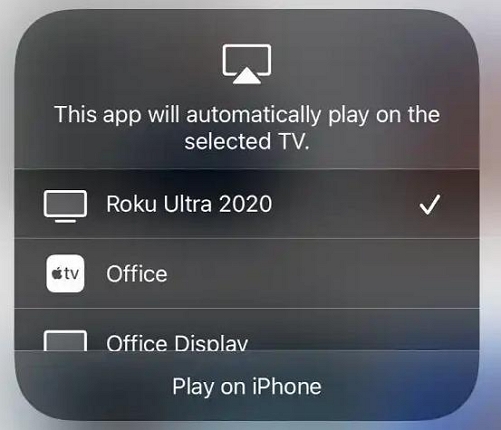
That's it. The YouTube video playback will continue on the TV. You can tap the AirPlay icon again to turn it off.
Way 4. Enjoy YouTube on Roku TV Through USB
You can also play YouTube content on Roku directly from your USB drive. For this to work, you simply have to download high-quality YouTube video files using Mediaio Video Converter and then play them offline via the Roku Media Player.
Step 1. Save YouTube Videos to USB
Mediaio Video Converter lets you convert YouTube videos into high-quality files (up to 4K) in MP4, MKV, or MOV formats—all of which Roku Media Player handles easily. After the conversion, you can transfer the local YouTube videos to a USB for local playback on your Roku TV. This way, the YouTube videos won’t take up your Roku’s storage and won’t be interrupted by an unstable network. Whether you want to save YouTube Originals, YouTube Shorts, or other types of videos to watch on your Roku TV, simply select them in the built-in YouTube browser.
Key Features
Batch conversion support and 10X faster processing speed make the conversion quicker.
Download subtitles either as soft hardcoded or external files (SRT or VTT) along with YouTube videos.
Compatible with Netflix, Amazon Prime Video, Disney+, and 1000+ other platforms.
Make it possible to enjoy YouTube on devices that don’t support the app.
Step 2. Watch YouTube on Roku Through USB
Once the USB drive is loaded with offline YouTube content, you can start playing YouTube on Roku TV without the app.
- Insert the USB drive into your Roku TV.
- Install Roku Media Player if it is not already available under Channels.
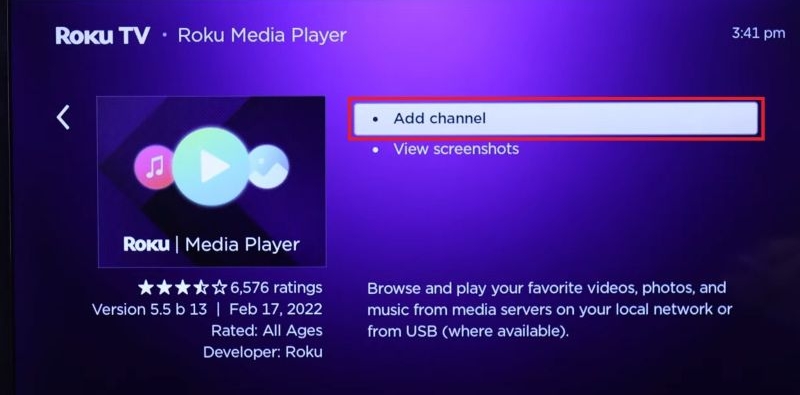
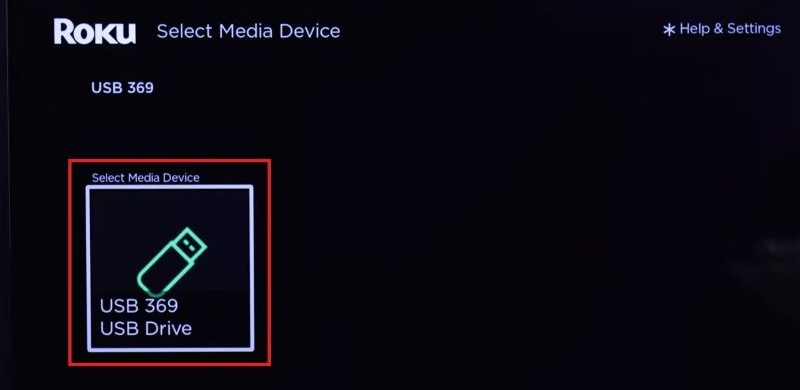
- Open Roku Media Player and select the USB drive.
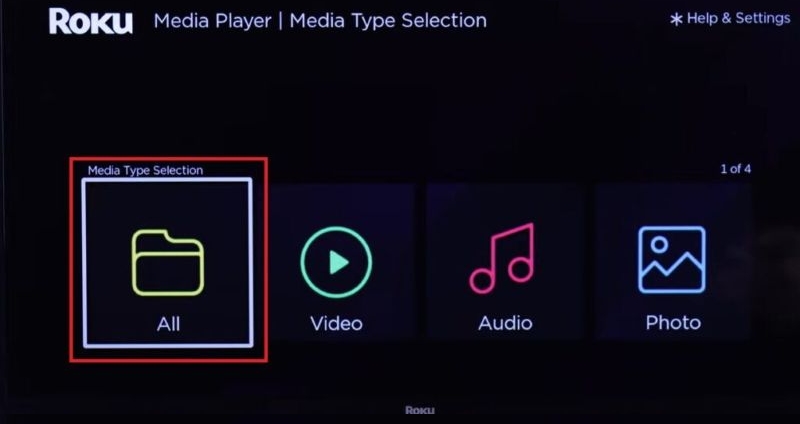
- Choose Video.
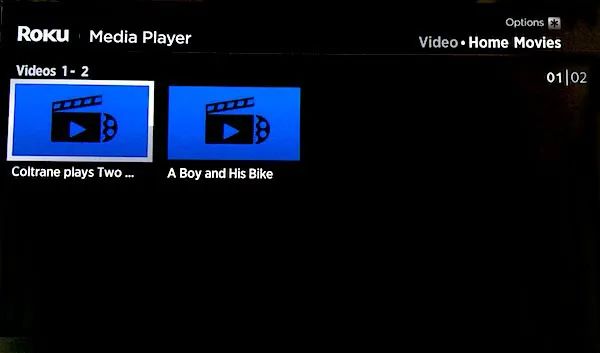
- Select the video and press Play. The video will play directly from the USB drive.
Way 5. Use HDMI to Stream YouTube on Roku TV
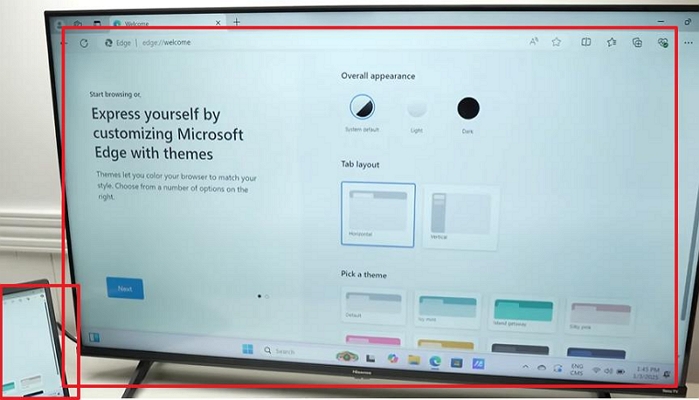
Using HDMI is an original option to play YouTube on Roku TV. In this setup, the video comes directly from your phone or computer and Roku TV will display the HDMI signal. This method will work on all Roku TV brands (TCL, Hisense, Sharp, and others). It is also compatible with Roku Streaming Stick or Roku Express. If the fit is tight, you can also get a free HDMI extender from Roku by simply entering your Roku serial number.
As for the HDMI cable itself, simply plug the cable into your laptop and your Roku TV. To play:
- 1080p content — a standard HDMI cable will work.
- 4K or HDR content — get high-speed HDMI 2.0 or newer cables.
Step 1: Select Roku Input
You can either use the Roku remote or directly use the TV's physical buttons. Here is how both work:
Option 1: Use Remote
- Press the home button.
- You will see input tiles as you scroll down: HDMI 1, HDMI 2, AV, etc.
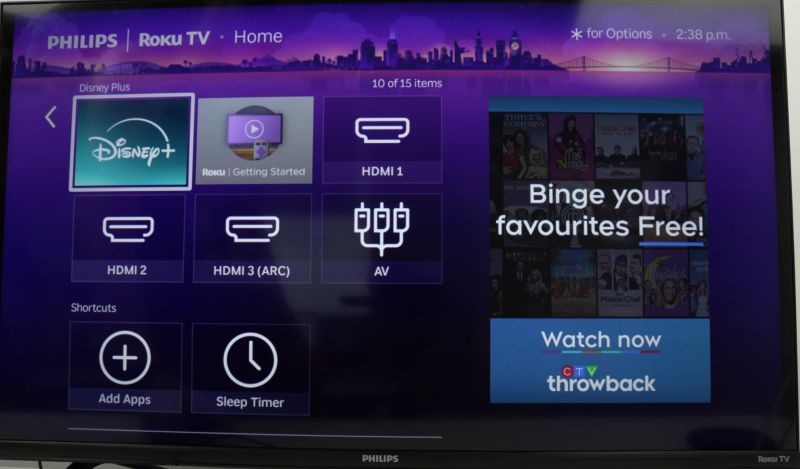
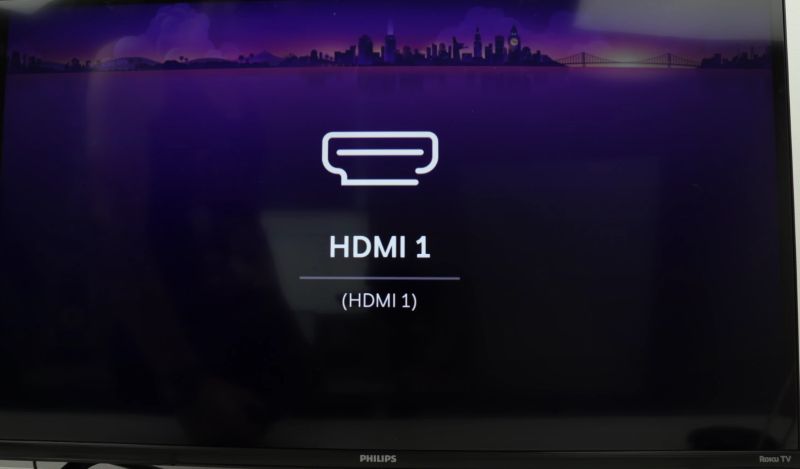
- Select the one in which you connected the HDMI cable. Press OK.
Option 2. Use Physical TV Buttons
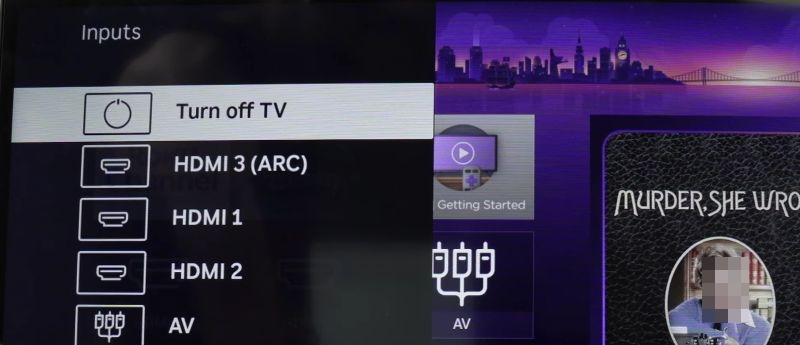
- Press the physical button on your TV to bring up the input menu on the left.
- You can keep pressing it to cycle through the list. Stop when you arrive on the desired input and the TV will select it automatically.
Step 2. Configure Your Laptop (Windows)
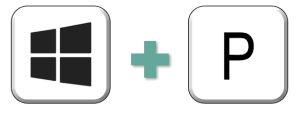
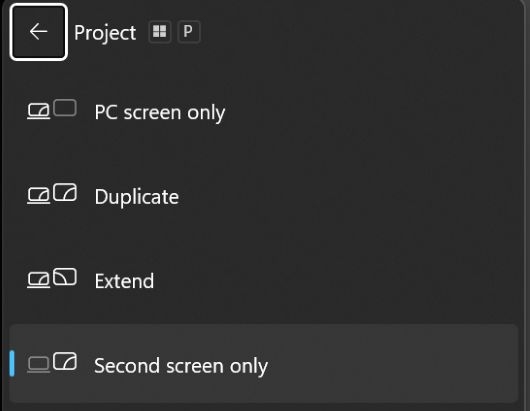
1. Press Windows + P on your keyboard.
2. Choose your projection mode:
- Duplicate (shows the same image on both your laptop and Roku TV).
- Second screen only (turn off your laptop screen and whatever is playing on your computer will project only on the TV).
Step 3: Play YouTube Using Roku as the Output Device
- Open your favorite browser on the laptop.
- Go to the YouTube video that you want to play.
Pro Tip: Fix Mouse Lag
If the mouse feels slow or "floaty" on the TV, it is due to image processing.
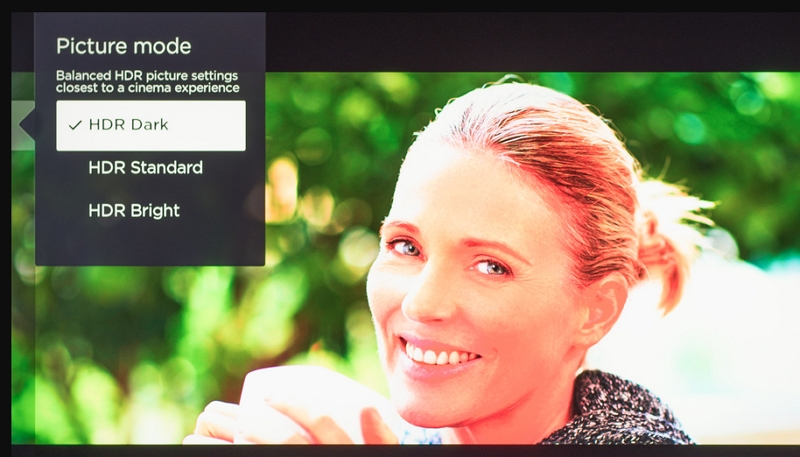
- While viewing the HDMI input, press the Star button.
- Go to Picture Settings.
- Change Picture Mode to Game or Computer.
This turns off fancy filters and makes the response very instant.
Fixed: YouTube App Not Working on Roku TV
If the YouTube app is freezing, crashing, or showing a black screen on your Roku, it is rarely a YouTube server issue. Roku devices have limited memory. Without certain "rituals", they get clogged over time. This leads to individual apps breaking, especially cache-heavy ones like YouTube.
Issue 1: Not Enough Memory
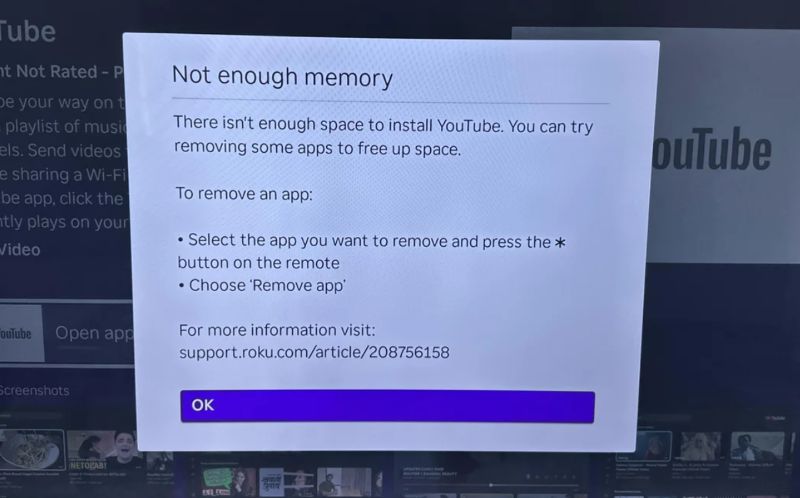
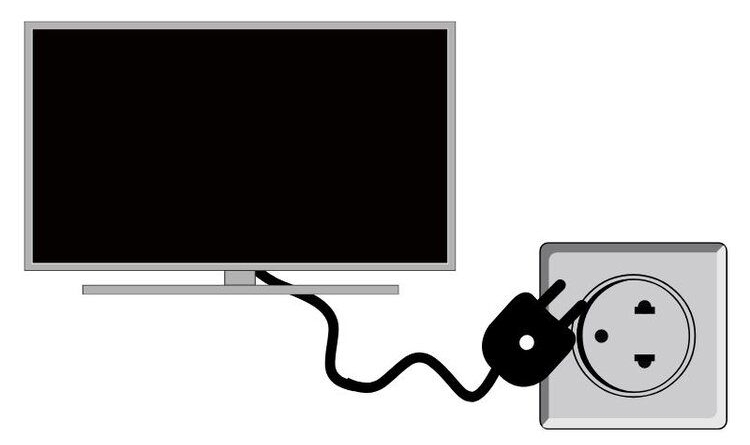
You open the YouTube app and instantly see a pop-up saying "Not enough space." What is full here is RAM but not storage. A normal power-off using the remote only puts the Roku into standby mode. It does not actually clear memory. You need to cold boot to get rid of the error.
Fix: Reconnect Power Cable
- Turn the TV off. Physically unplug the power cord.
- Wait 60 seconds. This is crucial.
- Turn it back on.
- The TV will take longer to boot up, showing the Roku logo animation. That confirms the system memory has been cleared. Open YouTube again after the TV finishes loading.
Issue 2: Crashed YouTube App
When the YouTube app freezes, even on low resolutions like 720p or 480p, cache is corrupted.
Fix: Clear YouTube Cache
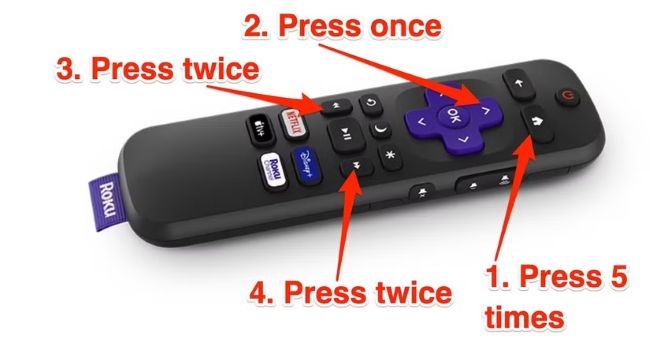
Roku does not have a simple "Clear Cache" button like your phone. You have to use a developer "cheat code" on the remote to force this process.
Follow this sequence exactly:
- Press Home 5 times.
- Press Up 1 time.
- Press Rewind 2 times.
- Press Fast Forward 2 times.
The TV will freeze for a few seconds and then reboot automatically. This flushes the temporary partition where corrupted YouTube data gets stuck. Once it restarts, the app will work normally.
Issue 3: YouTube Black Screen with Sound
You can hear the video audio perfectly, but the screen is pitch black. The menus won't appear and you often have to force restart the device.
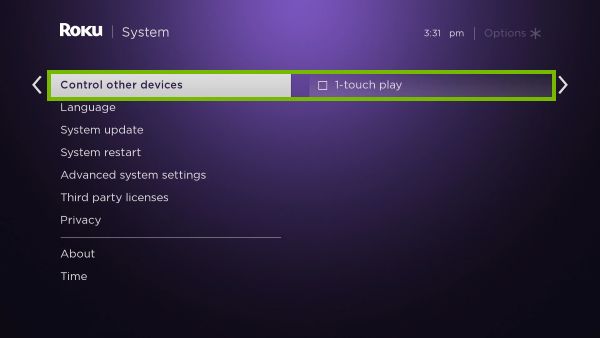
This is usually a "handshake" conflict caused by HDMI CEC. The TV tries to automate video inputs via features like "1-touch play" but gets confused by the YouTube signal.
Fix: Uncheck 1-touch Play and Restart TV
- Go to Settings.
- Select System.
- Choose Control other devices (CEC).
- Uncheck the box next to 1-touch play.
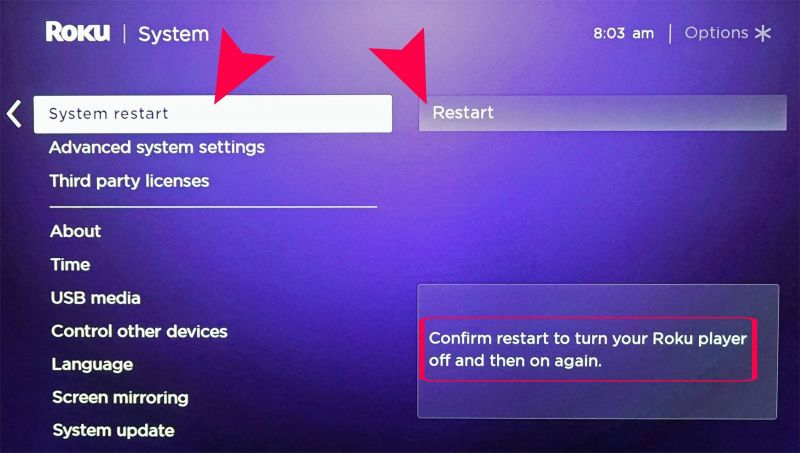
- Crucial Step: You must restart the TV now. Go to Settings > System > Power > System restart.
Final Words
Watching YouTube on Roku is not a one-size-fits-all experience. You have a complete arsenal of options. You can choose the one that you like. The perfect YouTube app on the TV itself is the good way to go.
However, if you need offline watching and want to download some YouTube content in 4K too, you can use Mediaio Video Converter to achieve that. Saving videos onto the USB drive and then watch it easily on your TV.