

Watching YouTube on a Peloton does not require any hacks anymore, as YouTube now exists as a dedicated platform. However, we find that many people still don’t realize it, because YouTube is hidden behind a menu on Peloton and isn’t easy to find.
This guide will show you how to watch YouTube on Peloton correctly and explain the requirements that come with it. And even if you do not meet these requirements, you will find other ways to stream YouTube on Peloton.
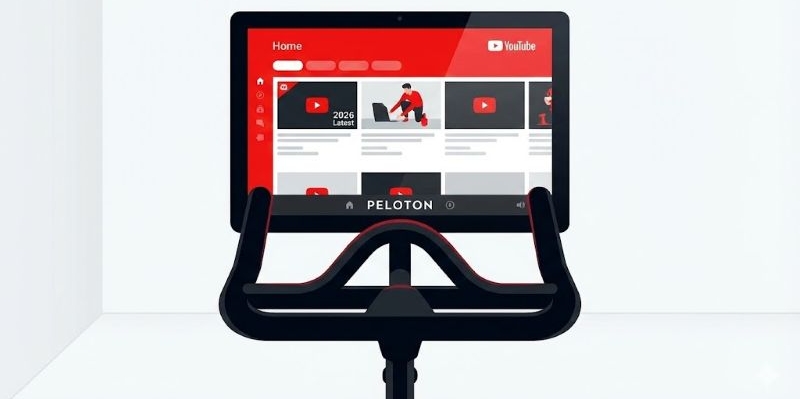
Watch YouTube on Peloton: What You Need
To watch YouTube on Peloton without the hidden browser hack and keep your real-time on-screen metrics like distance and heart rate visible during your workout, you must use the official app. It integrates with the workout interface and also supports full-screen viewing.
That said, this method comes with a few requirements. The YouTube app lives inside Peloton’s Entertainment feature and support varies depending on the hardware and tablet generation attached to your machine.
YouTube-Supported Peloton Devices
The Entertainment feature which includes the YouTube app has been rolled out to nearly all Peloton hardware with a touchscreen. The actual experience, however, depends heavily on the device and tablet generation.
Peloton All-Access Membership
YouTube itself does not require YouTube Premium on Peloton. However, access to the YouTube app does require an active All-Access membership. The YouTube app appears inside the Entertainment tab, which is locked behind the Peloton All-Access membership.
- Cost: USD49.99 (varies by region)
If you pause or cancel the subscription, the Entertainment tab will disappear from the bottom bar. Without it, the screen effectively locks you out of third-party apps. At that point, the only option left is the complex “WebView” workaround, which we’ll cover later.
How to Watch YouTube on Peloton [Step-by-Step]
Step 1. Turn on your Peloton. Make sure it is connected to Wi-Fi. Confirm that your All-Access membership is active. You can check this by visiting onepeloton.com/my-membership or checking your membership status in the Peloton mobile app.
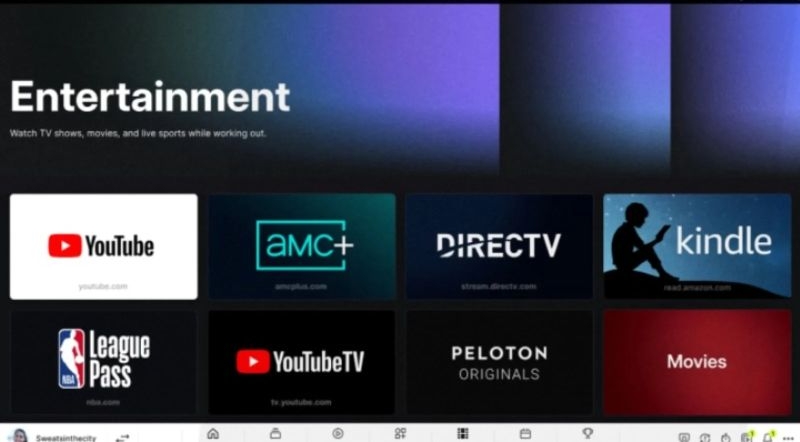
Step 2. From the Peloton home screen, tap Entertainment on the bottom menu. This opens the grid of supported apps available during workouts.
Step 3. Tap the YouTube icon. You can sign in using a QR code or a code-based sign-in from your phone or computer.
YouTube Premium is not required. You can use your YouTube free account and the app will work like the standard YouTube experience, including ads.
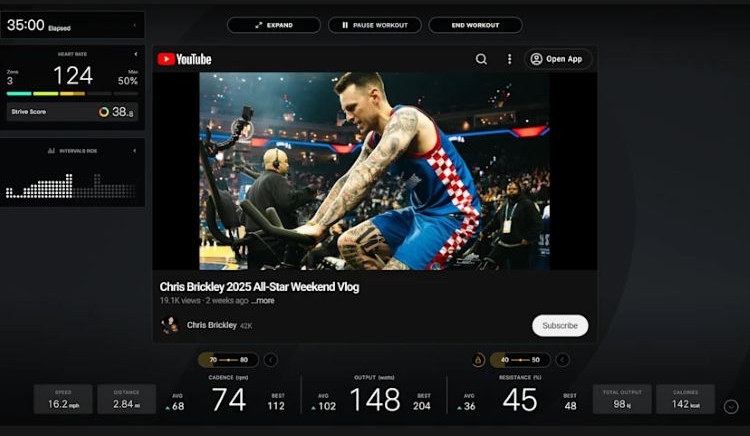
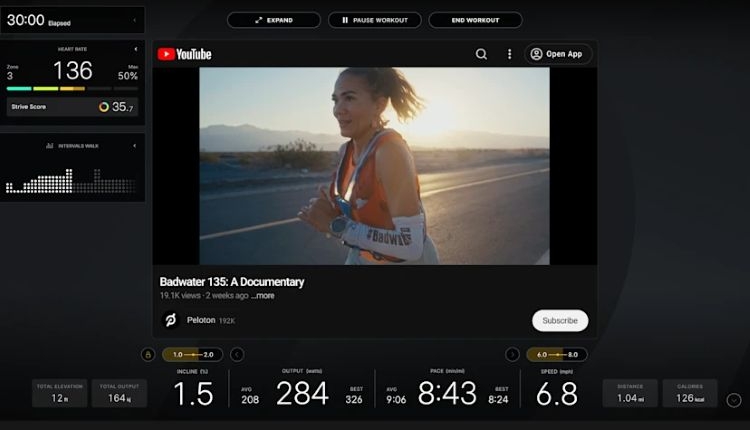
Step 4. Once YouTube is playing. You can switch between the two modes using the on-screen controls.
- Workout view – shows you real-time metrics. You can see heart rate, distance, pace, and output.
- Expanded view – it will switch YouTube to full screen.
That’s all there is to it.
Other Streaming Apps You Can Watch on Peloton
You are not limited to YouTube alone. Along with YouTube, Peloton added a selection of apps with the update.
Of course, these apps come pre-installed. You still cannot add or download new ones like on an App Store. Plus, each service requires its own subscription and login, except for YouTube. Here are apps you can find on Peloton:
- Netflix — uses your existing account. Good for casual viewing during steady rides.
- Disney Plus — great for long sessions. Star Wars and Marvel content works well for 60-minute endurance rides.
- Max (formerly HBO Max) — optimized for catching up on TV series and episodes.
- YouTube TV — different from regular YouTube. Streams live cable channels like CNN, ESPN, and ABC.
- NBA League Pass — lets you watch live games while you ride.
- Kindle Reader — allows reading books on the screen and works best during low-intensity workouts.
Can You Watch YouTube on Peloton Without Subscription?
Yes but not suggested.
Without the All-Access Membership, you will be stuck on the "Just Ride" (Free Mode) screen. Here, you will have to break out of the Peloton interface and access a hidden developer tool called WebView browser tester, and you can load YouTube from there.
Basically, this workaround allows you to access YouTube on Peloton. But then again, it feels like you paid too much for a bike that is with a dumb screen and does not let you do things. So many people do not like this.
Risks and Drawbacks
Aside from this UI or interface disagreement, there are certain other risks that you should know.
- No Metrics: When you open the hidden browser, you cannot see your cadence, resistance, and output numbers. You will be essentially riding blind.
- The “Groundhog Day” Effect: This is not a permanent setting. You must repeat the unlock process every single time you turn on the Peloton unit. The same goes when the screen goes to sleep.
- Screen dims halfway through the video: Since you watch through the developer test tool, it does not know you are working out. The screen will dim and it can even turn off in the middle of the video.
Note: Tapping the screen to keep it awake could cause accidents. So please be very careful.
- Awkward UI: You are on the mobile Android browser stretched onto a large tablet. Buttons are tiny and scrolling is a little bit jittery.
- Premium Issues: YouTube Premium benefits or DRM-protected streams do not usually work inside the WebView. Some users say ads will still appear.
- Warranty: Side-loading or accessing WebView does not void your guarantee. However, when you mess up with the developer icons too much, it could void your warranty.
How to Unlock the Hidden Browser for YouTube Playback
If you are determined to ride for free or you are just testing how to unlock the browser, here is how to do it.
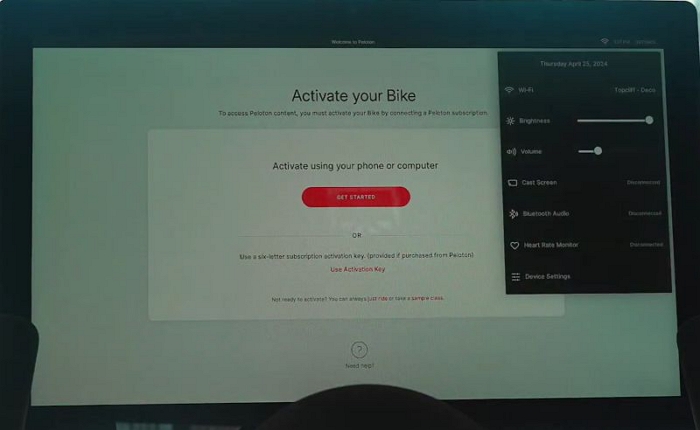
- Tap on the Settings option on the top right. This will show you the list of things. If you are on the older Peloton interface, use the three-dot menu at the bottom right to access the same menu options.
- Click on the Device Settings option.
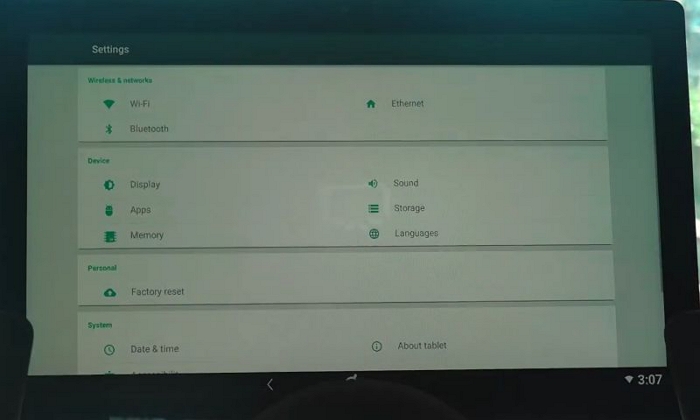
- Go to System and find the option for About tablet. Tap it.
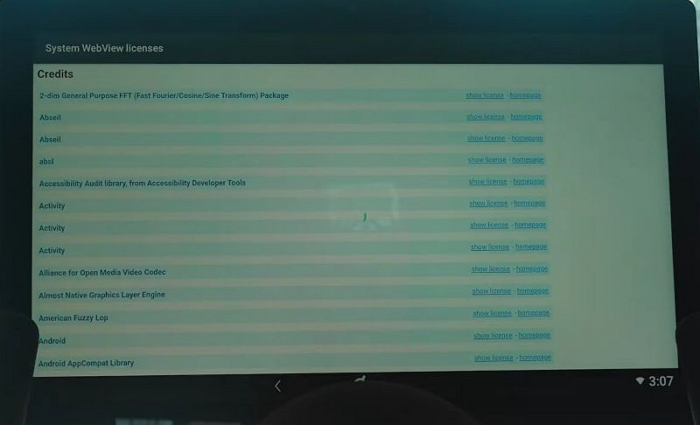
- Click on Legal information and then System WebView licenses.
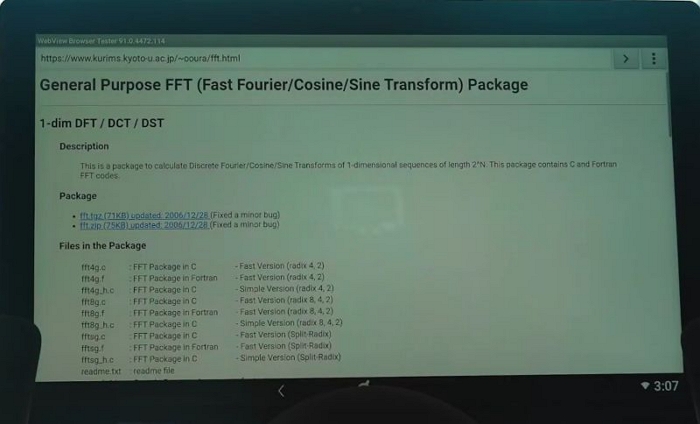
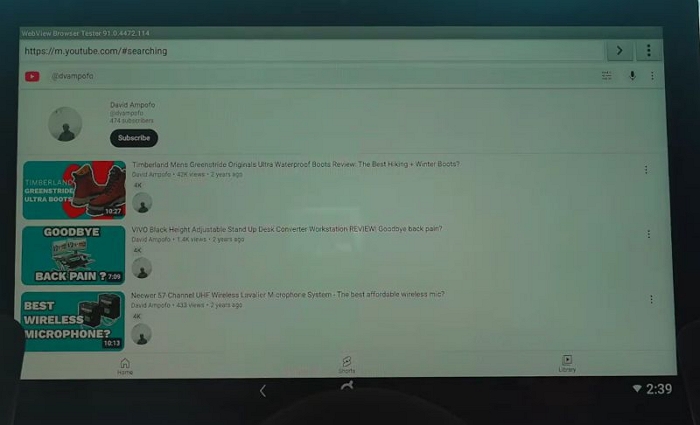
- You will see credits and so many names. Next to any of the things, you can click on Homepage. It will basically take you to a web browser.
- In the address bar, you can type youtube.com.
- You will go to the mobile view of YouTube. Just tap and watch any video that you want.
Tip: How to Watch YouTube Videos Offline
If you exercise with your Peloton in a garage or basement with poor Wi-Fi, you can watch YouTube offline without the Peloton screen.
The Peloton tablet has no "Download" feature. So you will need a secondary device for YouTube offline playback. Positioning a laptop on a nearby shelf or mounting a TV on the wall allows you to follow workouts without relying on the bike's internet connection and interface.
Safety Note: If you are using a wall-mounted TV or separate screen while exercising, make sure it is positioned at eye level. So you don't strain your neck or lose focus on your form while riding.
To watch YouTube offline when exercising, you have two options depending on what format you want to download your YouTube video in.
Method 1: Download as Encrypted Cache
If you have the Premium subscription on your Android TV or Smart TV that is adjacent to your Peloton setup, you can basically install the YouTube app there. Just download videos as you normally would:
- Simply click any video.
- Click on the Download button to get it there.
Method 2: Save as Local Videos
You can also use Mediaio Video Converter, a YouTube to MP4 converter, which lets you download your favorite YouTube videos and YouTube Originals in up to 4K quality. You can export them as MP4, MKV or MOV files, making them easy to play on almost any device. This way, you do not have to pay for the US$49.99 All-Access Membership of Peloton to watch the content while working out. Mediaio itself comes with a built-in YouTube browser so that you can download any videos or playlists from YouTube for the entire week's workout.
To Sum Up
Keeping the Peloton "YouTube" experience is the best option here. You can watch YouTube with all your metrics visible and keep track of your performance. However, the $49.99 monthly subscription does sting. The browser route exists, but it is less stable. Still, for lighter activities like yoga on the floor (especially with a rotating screen), it can be a workable fallback.
If you want to go with offline viewing on a secondary device, you can use Mediaio Video Converter. It lets you download full videos in advance, so you can focus on your workouts without relying on an internet connection or dealing with distractions.