

Need to insert YouTube videos into Canvas? Canvas allows teachers and students to use videos in the pages, assignments, quizzes, and discussion posts, but not everything can be self-evident. Many users do not know how to embed YouTube videos in Canvas without redirecting viewers away from the platform.
Actually, Canvas offers several methods of embedding YouTube videos and each one involves different steps depending on the type of content. This article discusses six reliable ways providing a clear, easy step-by-step guide to help you to select the most appropriate one.
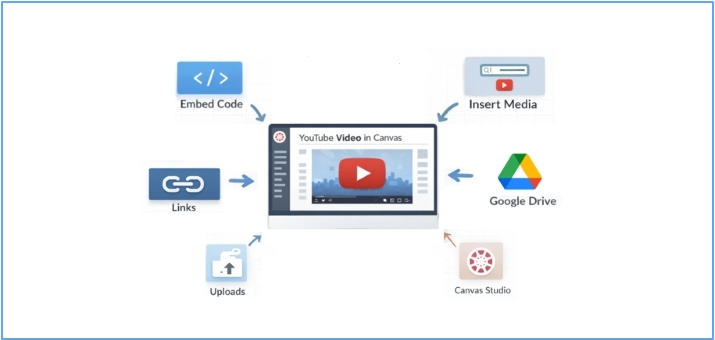
How to Embed YouTube Videos in Canvas via Embed Code
Best for: You want your students to watch YouTube videos directly within your Canvas discussions and slides.
With Ads or Without: With ads (controlled by YouTube)
This method makes embedded YouTube videos appear as a web player, thus eliminating the need to leave the course to watch the videos. It supports the majority of the Canvas content, such as lesson pages, graded activities, and discussions. However, it may contain ads as played by YouTube. Meanwhile, the video can’t be moved around freely.
Step 1: Copy the YouTube Video Embed Code
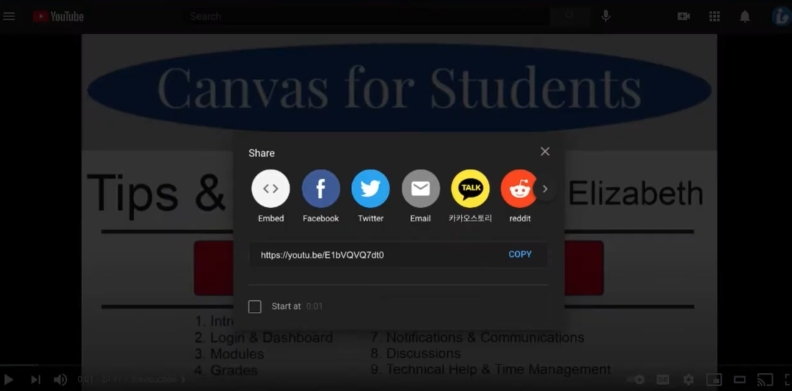
- Search for the video you want to embed from YouTube. Click Share, then select Embed.
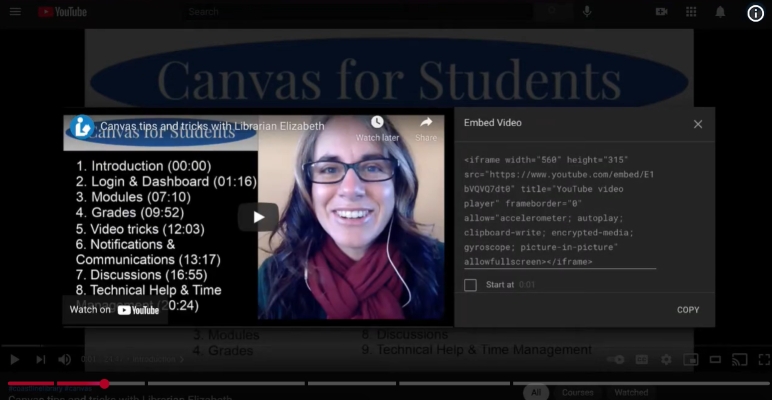
- Copy the embed code on the pop-up.
Step 2. Insert the YouTube Embed Code into Canvas
Option 1. Use Embed Button
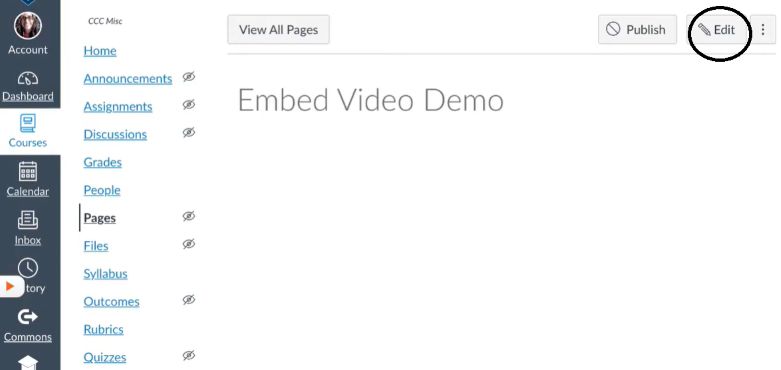
- Open the relevant page, assignment, discussion, or quiz in Canvas. Click Edit to begin embedding your video.
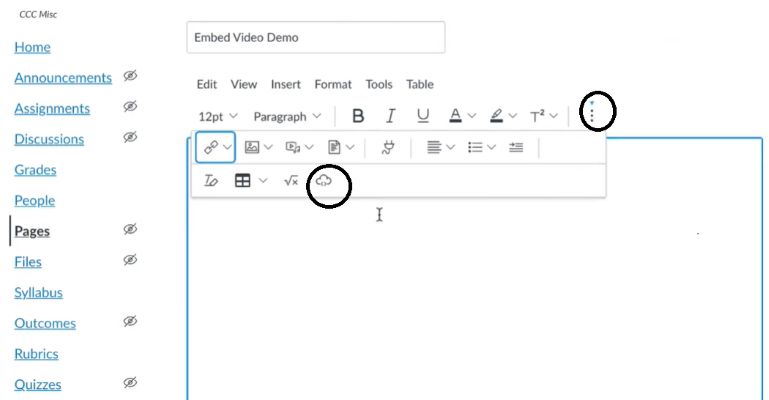
- Click the three-dots menu in the editor and select the cloud icon (Embed).
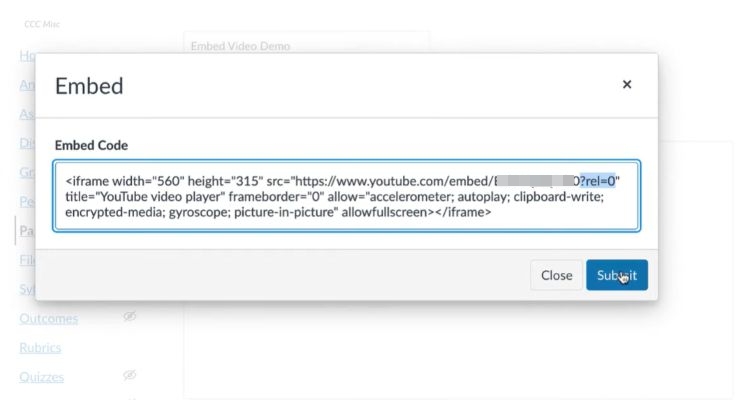
- Now paste the YouTube embed code into the window. It is possible to change the code a bit so that you can avoid suggested videos in case necessary. To prevent suggested videos from appearing, add “?rel=0” at the end of the video URL in the embed code. It will ensure that there are no other YouTube videos are played once the current one has been viewed.
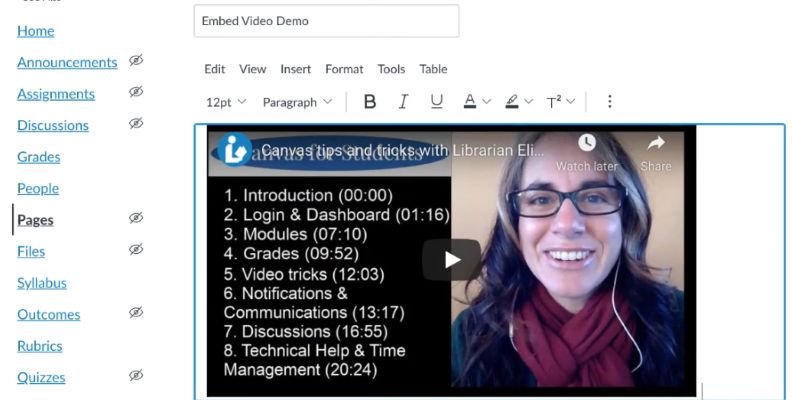
- Click Submit. The video can be played inside in Canvas without redirecting students to YouTube.
Option 2. Use Insert Media Button
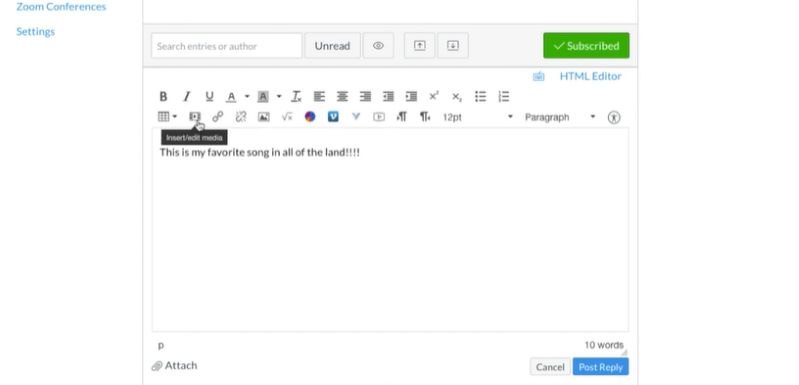
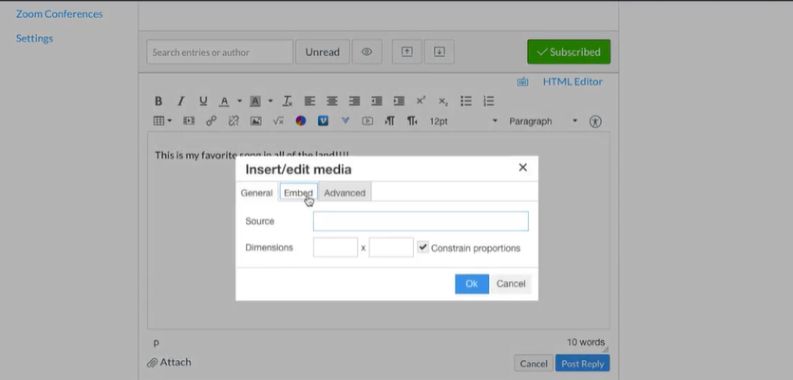
- After you get into the Canvas page where you want to add the YouTube video, click Edit. On the media content toolbar, there is an Insert/Edit Media button. Select it.
- A pop-up window appears with three tabs, including General, Embed, and Advanced. Click on the Embed tab.
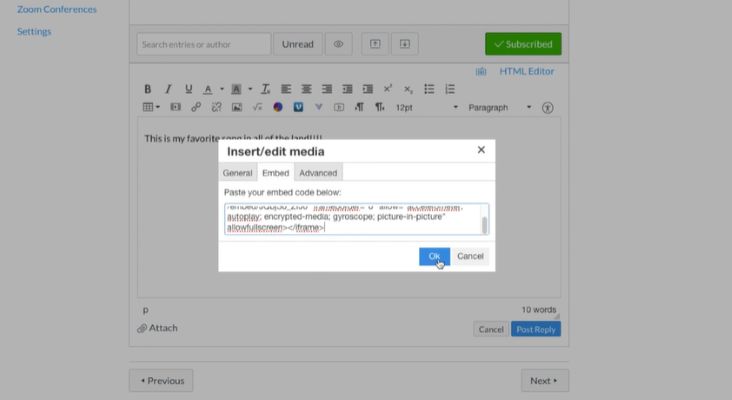
- Paste the copied YouTube embed code in the embed field and then click OK.
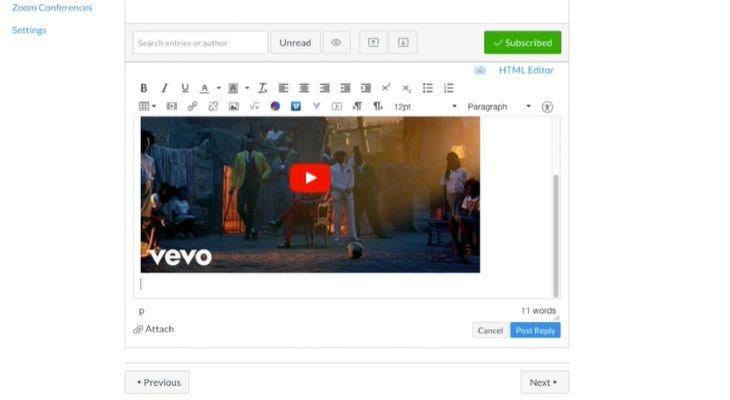
- Scroll down and select either save or save and publish. The video will now be visible to students as an inline video.
How to Embed YouTube Videos in Canvas Using Links
Best for: Educators who need to add several YouTube videos in one go. It applies to discussion boards or post reply pages.
With Ads or Without: With ads
This method is used when rapid video adding is needed. Videos embedded using this method function similarly to those embedded with the previous method, but they look smaller and provide less editing flexibility. While you can reposition the video vertically, you cannot change its size.
Steps to Embed YouTube Videos in Canvas via Links
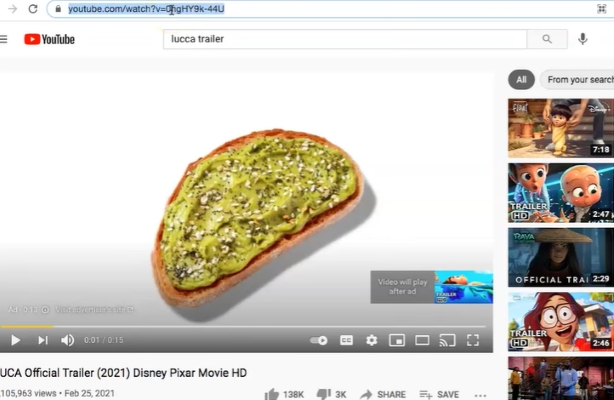
1. Locate the YouTube video on your desktop browser and copy the YouTube video link that you want to embed.
2. Access the content that you want to add the YouTube video in Canvas i.e. discussion or post replies and click Edit.
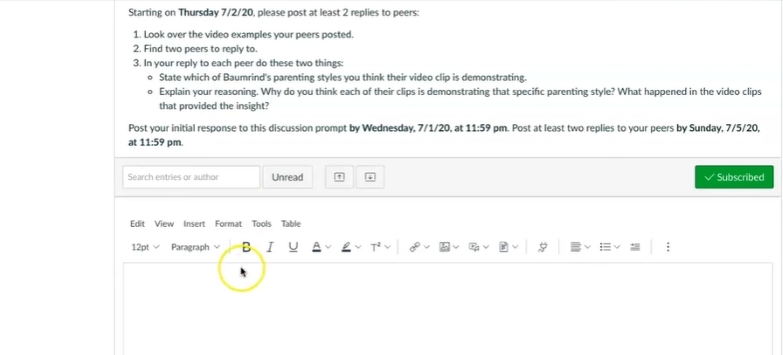
3. There are two ways to turn the video link into a video player in Canvas:
In case you wish to present only the link:
- Click on the reply window and paste the link without pressing the Enter key from your keyboard or any additional space.
- This way, only the link will be included in the reply.
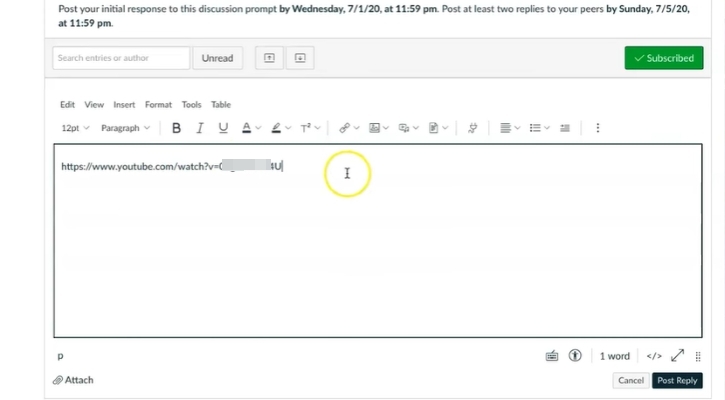
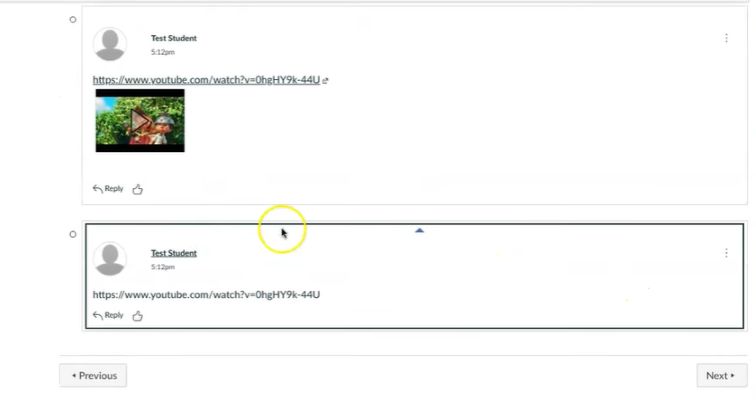
To show the YouTube video preview:
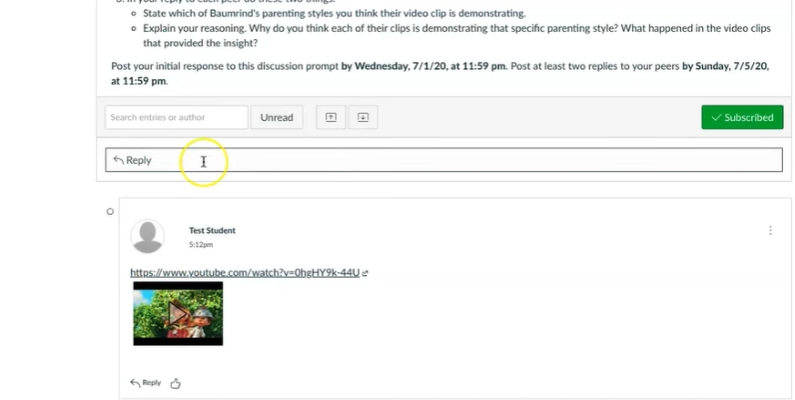
Paste the copied link, press the Enter key to change to the next line and then post a reply. This minor tweak is going to enable the video preview to be shown automatically.
How to Add YouTube Videos to Canvas via Uploads
Best for: You want offline access or ad-free playback when using YouTube videos in your Canvas course.
With Ads or Without: Without ads
You can also upload a YouTube video to Canvas, which is the best option when you do not want students to see ads or distracting features. It can also be used effectively in situations with low internet because the video is not hosted on YouTube, but rather on Canvas.
You will need to convert a YouTube video to an MP4 in order to upload it to Canvas. This can be easily done using a tool, such as Mediaio Video Converter, which is easy to use by beginners. Simply sign into the inbuilt YouTube browser in Mediaio and then you can easily select the wanted videos to convert as local files. The converted videos can be in MP4, MOV, MKV, or other common formats, with high quality up to 4K. The YouTube video’s subtitle will also be saved, for example in SRT or VTT format.
Always check that before uploading the video: you have the legal authority to download and use the video as a learning tool.
Steps to Insert YouTube Videos in Canvas via Uploads
- In Canvas, go to the page where you would like to add the video to and click Edit.
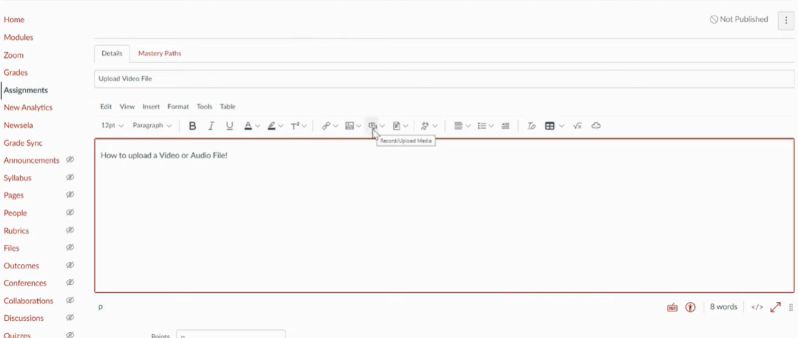
- From the editor toolbar, select Upload/Record Media.
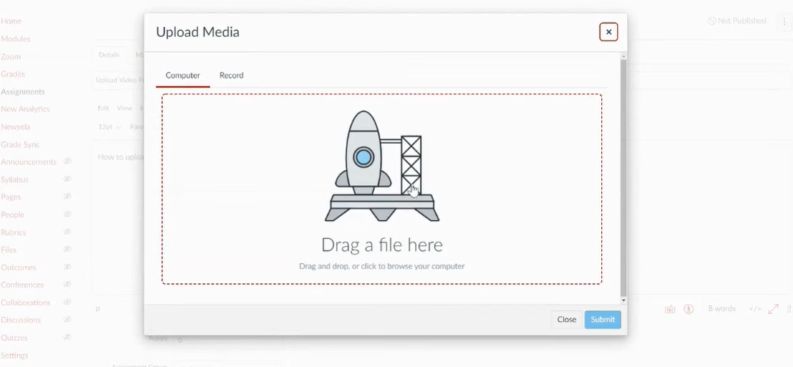
- Click Upload and then drop your YouTube MP4 file in the specified section or navigate your computer and find it.
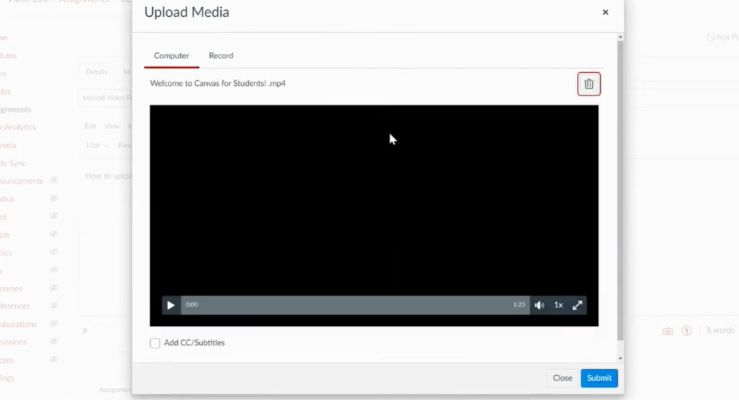
- In case you want captions or subtitles, ensure that you turn on the captions option and submit it.
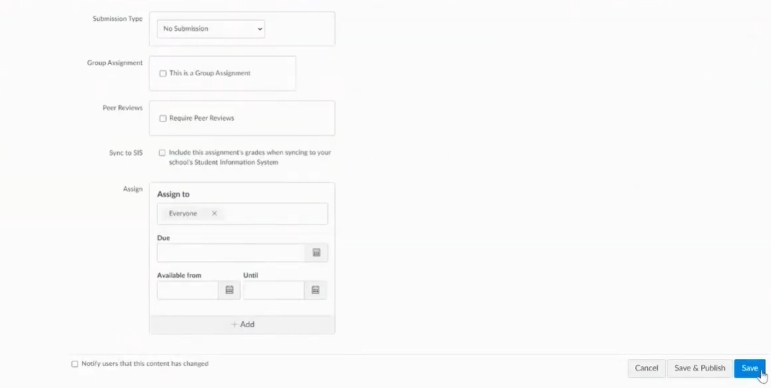
- After the upload is finished, save or save and publish to complete the embedding.
How to Import YouTube Videos into Canvas with Google Drive Code
Best for: Users who saves videos in their Google Drive. This way can be used with any page or assignment that supports the Rich Content Editor, including assignments, discussions, quizzes, announcements, and the syllabus.
With Ads or Without: Depends on playback method.
For educators who manage content through Google Drive, this method is recommended. It can sometimes bypass playback issues and keep content organized in Drive. The video may still show ads, depending on how it’s played, but it integrates easily into Canvas.
Steps to Insert YouTube Videos into Canvas via Google Drive Code
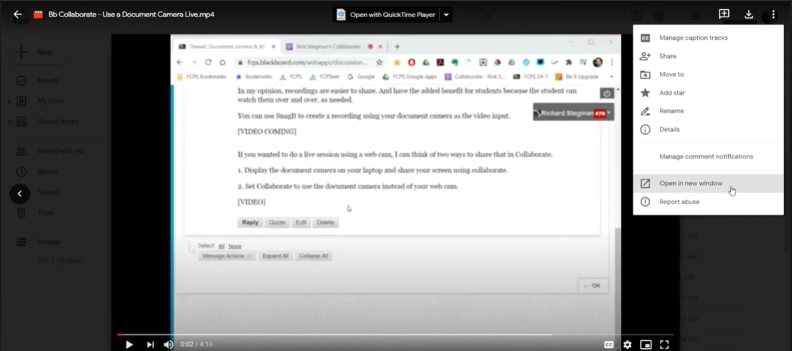
- In Google Drive, find the video you want to embed. Click the three-dot menu in the upper-right corner and select Open in new window.
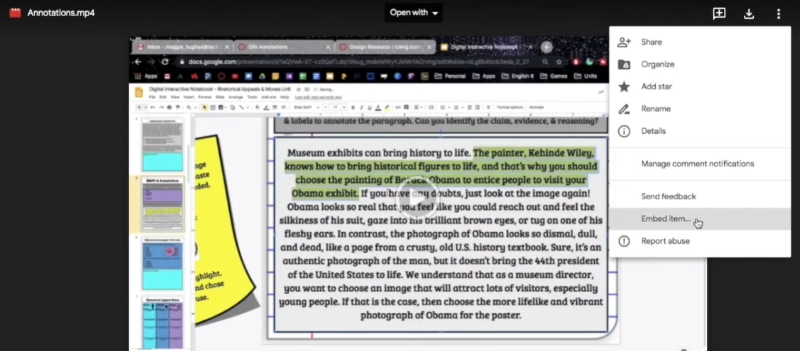
- In the new window, click the three-dot menu again and select Embed item.
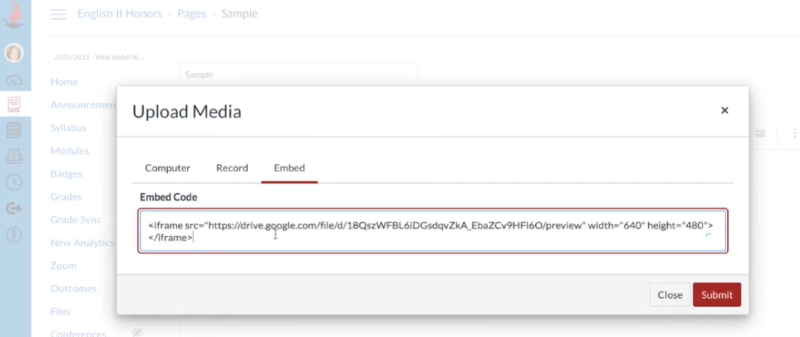
- A pop-up will display the HTML embed code.
- Highlight the entire code and copy it.
- In the Canvas page, assignment, discussion, or quiz, switch to HTML Editor (shown as </>) where you want the video, then paste the embed code.
- Click Save (or Save & Publish) to insert the video into Canvas.
How to Upload YouTube Videos to Canvas via Canvas Studio
Best for: Educators who want ad-free, trackable, and have full control over videos that they embed on Canvas.
With Ads or Without: Without ads
Canvas Studio is a centralized video upload, management, and sharing tool within Canvas. It is easy to organize media and enable access using captions, and instructors can deliver a smooth viewing experience to students right within the course.
Steps to Embed YouTube Videos in Canvas via Canvas Studio
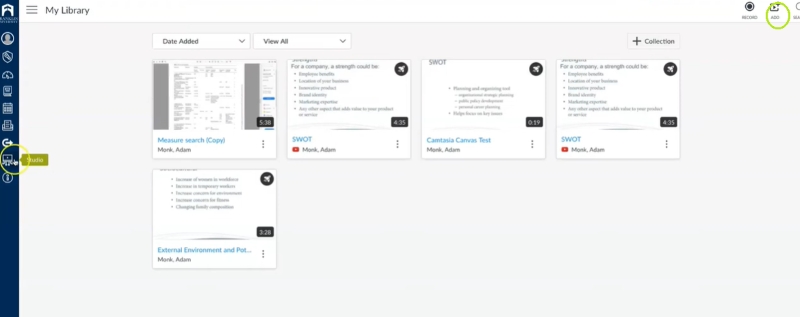
- Log in to your account in Canvas and then navigate to Studio in the global menu of navigation. This will open the Canvas Studio dashboard, where all your media is stored.
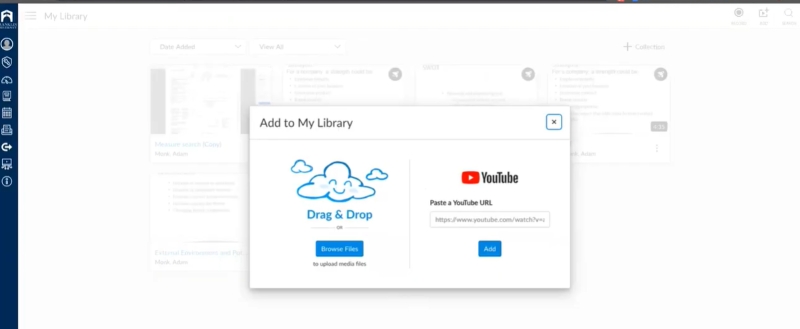
- In Canvas Studio, click the Add button. You will see the two options on screen: add the video URL from YouTube.
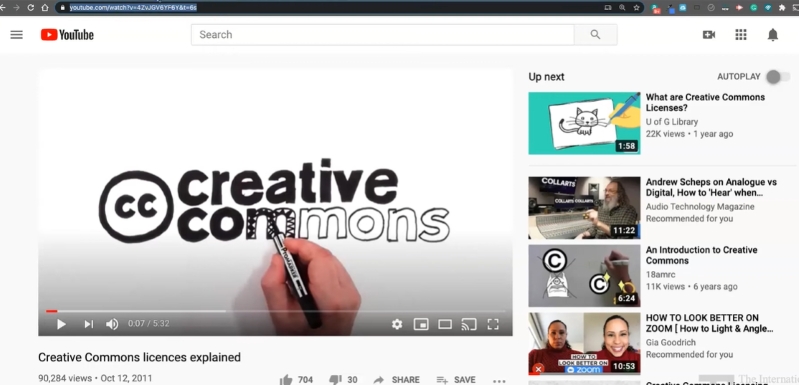
- Copy the YouTube URL of the video that you want to insert.
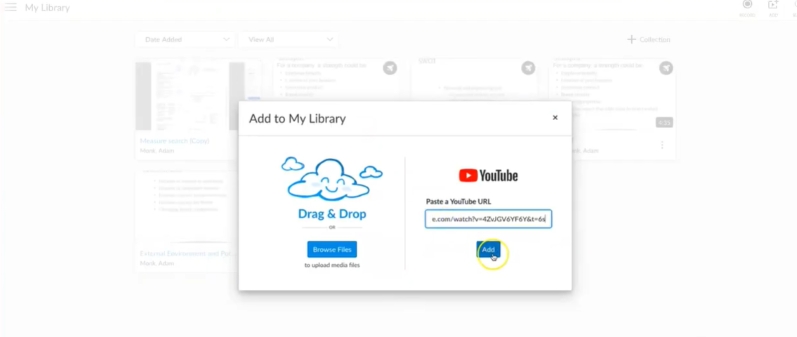
- Paste the link of the video you want to embed. Press the button Add. Canvas Studio will begin to work on the video.
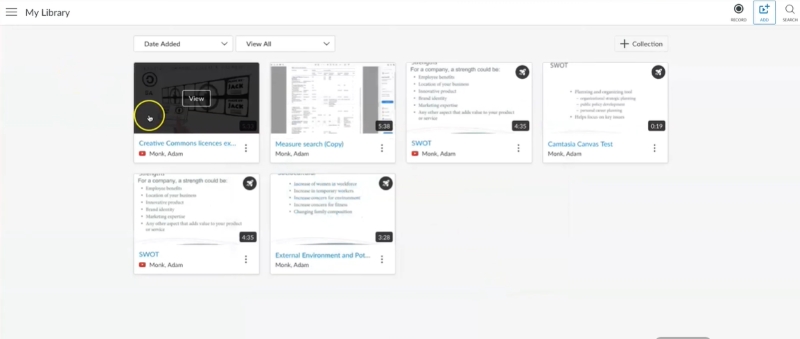
- After processing, you will be taken to your media library, where the video will be displayed.
How to Add YouTube Videos to Canvas via Plugin Feature
Best for: Smoothly integrating YouTube videos into Canvas assignments without any HTML or embed codes- quick, consistent, and flawlessly embedded into the assignment page as organized course material.
With or Without ads: With ads
Using the Canvas plugin is a convenient way. This method keeps everything inside Canvas and works especially well when you want students to view a video as part of an assessed task.
Steps to Embed YouTube Videos in Canvas Using Plugin Feature
- Log in to Canvas and open up the assignment into which you would like to add the YouTube video.
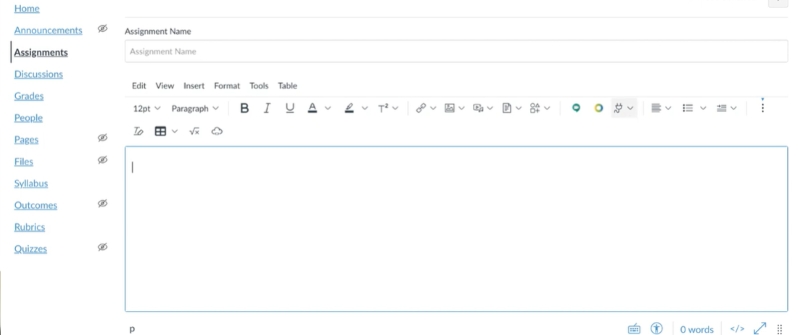
- Click on the Edit button to get to the assignment editor toolbar.
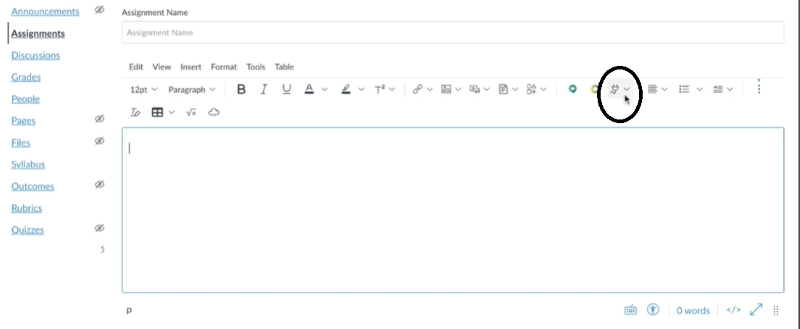
- On the editor toolbar, select the Plugin icon.
- Click YouTube from the drop-down.
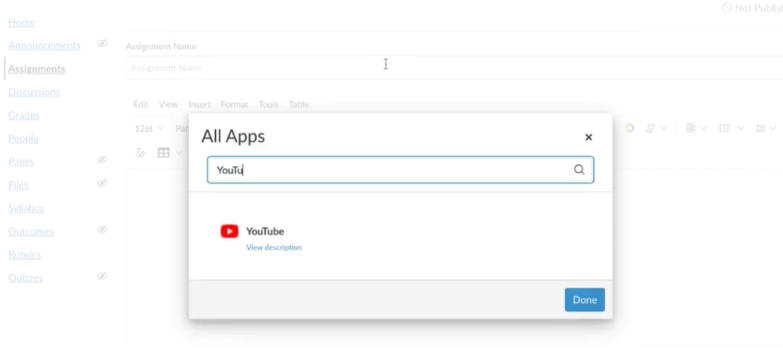
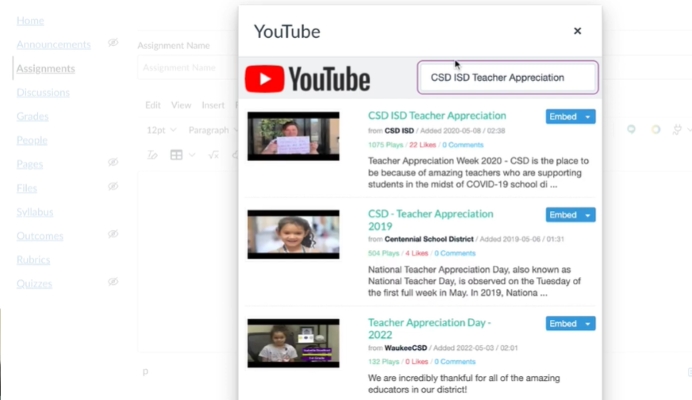
- Enter the title of the YouTube video that you want to embed into the search bar.
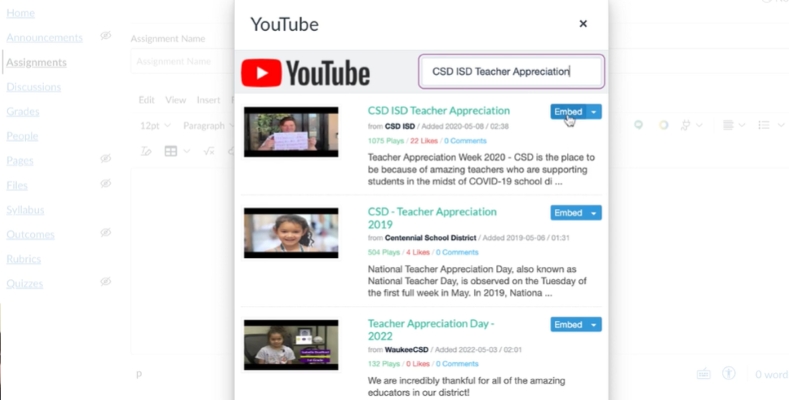
- Several results will appear. Find the right video and press the Embed button next to it.
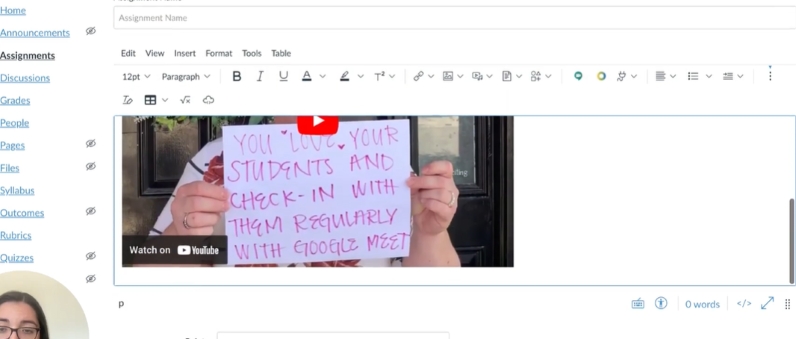
- The video will be shown in your assignment editor.
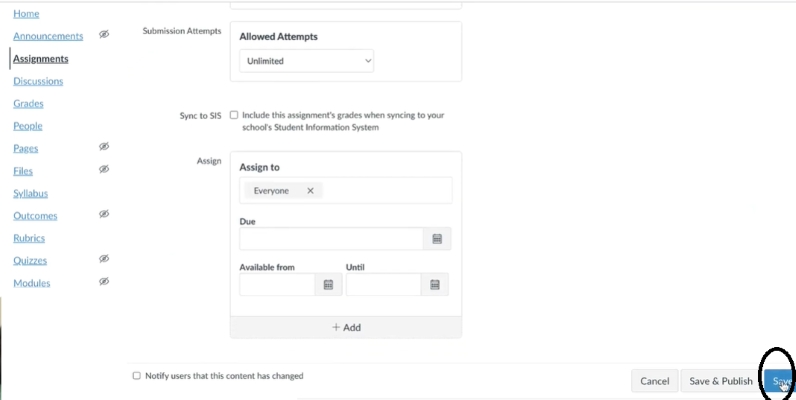
- Go to the bottom of the page and Save to provide the assignment to the students.
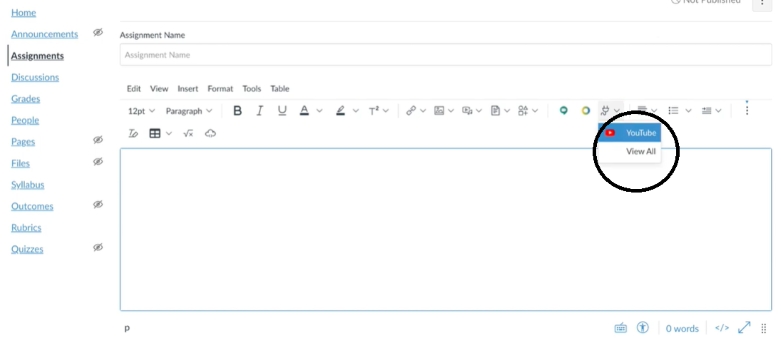
If you can’t see YouTube option, click View All, search and choose YouTube in the list.
Final Words
Adding YouTube videos to Canvas does not necessarily require complexities. Canvas will give you the choice of the method to use with embedding codes, links, built-in, or uploaded files according to your teaching and learning requirements.
To have more interactive control over the playback process or to be able to access the content when offline, such tools as Mediaio Video Converter can be regarded as an efficient tool to include in the workflow. Select the technique that fits in the best manner in your course, and you will find your material to be more enhanced and accessible to all.