

In today’s world, almost every major streaming platform, from Netflix and Disney+ to Hulu, offers Picture-in-Picture (PiP) functionality, and Paramount Plus is no exception. On mobiles, PiP lets you watch your favorite movies and TV shows in a small floating window while checking emails, browsing the web, or even working.
On desktops, however, you will notice that Paramount Plus doesn’t provide a native PiP option. But don’t worry, this doesn’t mean you can’t watch Paramount+ in PiP on your computer’s large screen. This guide will walk you through everything you need to know about how to use Picture in Picture for Paramount Plus, covering supported content, step-by-step instructions for mobile and desktop and troubleshooting tips to make sure PiP works smoothly across all devices.

Hot Article
What Content Does Paramount Plus Picture-in-Picture Support?
Paramount Plus’s Picture-in-Picture is designed primarily for on-demand content and not all streams are PiP-compatible. While the feature works well for most movies and TV shows, certain live TV channels or DRM-protected content may not support it. You can understand where Paramount Plus’s PiP works from the table below.
How to Use Picture in Picture for Paramount Plus (iPhone/Android)
On mobile, PiP functionality is deeply integrated with iOS and Android systems, allowing videos to float while performing other tasks. Below are reliable methods and advanced tips to maximize PiP usage on smartphones and tablets.
Way 1. Via Inbuilt PiP Feature
The most straightforward approach is the native PiP support within the Paramount Plus app. This method leverages system-level Picture-in-Picture features on both iOS and Android devices. Once enabled, videos automatically shrink to a floating window when the user exits the app, maintaining playback while using other apps.
Steps to Use PiP on Paramount Plus Mobile:
Step 1. Launch the app on your iPhone or Android device and start playing an on-demand movie or TV show.
Step 2. Swipe up or press the Home button. The video should shrink into a PiP window automatically. If automatic PiP doesn’t trigger, tap the PiP icon in the video player. After that, you can drag the PiP window anywhere on your screen and pinch to resize if supported.
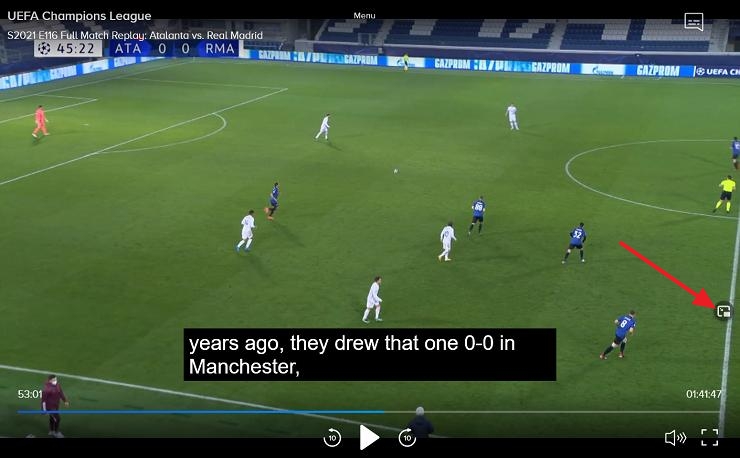
To exit PiP, tap the PiP window and press the X or return to full screen icon.
Fixed: Paramount Plus Picture in Picture Not Working on Mobile
Despite the convenience of native PiP, users sometimes experience issues where videos stop when leaving the app or the PiP option seems unavailable. These problems are often related to system settings, app updates, or temporary OS glitches.
Fix 1. Check the Content You Watch
Many users think PiP isn’t working on Paramount Plus mobile, but in most cases, it’s because live content doesn’t support PiP. For example, on an iPhone, PiP works smoothly with Star Trek: Discovery, but may fail for a live NFL broadcast, showing that PiP availability depends on the content. To test this, try starting an on-demand movie or TV episode.
Fix 2. Enable Phone’s PiP
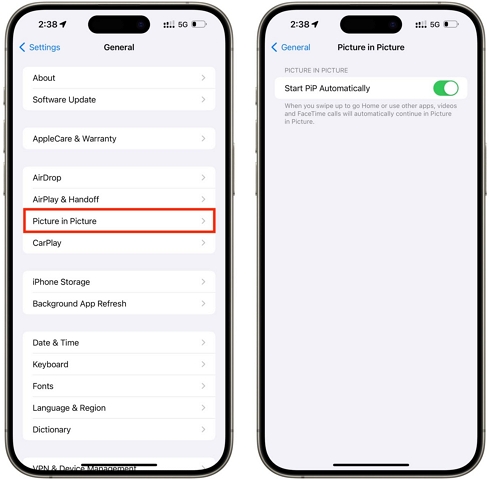
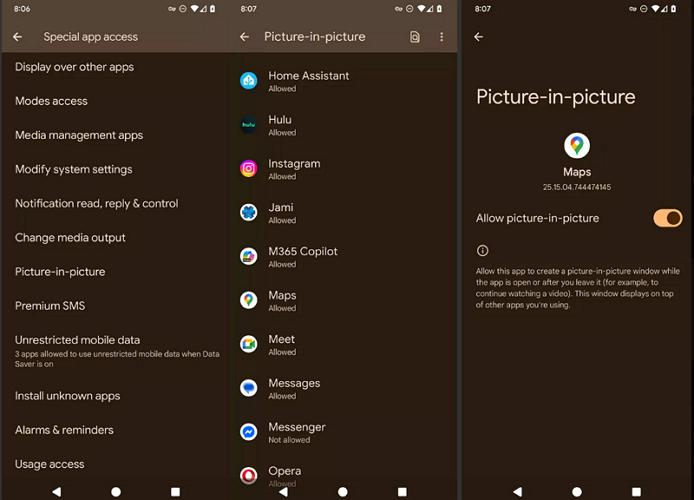
On iPhone or Android, PiP must be enabled in the device settings to allow videos to continue playing in a small floating window when you leave the app. In other words, if you disable the system-level PiP feature, you won’t be able to use the built-in PiP feature of Paramount+.
iPhone Steps:
- Open Settings > General > Picture in Picture.
- Toggle Start PiP Automatically ON.
Android Steps:
- In Settings, chooseApps & Notifications and then Special App Access.
- Select Picture-in-Picture and enable PiP for Paramount Plus.
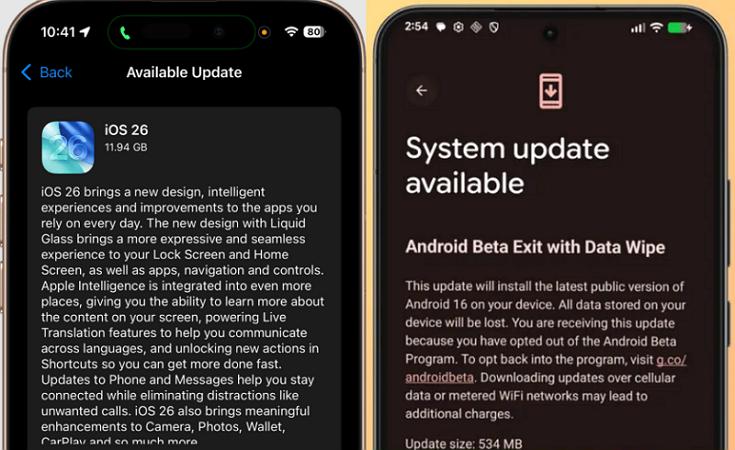
Fix 3. Update iOS/Android
Sometimes, OS updates reset PiP preferences or introduce temporary bugs. For instance, users have reported that after upgrading to iOS 26, automatic PiP no longer triggers until settings are verified. So, always check for the latest stable OS release to ensure PiP functionality.
Tip: Also ensure the Paramount Plus app is updated to the latest version, as older app versions can block system-level PiP.
Way 2. Watch via Amazon Prime
An alternative method is accessing Paramount Plus content through Amazon Prime Video, which can inherit Amazon’s PiP support. This is particularly useful when the native PiP feature is unavailable. However, before using this method, make sure that the specific Paramount+ title is licensed on Amazon Prime. Additionally, you should have both your Amazon Prime and Paramount Plus accounts ready.
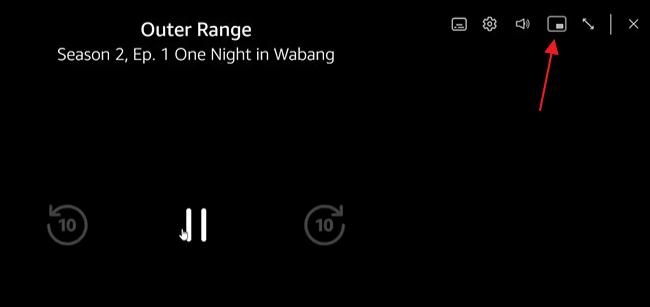
Steps to Watch Paramount+ in PiP via Prime:
Step 1. Launch the Prime Video app on your mobile device. If you haven’t linked Paramount Plus yet, go to Prime Video Channels and sign in to Paramount Plus.

Step 2. Start playing a movie or TV show from Paramount Plus. Then, swipe up or press the Home button to enable PiP.
How to Use Picture in Picture for Paramount Plus (Windows/Mac)
On desktop, enabling Picture-in-Picture for Paramount Plus works a bit differently, as Paramount Plus does not currently support native PiP on computer. However, you can still watch Paramount+ in PiP on desktop using built-in browser features or even developer tools. Desktop PiP is highly flexible, but it is sometimes restricted by DRM protections or browser policies. Below are methods for both novice and advanced users.
Way 1. Install Browser Extension
Browser extensions are a convenient way to enable PiP for Paramount Plus videos. One widely used extension is “Picture in Picture works with Paramount” available on the Chrome Web Store.
Steps to Enable PiP for Paramount+ with Chrome Extension:
Step 1. Install “Picture in Picture works with Paramount”on Chrome.
Step 2. Open Paramount Plus web player and play a video you like.
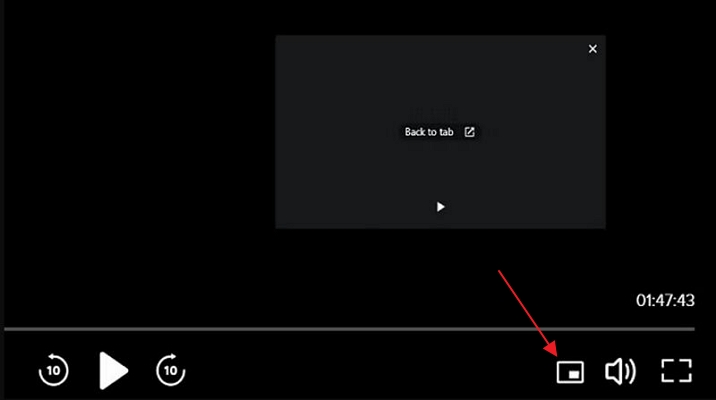
Step 3. Click the PiP button added by the extension to activate a floating window.
Way 2. Modify the Element in Inspect
Advanced users can turn on PiP by modifying the HTML attributes of the video player through browser developer tools. This method typically involves inspecting the video element.
While this approach offers greater control and can bypass some built-in limitations, it requires basic knowledge of web development and may not work on all streams due to DRM protections or platform-level restrictions. Additionally, changes are temporary and must be reapplied each time the page reloads.
Steps to Change Elements in Inspect to Enable PiP for Paramount+:
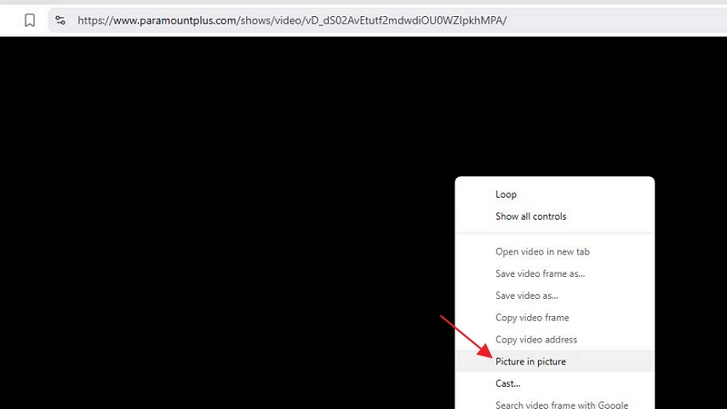
Step 1. Right-click the video and click Inspect.
Step 2. Locate the attribute disablePictureInPicture and change it to enablePictureInPicture.

Step 3. Right-click again and select Picture in Picture.
Paramount+ PiP Not Working on Desktop (2 Fixes)
Desktop PiP issues usually arise from browser compatibility or system-level conflicts. Common fixes include:
Fix 1. Switch to Another Browser
Switching to a browser with robust PiP support (Chrome, Edge or Safari) often resolves issues. Users have reported that some content blocks PiP in some browsers but work in others.
Fix 2. Watch Paramount+ with Another Media Player
You can also save Paramount+ videos locally and watch them using a more stable video player with reliable PiP support. To do this, you can use tools like Mediaio Video Converter, which can export streaming videos, such as Paramount+, Amazon Prime Video and Netflix, into formats like MP4, MOV, or MKV, with quality up to 4K. Subtitles are also preserved, so your viewing experience stays intact.
Once you’ve saved the videos locally, you can play them with popular media players like Media Player or QuickTime Player, and easily enable their built-in Picture-in-Picture mode for smooth, uninterrupted viewing.
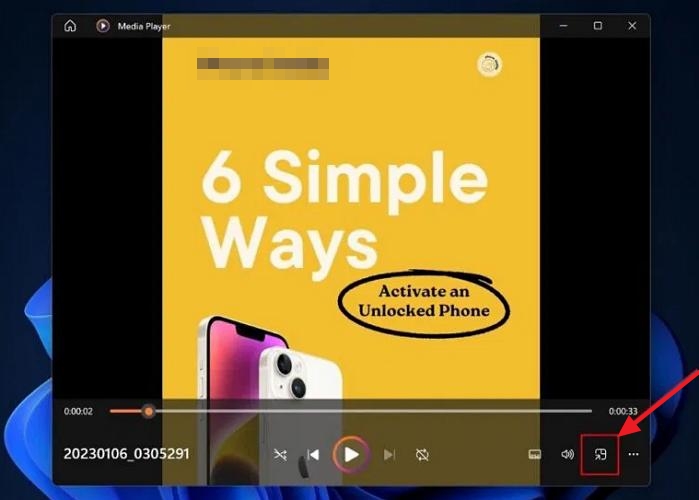
Steps to Watch Paramount+ in PiP Using Media Player
Step 1. Convert Paramount+ videos to MP4 using Mediaio.
Step 2. Open the video in Media Player and click the mini player icon. Instantly, you will find the mini player at the upper right corner.
Conclusion
Paramount+ offers a solid Picture-in-Picture experience on mobile devices, making it easy to watch content while multitasking. However, on desktop, there is no native PiP support. That said, you can still achieve PiP by using browser-based features or by saving videos locally(Mediaio Video Converter) and playing them with a media player that supports PiP.