

If you are a YouTuber looking to maximize your audience reach, increase user interactions, and also amplify content longevity, posting your videos on other social media channels like Twitter (X) is one of the best way to go. However, you may encounter a little challenge when doing so, especially if you don’t understand how content sharing on X works. In this post, you will discover the easiest ways to post your YouTube videos on X as links that redirect your audience to the corresponding content. Additionally, you will learn to share your YouTube videos with the preview embedded in them, for automatic viewing on X. Thus, relax and read on, as we walk you through how it’s done.

Overview of Ways for Quick Selection
How to Post Your YouTube Video on X with Preview Using Share Option
YouTube comes with its native share button that lets you send your video content to anyone via any platform, including X. It’s also useful in making your videos readily available to your audience on other platforms. In this part, we will focus on how to use the share option on YouTube to upload your videos on X via any device.
Steps on iPhone/Android
- Run the Twitter app and sign in with your details correctly.
- Go to the YouTube app on your device and sign in your Google account.
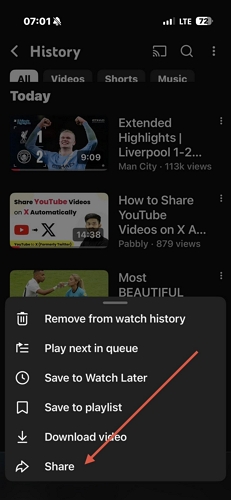
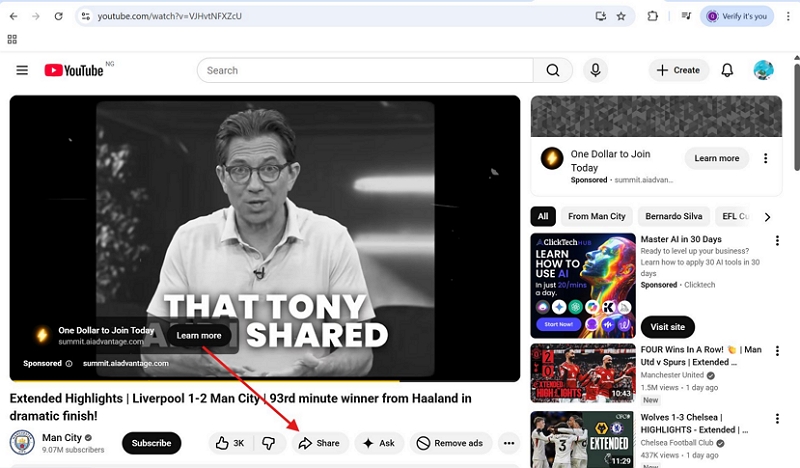
- Find the YouTube video you want to share on your X page, click on it and select the Share icon.
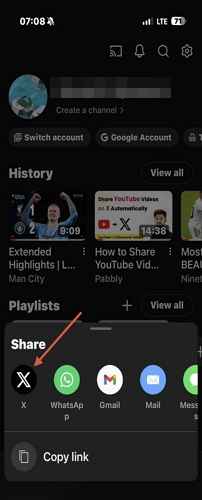
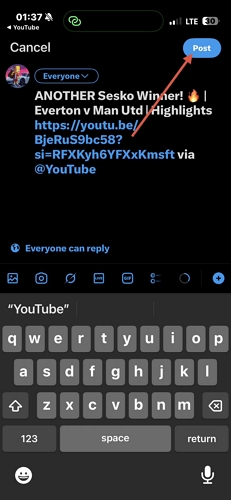
- Next, a menu of sharing options will immediately pop up on your screen. Choose Twitter from the list and the app will pop up with a new post showing your YouTube video link.
- Click Post and your clip will be shared immediately.
Steps on Windows/Mac
- On your Windows or Mac, launch your favorite browser. Take Google Chrome as an example in this guide.
- Go to the search panel and visit YouTube.
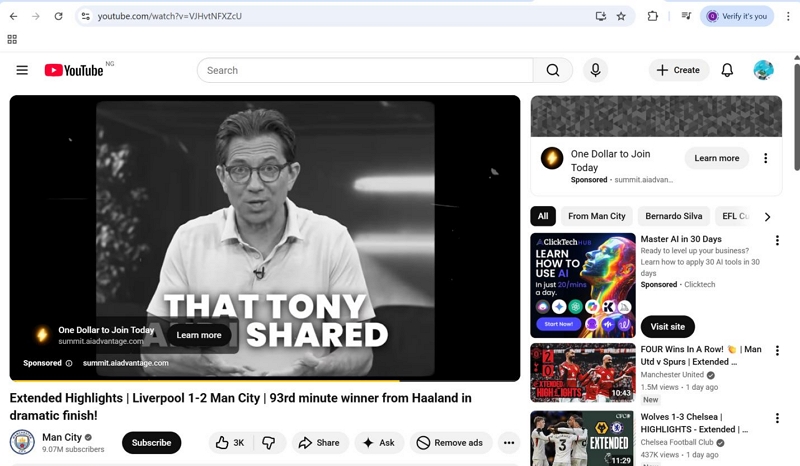
- Find the video you want to share and select the Share button.
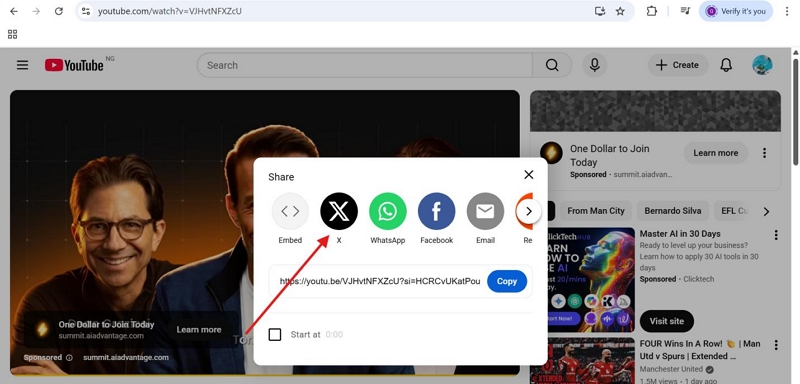
- Next, a menu with several platforms will pop up. Choose X.
- Without delay, you will be directed to a new browser tab to log in to your X profile if you haven’t done so before.
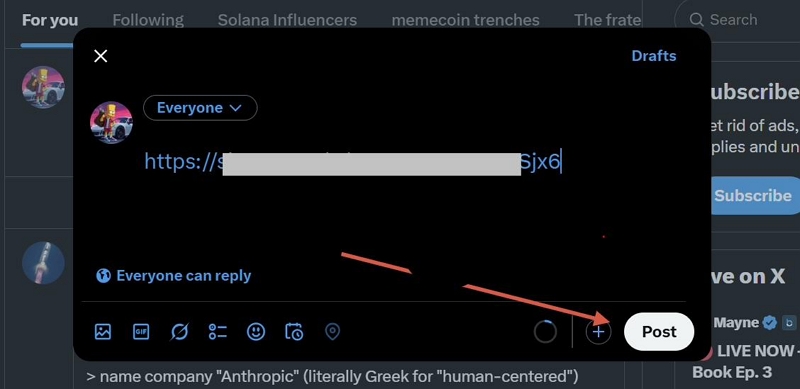
- Now, a box with your YouTube video and link will come up. Input your comment in the box if necessary.
- Hit the Post icon to send your YouTube video on X.
How to Post Your YouTube Video on X with Preview Using Video Link
In case the share option isn’t working for you, copying and pasting the corresponding URL link to your YouTube video on X is another effective way you can try out. This approach is simple, but can be sometimes challenging to implement since the selected link doesn’t appear as an embedded video rather as a hyperlink.
To assist you with implementing this approach, follow the guide that applies to your device type from below.
Steps on Phone
- Open the YouTube app on your mobile phone, and ensure you are signed in to your profile.
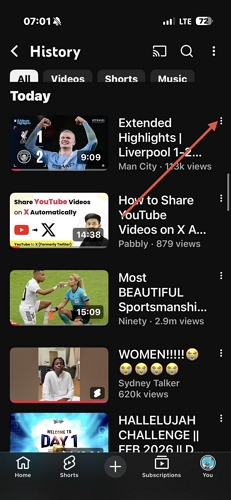
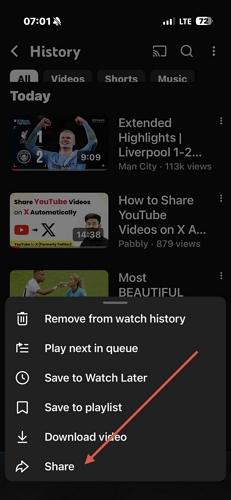
- Go to the video you want to share and select the Hamburger icon (the three vertical dots).
- Select Share from the drop-down menu.
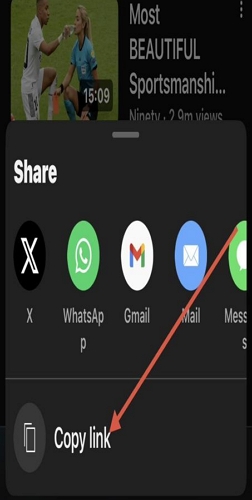
- Click on the Copy link button.
- Next, go to X, and ensure you are signed in to your profile.
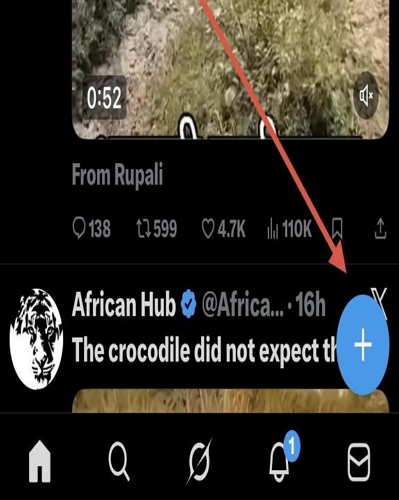
- Tap on the + icon on the next screen.
- Paste the copied YouTube link, add text if necessary and hit the Post icon at the upper-right corner of your screen. The video will be shared with a preview, so your audience can watch directly from X.

Note: If the YouTube video appears as a link, you can copy the video URL from the browser’s address bar, paste it into your X post, and publish.
Steps on Computer
- Go to YouTube on your computer via any browser of your choice.
- Sign in to your profile and navigate to the video you want to share and click on it.
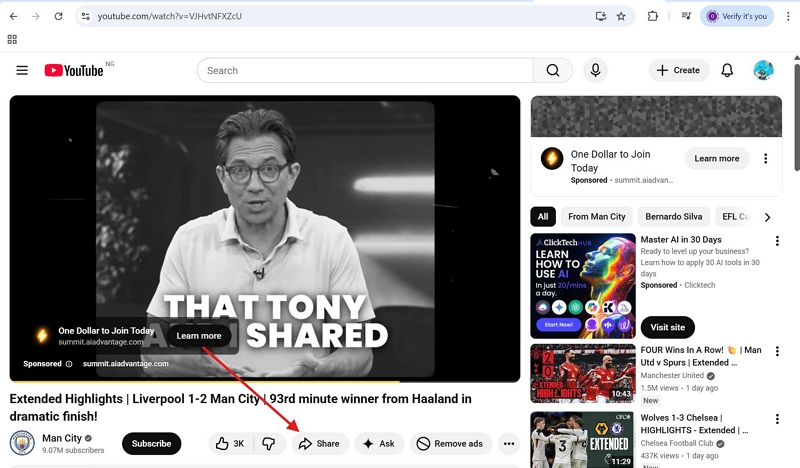
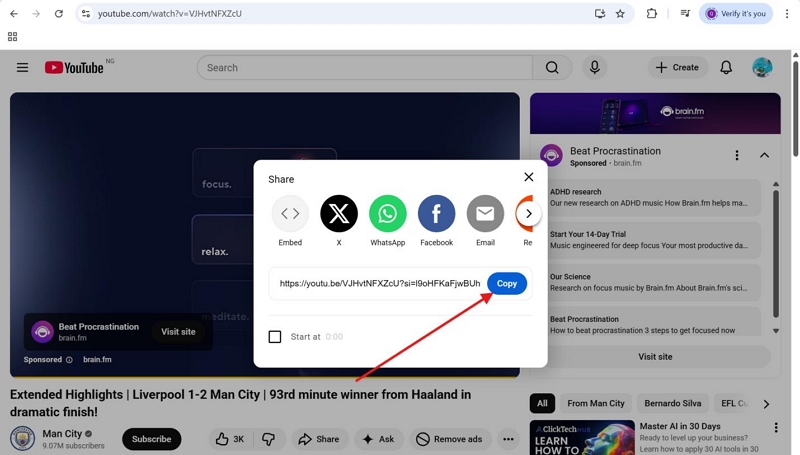
- Hit the Share icon.
- Choose the blue Copy icon on the pop-up.
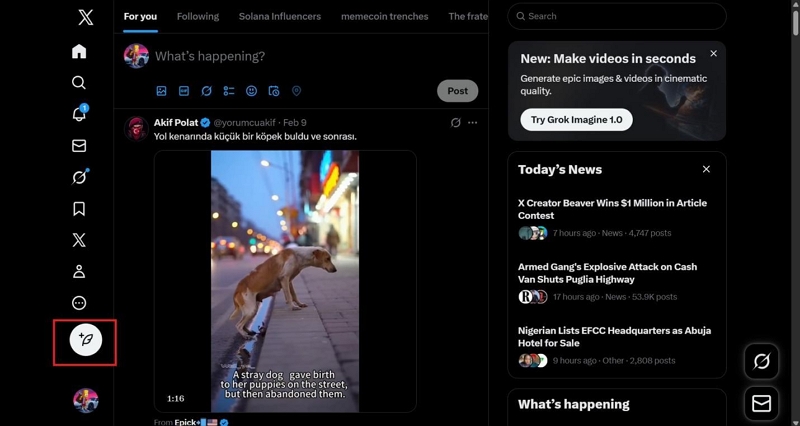
- Launch another browser tab and visit X. Select Post icon on the left-hand side of your screen.
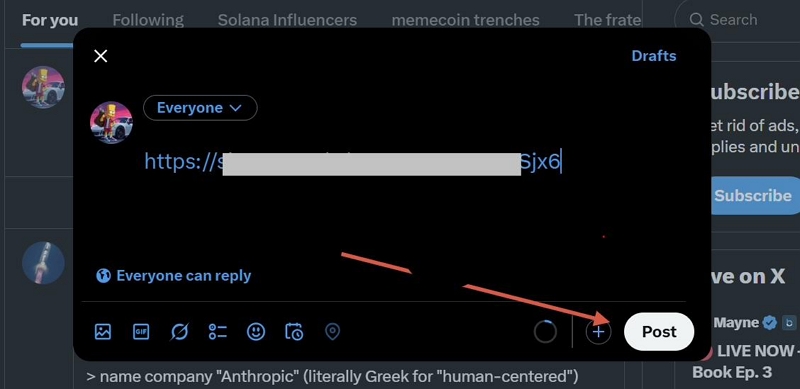
- Paste the YouTube link in the space given and add text if needed.
- After that, click the Post button at the bottom right corner of your screen.
How to Embed Your YouTube Video on X So It Plays Automatically
You may have seen X posts with autoplaying YouTube videos that also show a video link in the lower-left corner. It does look more appealing, doesn’t it? So how is it done? Well, there are two ways to achieve this.
Way 1. Trim and Upload Original Video
X does allow you to upload videos directly from your local storage to your page. The uploaded video will generally autoplay the first minute. To watch the full video, you need to click the play button. To upload a YouTube video yourself, you need the original file and go through some editing process, such as trimming the video to adjust the video length to the appropriate one supported on X. Also, you must ensure the video format corresponds with that supported on the platform, usually MP4 or MOV. Furthermore, you must activate the autoplay option, so your audience can preview your content directly from X.
Step 1. Get YouTube Videos Ready
If it’s your original YouTube video, just find the original file and move on to the next step. If you want to share someone else’s YouTube video without links and have their permission to do so, you need to convert the YouTube video as X-compatible format first. A video conversion tool is needed to get the job done and Mediaio Video Converter is one to count on.
Mediaio Video Converter offers a stress-free way to convert and save YouTube videos directly to your local desktop storage for endless offline viewing. It supports multiple video formats, such as MP4, MOV and MKV, with a quality of up to 4K. The video’s captions can also be downloaded and you can either embed them directly into the video or save them as a subtitle file(SRT/VTT), depending on your needs.
Step 2. Trim the Local YouTube Video
To trim or cut unnecessary fluffs from your YouTube video to meet X requirements for posting, select and apply any of the stepwise guides below that suit your device type:
Mac
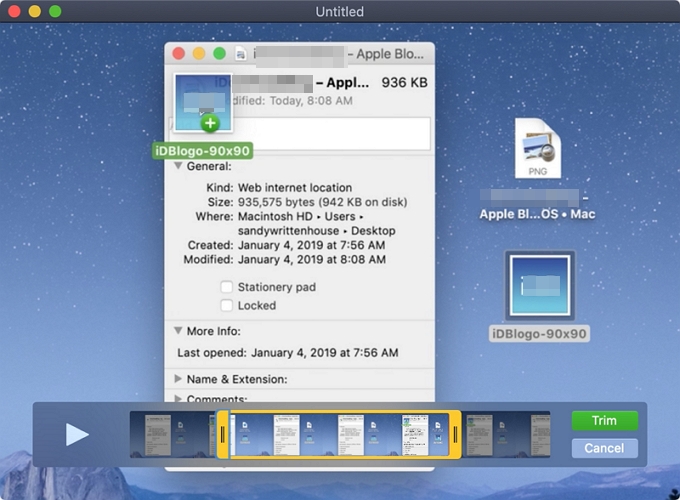
- Run the QuickTime Player app on your Mac.
- Click on File > Open File and choose the YouTube video from your local storage.
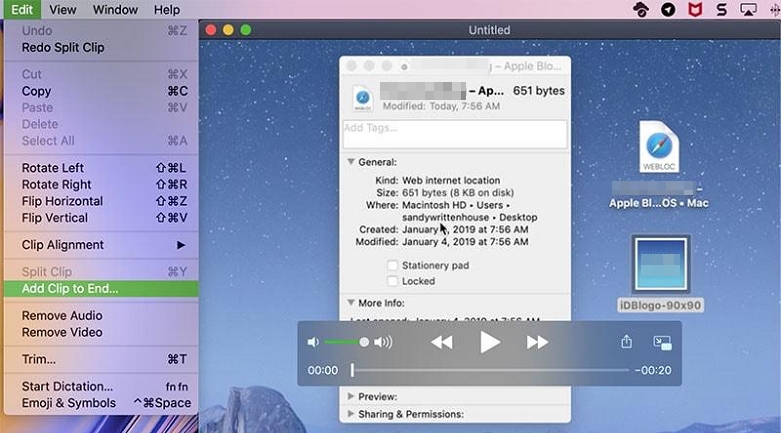
- Go to the top bar of your screen and click on Edit > Trim to activate the trim panel.
- Adjust the yellow handles in the trimming bar to choose the start and end portion of the video you want to post on X.
- Hit the Trim icon and the video will be trimmed.
Windows
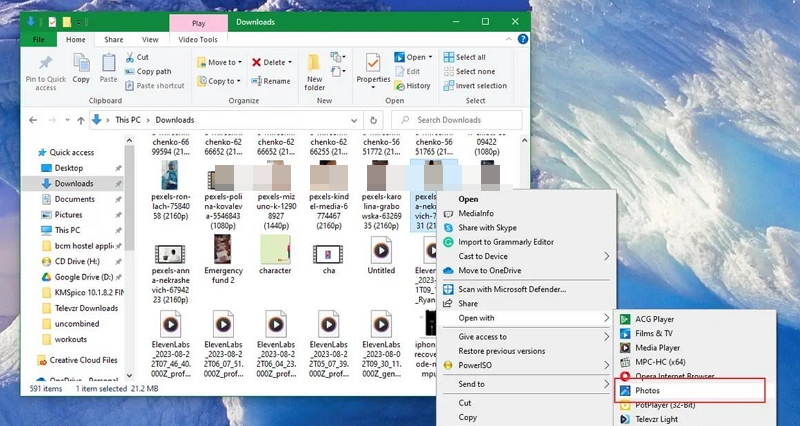
- Go to where you have the video on your Windows, and right-click on it.
- Select Open with and choose Photos from the options displayed.
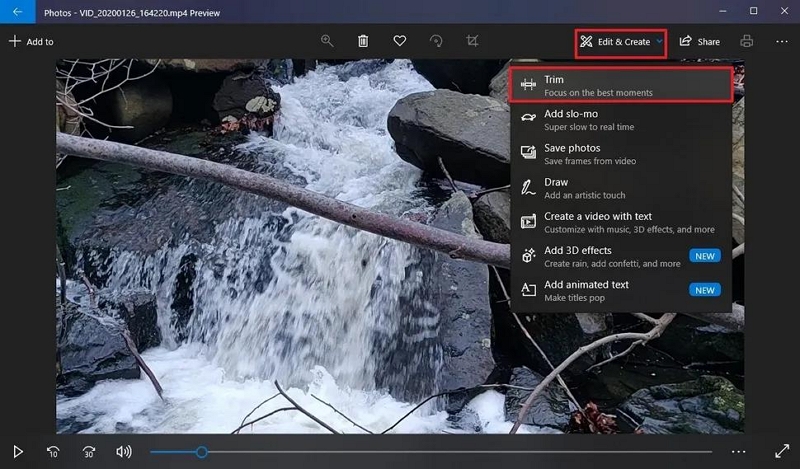
- Hold down the shortcut keys Ctrl + E to activate trimming.
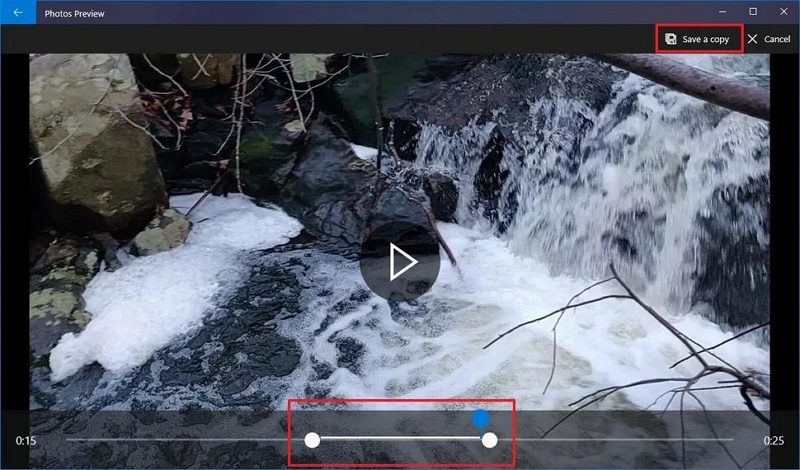
- Drag the two ends of the yellow slider in the trim panel to choose the start and end of point of your YouTube video.
- Save the video once done by clicking Save a copy.
iPhone
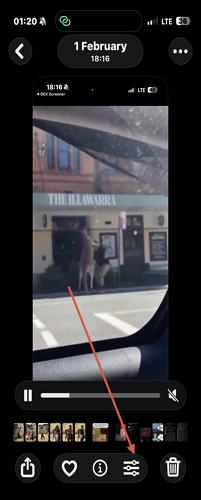
- Go to the Photos app on your device and click on the YouTube video you want to trim.
- Once the video opens, click on the Edit icon at the bottom of your screen.
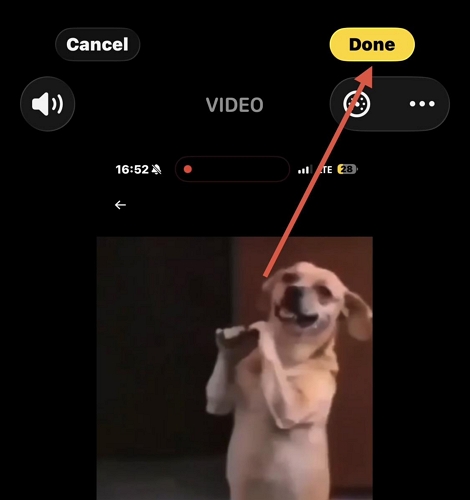
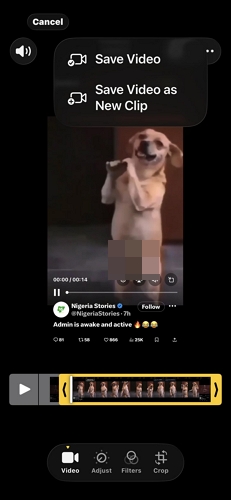
- Drag the yellow slider at the trim panel to edit your YouTube video into length that corresponds with what X supports.
- Hit the Done button at the upper right corner of your screen.
- Select Save if you are willing to let go of the original version or Save Video as New Clip to keep both the original and edited version.
Android
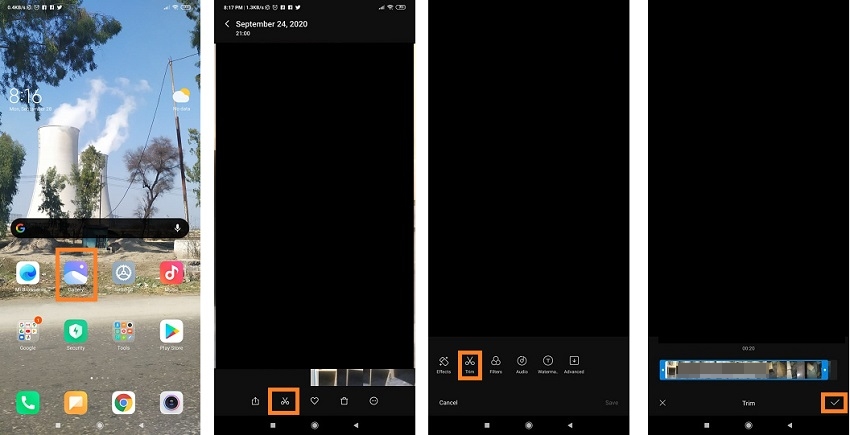
- Launch the Photo Gallery on your phone and tap on the YouTube clip to work on.
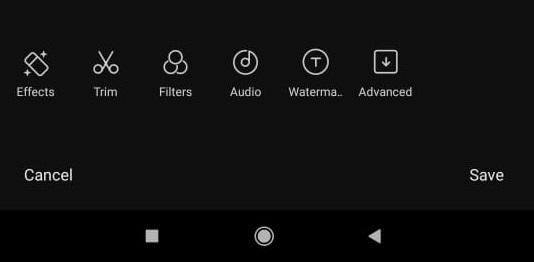
- Once it opens, click the Scissors like icon at the bottom of the screen.
- Hit the scissors-like icon again.
- Drag the slider icon to mark the start and end of the video to trim it.
- Hit the Play button to preview the video.
- Tap on Save to save the trimmed YouTube clip to your local storage.
Step 3. Upload the YouTube Video
Uploading the original video on X is stress free by following the guide below.
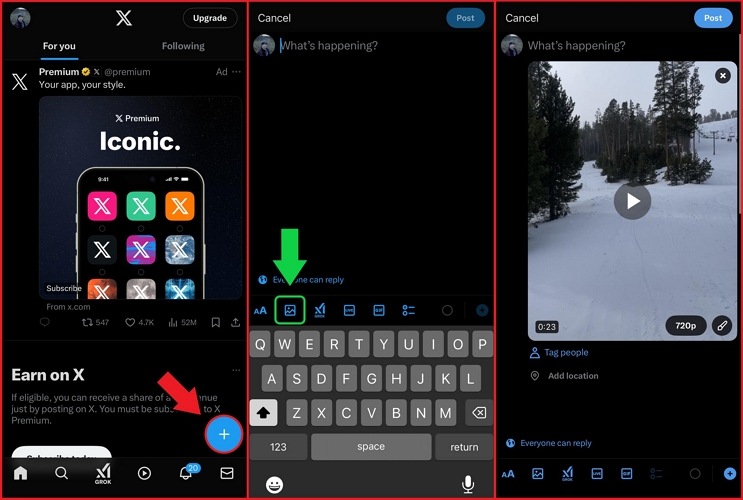
- Open the X app or visit the X website. Then, click the Add icon.
- Select the Media button and choose your trimmed video.
- Finally, click Post to make it public.
Step 4. Activate Autoplay Feature on X
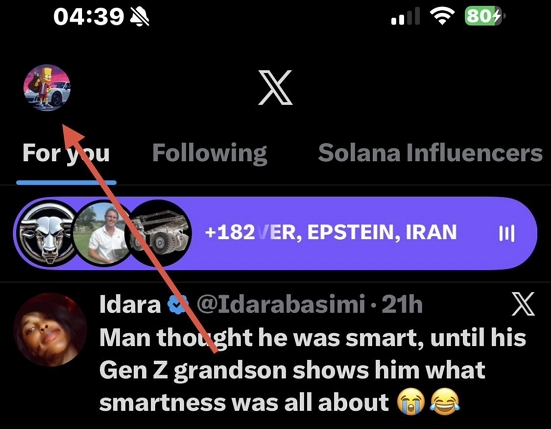
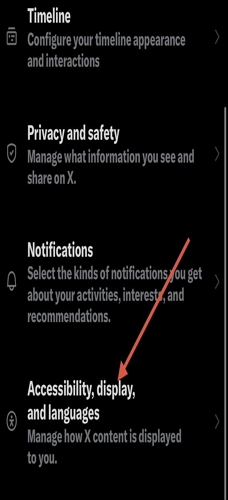
- Open X on your device and click your profile in the upper-right corner of the page.
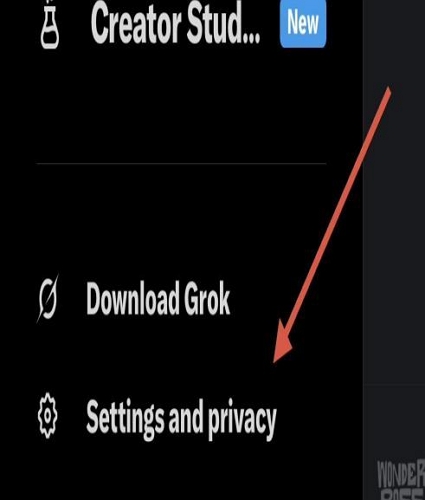
- Click on the Settings & Support > Settings and privacy.
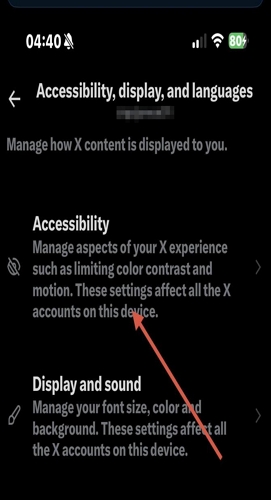
- Scroll down and choose Accessibility, display and languages.
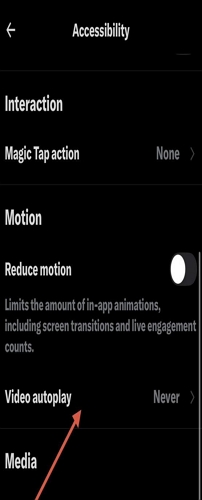
- Next, click Accessibility.
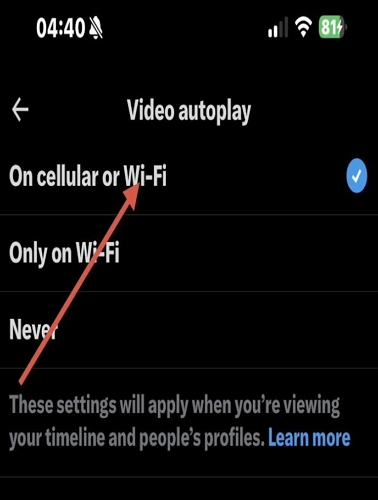
- Now, select Video autoplay.
- Choose On cellular or Wi-Fi or Only on Wi-Fi, based on your data plan.
✍You may have seen these kinds of autoplay videos on X, where there’s a YouTube link in the bottom-left corner of the video. When you tap the video or the link, you’re taken to watch the full version. So how is this achieved?
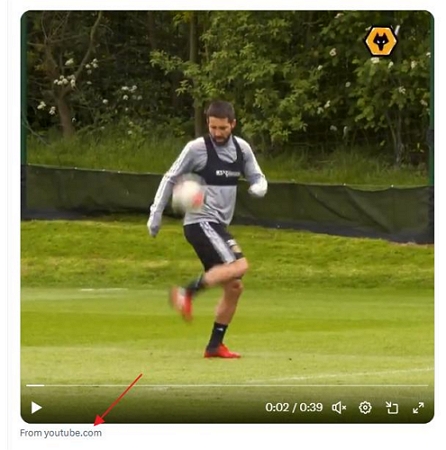
This is actually achieved by uploading a local video and using X ads. You first trim the original YouTube video and upload it to X. Then use a CTA card to display the YouTube link in the bottom-left corner of the video.
Conclusion
Ultimately, posting YouTube videos on X isn’t a tough task to complete when you have the right guide like the above at hand. You can now embed or share YouTube videos, whether yours or that of a friend, on Twitter within the twinkle of an eye. Mediaio Video Converter remains the best tool for your video conversion. It helps you change your video format within seconds without compromising the quality.