

Is your Hulu app not working on your Firestick device? Does it keep buffering, freezing, pausing, or even going black while you’re trying to stream your favorite shows or movies? If that sounds familiar, don’t worry, you’re not alone, and this is a common issue among Firestick users. It can usually be fixed without complicated steps or technical skills. In this troubleshooting guide, we’ll walk you through the most effective methods to diagnose and fix Hulu problems on Firestick, from simple quick checks to more advanced solutions, so you can get back to smooth streaming as soon as possible.
Quick Checks Before Fixing Hulu Not Working on Firestick
Sometimes, a few simple checks are all it takes to get the Hulu app working again on your Firestick. Below are two recommended quick steps to help you identify and fix the issue fast.
1. Is Hulu Down on Firestick?
Sometimes, the problem may not be on your end. If the issue is on Hulu’s side, you will need to wait for it to be fixed by the official team. You can check for any service alerts or announcements on Hulu’s support page or social media to confirm the outage. You can also test Hulu on other devices or through a web browser to see if the problem occurs everywhere. If it does, it is likely a server-side issue, and the only option is to wait for the service to be restored.
2. Is the Firestick Connected to the Network?
You can try opening other streaming apps on your Firestick, such as YouTube or Netflix, to see if videos play normally. If they do not work either, it likely means your device is not connected to the internet and you will need to reconnect it. If your Firestick is already connected to a wired network, try switching to a Wi-Fi connection instead and then check whether Hulu works properly.
Hulu Not Working on Firestick: Fix Overview
All the fixes mentioned in this guide are methods that users have tried and found effective. You can start with the most effective solutions first to quickly resolve the issue as efficiently as possible.
How to Fix Hulu Not Working on Firestick
Below are the step-by-step instructions for each effective fix.
Fix 1: Restart Firestick Device
Restarting your Firestick device can help you refresh the system and get rid of errors that may cause Hulu not to work. Here are three ways to restart your Firestick device.
Option 1: Press the “Select” and “Play/Pause” buttons on your remote simultaneously. This will automatically restart the Firestick.
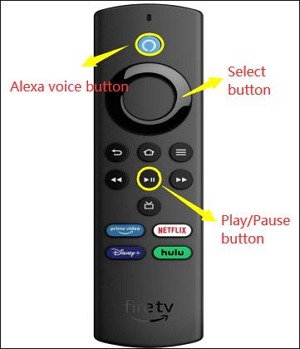
Option 2: Press the “Voice” button on your remote and say, “Alexa, restart.”
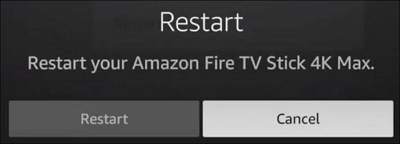
Option 3: Go to “Settings” on Firestick and navigate to “Device & Software” or “My Fire TV.” Then, click on “Restart” to restart the Firestick.
Fix 2: Check Device Limit
If Hulu is not working on your Firestick, one possible reason is that your account has reached its device or simultaneous streaming limit. This can happen if you are using Hulu on multiple TVs, phones, tablets, or other streaming devices at the same time. Checking your active devices and signing out of unused ones can quickly restore normal access. This is a simple but highly effective fix, especially for households that share one Hulu account across several devices.
If you are not sure how many devices your Hulu account supports, you can refer to the table below.
Fix 3: Watch Hulu on Mobile and Then Switch Back to Firestick
This fix can help refresh your account session, update your playback status, and clear temporary syncing issues between Hulu and your connected devices. In some cases, Firestick may fail to recognize your latest login status or playback activity, causing the playback issue. By opening Hulu on your phone or tablet first, you allow the service to reconnect your account and refresh background data. After Hulu works normally on your mobile device, return to your Firestick and launch the app again. Many users report that Hulu loads properly, signs in correctly, or resumes streaming normally after switching devices.
Fix 4: Watch Hulu via Disney+
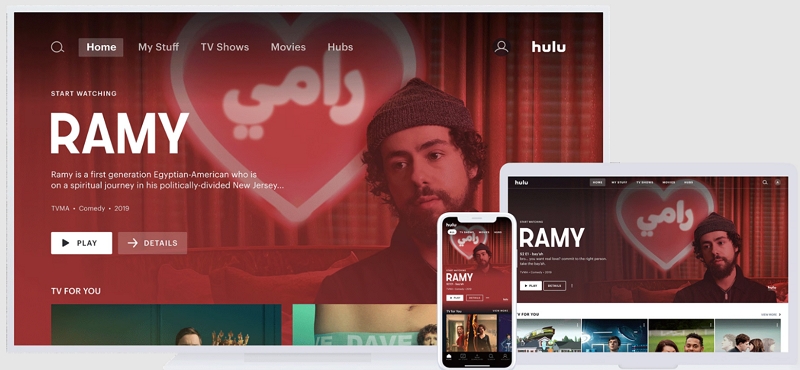
Hulu content is integrated into the Disney+ app for eligible bundled accounts. If the standalone Hulu app is not working properly, opening Hulu through Disney+ can bypass app-specific issues and still let you stream your show.
Step 1. Go to the Firestick home screen and open the search function.
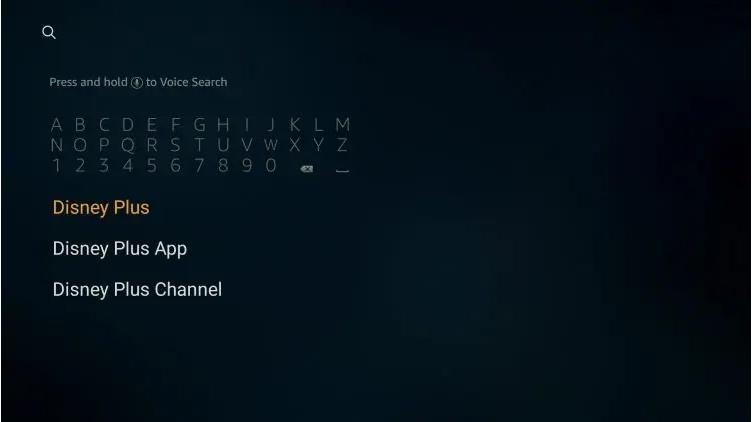
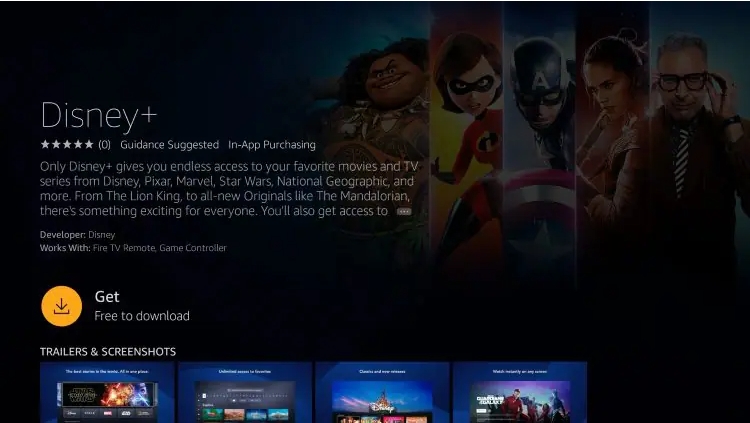
Step 2. Type Disney+ and select the app Disney+ from the results, then download and install it by pressing Get.
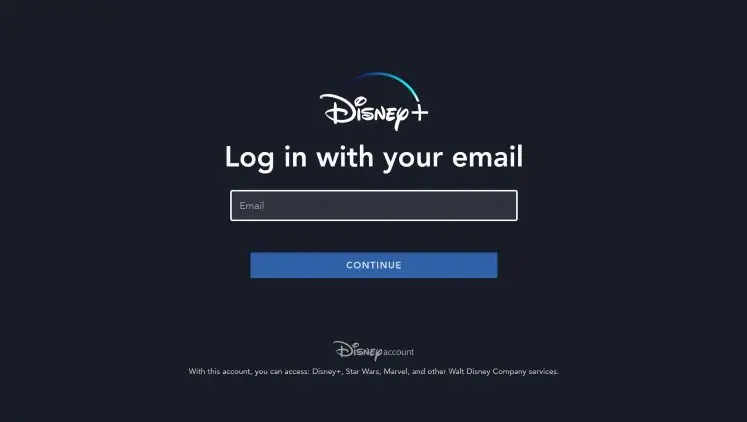
Step 3. Once installed, open the app and sign in with your Disney+ account credentials.
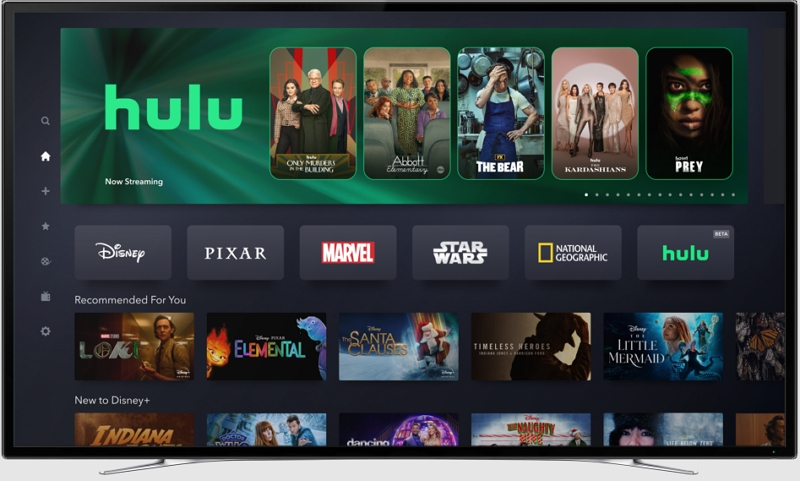
Step 4. After logging in, stay on the home screen and scroll until you find the Hulu section or Hulu hub. If you are subscribed to a Disney Bundle, Hulu content will appear directly inside Disney+.
Fix 5: Turn off Dolby and Dbx
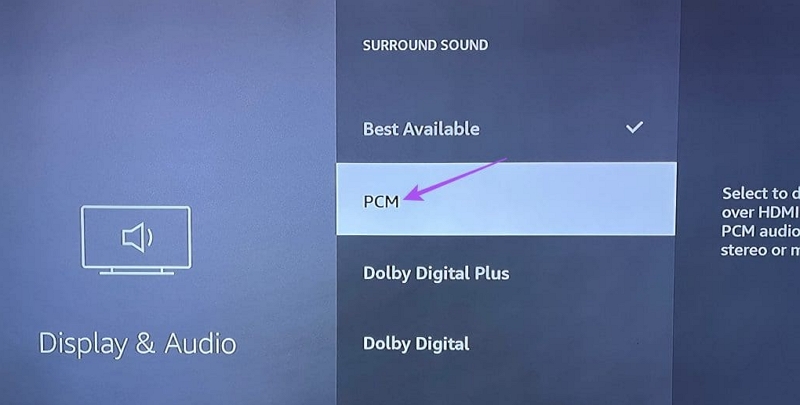
Turning off Dolby audio and DBX (audio enhancement) can help fix Hulu playback issues on Firestick because these audio processing features can sometimes conflict with how streaming apps decode and sync sound. On some Firestick devices, especially older models or certain TV setups, Dolby Digital or DBX audio processing can cause problems like no sound, lagging audio, buffering, or even video not loading properly. This happens because Hulu’s audio stream may not fully match the device’s forced audio format, leading to playback errors. By disabling Dolby and DBX, you force the Firestick to output a simpler, more universal audio signal (usually PCM). Note: If you are using a Firestick Pro, you usually do not need to try this fix, because the Pro version has better audio processing compatibility and more stable hardware support for Dolby formats.
Step 1: Go to Settings on your Fire TV homepage and select Display and Audio. Then go down to Audio settings.
Step 2: Select Surround Sound. Set it to Off or PCMl. If you see DBX or audio enhancement options (depending on your TV or sound system), turn them Off as well.
Step 3: After changing the settings, press the Home button and restart your Firestick to apply the changes, then reopen Hulu and test playback.
Fix 6: Watch Hulu on Firestick Through USB
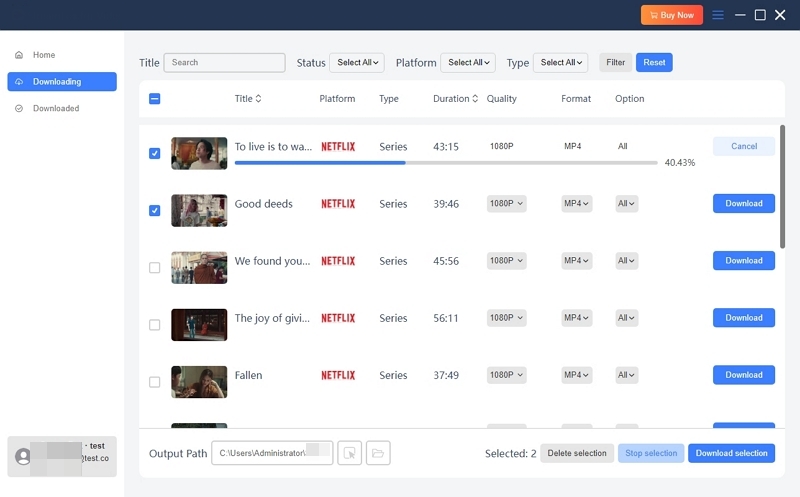
If you’ve tried all the common fixes but still experience Hulu not working on Firestick issues, there’s a more reliable way to enjoy Hulu without interruptions. The key is to save your favorite Hulu movies and shows to USB for offline viewing on Firestick using Mediaio Video Converter. This method completely avoids the common streaming problems on Firestick caused by unstable internet, app glitches, or regional restrictions.
Mediaio Video Converter lets you save unlimited Hulu videos in popular formats like MP4, MKV, and MOV, so you can watch them anytime on any device, including phones, smart TVs, and DVD players without needing an active internet connection.
How to Watch Hulu on Firestick Through USB
Step 1: Convert and save your wanted Hulu content to a USB drive by using Mediaio Video Converter.
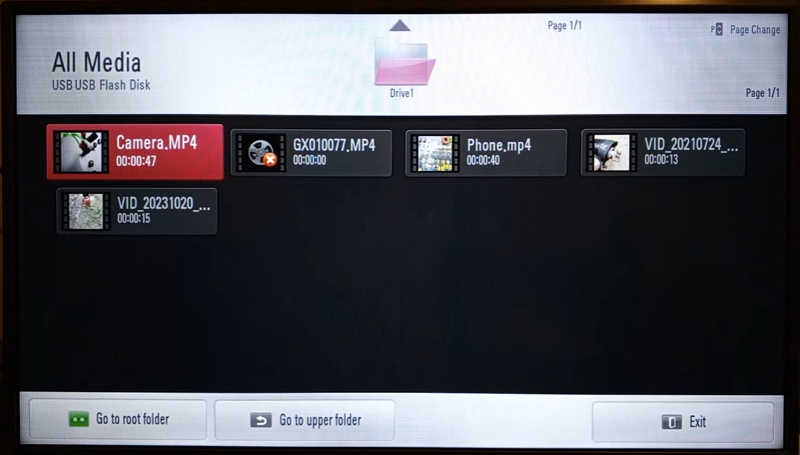
Step 2: Plug your USB drive into the Firestick using an OTG cable or a compatible USB adapter, since Firestick does not have a built-in USB port.
Step 3: Access your USB storage, Open the folder where your videos are saved and select the video file you want to play.
Conclusion
Hulu not working on Firestick can be frustrating, but most issues are fixable. This article has provided effective solutions to help you get Hulu working smoothly again. For those who want a more reliable way to enjoy Hulu content without interruptions or streaming errors, Mediaio Video Converter offers an excellent option to save and watch Hulu videos offline without fixing streaming issues.