

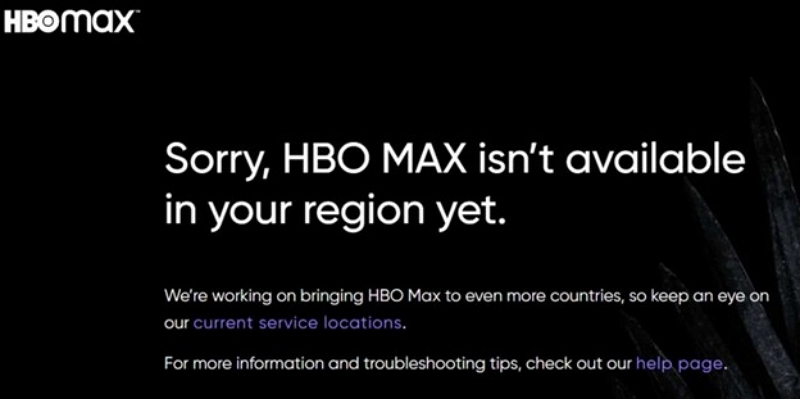
You're connected to your VPN. The app shows a stable connection. You open HBO Max—and immediately get "You seem to be using an unblocker or proxy" or "Not in Service Area." The VPN isn't broken. The problem is more specific than that.
HBO Max runs one of the most aggressive VPN-detection systems among major streaming platforms. It cross-references your IP against known VPN server ranges, checks for DNS inconsistencies, inspects your browser timezone against your claimed location, and monitors ad-blocker behavior that signals non-residential traffic. When any of these signals mismatch, it blocks access—even when your VPN connection itself is working perfectly.
This guide covers the actual causes behind each type of failure and the specific fix for each. Work through the diagnosis section first—applying the wrong fix wastes time.
Diagnose Your Problem First
Fix 1 — Switch to a Different Server in the Same Country
Solves: ~50–60% of "VPN detected" errors
The most common cause of HBO Max blocking a VPN is simple IP blacklisting. HBO Max maintains a constantly updated list of known VPN server IP ranges. When your server's IP gets added to that list, you see the proxy error—even though the VPN is functioning normally.
The fastest fix is switching to a different server in the same country rather than changing countries entirely. Switching countries changes the content library you see; switching cities gives you a fresh IP while keeping the same regional library.
Steps:
- Disconnect from your current server
- In the same country, select a different city (US: try New York → Los Angeles → Chicago → Dallas in sequence)
- Reconnect and test HBO Max before trying anything else
If one city doesn't work, try two or three others before moving to the next fix. NordVPN's US network has over 2,900 servers, which means there are always fresh IPs available when one gets blocked. Most blocks are temporary—an IP blacklisted today may be rotated out by the provider within days.
When to try obfuscation: Obfuscation (stealth mode) disguises VPN traffic to bypass ISP-level detection. It is designed for restrictive networks like corporate firewalls and regions that block VPN protocols—not for streaming platform detection. For HBO Max specifically, enabling obfuscation typically reduces connection speed without meaningfully improving access. Unless your ISP is actively blocking VPN protocols, leave obfuscation off when streaming.
Fix 2 — Use a Dedicated IP Address
Solves: Persistent blocks that server-switching can't fix
Most VPN users share a pool of IP addresses. When hundreds of users stream through the same IP simultaneously, HBO Max recognizes the pattern and flags it as non-residential traffic. The IP gets blacklisted faster than providers can rotate it.
A dedicated IP is assigned exclusively to you. Because only one account uses it, it doesn't trigger the shared-traffic detection pattern that gets shared IPs blocked. Most major providers offer dedicated IPs as an add-on at $3–5/month.
This is worth the cost if you use HBO Max daily and find yourself switching servers repeatedly. It eliminates the most common failure mode entirely.
Providers offering dedicated IPs: NordVPN, Surfshark, CyberGhost.
Fix 3 — Check for and Stop IP Leaks
Solves: VPNs that have never worked with HBO Max
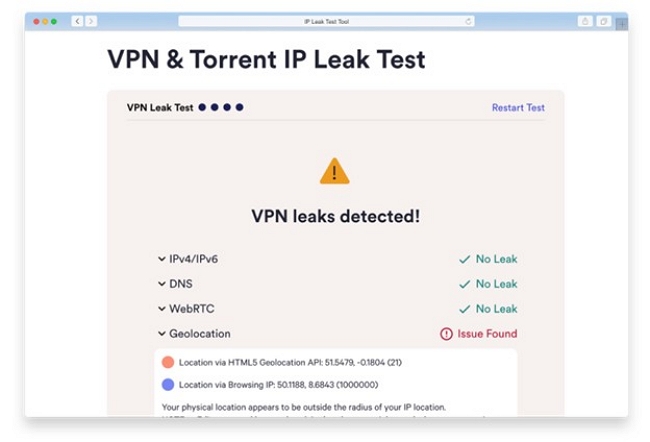
If your VPN connection has never successfully accessed HBO Max, the problem is likely a leak—your real IP or DNS requests are reaching HBO Max's servers despite the VPN being active. Even a small leak is enough for the platform to see your actual location.
Check first: Connect to your VPN, then visit ipleak.net while connected. If the page shows your real country, your connection is leaking.
DNS leak: DNS requests are going to your ISP's servers instead of through the VPN tunnel. Enable DNS Leak Protection in your VPN settings. After enabling, reconnect and test ipleak.net again.
IPv6 leak: Most VPNs only tunnel IPv4 traffic. If your home network uses IPv6 (most modern routers do), your IPv6 address may still be visible. Enable IPv6 Leak Protection in your VPN settings, or disable IPv6 in your operating system's network settings.
WebRTC leak (browser only): Browsers can reveal your local IP through WebRTC, bypassing the VPN entirely.
- Chrome/Edge: Install uBlock Origin—it includes WebRTC blocking by default
- Firefox: Type about:config in the address bar → search media.peerconnection.enabled → set to false
Secure DNS conflict: This is frequently overlooked. If your browser has a built-in Secure DNS or DNS-over-HTTPS setting enabled (Chrome and Firefox both have this), it can override your VPN's DNS and cause detection. Disable browser-level Secure DNS while using a VPN: Chrome → Settings → Privacy → Security → Use Secure DNS → turn off.
Fix 4 — Clear HBO Max Cache and Fix Timezone Mismatch
Solves: Errors that persist after connecting to a new server
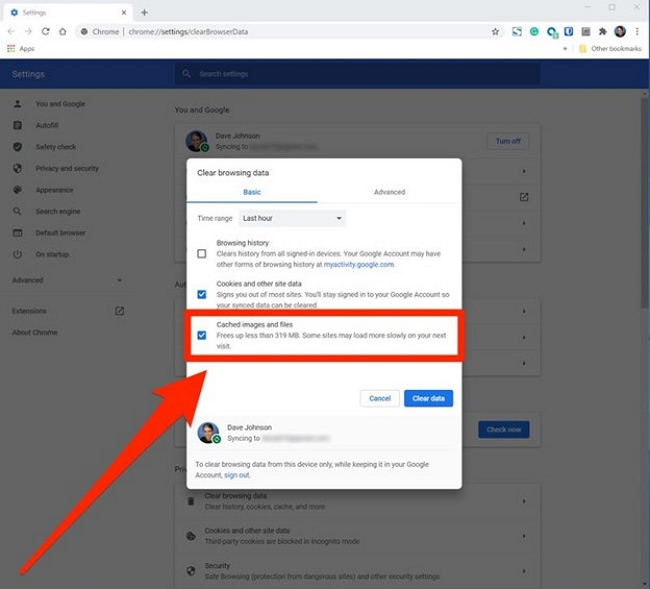
Cache issue: If you opened HBO Max before enabling your VPN, the site stored cookies and cached location data tied to your real IP. Even after switching to a VPN, HBO Max reads that cached data and sees the mismatch. Clearing it removes the stored location information.
Browser: Open HBO Max in Incognito/Private mode first. If it works there, clear site data for max.com in your browser settings, then reload with the VPN active.
App (Android): Settings → Apps → Max → Storage → Clear Cache and Clear Data → restart app.
App (iOS): iOS doesn't allow clearing individual app caches. Delete and reinstall the Max app, then reopen with VPN active.
Timezone mismatch: HBO Max uses browser fingerprinting to cross-reference your stated location against your device's timezone setting. If you're connecting through a US server but your device clock shows a European timezone, the mismatch can trigger detection.
Fix: Set your device's timezone to match the VPN server's region before opening HBO Max. On Windows: Settings → Time & Language → Time zone. On Mac: System Settings → General → Date & Time → Time zone.
Fix 5 — Fire TV Stick: Install VPN Directly on the Device
Solves: VPN works on phone but not Fire Stick
A common mistake: running the VPN on a phone or laptop while streaming on a Fire TV Stick. The Fire Stick uses your home network's IP, not the VPN-protected IP from another device. HBO Max sees two things: a VPN on your phone and a residential IP from the Fire Stick. It blocks the Fire Stick access.
The solution is installing the VPN app directly on the Fire TV Stick so all traffic routes through the VPN from that device.
Steps:
- On Fire TV: Home → Find → Search → type your VPN provider name
- Install the official app (NordVPN, ExpressVPN, and Surfshark all have Fire TV apps)
- Sign in and connect to a US server
- Open HBO Max from the Fire Stick
Optional but recommended: Disable Fire TV data collection to reduce tracking conflicts. Settings → Preferences → Privacy Settings → turn off Device Usage Data and Collect App Usage Data.
Fix 6 — Roku and Smart TV: Router VPN or SmartDNS
Solves: HBO Max on devices that don't support VPN apps
Roku and most smart TVs cannot install VPN apps. They always use your home network's IP, which means standard VPN setup on a phone or computer won't help for these devices.
Option A — Router-level VPN: Install the VPN on your router instead of individual devices. All devices on the network, including Roku and smart TVs, then route through the VPN automatically.
Most routers support OpenVPN or WireGuard firmware (DD-WRT, Tomato, or Asus Merlin). NordVPN, ExpressVPN, and Surfshark all provide router setup guides. This is a one-time setup that protects every device on your network without per-device installation.
Option B — SmartDNS: SmartDNS reroutes DNS queries to give you regional access without encrypting traffic or hiding your IP. It's faster than a full VPN for streaming, but provides no privacy protection.
Setup: Log into your VPN provider's dashboard → find SmartDNS settings → copy the provided DNS addresses → enter them in your Roku or smart TV's network settings (Settings → Network → Advanced → DNS).
NordVPN calls this feature SmartPlay. ExpressVPN calls it MediaStreamer. Both work with Roku and most smart TVs.
Fix 7 — Disable VPN Ad-Blockers and Check App Version
Solves: Issues that appeared after a VPN update, especially with NordVPN
NordVPN Threat Protection: NordVPN's Threat Protection feature blocks ads and trackers at the DNS level. HBO Max has an ad-supported plan, and the platform detects when its ad infrastructure is being blocked—sometimes interpreting this as proxy or VPN use. If Threat Protection is enabled and HBO Max suddenly stopped working after a NordVPN update, disable it:
NordVPN app → Shield icon → Overview → pause Threat Protection → test HBO Max.
This is a less common cause but is specifically documented in NordVPN's own support pages and increasingly reported in user forums.
Outdated VPN app: VPN providers push updates that rotate server IPs and patch leaks. An outdated client may be leaking data that newer versions fixed, or using a server list that no longer includes unblocked IPs.
Check for updates: most VPN apps have an "Update available" prompt or a manual check in Settings → About. Update and reconnect before trying more complex fixes.
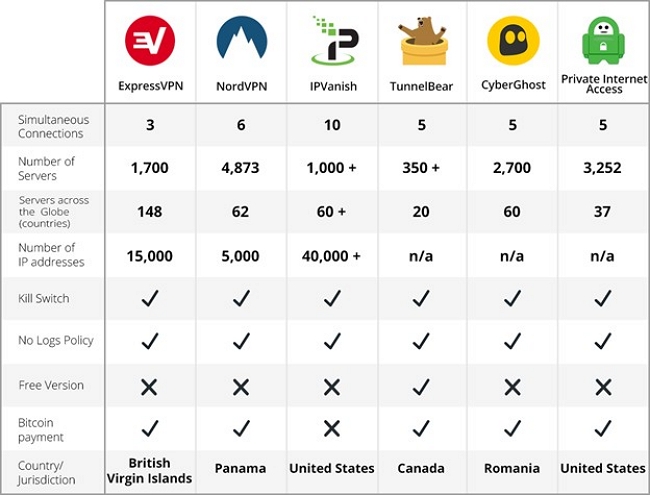
VPN Comparison for HBO Max 2026
What separates working VPNs from ones that fail: Large server networks mean faster IP rotation when one gets blocked. SmartDNS/SmartPlay features are specifically engineered for streaming detection systems. Regular IP pool refreshes ensure that blocked IPs are replaced quickly. Free VPNs and most cheap VPNs lack all three—their limited server pools get fully blacklisted, and there's no rotation to fall back on.
Is Using a VPN with HBO Max Legal?
Using a VPN is legal in the United States, UK, EU, and most countries worldwide. Connecting to a VPN is not a crime.
HBO Max's Terms of Service prohibit using a VPN to bypass geographic restrictions. This is a contractual restriction enforced by blocking your connection—not a criminal offense. There are no documented cases of HBO Max banning accounts for VPN use. The platform's response is to block the connection, not the account.
FAQ
The most common cause is IP blacklisting — HBO Max has flagged your VPN server's IP address. Try switching to a different server in the same country. If the issue continues, check for DNS or IPv6 leaks using tools like ipleak.net.
Almost never. Free VPNs usually rely on small and overcrowded server pools that get blacklisted quickly and are rarely refreshed. They also typically lack features such as DNS leak protection and SmartDNS support. In practice, using a premium VPN is usually required to access HBO Max reliably.
There are no documented cases of HBO Max banning accounts for VPN use. Instead, the platform enforces its Terms of Service by blocking connections from detected VPN servers. In most cases, you will see an error message rather than having your account suspended.
Roku devices do not support VPN apps directly. To work around this limitation, you can use your VPN provider's SmartDNS feature (such as NordVPN SmartPlay or ExpressVPN MediaStreamer) by configuring it in Roku's network settings. Another option is installing the VPN on your router so that all connected devices automatically use the VPN.
This can happen if your device's timezone does not match the region of the VPN server. Set your device clock to the correct timezone for the country you're connecting to, clear the HBO Max app cache, and reconnect to the VPN server.
Running a VPN on your phone does not automatically protect your Fire TV Stick. Each device must connect to the VPN separately. Install the VPN app directly on your Fire TV Stick through the Amazon App Store and connect to the desired server.
If your VPN connection keeps getting blocked or unstable, another practical workaround is watching content offline instead of streaming directly. After downloading HBO Max videos using a downloader, you may need to convert the files into formats supported by your device.
This is where tools like MedVioo Video Converter can help. It allows you to quickly convert downloaded videos to MP4, MOV, or other widely supported formats so they can play smoothly on smart TVs, tablets, or mobile devices. You can also compress large video files to save storage space without losing much quality.
Conclusion
Most HBO Max VPN problems stem from blocked IP addresses, cached location data, or device-level limitations. To quickly restore stable access, diagnose the exact symptom first and apply the right fix: switch servers, use a dedicated IP address, prevent leaks, clear your cache, or configure your Fire TV Stick, Roku, or smart TV.
Reliable VPNs with large server networks, refreshed IP pools, and strong obfuscation make the biggest difference for long-term streaming. Using the six fixes in this 2026 guide, you can bypass “VPN detected” errors, stop location leaks, and enjoy consistent HBO Max streaming across all your devices.