

You receive a video from a friend or family member and press play. You expect to relive the moment in high quality. Instead, the video looks dull and blurry. And it is not the first time. Every time someone sends you a video, you keep wondering: why are videos sent to me blurry on my iPhone? Well, you are not alone. Many users face the same frustration.
In this guide, you will learn why you receive a video in low quality and how to prevent it from happening again. And if you have blurry clips, there is good news. It is 2026. You can use AI tools to enhance them, and we will walk you through that as well.
Why Are Videos Sent to Me Blurry on My iPhone
There is rarely just one reason. Yes, sometimes the video itself was recorded in low resolution or on potato-quality lo-camera. In that case, you can use advanced repair tools like Mediaio or Eassiy to work on the footage quality.
However, in most situations, especially when the sender is using a recent iPhone or Android, the main reason is that the video file gets compressed while being sent. Here’s what could be going wrong:
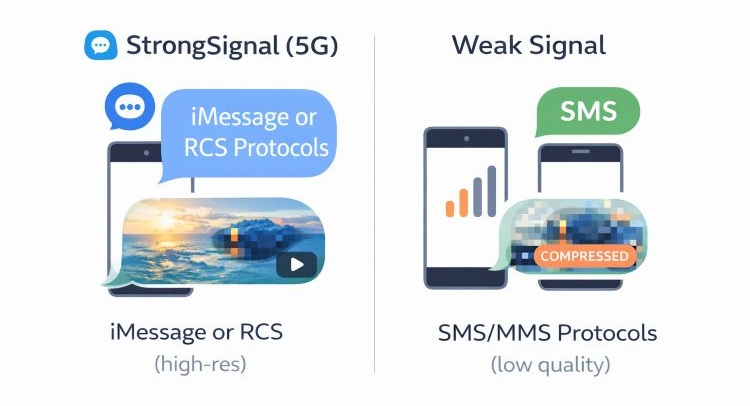
- Poor internet connection. Sender’s phone will use SMS or MMS protocols, which will compress the video.
- Inappropriate sending method. You both have to use messaging routes that don’t shrink resolution to reduce file size.
- Improper phone settings. You have to ask the sender to turn off features like Low-Quality Image Mode or avoid certain recording formats.
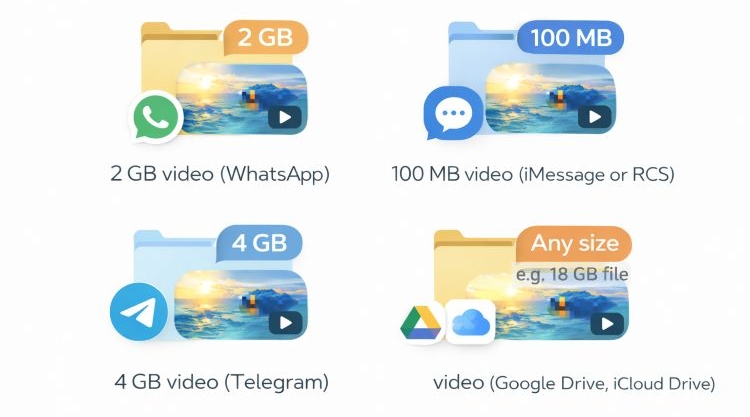
- Large video files sent through wrong messaging channels. Depending on the video file size, the ideal way changes.
Now let's examine the reasons in detail and see how to fix them.
How to Fix Blurry Videos Received on iPhone Without the Sender’s Help
Sometimes you’ve already received the video and have no way to contact the sender. Or even if you can, they cannot reshoot the clip.
In such cases, you have to repair what you already have. This is where Mediaio AI Video Enhancer comes in.
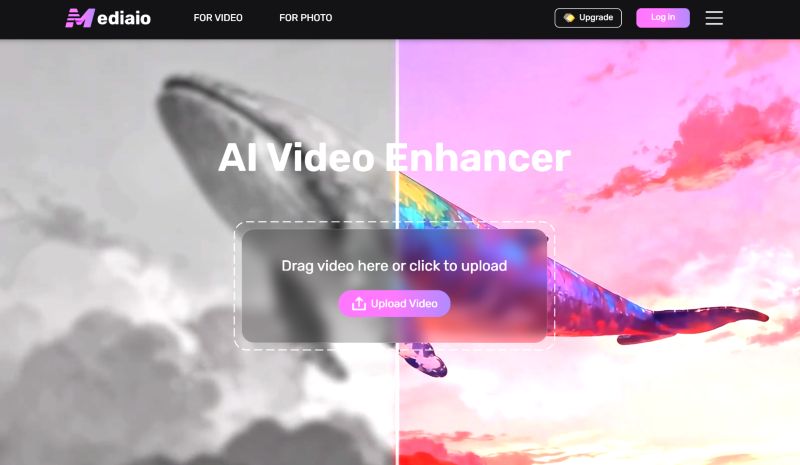
Mediaio is a cloud-based AI tool trained on millions of clear, high-resolution video frames. When you upload a blurry footage, it will study each frame carefully. Then, it will reconstruct missing details — sharpening outlines, cleaning up faces, and adding back lost details. As a result, you will get a cleaner HD or even 4K version in minutes.
Mediaio also works with almost any type of video. So it can easily enhance old family recordings, phone clips shot in low light, travel vlogs, social media reels, recorded meetings, interviews, tutorials, and even compressed downloads. And all the heavy processing happens on Mediaio cloud servers, but note that your videos won’t be saved. So even your iPhone can handle large files smoothly. Length and size are not a major issue here.
Steps to Unblur Videos on iPhone
Step 1. Use Safari or Chrome to visit the Mediaio AI Video Enhancer page. The interface loads directly in your mobile browser.
Step 2. Choose Upload Video button. Choose the blurry clip from your Photo Library.
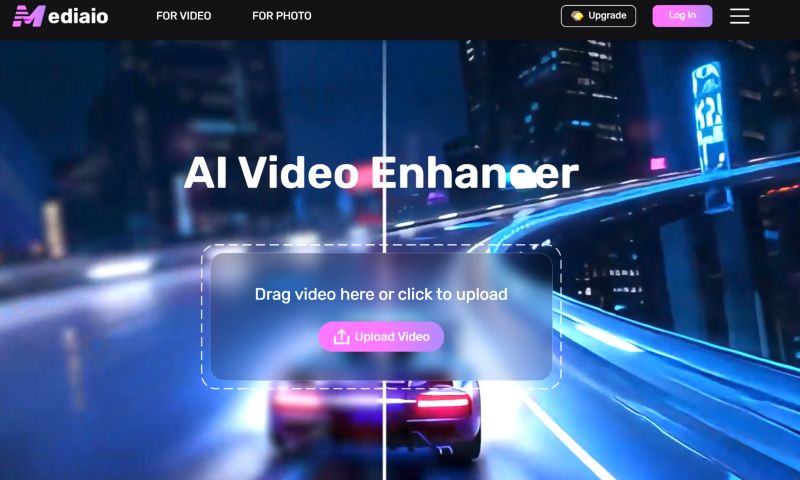
Step 3. Once loaded, choose the enhancement level —720p, 1080p, 2X or 4X, depending on how much detail you want restored.
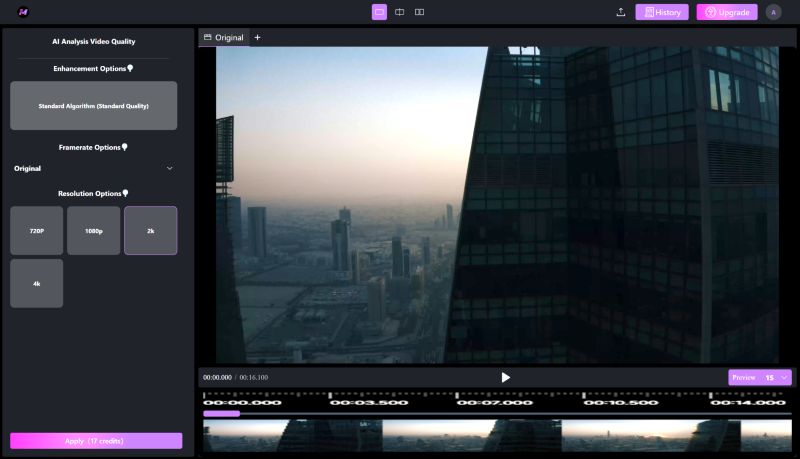
Step 4. Hit Apply. Mediaio AI will process the footage frame by frame. Keep the browser tab active during this step.
Step 5. Preview and download the improved version. After processing, review the enhanced result.
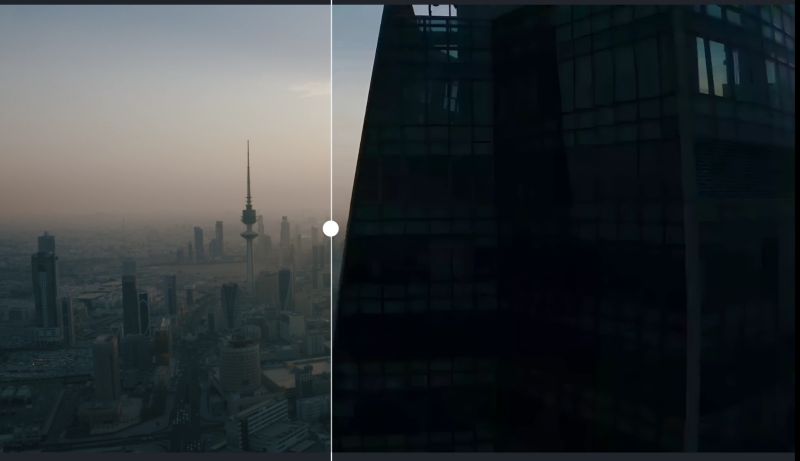
Step 6. Tap Download. This will save the enhanced video to your iPhone’s storage.
Tip:
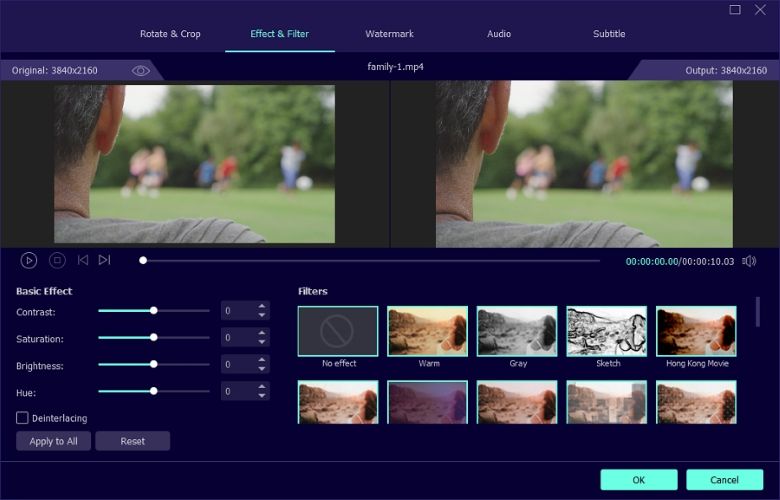
If you are working with multiple videos and prefer computer software, Eassiy Video Converter Ultimate is a good choice. It runs entirely offline and comes with a dedicated Enhance Video toolbox.

With a single click, it can upscale resolution, optimize brightness, and reduce visual noise — useful when repairing several clips at once without relying on an internet connection.
How to Fix Blurry Videos Received on iPhone with the Sender’s Help
If you can reach the sender, ask them to resend the video, but this time, correctly. Most blurry clips are not caused by your phone. They happen because of the sending method or default settings that compress the file.
So here are a few quick checks to identify what went wrong and ensure the video is sent in proper quality this time, without unnecessary compression.
Fix 1. Resend Videos Over a Strong Network
Make sure to ask the sender one simple question. Did they send the video via SMS/MMS or advanced systems like iMessage or RCS? The difference between these two is day and night.
Whenever the internet connection is weak, the sender’s phone (iPhone or Android) will fall back to SMS/MMS. And that is exactly where the problem begins. SMS and MMS have strict file size limits. They will shrink the video files to 1–3 MB. And the video looks blurry by the time it gets on your phone. And compared to MMS, iMessage and RCS support much larger files. In fact, videos can exceed 100 MB and still retain much better clarity.
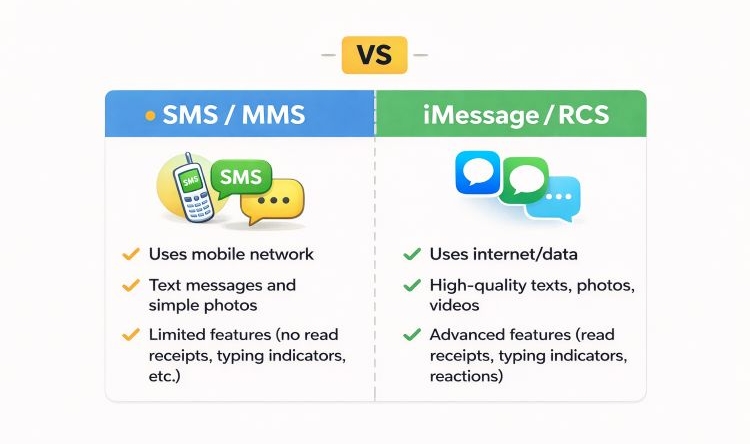
So ask the sender to resend the video while connected to a strong network. A strong network means full LTE or 5G signal, or preferably stable Wi-Fi. You can even ask the sender to look for these visual cues if they’re not sure.
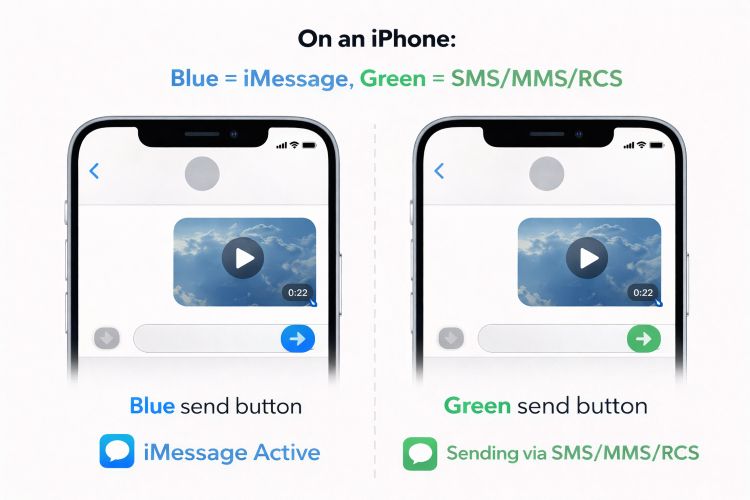
On iPhone:
- A blue send button means iMessage is active.
- A green send button means the message is going through SMS or MMS or even RCS fallback in some cases. So if it was green, the video would likely be compressed.
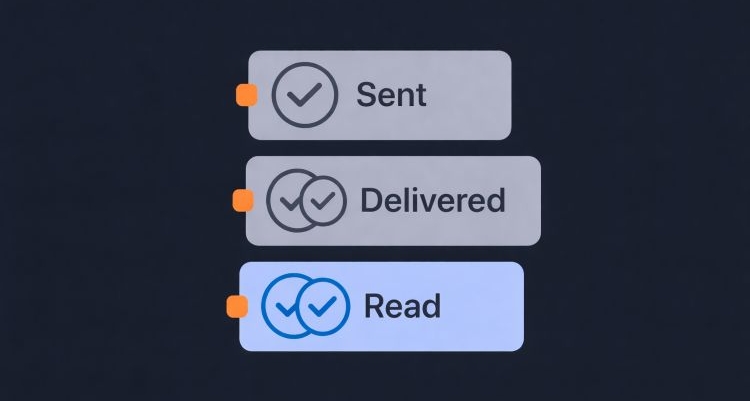
On Android using Google Messages, they can look for these RCS indicators:
Double checkmarks after sending suggest rich messaging is working, similar to WhatsApp delivery marks. If those indicators are missing, the message could have been sent as standard MMS.
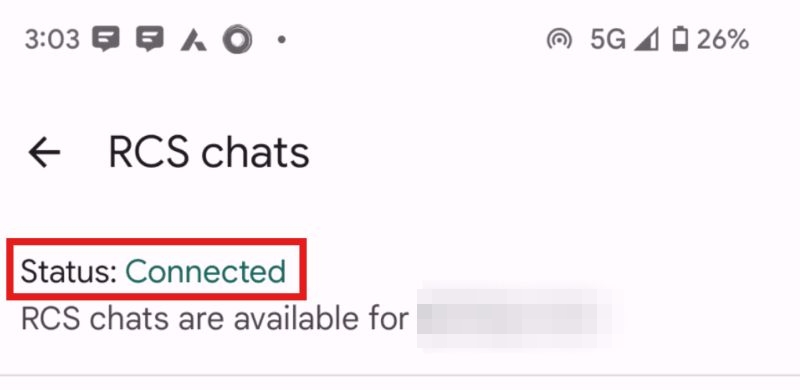
They can also verify this directly. Ask them to follow these steps inside Google Messages:
- Click Profile Picture at the top-right.
- Check Settings. Then, select Chat features.
If it shows:
- “Connected”: it means RCS is active and higher-quality media is supported.
- “Connecting,” “Not supported,” or “Trouble connecting” status means the app is falling back to MMS.
So before assuming the video is damaged, make sure it was never compressed in the first place.
Fix 2. Adjust Phone Settings
Sometimes the blur starts before the video is even sent — the recording format the sender used. Or the sender’s phone is configured to shrink media automatically at the time of delivery.
So ask the sender to check the following, depending on whether they use iPhone or Android.
On iPhone
If the sender uses an iPhone, two things are very important to verify.
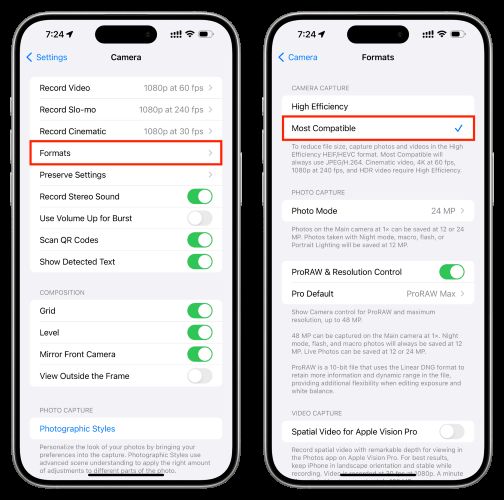
Set Camera Capture as “More Compatible”
This one applies if the sender can record the video again, or it will be useful for any future videos you receive, like daily construction updates, routine work clips, or ongoing project recordings. “More Compatible” simply means changing the recording format. By default, the iPhone will record video in HEVC (H.265). This is excellent for saving space. However, HEVC is also a complex codec. It often gets forcibly transcoded while sharing. And that aggressive recompression lowers the bitrate and can even downscale the resolution.
To prevent this, ask the sender to do the following:
- Head into Settings.
- Move into Camera.
- Enter Formats.
- Select Most Compatible.
This will switch recording to H.264. That format is universally readable across devices and platforms. The file size will be slightly larger, yes, but for important videos, that trade-off is worth it.
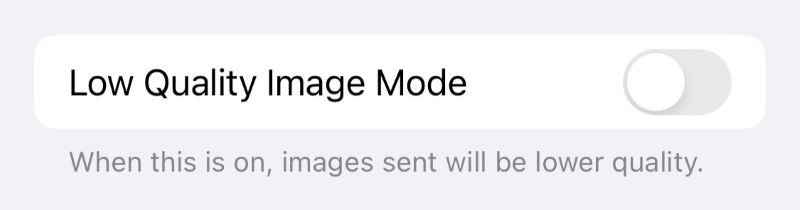
Turn Off Low-Quality Image Mode on Messages
This setting directly affects how media is delivered. Apple includes a hidden data-saving toggle inside Messages. If this is enabled on the sender’s iPhone, every photo and video they send, even if recorded in high quality, will be compressed before leaving the device.
So ask the sender to verify this:
- Go to Settings.
- Enter Messages.
- Scroll all the way to the bottom. Ensure Low Quality Image Mode is turned off.
If this was enabled, that alone could explain the blur.
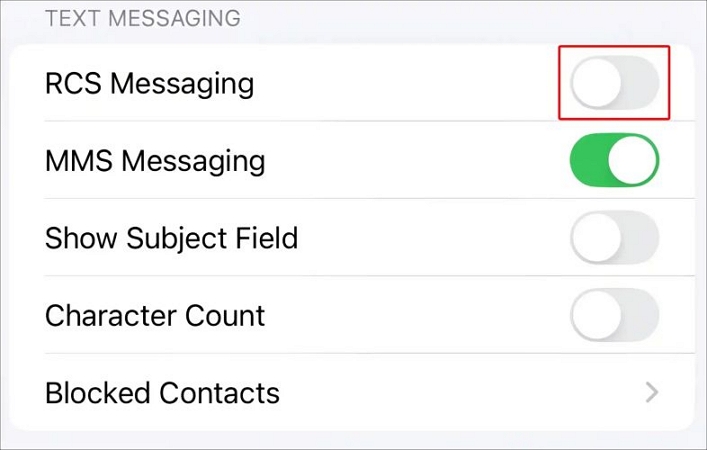
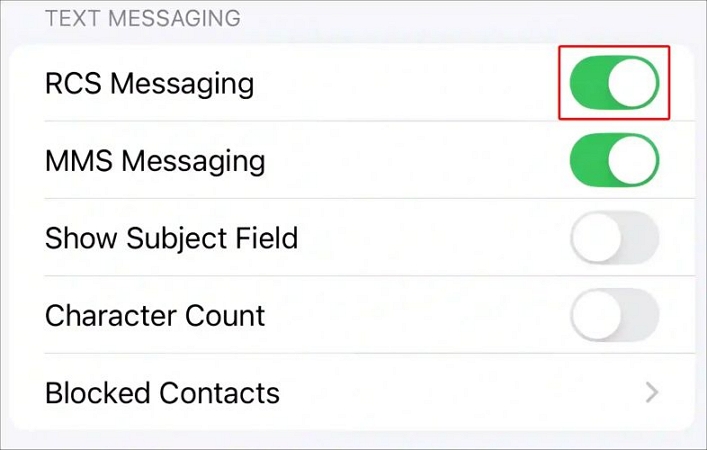
Refresh RCS on iPhone:
- Go to Settings > Apps > Messages.
- Turn off the toggle switch next to RCS messaging.
- Turn it back on after a while.
On Android
First, understand this clearly: the exact wording of the settings will vary by brand. Samsung One UI looks different from Google Pixel. Still, here are two things the sender should verify if they’re sending you videos on your iPhone via their Android device.
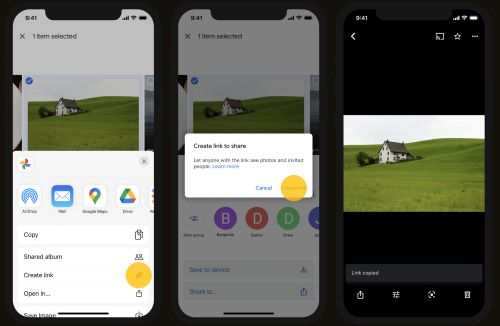
Send Videos in High Quality (Use Google Photos Link)
Even with RCS active and a strong network, large videos can still be compressed when sent through standard texting. That is simply how default messaging handles heavy files. So instead of sending the video directly inside Messages, ask the sender to use this method.
- First, they should make sure the video is backed up or uploaded to Google Photos Library. Also, ask them to choose to set the Backup Qualityas Original.
- After that, they can select the video there and use the share option.
- From the share sheet, ask them to choose Create link option.
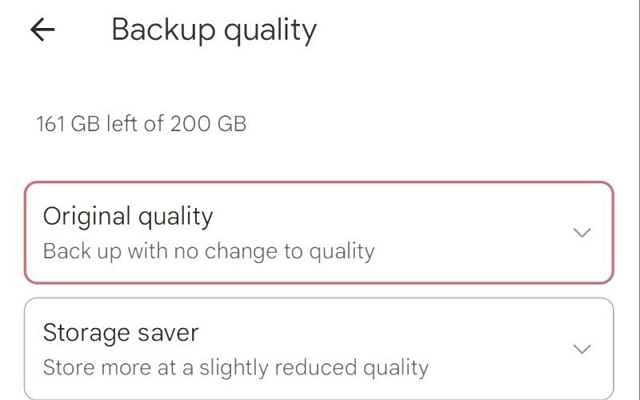
Ask them to send this link to you inside the chat. The link will open in the browser. So you can download the video in its original, full quality.
Toggle Off and Re-Enable RCS (Refresh the Connection)
Yes, RCS is designed to send high-quality media. However, broken RCS negotiations between devices can silently fall back to MMS. This is especially the case, when the sender is on Android and you’re on iPhone. In that case, refreshing the RCS connection on both devices can restore proper media transfer.
Follow these steps yourself and ask the sender to do the same:
- Enter Messages.
- Move into Chat features.
- Turn off Turn on RCS toggle.
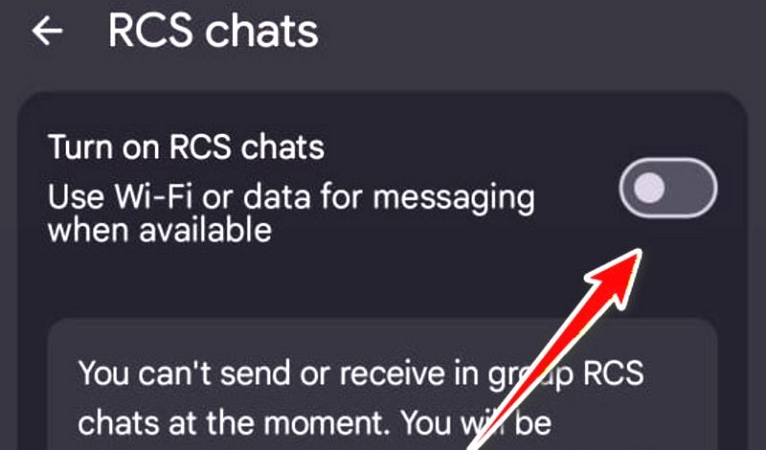
This will temporarily disable the feature. After waiting a few seconds, enable it again. This will reset the messaging handshake and restore reliable, high-quality video sharing through RCS.
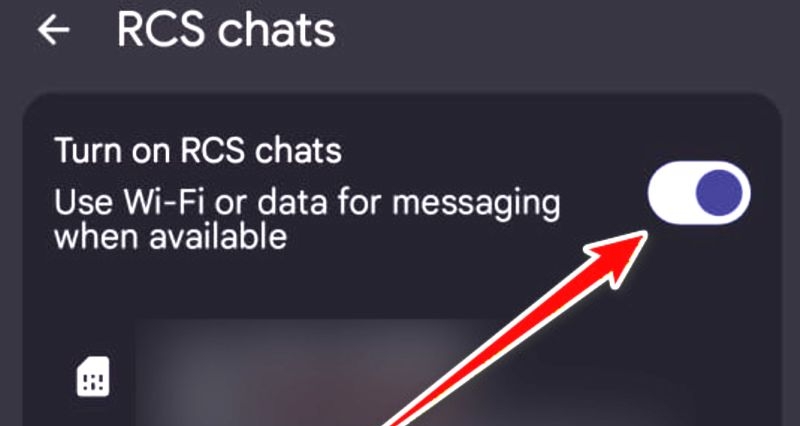
Fix 3. Resend Videos Using Other Methods
If default messaging apps are still shrinking the video, you can use other transfer methods. Below are the best options based on the devices involved. These methods let you exchange videos of any size without losing a single pixel.
From iPhone to iPhone
The best method depends on the distance.
Use AirDrop (Nearby Devices)
If you are close to the sender — at home, in the same room, or meeting in person, use AirDrop.
AirDrop is Apple’s proprietary offline transfer tool. It creates a direct peer-to-peer Wi-Fi connection and can move large videos without resizing. The only requirement: you both should be within Bluetooth range (about 30 feet). Here are the steps you can ask the sender to follow:
- Ask the sender to enter the Photos app. Choose the video.
- Select the Share icon.
- Select AirDrop from the share panel.
Your iPhone name will appear. Once they tap it, the video file will land on your device.
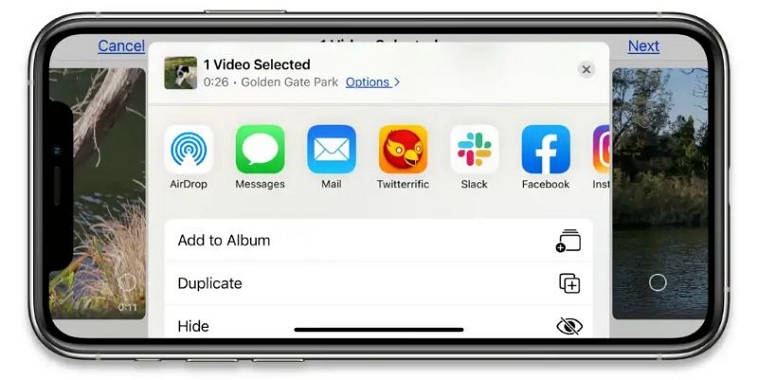
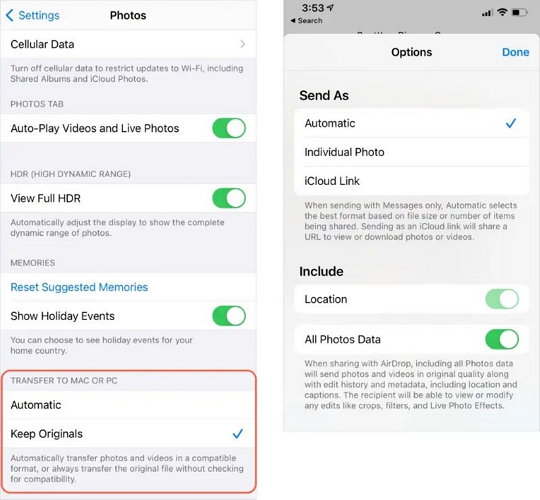
Note: AirDrop normally preserves the original file quality. It does not compress videos the way messaging apps do. However, if you are sending the clip to your own Mac or another device and the video still appears in lower resolution, check this option:
- Go to Settings.
- Enter Photos.
- Under Transfer to PC or Mac, select Keep Originals.
Your iPhone will stop converting the files during transfer from now on.
Use iCloud Link (Long-Distance Sharing)
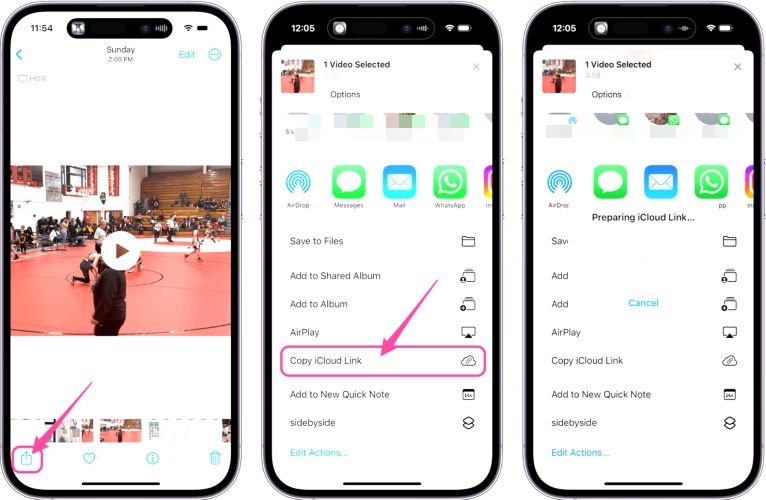
If the sender is not nearby, ask them to choose Copy iCloud Link from the share sheet. They will first have to save the video to their iCloud account. After that, they can share the download link via Messages or any chat app.
When you tap the link, it will open in your browser. And you can download it in its original quality.
From Android to iPhone (or vice versa)
If you are sharing across platforms, use Google Drive. The steps are almost the same as Google Photos. Here are the steps:
- Ask them to upload the video to Google Drive.
- After that, they can create a share link.
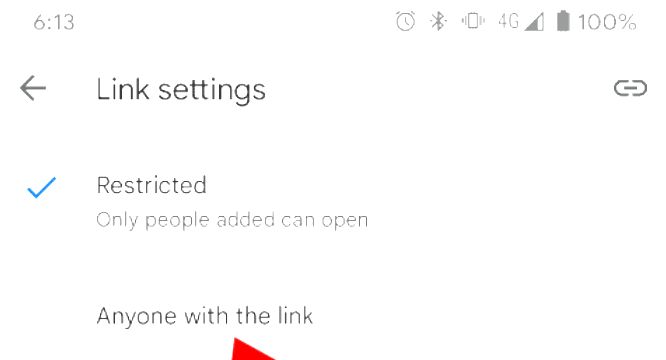
- Inside the sharing settings: ask them to adjust Manage access and switch it to Anyone with the link can view.
After that, they can upload even gigabytes of footage and send it to you quickly with a simple shared link.
Note: There are also other sharing methods you can use, depending on the third-party apps both of you prefer. Here are some examples.
To Sum Up
Now you know why the videos sent to you are blurry on your iPhone. Whether the sender is using an iPhone or an Android and whether you are on iPhone or Android, you now understand both the cause and the fix: check the settings and use the right sending method, as most blur issues are delivery problems.
However, if the video was recorded in low quality, you can still repair it.
- Use Mediaio AI Video Enhancer if you want highly trained AI algorithms to work on your video. It will rebuild details frame by frame and keep the footage natural. Mediaio works well for short clips, around three to five minutes, and you can do it directly on your iPhone.
- If you prefer a desktop option and want advanced enhancement options, choose Eassiy Video Converter Ultimate.