

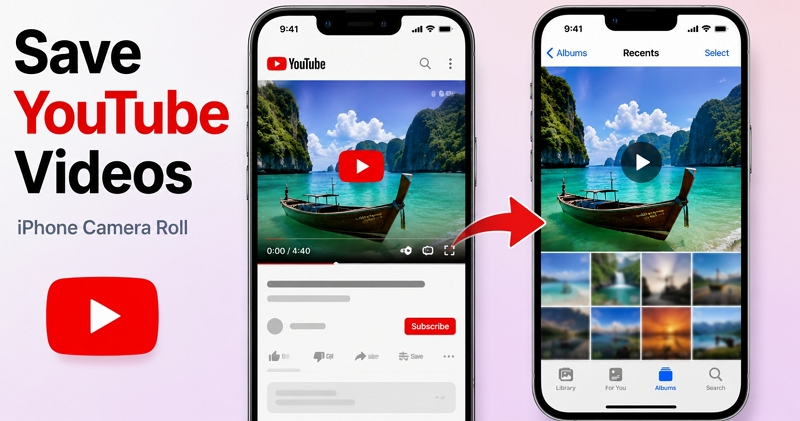
Trying to save a YouTube video to your iPhone's Camera Roll will teach you one thing very quickly: it's notoriously difficult. Actually, Apple simply doesn't make this process easy. Most guides end up showing methods that work better on Android than on iPhone. That's why you will often end up with failed downloads. To help you cut through the confusion, we've done the research and found three methods that really work on exporting YouTube videos to iPhone Camera Roll. We'll also look at desktop options like Mediaio Video Converter if you’re looking for 4K outputs or batch exports.
Before Saving YouTube Videos
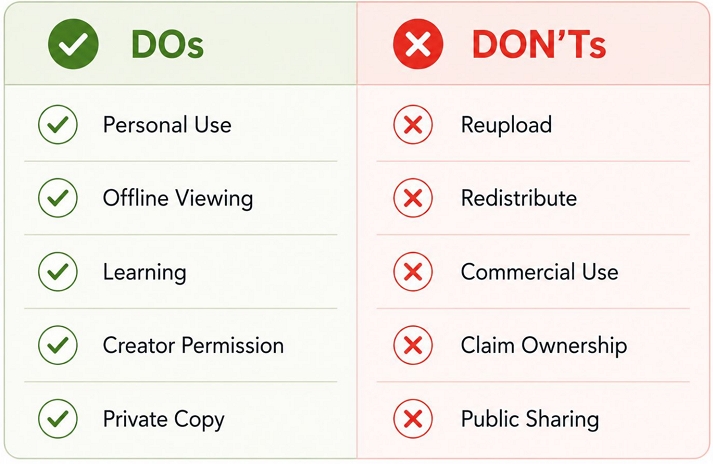
You can usually convert YouTube videos to MP4 for personal use. However, you shouldn’t make it a habit. There are times when you genuinely need an offline copy. Perhaps you're following a music lesson or a workout routine and don't want to rely on an internet connection every time.
Whatever the reason, keep the download for your personal use only. Plus, just avoid sharing the file with friends or uploading it to other platforms. Doing so takes views and credit away from the original creator.
And if you need the video for anything beyond personal use, you can even reach out to the creator directly. Many creators happily grant permission and even provide the original MP4 file.
Tip: How to Save YouTube Videos with Premium
A YouTube Premium subscription lets you download videos within the YouTube app on your iPhone. The downside is that these downloads will remain within the app. So you can't export them to your iPhone's Camera Roll or use them as regular video files for personal editing. However, if offline viewing on iPhone is all you need, this is the simplest option.
Also keep in mind that downloaded videos are tied to your Premium subscription and YouTube requires you to be online periodically for verification and keep those downloads active.
How often you need to reconnect for the verifications depends on the video and, in some cases, your region.
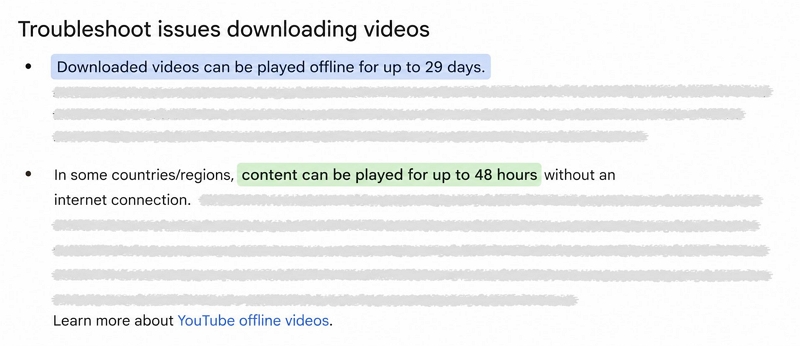
- For many videos, downloads can remain offline for up to 29 days before verification is required.
- Some content, mostly music videos, requires you to go online every 48 hours to keep the downloads available offline.
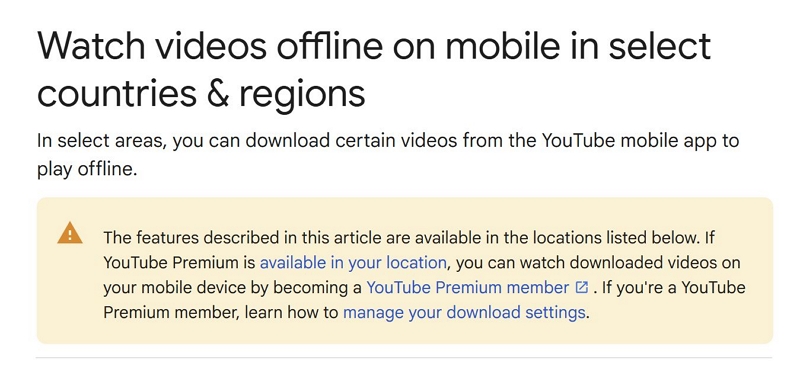
In some countries, YouTube also lets you save some videos even without a Premium subscription. In these cases, you won’t have the flexibility to save any video as a Premium user can. But yes, you don’t need to subscribe just to download a few videos.
The rules here are, as usual, the downloads still follow the same 29-day or 48-hour verification rules. However, the biggest limitation is the download quality. You will only see options to save videos at lower resolutions, typically up to 360p.
This option is not available in countries where YouTube Premium is fully supported, like the US, UK, or Australia. You can check whether downloads without Premium are available in your country here.
That said, whether you have YouTube Premium or you’re from a region that supports free downloads, the download process is the same.
Step 1. Open the YouTube app and find the video you want to save.
Step 2. Tap Download below the video player.
Step 3. Choose the video quality you want and confirm the download.
Step 4. Wait for the download to finish.
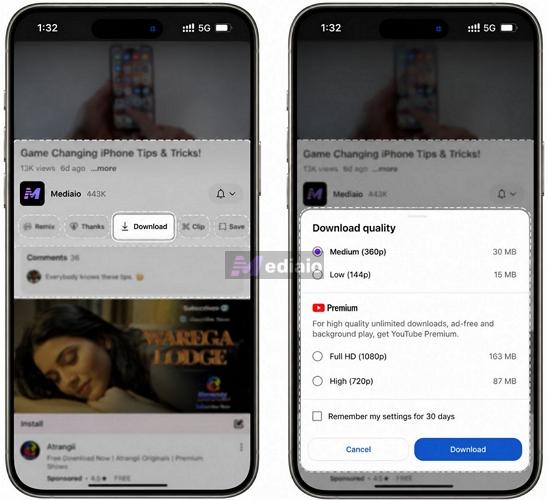
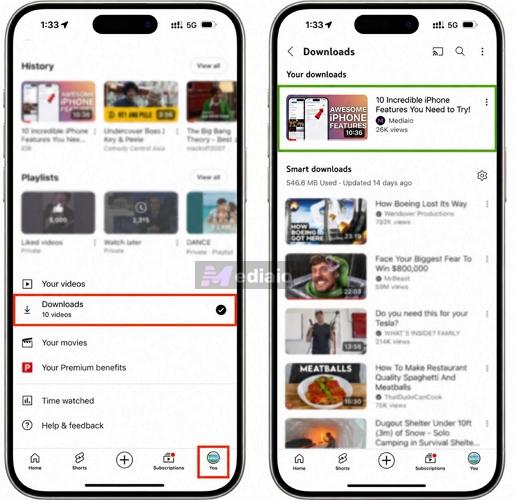
Step 5. Tap You at the bottom of the screen. Then open Downloads to view your saved videos.
Need to remove a downloaded video later? Open Downloads, tap the three-dot icon next to the video, then choose Delete from Downloads.
How to Save YouTube Videos to Your iPhone Camera Roll
Here are three ways to bring YouTube videos directly to your iPhone's Camera Roll. You can follow some of these methods entirely on the iPhone itself, but they do not offer more controls.
That’s why we've also included a desktop method — Mediaio Video Converter that works on both Windows and Mac. You can use it when you’re looking for more control over the download process and unlock batch downloads, higher-quality exports, and subtitle options, etc.
Way 1. Use Online Converter
Online converters are the quickest way to save a YouTube video directly to your iPhone’s Camera Roll, if done correctly.
Nearly any YouTube-to-MP4 converter works for this. CNVMP3, EZrip.net’s MP4 tool, VideoSolo, and similar sites all operate alike: you input a video link, and they generate a downloadable file for direct saving in the Photos app.
That said, there are many limitations attached to online converters. They don’t allow batch downloads. So you have to copy each video link from YouTube, return to the browser, wait for the conversion to happen, and only then can you save it to your Camera Roll. You get the idea: the workflow will become tedious after 2-3 conversions. So this approach is best for occasional downloads only.
Another limitation with online converters is metadata. You’ll end up with generic names like "videoplayback" or "converted_video," and you'll have to manually rename them.
The biggest challenge, however, is not the converter itself. It is iOS file handling. Not all browsers can save the video directly to your Camera Roll. For instance, Safari and Chrome support downloads, but they will save the video to the Files app. The Documents app by Readdle solves this problem. Its integrated browser lets you export media files directly to the Photos app.
Steps to Save YouTube Videos to iPhone Camera Roll Using Online:
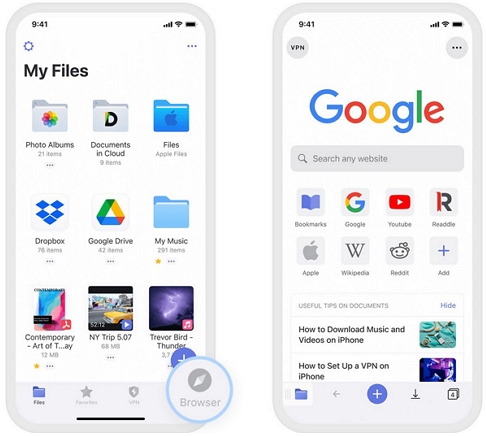
Step 1. Search for Documents: File Manager & Docs on the App Store and install it on your iPhone. Then, launch the app and grant the requested permissions.
Step 2. From the main screen, tap the browser icon in the bottom-right corner. This will bring up Documents' built-in browser.
Step 3. Head to your preferred converter site: CNVMP3, Ezrip.net’s MP4 version, VideoSolo, or any other.
For instance, you can use VideoSolo to convert videos in up to 4K resolution. Or you can opt for the ones that offer higher-speed CNVMP3 or EZrip.
Step 4. Now, switch over to the YouTube app. Find the video you want to save, tap the Share icon and choose Copy Link.
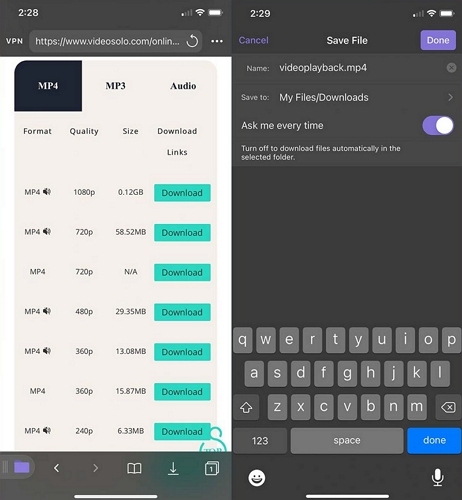
Step 5. Return to the Documents app’s browser. Paste the copied link into the converter's input box. Hit Download or Go to begin the conversion.
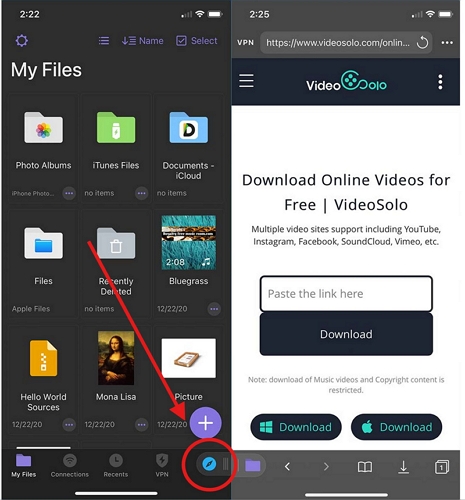
Step 6. Select the required download option. On VideoSolo, for example, you'll see multiple quality choices. You can even choose format: MP4 or WebM.
Simply click the Download icon next to your preferred version. Enter a name when the Save File window appears. Then, tap Done.
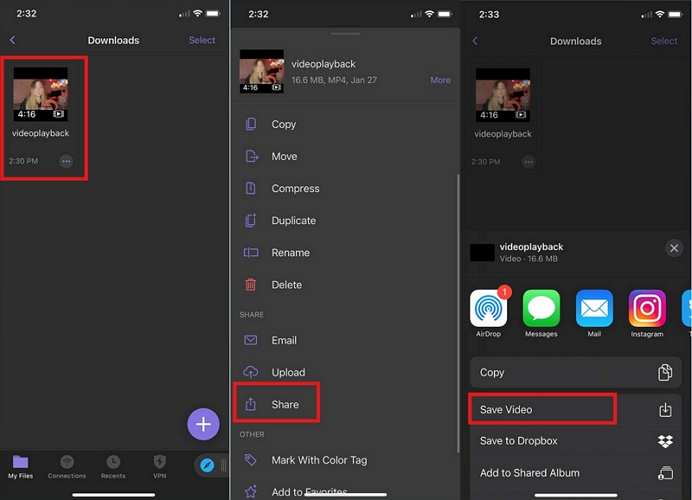
Step 7. Return to the Documents home screen. Then, open the Downloads folder.
Step 8. Long-press the downloaded video, then choose Share.
Step 9. From the share sheet, tap Save Video. Documents will copy the converted YouTube file to your iPhone Camera Roll. From there, you can upload them to your editing apps or open the video via the Photos app.
Way 2. Use Desktop Converter
A desktop converter, such as Mediaio Video Converter, is more helpful when you want to quickly save multiple videos. Or when you simply want more control over your downloads. For instance, Mediaio supports batch exports in multiple output formats and provides embedded subtitles if you need them.
You can install Mediaio on both Windows PCs and Macs. From there, you can convert individual YouTube videos or entire playlists to local formats such as MP4, MKV and MOV. Then, you can simply transfer them to your iPhone’s Photos app.
The convenience offered by Mediaio becomes obvious during the conversion process itself. Unlike online converters, Mediaio doesn’t require you to copy and paste YouTube links. Mediaio comes with built-in YouTube support. So you can sign in to your Google account, browse YouTube directly, and drag any video or playlist for conversion.
In addition to content from your favorite creators, Mediaio lets you save YouTube Originals content. So you can even export your favorite YouTube Originals videos and shows for offline viewing. All downloaded files retain their original video titles and thumbnails, helping you easily identify videos when viewing them in the Photos app.
How to Transfer Mediaio Converted YouTube Videos to iPhone
First, save the YouTube videos to your computer using Mediaio. Then, transfer them to your Photos app. Follow these steps.
On Mac:
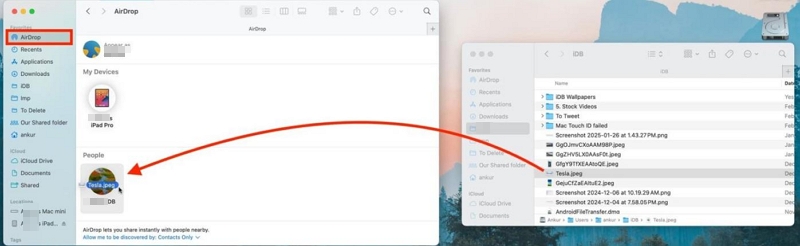
You have many options, but the easiest is AirDrop. For this:
- Locate the downloaded MP4 file in Finder.
- Click Share and choose AirDrop.
- Select your iPhone from the AirDrop window. Then, send the video. That’s it! The file will be saved in the Photos app (Camera Roll).
On Windows:
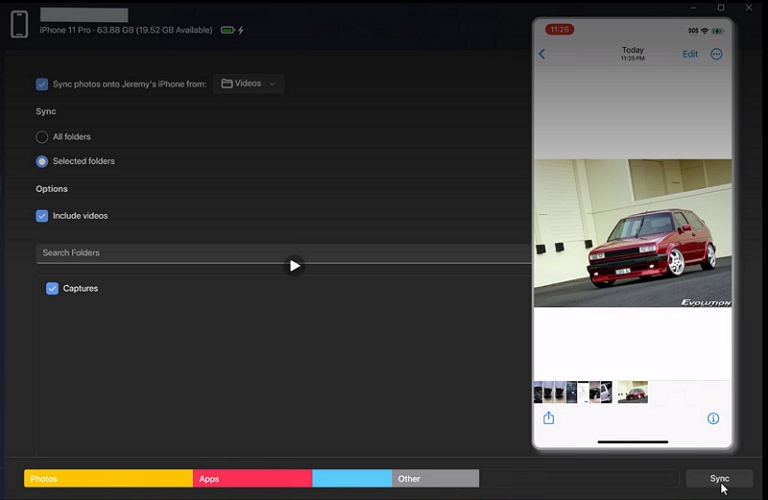
You can use Apple's Apple Devices app. For this:
1. Connect your iPhone to the computer with a USB cable. Launch the Apple Devices app.
2. Select your iPhone from the sidebar, then open the Photos section.
3. Enable Sync photos onto your iPhone from. Select the Mediaio’s Downloads folder with your converted YouTube videos.
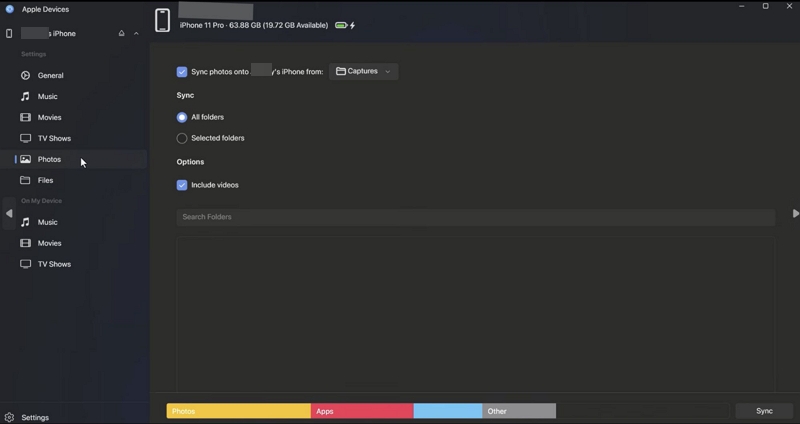
4. Choose to sync the whole folder or only some videos. Be sure to enable Include videos so your exported YouTube videos are synced.
5. Click Apply.
Wait for the sync to finish. The YouTube videos will then appear in Photos. You can view them just like any other video in your Camera Roll.
Way 3. Use Mobile Converter
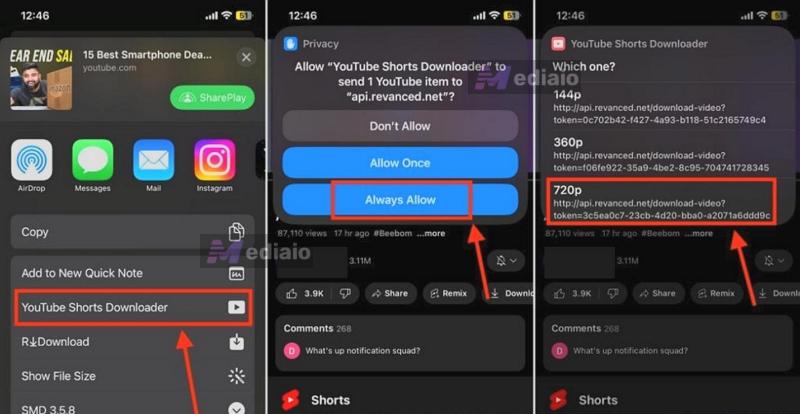
Shortcuts are another popular way to save YouTube videos on an iPhone. The challenge is reliability. Even well-known shortcuts break with each iOS update or when YouTube changes its internal scripts. That's why it's better to keep a bunch of shortcuts instead of relying on one. So here’s a guide that maintains an updated list of 10 working YouTube downloader shortcuts.
You can refer to the guide and pick the Shortcut that meets your needs. For instance, some offer 4K exports, while some focus on batch exports at a lower resolution. After that, here’s the process you follow to export a YouTube video using it.
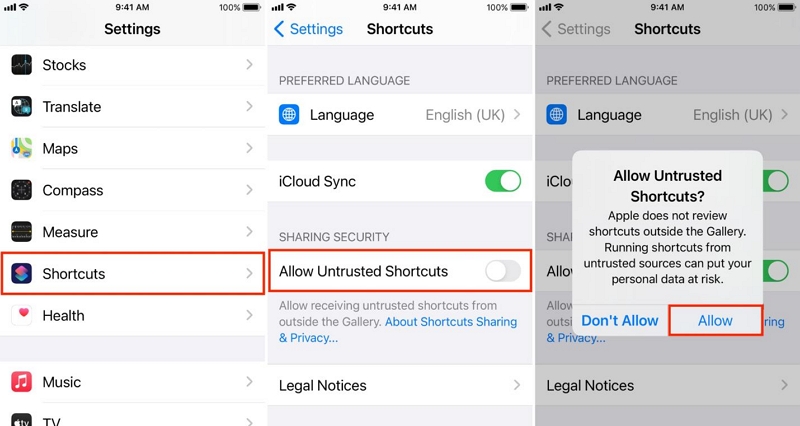
Step 1. Open Settings > Apps > Shortcuts and allow the shortcut if your iPhone requires additional permissions.
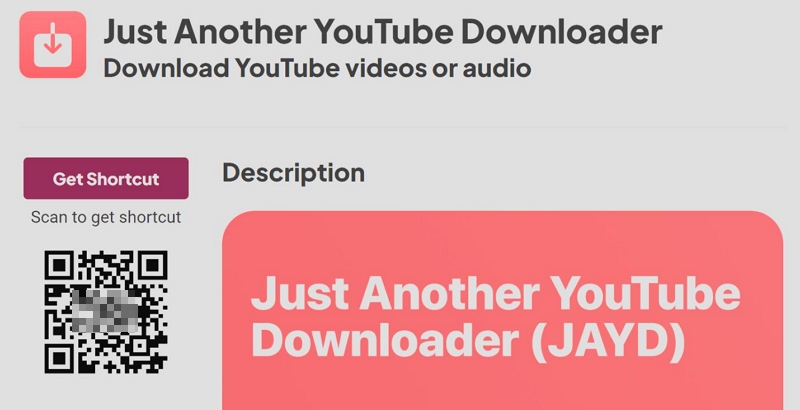
Step 2. Add a YouTube downloader shortcut from the above list.
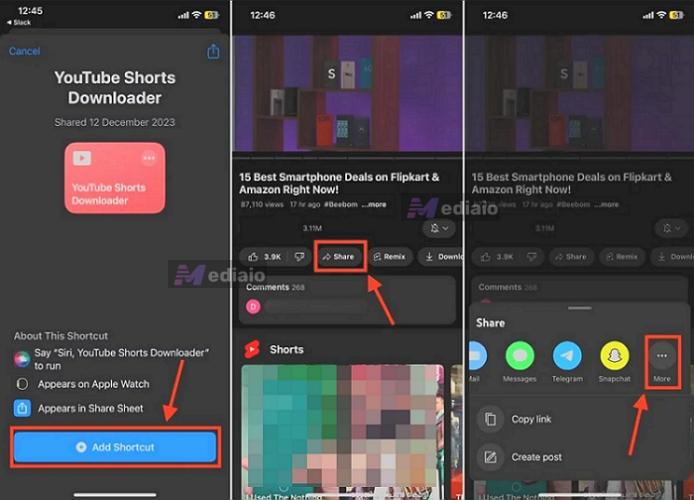
Step 3. Open YouTube. Find the video you want to save and copy its link.
Step 4. Launch the shortcut app, click on the Shortcut tile and paste the copied YouTube link.
Step 5. Choose the video quality or output format you want. Then start the download.
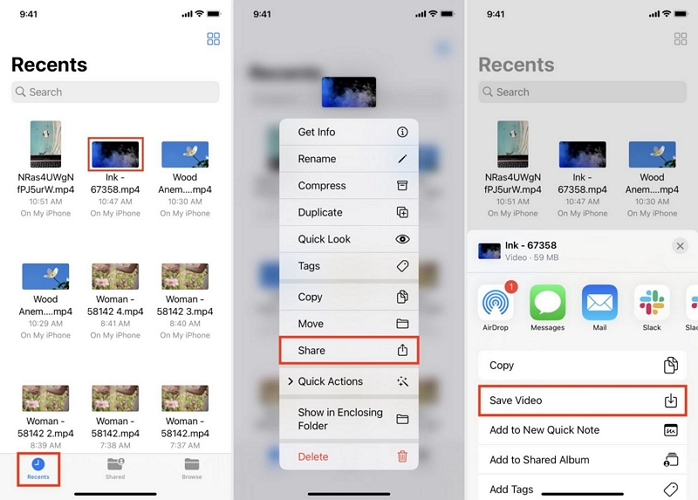
Keep in mind that Shortcuts exports the converted videos to the Files app. Moving it to your Camera roll will only take a few steps:
- Open the Files app. Locate the converted YouTube video from the Recents tab.
- Long-press the video thumbnail. Then tap Share.
- Select Save Video.
That’s it! The video will be copied to the Photos app automatically and appear in your Camera Roll.
FAQs
How to Save a YouTube Video to Your Android Gallery?
Android features an open file system, which makes this process much easier. You can use Chrome or just about any browser you prefer and follow the same VideoSolo method discussed above:
- Head to VideoSolo and paste the YouTube link into the input box.
- Choose the quality you want and start the download.
After that, the video will be saved to your Android's internal storage. And since it's saved as a video file (MP4), it will automatically appear in your Gallery app under the Downloads album.
How to Save YouTube Videos to the Gallery Without Any App?
If you'd rather not install apps on mobile, use shortcut scripts, or deal with browser-specific workarounds on iPhone and Android, the easiest option is to use a desktop converter and then transfer the video to your phone.
We've already shown how to do this with Mediaio Video Converter. And besides YouTube, Mediaio can also support exports from other platforms in MP4 format. You can then transfer the video over to your phone with a USB cable. The file will automatically appear in the Photos app on iPhone or the Gallery app on Android.
To Sum Up
Those are three reliable ways to save YouTube videos to your iPhone's Camera Roll. For occasional downloads, the iPhone-based methods are the quickest option, but they work well when you only need a file or two.
And when you need batch exports or higher-resolution outputs from YouTube as well as other video platforms, a desktop tool like Mediaio Video Converter is a better option.
Whichever method you choose, you'll end up with a YouTube video that you can access from your Camera Roll and use just like any other video on your iPhone.