

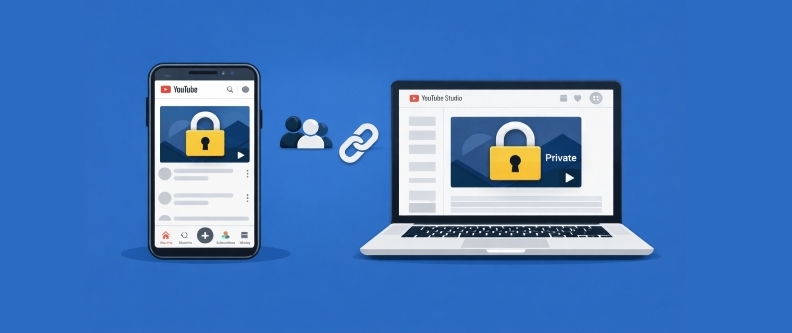
Want to upload a video on YouTube without everyone seeing it?You can make the video private on YouTube indeed. A video that is privately posted does not appear in search results or subscribers, as well as your own channel page. In contrast to public or unlisted videos, it can only be watched by the people whom you personally invite. YouTube has privacy settings that let you control whether it is family, client, or personal content. Next, this guide will teach you how to make a private video on YouTube on a mobile phone and a desktop and how to share it.
What Is a YouTube Private Video?
Videos being listed on YouTube have three options of visibility, i.e., private, unlisted, or public.
Private Video
This type of YouTube video is a personal one, which is not seen by anybody. It does not appear as a result of search, within recommended videos, on the trending page, on playlists, or even on your home page within the channel. Only the uploader of the video and authorized users will have the choice to view it. Authorized users can watch the private video if their address has been confirmed.
Internal review, client approval, and sharing of content, or pre-uploading, are common uses of private videos. Another widely used practice among creators is to keep their videos private until the HD/4K processing and monetization services are complete.
Public Video
Public YouTube is a videos that is are visible to all users. It may appear on the Home page, in the search results, and even in the Trending section. Meanwhile, it can be commented on and shared by anyone.
Unlisted Video
The median position is an unlisted video, between the publics and the privacies. It will neither be found in the search or recommendation, but anyone who has the link can view it. The unlisted videos can be posted on the sites as well, and this can be effective in either promotion, captivating, or restricted sharing.
How to Make a Private YouTube Video on Mobile
Not all videos that you post on your phone are ready to be shared. There is a time when you just want to keep it personal or even more private. It’s easy to create a private YouTube video on your phone and here are the steps. After the configuration, only the users with your permissions can watch them.
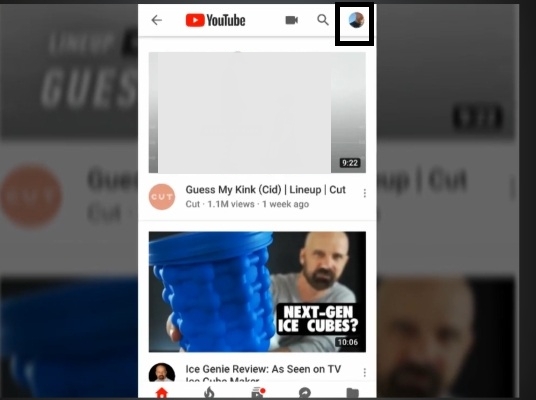
- Go to YouTube and in the upper-right corner, tap on your profile picture.
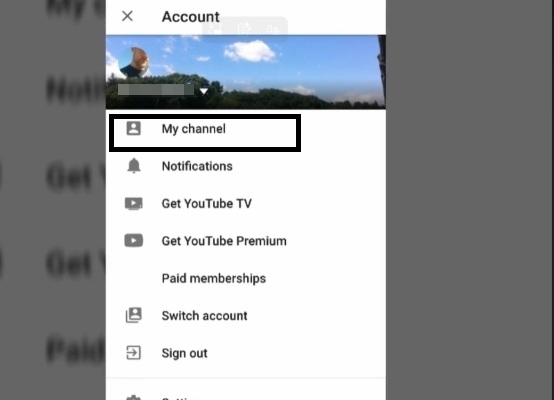
- Click on My Channel.
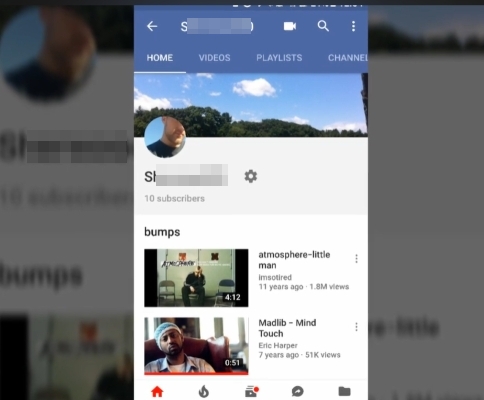
- On the very top, choose Videos and watch all your uploads.
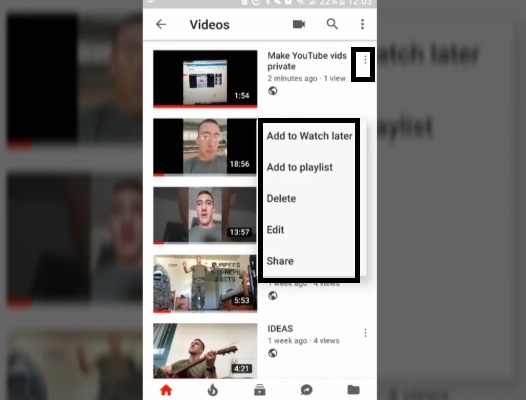
- Locate a video that you want to make private, press the three dots near it and select Edit.
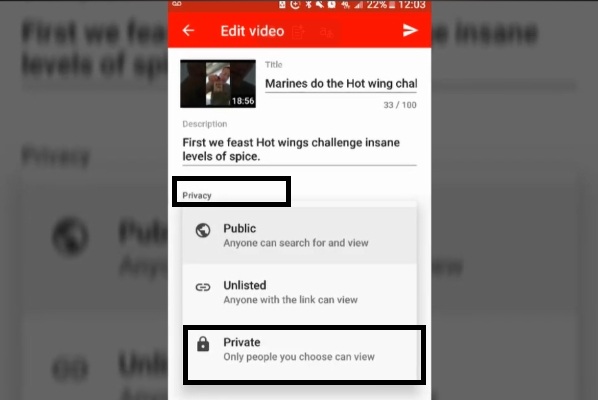
- In the Privacy setting, choose Private to ensure that only you can view the video.
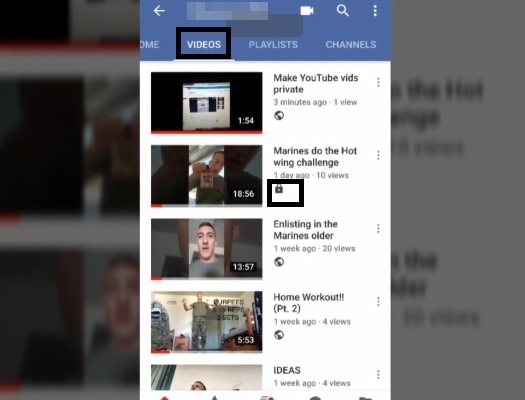
- To save changes, click on the arrow in the upper-right corner. Your video will be set as a private video with lock icon under the video title.
Tip: Save YouTube Videos Locally
If you’ve saved some YouTube videos but they suddenly become private and you can’t access them, you can contact the video creator to request access. To prevent losing access if your favorite YouTube videos suddenly become private or are deleted, you can save them as local files for personal use while they are still available.
To save YouTube videos locally, you can use Mediaio Video Converter, which allows you to download videos in 4K or 1080p as MP4, MOV, or MKV, and preserves subtitles. You don’t need to worry about download speed, because Mediaio can batch save videos at up to 10X speed.
How to Make a YouTube Video Private on Desktop
There are two slightly different ways to make a YouTube video private on desktop. However, compared to setting it up on your phone, the steps on a desktop are a bit more involved.
Option 1: Upload the Video as Private
This is the quickest method. Upon posting a video, you have the option of privatizing the video by changing its visibility, then saving the video. Once the video has been uploaded, it is personal automatically. Nothing is needed to be done afterwards.
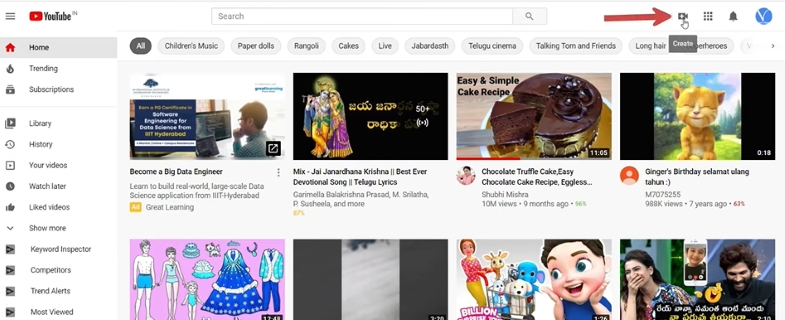
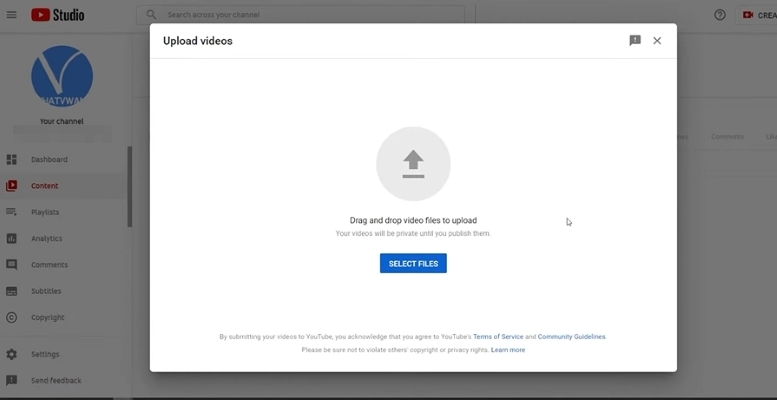
- Open youtube.com in your browser and click the camera icon at the top-right named as create.
- Choose Upload video from the menu.
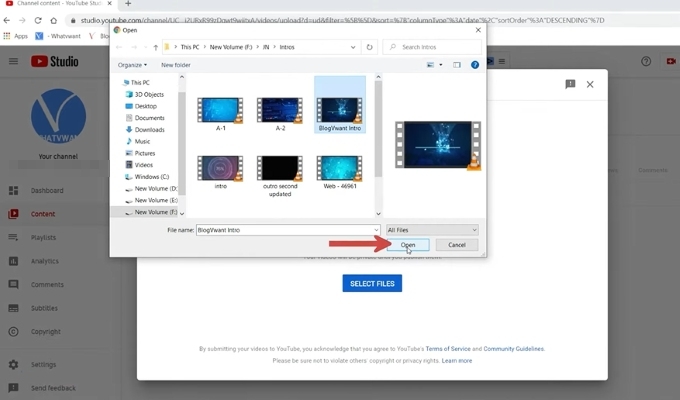
- Click Select files, highlight the video and open it.
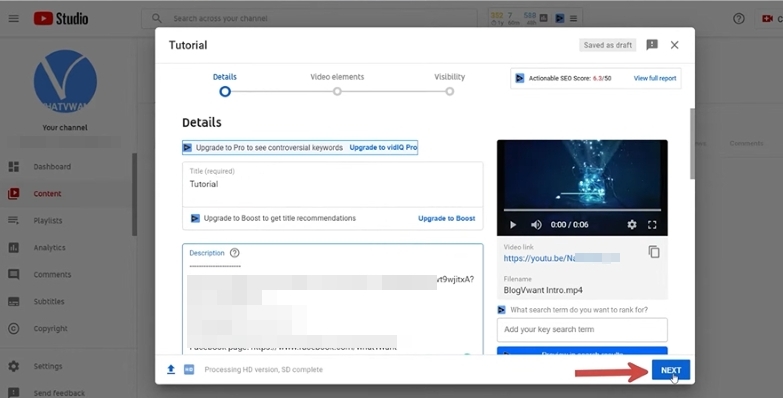
- Add a title, a description and a thumbnail at their respective places.
- Click Next to skip optional sections like cards or end screens if you don’t need them.
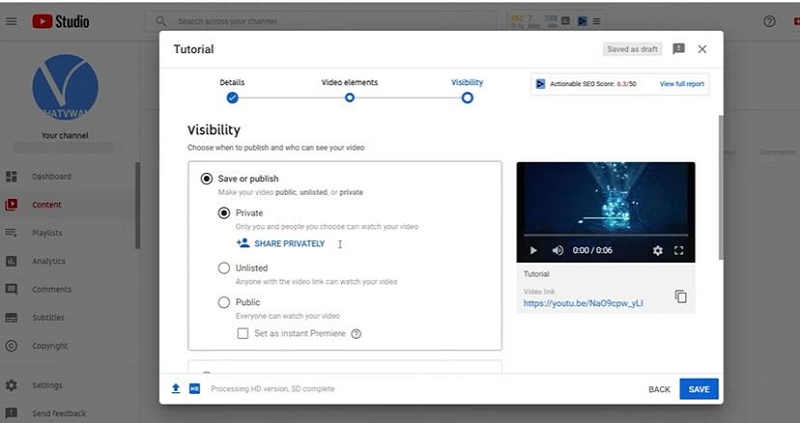
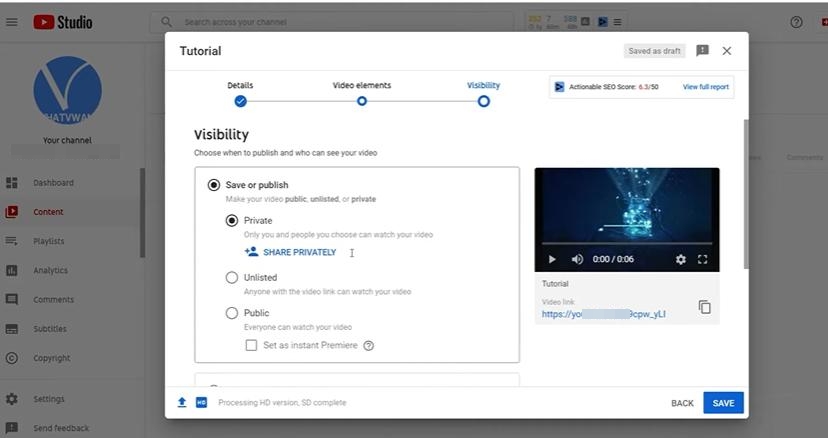
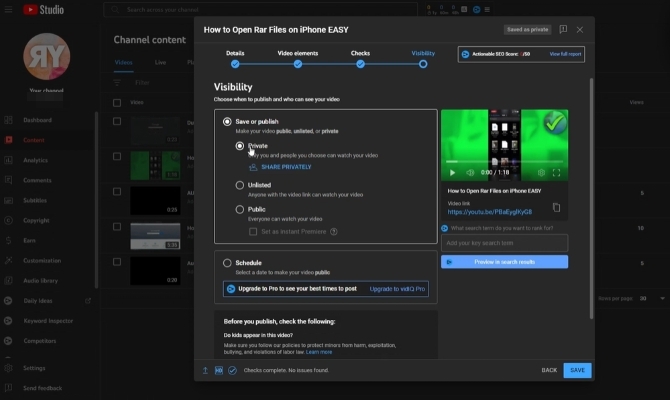
- When you see Visibility, pick Private and click Save. Your video is now published in a private status.
Option 2: Through YouTube Studio
This way is useful if the video is already uploaded.
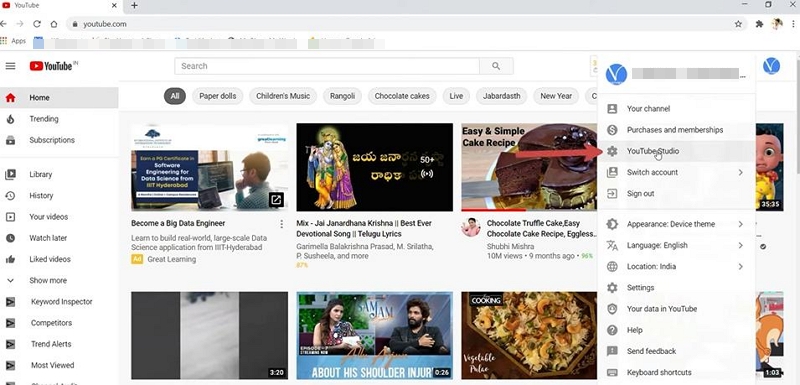
- Go to YouTube Studio from your profile icon.
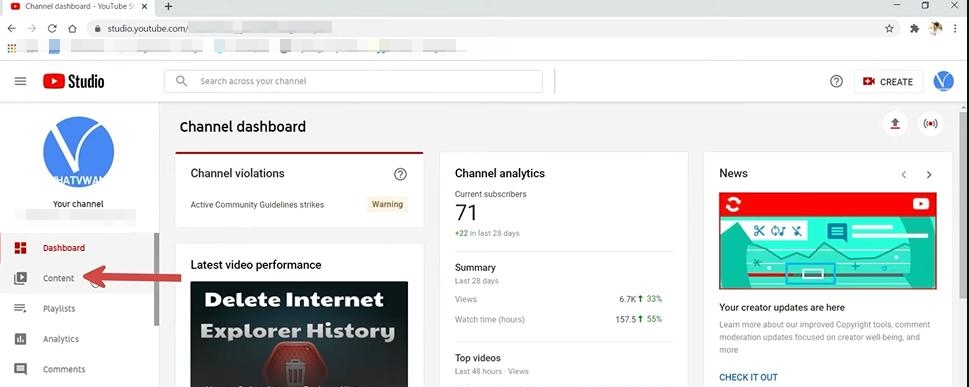
- Click Content on the left to see your uploads.
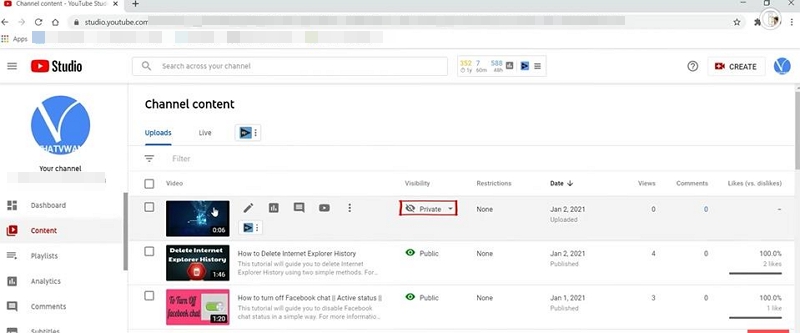
- Find the video you want it to be private and click the pen icon to edit.
- Scroll to Visibility > Private. Finally, hit Save to make your changes effective.
How to Share Your Private YouTube Video
If you want to keep a video private but still share it with a few people. YouTube makes this easy. Simply invite specific people via their email addresses. Here’s how you can do it:
Method 1: Share Private Video with Specific People
- Open your private video in YouTube Studio.
- Go to the Visibility section and make sure it’s set to Private.
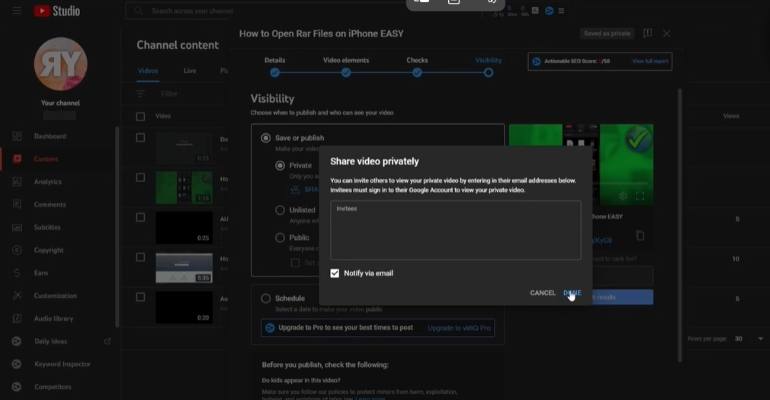
- Click Share privately.
- Enter the email addresses of the people you want to invite.
- Check Notify via email so they receive an invitation.
- Click Done and then Save. They’ll get a link to watch your video after signing into their Google account.
Can You Make a Private YouTube Channel for Family?
No, it is not possible to make a YouTube channel entirely confidential currently, but you can hide it so that only you can determine what is on the screen. This is fine in case you want to retain your channel for family and personal use without any permanent deletion.
Steps to Hide Your YouTube Channel
- Visit youtube.com and click on profile picture.
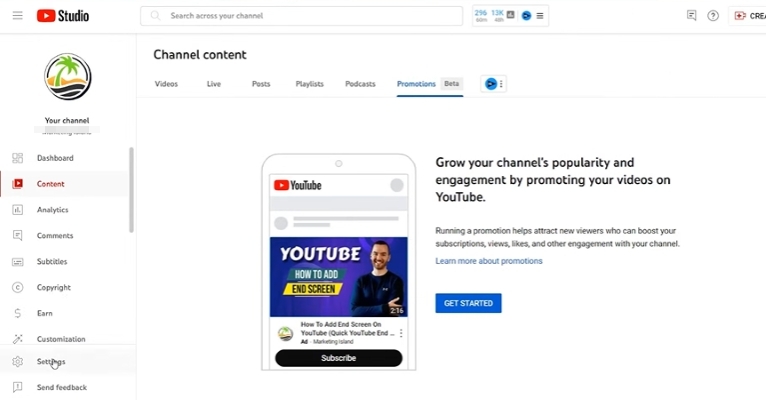
- From the menu, tap YouTube Studio.
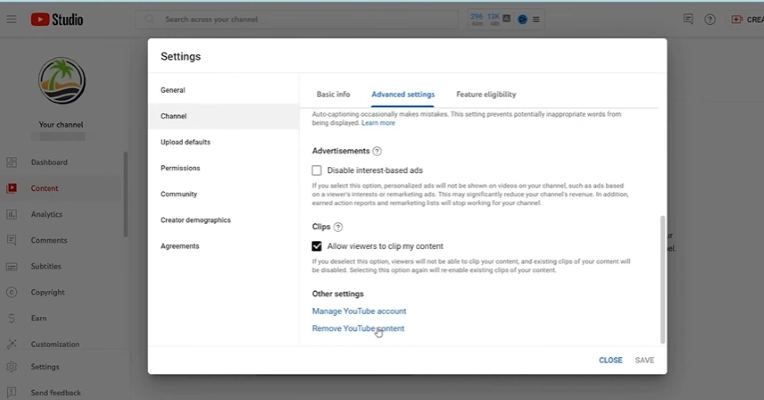
- In the bottom-left corner, click Settings.
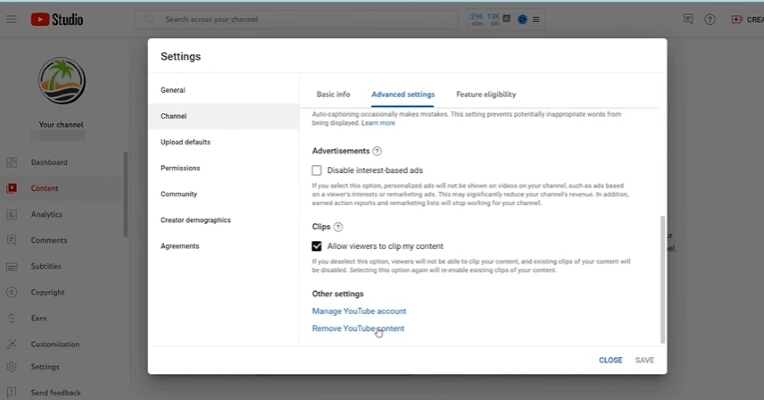
- In the Settings window, go to Channel > Advanced Settings.
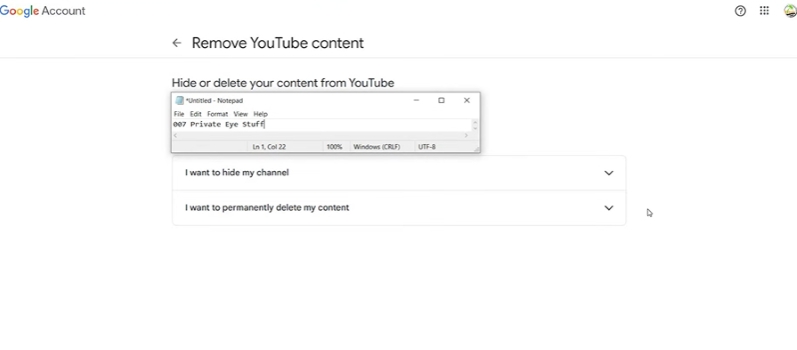
- Scroll to the bottom and click Remove YouTube Content.
- Choose Hide channel (not delete).
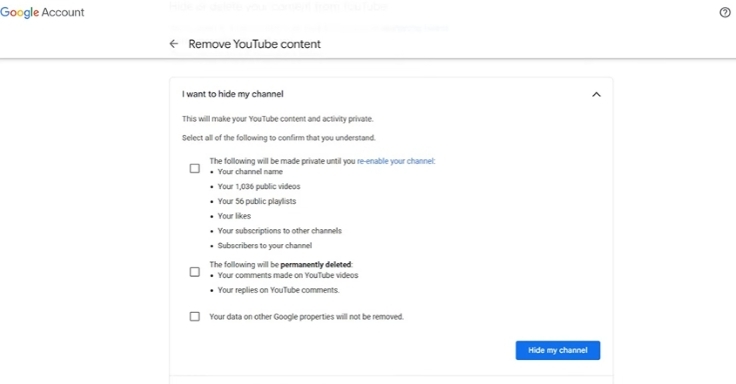
- Read the information carefully, as this setting will make your channel name, videos, public playlists, likes, subscriptions, and subscribers private. Comments and replies will be permanently removed. Check all the required boxes to confirm you understand.
- Click Hide my channel to finish.
Note: Hiding your channel is reversible, meaning that you can unhide it anytime. This is the best way to keep your YouTube activity private for family without losing your content.
Summary
YouTube offers easy privacy options that give creators control over who can watch their content making it the best choice that can be used by individuals or families. Videos that are private can only be seen by the person who uploaded the video and those specifically invited through email, and they do not show up in the search result, suggestions, or on the channel page. This can be used in personal clips, drafts, and client approvals or family contents. During upload, videos can be configured as private and can be changed later via the YouTube Studio to provide complete control over how the videos are viewed without losing content security.