

One of the most common Hulu subtitles not working issues is subtitles failing to show. When Hulu subtitles are not working properly, it can seriously affect your viewing experience, especially when watching foreign shows, dialogue-heavy scenes, or videos in noisy environments. In this guide, you will learn several effective ways to fix Hulu subtitles not working issues and make the subtitles appear again on your device.
Hulu Subtitles Not Working: Identify Your Problem First
If a video does not include built-in subtitles, try turning on CC (Closed Captions) first. If no CC option is available, it may mean that subtitles are not provided for that specific title or are not supported in your region. In that case, you may need to watch the same video on another streaming service that offers subtitle support. Before switching platforms, it is also recommended to try reloading the video.
If CC is available and turned on but still not showing on the screen, the issue is usually related to playback settings, device compatibility, or a temporary glitch. In this case, follow the steps below to fix Hulu subtitles not working properly.
Hulu Subtitles Not Working: Quick Check
Hulu-side issues can also cause subtitles not to show, so before you start fixing anything on your device, it’s a good idea to first check whether Hulu is actually working properly.
How to Check If Hulu Is Down Now
1. Check Hulu’s official site See if there are any known outages or service alerts on Hulu’s official page.
2. Look at outage tracking sites Websites like Downdetector can show if a lot of users are reporting the same issue at the same time.
3. Check Reddit Search Reddit to see if others are having the same subtitle problem. If multiple users report it, it’s likely a Hulu issue, not yours.
4. Check social media updates. Hulu’s official accounts sometimes post updates when there are system problems.
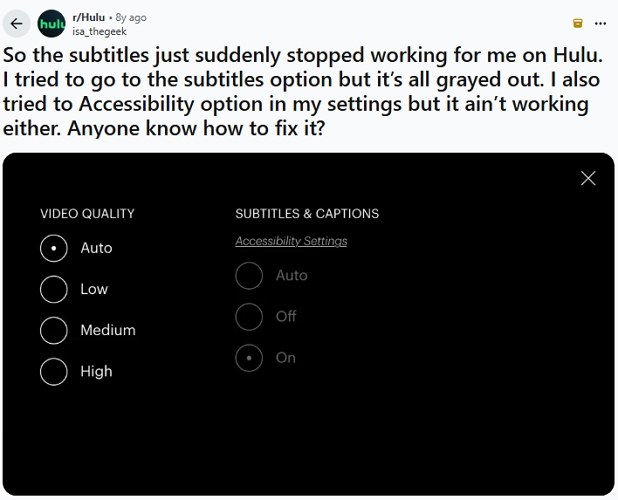
If Hulu is having issues, subtitles may not load properly for everyone. In that case, there’s usually nothing to fix on your side. Instead, you just have to wait until it’s resolved.
Hulu Subtitles Not Working: Step-by-step Fix
Follow the guide below step by step to make your Hulu subtitles show again. Once a step successfully resolves the issue, you can stop further troubleshooting.
Step 1. Turn off Hulu CC and Then on
✔Works for around 80% of users
Sometimes, Hulu’s subtitle system fails to load properly due to a temporary glitch in the player. Toggling CC refreshes the subtitle settings and forces the system to reload them again, which often restores the captions without needing more complicated steps.
On Mobile
- Open the Hulu app and start playing the video you want to watch.
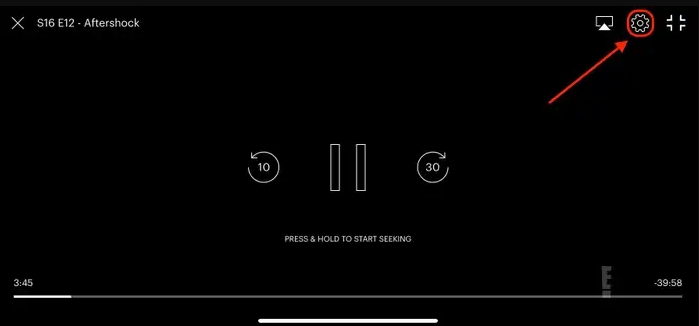
- Tap on the screen to bring up the playback controls. Then, tap the settings icon.
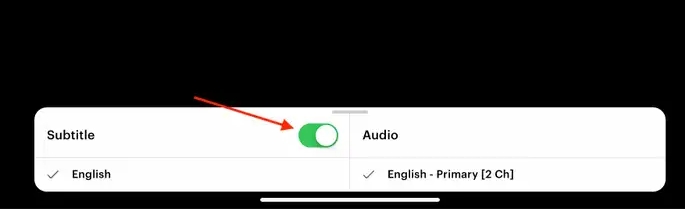
- Go to the Subtitles & Captions section and toggle CC off. Wait a moment before enabling CC again.
On Desktop
- Open Hulu Web Player in your browser. Play the desired video.
- Move your mouse over the video to bring up the playback controls.
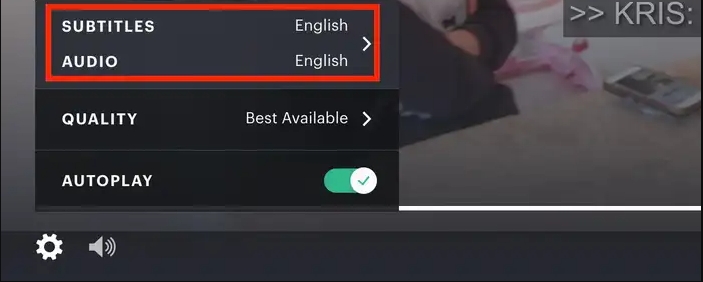
- Click the Settings (gear) icon in the bottom left corner of the player.
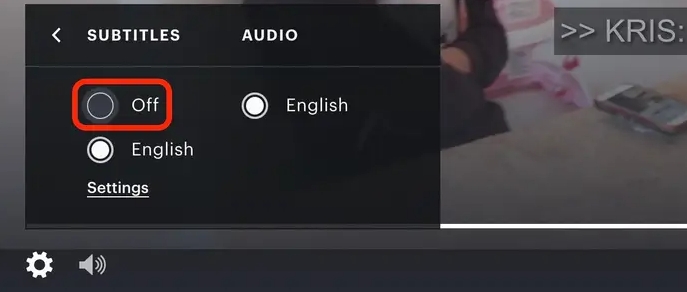
- Go to Subtitles & Audio.
- Turn CC (Closed Captions) off.
- Wait a second, then turn CC back on.

On Smart TV
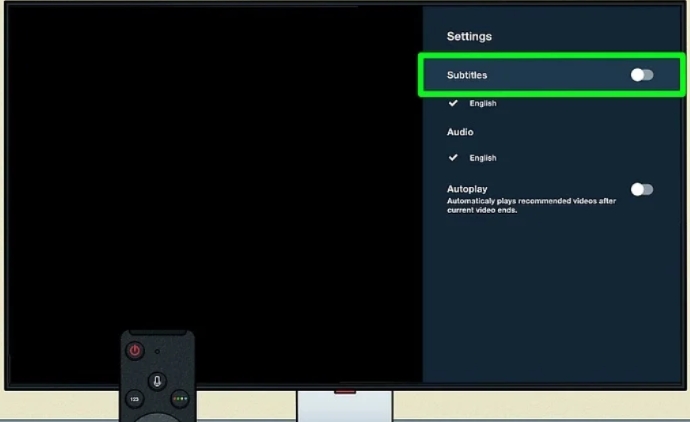
- Press the Up button on your TV’s remote.
- Access the Settings menu.
- Locate Captions & Subtitles, choose Off to disable captions. After a while, select On.
On PS5/Xbox
- Open the Hulu app on PS or Xbox.
- Start playing a video.
- Press down (PS) or any button (Xbox) on the controller.
- Open the playback menu, go to Subtitles/CC.
- Turn CC on and select the wanted language.
Step 2. Switch to a Different Episode or Show on Hulu
✔Works for around 65% of users
At times, the problem lies not in your configuration but in the actual content. Subtitles for a particular episode or program may be damaged within Hulu’s system. Switching to another episode or show can help restore proper subtitle playback.
Step 1: Pause the playback of the troublesome episode or film.
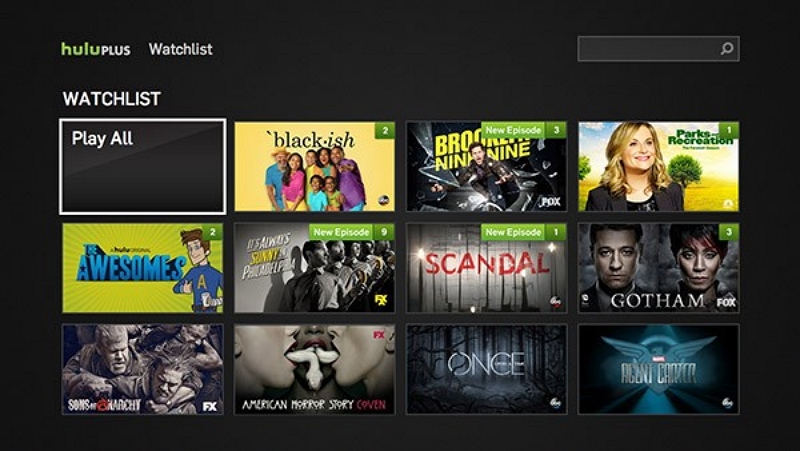
Step 2: Return to the Hulu main screen or your collection of titles.
Step 3: Start a new episode (e.g., the following installment in a series) or choose an entirely different program.
Step 4: Return to the video and verify if the subtitles are displayed correctly.
Step 3. Reopen the Hulu App
✔Works for around 50% of users
Reopening the Hulu app refreshes the streaming session and forces the subtitle data to reload. This helps clear temporary glitches or cached errors that may prevent subtitles from displaying correctly.
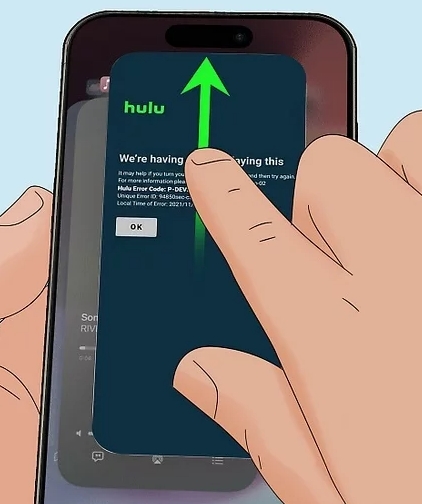
Step 1: Fully exit the app on your device and go back to the home screen.
Step 2: Allow 10-30 seconds for background processes to finish.
Step 3: Restart the Hulu app and continue the episode.
Step 4. Clear Hulu Cache
✔Works for around 50% of users
Clearing cache removes corrupted or outdated temporary subtitle files stored on the device and forces Hulu to re-download fresh closed-caption data from its servers, which often restores missing or broken subtitles.
On Android
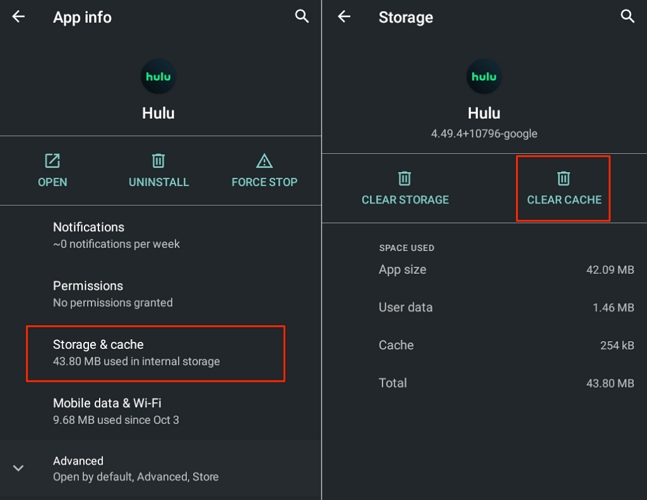
- Go to Settings > Apps > Hulu.
- Tap Storage and hit Clear cache.
On iPhone
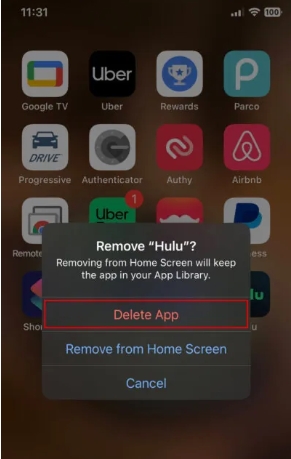
- Delete Hulu app. This will remove your downloads.
- Reinstall Hulu from App Store.
- Log in again.
On Desktop
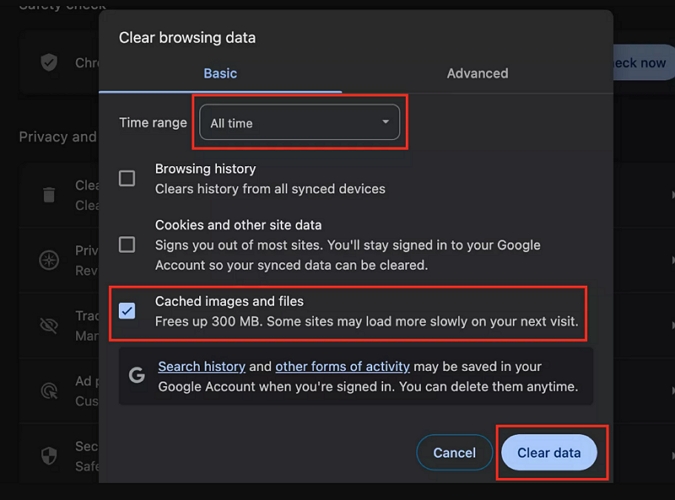
- Open browser settings.
- Go to Privacy/History.
- Clear cached images and files.
- Reload Hulu website.
On TV
Amazon Fire TV/Fire Stick: Open Settings, locate Applications and choose Manage Installed Applications. Then, choose Clear Cache and Clear Data.
Android TV: In Settings, select Applications Hulu. Next, tick Clear Cache and Clear Data.
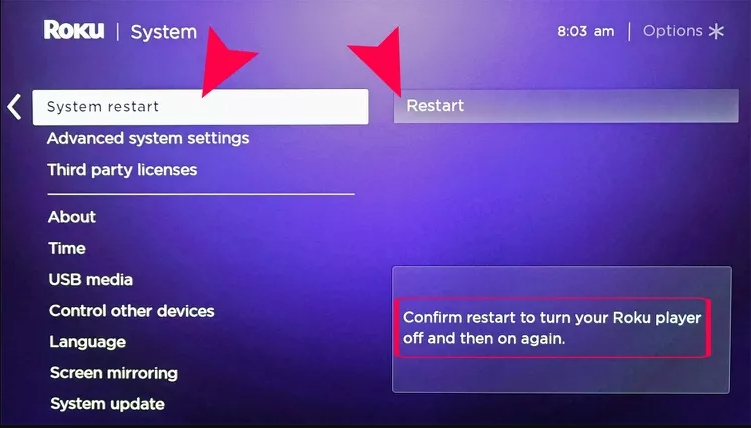
On Roku: Roku does not provide a direct clear cache/clear data option for apps like Hulu, the best solution is to restart the system.
- Go to the Home screen, select Settings and choose System.
- Click Power.
- Select System restart.
On PS4:
- Go to Settings, select Storage and open System Storage.
- Choose Saved Data. Find and select Hulu.
- Press the Options button on your controller.
- Select Delete.
On Xbox One:
- Head to My Games & Apps, select Apps and choose Hulu.
- Press the Menu button on your controller.
- Select More options > choose Manage app.
- Clear the app data.
Step 5. Contact Hulu Support
✔Works for around 60% of users
Contacting Hulu Support is usually the final step. It is recommended after you have already tried the basic fixes above and they still do not resolve the issue. If the problem persists across multiple devices or you suspect it is caused by account settings, server issues, or the content itself, you should contact Hulu’s official support team for assistance.
- Call Hulu Support: 877-824-4858
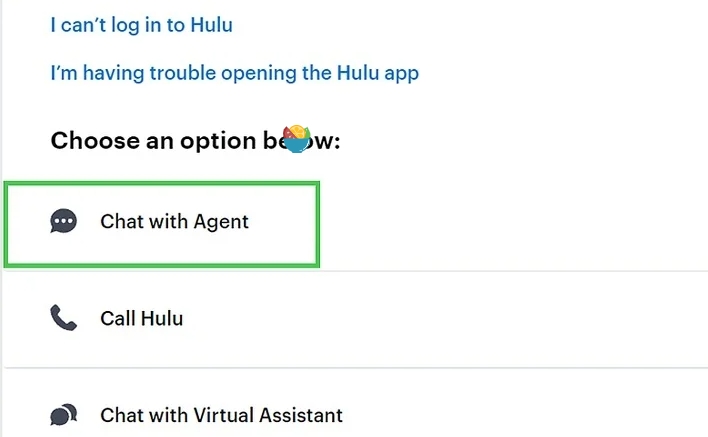
- Online Chat: Visit https://help.hulu.com/category/fix-a-problem, select your issue, then chat with an agent.
How to Download Hulu Videos with Subtitles to Avoid Playback Issues
When Hulu videos play normally and subtitles are fully available, you can save them as local MP4 files for offline playback to avoid issues with online streaming. Local Hulu videos can be played in offline players such as VLC, so you don’t need to deal with issues like Hulu not working or playing. Mediaio Video Converter can help you save online Hulu videos as local MP4, MOV, or MKV files. Subtitles can be saved either as soft subtitles or hardcoded subtitles. The video quality is also high, up to 4K. It is worth mentioning that the conversion process is done directly within Mediaio’s built-in Hulu browser, so there is no need to paste links or switch between apps.
Conclusion
If you're dealing with Hulu subtitles not working— they're missing, this troubleshooting guide can help you quickly restore a smooth viewing experience across any device. If you want to avoid issues with online streaming, you can save Hulu videos as local files while they are playing properly. This allows you to watch them offline without interruptions or ads.