

If you are searching for how to fix Hulu black screen with sound on Hulu, you are not alone. Imagine finally settling down after a busy day, picking a show you’ve been excited to watch, pressing play and everything seems normal except the screen stays completely black while the audio still plays in the background. It’s a confusing and frustrating experience, especially when subtitles and controls are visible but the video never appears. This “Hulu black screen with sound” issue is quite common on browsers and smart TVs, often caused by playback settings, hardware acceleration, or streaming glitches. In this guide, we will walk through simple and effective ways to fix it and get your video working again smoothly.
Quick Check Before Fixing Hulu Black Screen with Sound
When you see a Hulu black screen, your first reaction might be to think your screen or device is broken. However, in many cases, it is not an issue with your device or anything you did wrong. Instead, it could actually be a problem on Hulu’s side. So before trying different fixes, it’s important to first identify whether the issue is coming from Hulu itself or from your own setup. This simple step can save you a lot of time and help you choose the right solution more effectively.
- Check If Hulu is not working on multiple devices (phone, TV, computer): If all devices fail, it’s likely a Hulu service issue.
- Visit outage tracking websites like DownDetector: If many users report problems, Hulu is likely down.
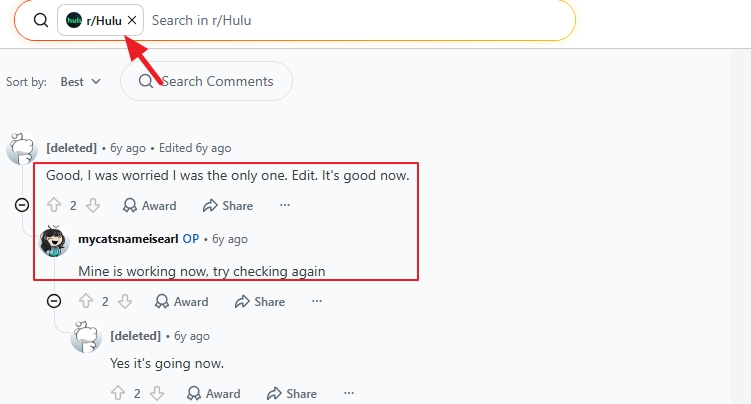
- Search social media or communities like Reddit for “Hulu down”: Widespread complaints indicate a server issue.
How to Fix Hulu Black Screen with Sound on TV
TV is the device where Hulu black screen issues happen most often. However, fixing it is usually not difficult. Below are 5 common fixes you can try. You can follow them in order or test any method directly.
Fix 1. Restart the TV OS
Restarting the TV OS is a simple but often overlooked fix for Hulu black screen issues. Over time, the TV system may run into memory overload, background app conflicts, or temporary video rendering glitches. These issues can block the video from displaying while audio still plays normally. Restarting the OS clears cached data, refreshes system memory, and resets the video decoding process.
On Roku TV
- Press the Home button on your Roku remote.
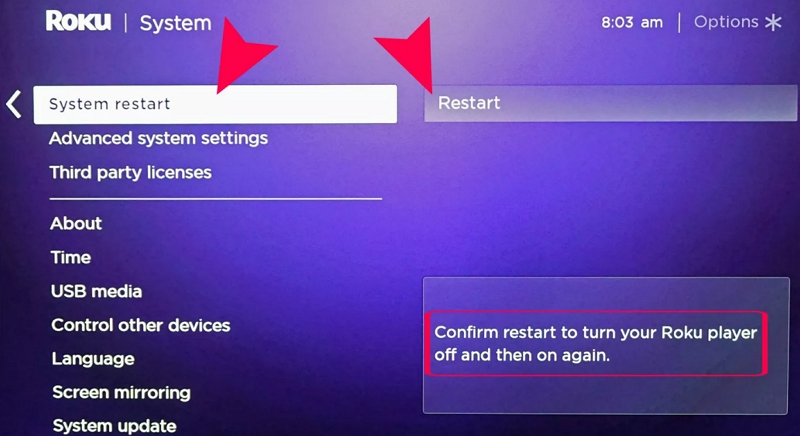
- Go to Settings > System > System restart.
- Confirm and wait for the TV to reboot.
On Samsung TV
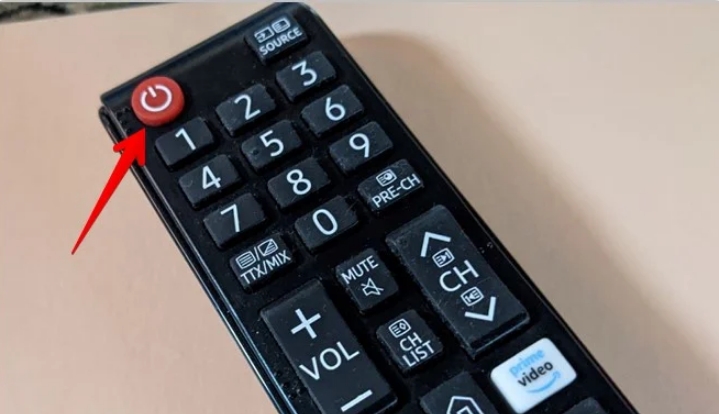
- Press and hold the Power button on the remote.
- Keep holding until the TV turns off and restarts (about 5–10 seconds).
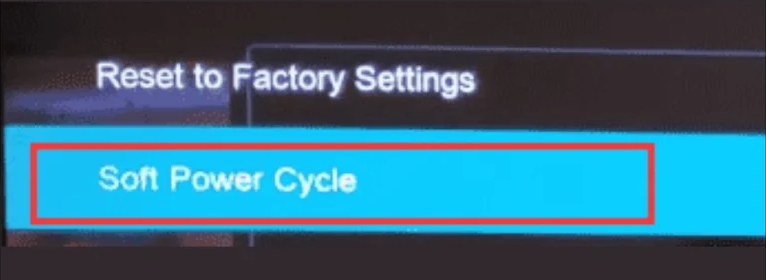
On Vizio
- Press the Menu button on the Vizio remote.
- Go to Settings and then System.
- Select Reset & Admin.
- Click Soft Power Cycle.
- Wait for the TV to restart automatically.
Fix 2. Perform a Power Cycle
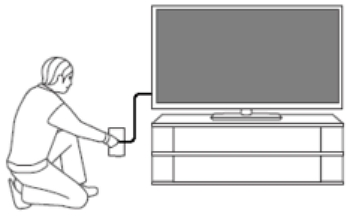
Performing a power cycle is a highly effective fix. Unlike a normal restart, a power cycle fully cuts off power from the TV and clears residual electricity in the system. This helps reset frozen processes, refresh the HDMI and video output system, and clear temporary memory glitches that may block video display. Because it forces a complete hardware-level reset, it often fixes deeper streaming and rendering issues that a simple restart cannot resolve.
First, turn off your TV using the Power button on the remote.
Next, unplug the TV power cable from the wall outlet.
Wait at least 30–60 seconds to allow all residual power to drain from the system.
Finally, plug the TV back in and turn it on using the remote or physical power button.
Fix 3. Update the Hulu App
Updating the Hulu app can also help fix Hulu playback issues. An outdated app versions often contain bugs or compatibility problems with TV systems. When the app is not updated, video decoding errors or streaming conflicts can occur, causing the screen to go black. Installing the latest version ensures you get bug fixes, performance improvements, and better compatibility with your TV’s operating system. This refreshes the streaming process and often restores normal video playback.
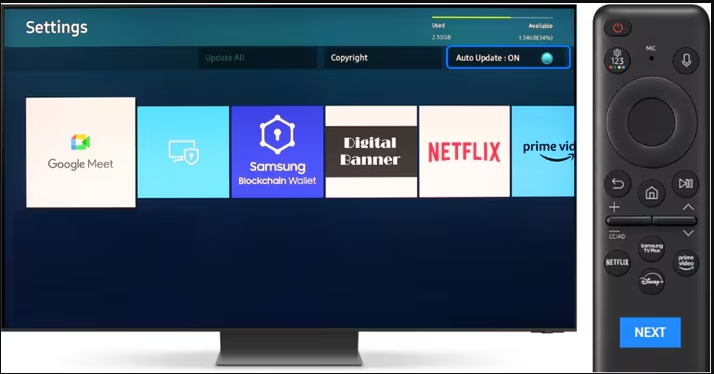
On Samsung TV
- Press the Home button on your remote.
- Select Apps, followed by Settings .
- Turn on Auto Update (recommended). Or manually open Hulu in Apps and check for updates.
On Roku TV
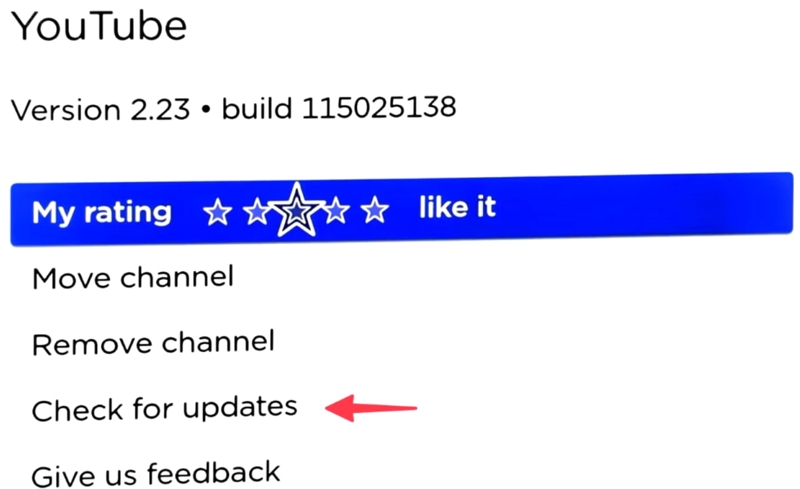
- Go to the Home screen and highlight the Hulu app.
- Press the Star (*) button on the remote.
- Select Check for updates.
On Vizio TV
- Press the V button or Home button on the remote.
- Choose Apps and open the Hulu app page.
- Select Update.
Fix 4. Reinstall the Hulu App
Reinstalling the Hulu app can remove corrupted files, cached data, or broken updates that interfere with video playback. Over time, app data can become damaged or outdated, leading to problems. A fresh installation ensures you get a clean, updated version of the app with properly functioning video decoding components. It also resets all internal settings and removes hidden bugs, allowing Hulu to reload correctly and restore normal streaming performance.
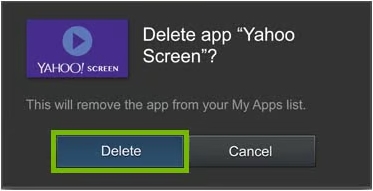
On Vizio TV
- Press the V button or Home button.
- Choose Apps and locate Hulu app.
- Press OK and choose Delete/Remove App.
- Open Vizio App Store/SmartCast Apps.
- Search Hulu and reinstall it.
On Samsung TV
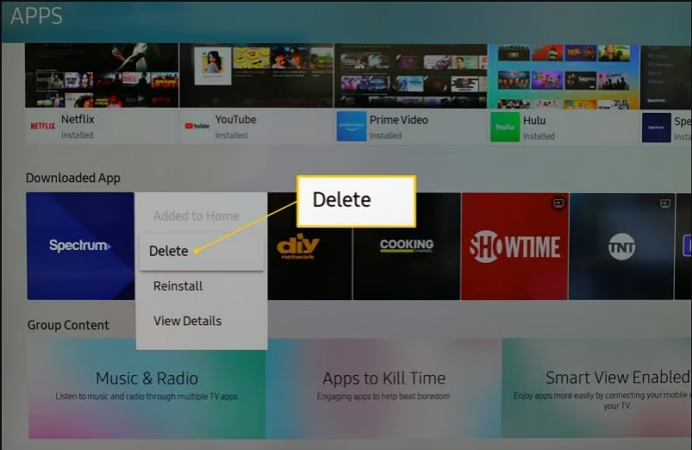
- Press the Home button on your remote.
- Go to Apps, select Settings and highlight Hulu in the installed apps list.
- Choose Delete/Uninstall.
- After removal, go to Apps Store (Samsung Apps) and install Hulu again.
On Roku TV
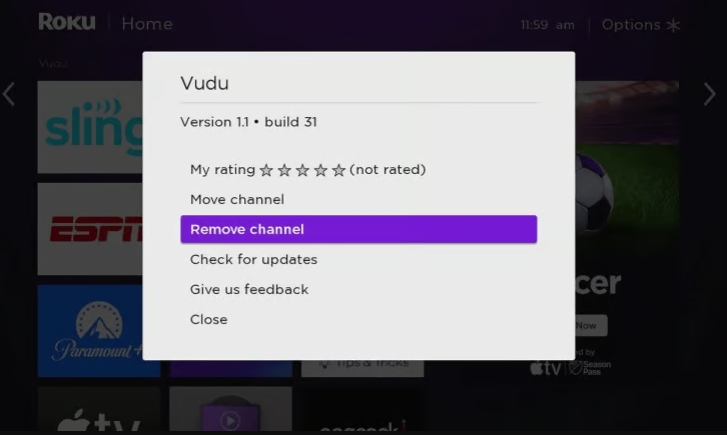
- Highlight the Hulu app on the home screen.
- Press the Star (*) button on the remote.
- Select Remove channel and confirm.
- Go to Streaming Channels/Channel Store.
- Find Hulu and add it back.
Fix 5. Factory Reset the TV
Factory resetting the TV will restore the device to its original settings, removing deep system errors, corrupted files, and software conflicts that other methods above cannot fix. However, the downside is that it erases all apps, settings, and personal data, requiring you to set up the TV again from scratch. Because of this, it should only be used as a last resort when all other troubleshooting steps fail.
Samsung TV
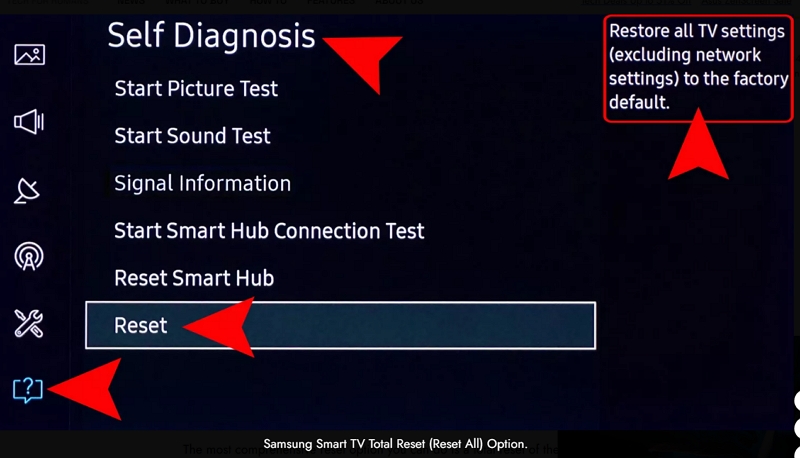
- In Settings, select General and choose Reset.
- Enter your PIN (default is usually 0000 if not changed).
- Confirm Reset and wait for the TV to restart.
Roku TV
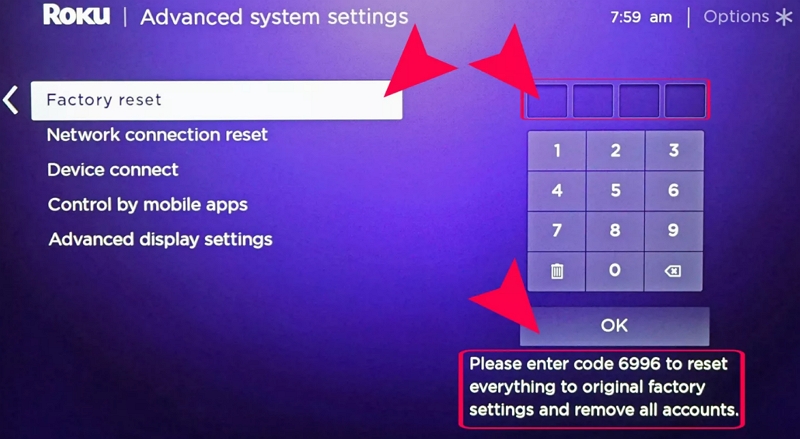
- Head to Settings. Then, select System and click Advanced system settings.
- Choose Factory reset. Enter the code shown on screen and confirm.
- Wait for the TV to reboot and complete reset.
Vizio TV
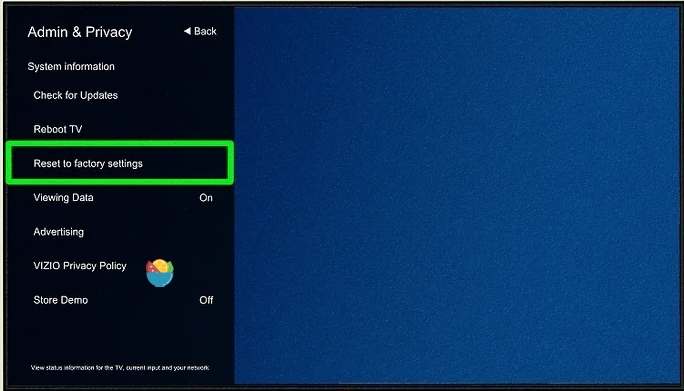
- Go to System > Admin & Privacy > Reset to Factory Defaults.
- Confirm the reset.
- Wait for the TV to restart and go through setup.
How to Fix Hulu Black Screen with Sound on Web
Hulu black screen with sound on web is often caused by browser-related issues rather than the Hulu service itself. Problems like ad blockers interfering with the video player, hardware acceleration conflicts, or performance optimization settings can prevent the video from rendering properly. To fix this issue, you can try the following methods.
Fix 1. Disable Ad Blocker
Disabling ad blockers can help fix Hulu black screen issues because these tools may interfere with Hulu’s video playback scripts or block essential content loading elements. Hulu relies on ads and tracking scripts to initialize streams, and when these are blocked, the player may fail to load properly, resulting in a black screen.
Tip: If you don’t want to disable your ad blocker right away, or you want to check whether it is the cause of the issue, you can try opening the Hulu web player in incognito mode. If Hulu works normally in incognito mode, it usually indicates that the ad blocker is interfering with playback, and you can then disable the ad blocker to fix the problem.
To Disable Ad Blocker
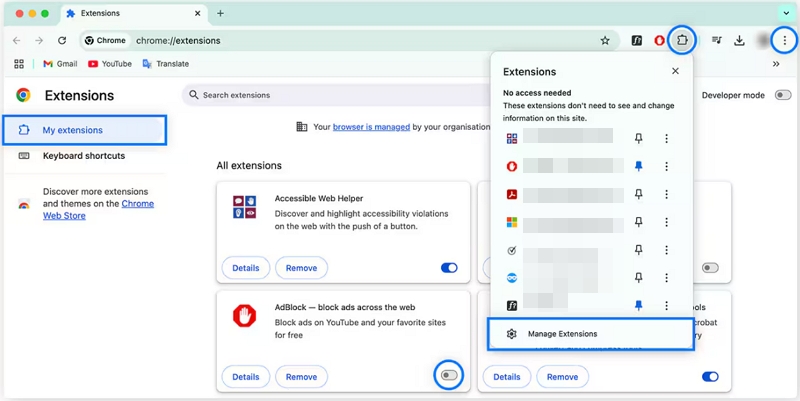
Step 1. Open your browser like Chrome and click the extension icon in the toolbar.
Step 2. From the bottom menu, choose Manage Extensions or a similar option.
Step 3. Locate the ad blocker and toggle it off.
Fix 2. Turn off Use Hardware Acceleration
Hardware acceleration enables Hulu to play videos smoothly by using your computer’s GPU to handle video rendering instead of relying only on the CPU. This usually improves performance and reduces lag during playback. However, if there are compatibility issues between the browser, GPU, or graphics drivers, Hulu may fail to render the video correctly. Turning off hardware acceleration forces the browser to use CPU-based rendering instead, which can reduce these conflicts and help restore normal video playback.
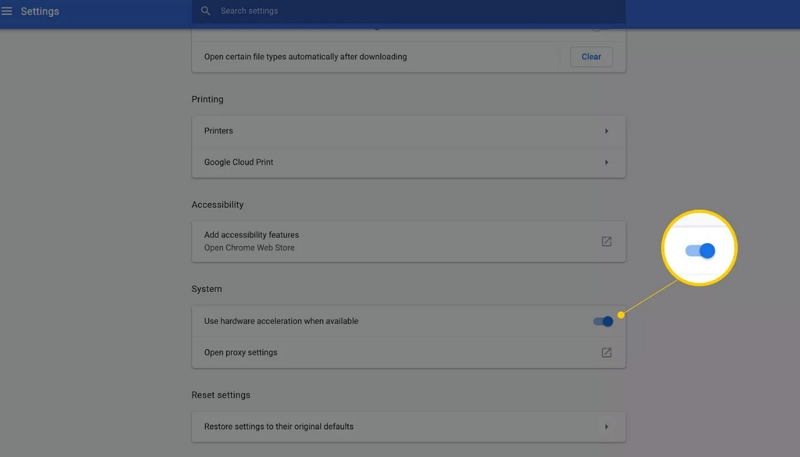
- Open Google Chrome and click the three-dot menu in the top-right corner.
- Go to Settings, then click System on the left panel.
- Find the option Use hardware acceleration when available and toggle it off.
- Finally, click Relaunch to restart the browser and apply the changes.
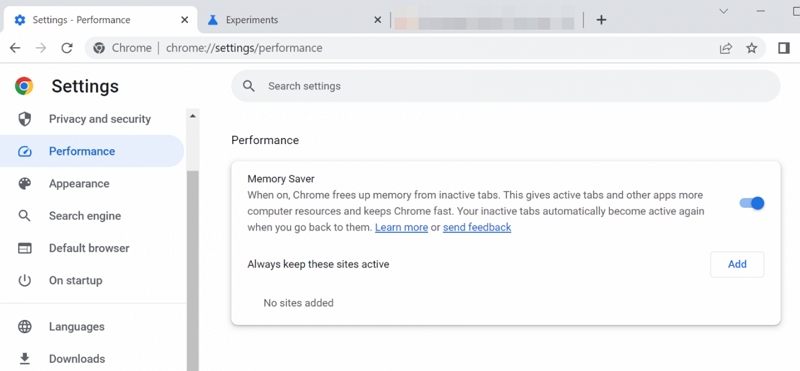
Fix 3. Disable Optimize Performance
Optimize Performance is a browser feature designed to improve speed and reduce memory usage by limiting background activity and managing system resources. While it helps the browser run more efficiently, it can sometimes affect streaming services like Hulu by restricting the resources needed for smooth video playback. This may lead to issues such as a black screen with sound if the video player is not given enough priority. Turning off Optimize Performance allows Hulu to fully access system resources, which can improve video loading and restore normal playback.
- Open Google Chrome and access the three-dot menu.
- Go to Settings > Performance from the left sidebar.
- Find the section Optimize Performance or Memory Saver and disable it.
How to Save Hulu Videos Locally to Watch Without Black Screen
Saving videos as local files not only allows you to watch them offline on your preferred devices, but also helps you avoid common streaming issues such as black screens, since playback is no longer dependent on an online connection. Mediaio Video Converter helps you save and convert your videos for personal use. You can export files in MP4, MOV, or MKV formats and watch them on your TV, phone, or computer without an internet connection. The output quality is high, supporting up to 4K resolution. You also don’t need to worry about subtitles, as Mediaio lets you choose between soft subtitles and hard subtitles depending on your needs.
Conclusion
Hulu black screen issues are usually not a major problem and can often be fixed with a few simple troubleshooting steps. If you want a smoother viewing experience, you can also use Mediaio Video Converter to save Hulu videos as local files, which helps you avoid future playback issues caused by online streaming.