

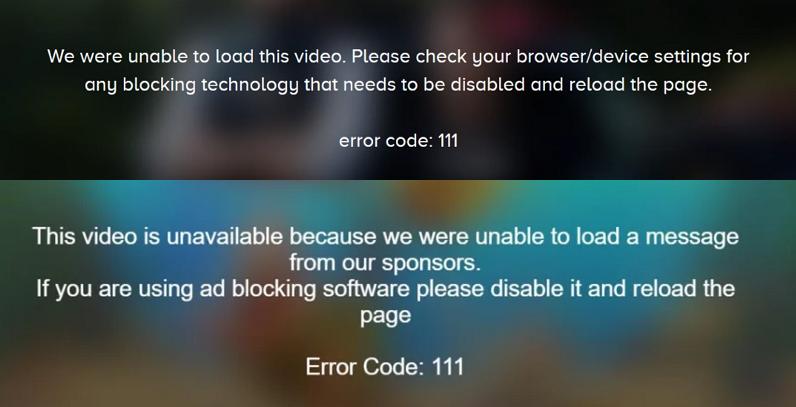
You open a new movie on Paramount+, ready to watch, then suddenly, Error Code 111 shows up. Why does this happen? And how do you fix it?
Don’t worry, it’s usually not a serious issue. The error message even gives you a hint, like asking you to turn off ad blockers. But sometimes, that alone doesn’t solve the problem. So what’s really going on? Let’s break down the causes and show you how to fix Error Code 111 step by step.
Paramount Plus Error Code 111: Why It Happens
Although failed ad playback is a primary cause of Paramount+ Error Code 111, simply turning off ad blockers doesn’t always fix the issue. Other factors, such as using a VPN, can also prevent ads from loading properly.
Next, let’s take a closer look at the common reasons why Paramount+ video ads fail to load, leading to error 111.
How to Fix Paramount Plus Error Code 111 on Web/Mobile App Step by Step
Below are practical steps to resolve Paramount Plus Error Code 111 on web browsers and mobile apps. Follow them in order for the best chance of success.
Short on time?If you’re in a hurry to watch Paramount+, you can skip straight to Step 5. But if you want the best chance of fixing the error, it’s better to go to Step 4 first.
Step 1. Check If There Is Paramount Plus Downtime
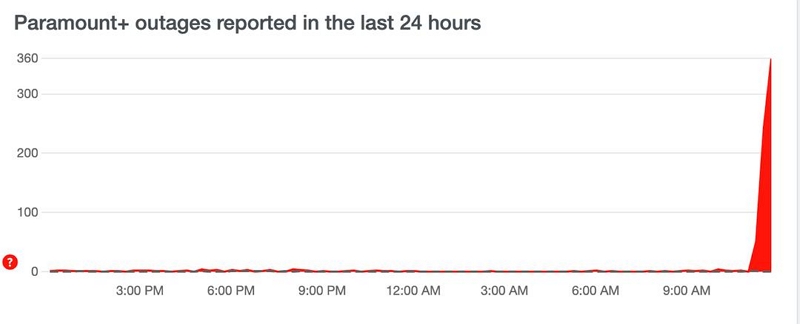
Before diving into more complex fixes, ensure that Paramount+ servers are operational. If the platform itself is down, troubleshooting your device is futile.
Use websites like Downdetector or the official Paramount+ social media channels.
- If downtime is confirmed, wait until servers are restored.
- If servers are fine, continue to the next step.
Step 2. Clear Paramount Plus Cache
If your device restarted unexpectedly, follow this step. Otherwise, proceed to the next step.
Cache corruption can occur after an unexpected shutdown. Streaming apps like Paramount+ rely on cached data to load content quickly, including ad-related files. If this cache becomes corrupted, ad requests or ad data may fail to load properly, causing Error Code 111. Clearing the cache forces the app or browser to fetch fresh data from Paramount+ servers, which can restore normal ad playback and video playback.
How to Clear Paramount+ Cache
For Android:
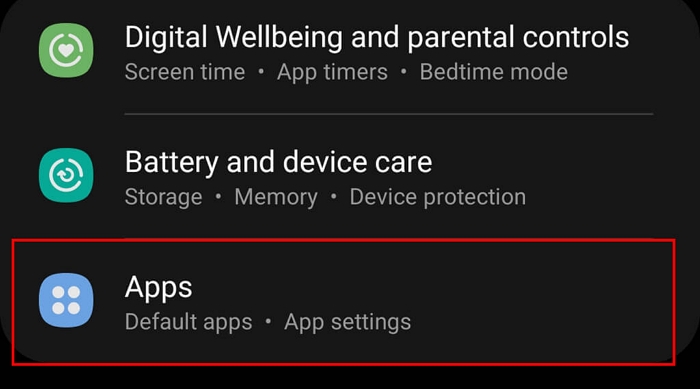
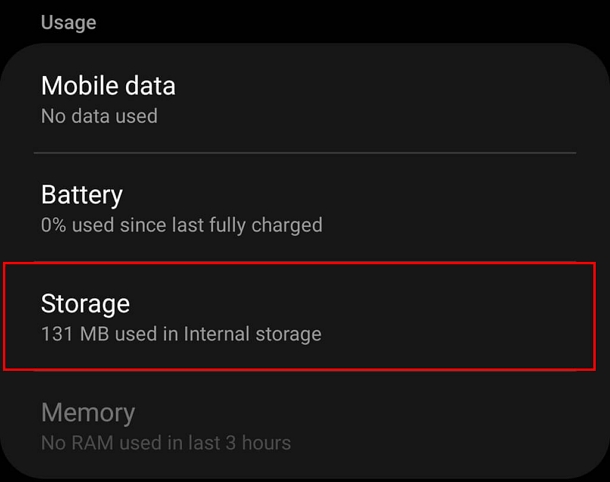
- Open Settings on your device and tap Apps.
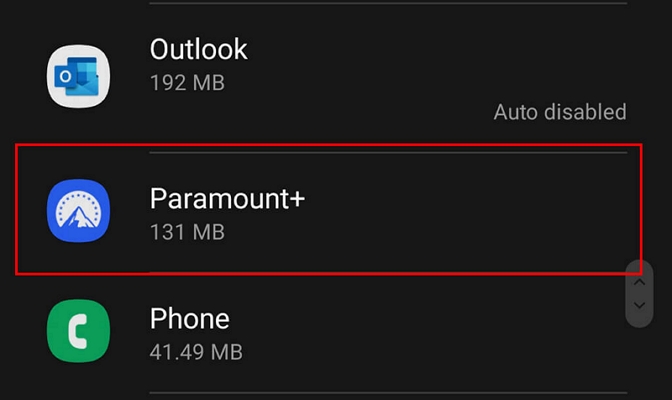
- Select Paramount+.
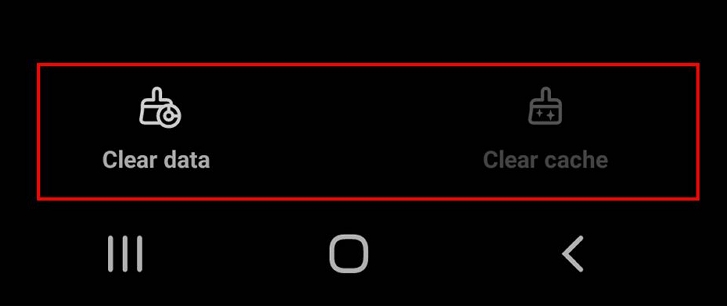
- Tap Storage.
- Select Clear Cache.
- Restart the Paramount+ app and check if the issue is resolved.
For iPhone:
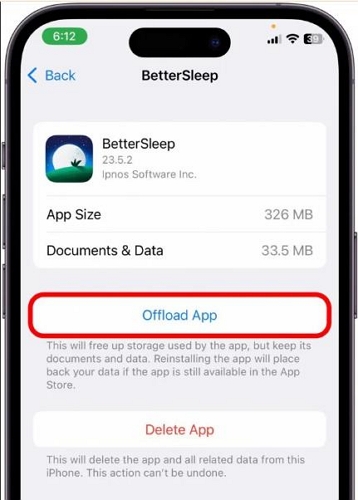
- Go to Settings > General > iPhone Storage > Paramount+.
- Tap Offload App.
- Reinstall the app from App Store.
For browser(Chrome):
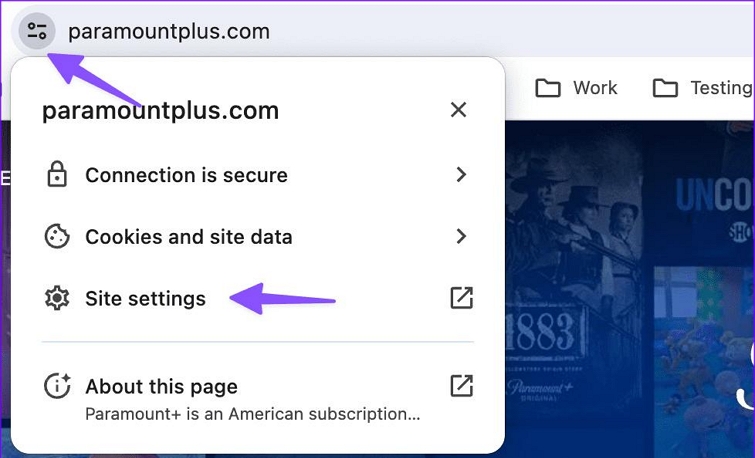
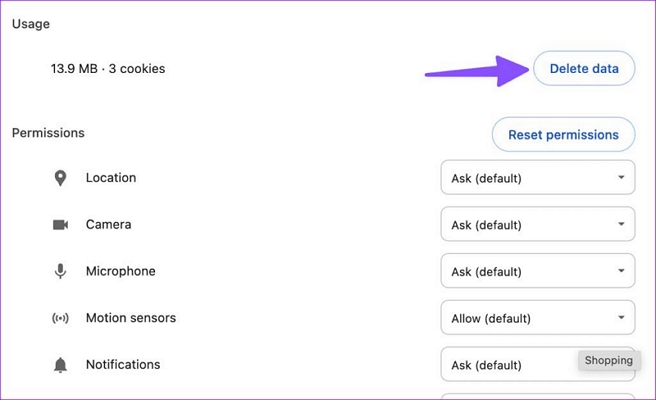
- Access Paramount Plus web player. Click the More menu icon next to the address and choose Site settings.
- Click Delete data to remove corrupted Paramount Plus cache.
Step 3. Ensure Strong Network Connection and Disable VPN
Error 111 is often related to ad playback issues, indirectly caused by a weak network or VPN. Here are more details:
- Unstable Network: Poor Wi-Fi or mobile data can interrupt communication with Paramount+ servers, causing ads to fail and Error 111 to appear.
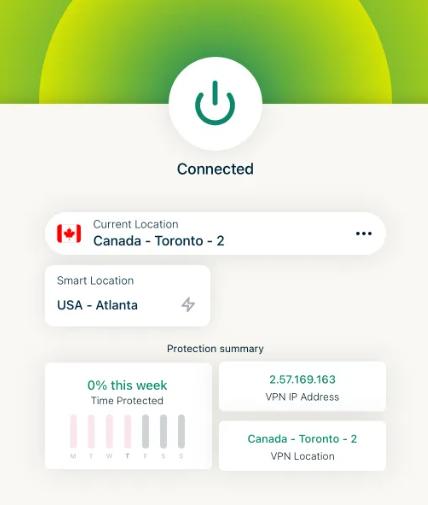
- VPN Interference: VPNs change IP/location, which can block or delay ad requests, leading to playback errors. Sometimes, VPN’s security features, such as ad-blocking or anti-tracking, can prevent Paramount+ from loading ads. For example, NordVPN CyberSec or ProtonVPN malware blocker may block ad requests, indirectly causing Error 111.
To fix the network issue:
- Use a 5GHz Wi-Fi network when possible.
- Disable VPNs temporarily and test playback.
Step 4. Turn off Ad Blocker and Anti-virus Software
This step applies to Error 111 that occurs in the Paramount+ web player.
Paramount+ Error 111 typically occurs because the web player cannot communicate properly with its ad servers. Even if the main video content plays, blocked or delayed ad requests trigger this error. Ad blockers, such as Chrome or Firefox extensions like AdBlock or uBlock Origin, can prevent ad scripts from reaching ad servers, while some antivirus or security software like Malwarebytes Browser Guard may block ad domains or filter network traffic. In both cases, these interruptions can cause the web player to detect an ad playback failure and report Error 111.
To verify whether an ad or security browser extension is causing Error 111, try playing a Paramount+ video in incognito mode.
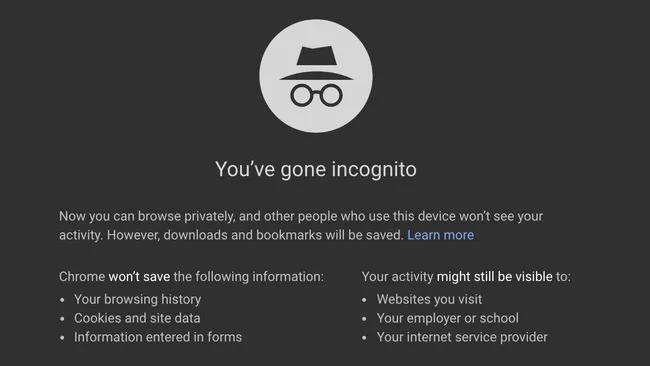
If the video plays normally in this mode, the issue is likely caused by an ad blocker or security-related extension. Then, in your browser’s normal mode, enable these extensions one by one to see which one triggers the problem again. Once you identify the offending extension, you can disable or remove it to restore normal playback.
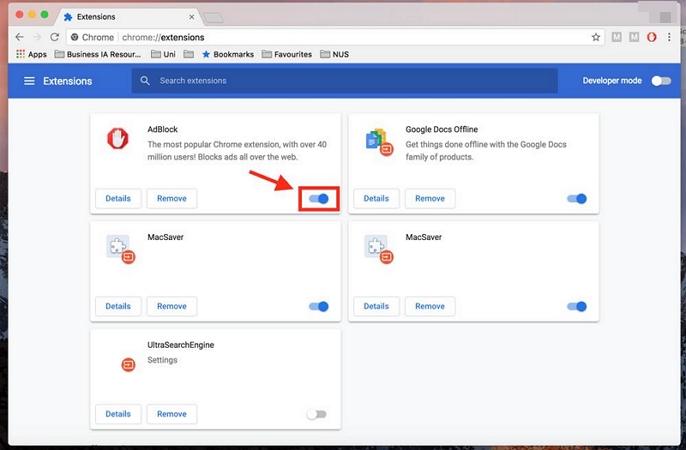
- Open Google Chrome.
- Click the three-dot menu in the top-right corner.
- Go to More tools> Extensions.
- You will see a list of installed extensions. Turn off all ad and anti-virus extensions first and then enable them one by one to identify the offending extension.
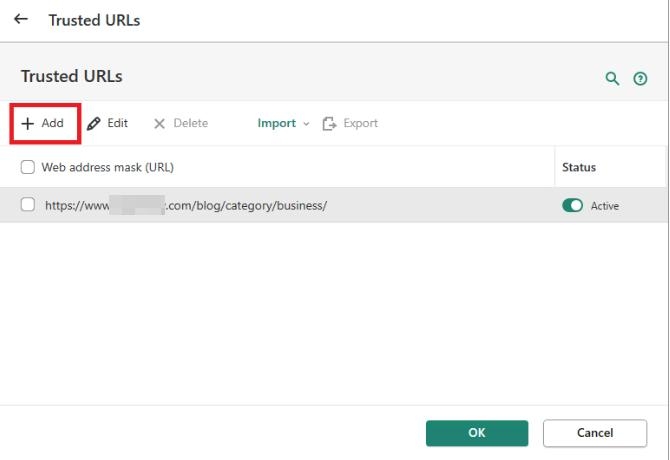
Tip: Some anti-virus programs allow you to whitelist specific websites. Adding Paramount+ to the whitelist can prevent future conflicts without fully disabling protection.
Step 5. Switch to Another Browser or Device
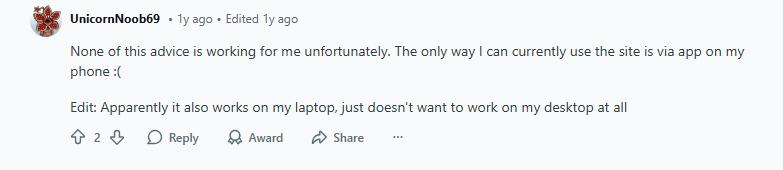
Sometimes, Error Code 111 is device-specific or browser-related. Different browsers handle JavaScript, DRM, and streaming scripts differently, which can affect how ad content is loaded. For example, a user reported that switching from Chrome to Firefox resolved Error 111 instantly. To isolate the problem, you can also try using a mobile device or another computer.
Step 6. Watch Paramount+ via Prime
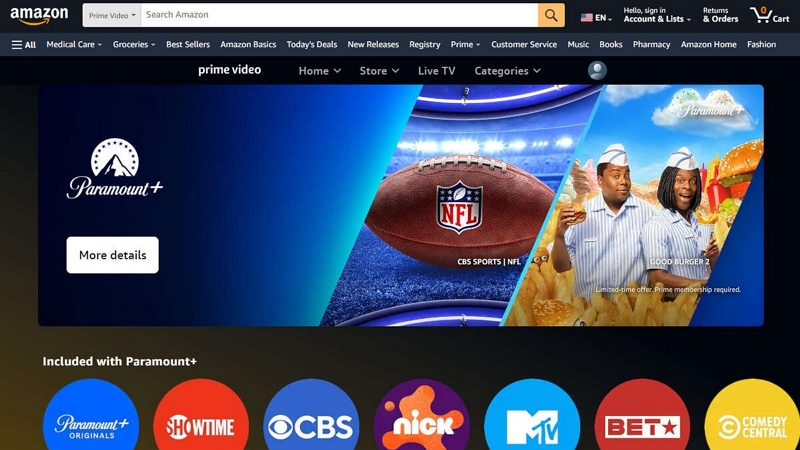
An unconventional but effective workaround is streaming Paramount+ through Amazon Prime Channels. This method works because Amazon Prime handles the streaming session, ads, and DRM differently, bypassing the conditions that often trigger Error 111 on the Paramount+ web player. However, the downside is that it requires an active Amazon Prime subscription in addition to Paramount+, and some features or content available on the native Paramount+ app may not be fully supported or displayed identically.
How to Watch Paramount Plus Without Error Codes
Offline playback on Paramount+ is a great way to ensure smooth video streaming. Since the videos are stored offline, you don’t have to worry about Error Codes, buffering or other online issues.
On mobile devices, you can download videos directly through the official Paramount+ app for offline viewing. But what if you want to watch Paramount+ offline on a computer? As we know, the Paramount+ does not support offline playback on desktop. Don’t worry, you can use Mediaio Video Converter to save Paramount+ videos in a local format and then watch them using built-in players like QuickTime or Windows Media Player. Subtitles and video quality (up to 4k) are fully preserved.
Note: Please make sure the downloaded video is for personal use only.
Final Words
Error Code 111 on Paramount+ can be frustrating, but understanding its causes and applying targeted fixes can quickly restore your streaming experience.
- Always start with network checks and downtime verification.
- Turn off ad blockers and security software.
- Use alternative platforms like Amazon Prime or offline playback via Mediaio Video Converter as a backup.