

Maybe you’ve bought a movie on Amazon and thought, “Can I just download this and watch it on my laptop during a flight?” or maybe you want to move it to your phone for offline watching on the subway, or even save it to a USB drive for your TV. Before you do that, there are a few things you need to know. In this guide, we’ll walk you through how Amazon purchased movies can actually be downloaded, what devices are supported, and what limitations you might run into. Let’s continue reading for more details.
What You Need to Know Before Downloading Amazon Purchased Movies
When it comes to purchased videos, you might think, just like many users do, that you actually own the movie. But that’s not really the case. In this section, we’ll explain what you should know before downloading Amazon purchased movies, including some important limitations and things to keep in mind.
DRM-Locked and Encrypted Files
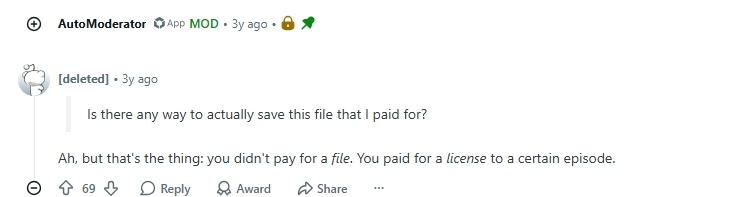
Every purchased video downloaded from Amazon Prime Video includes DRM (Digital Rights Management) protection and encryption. This indicates that the files are securely locked to inhibit copying, sharing, or usage on unapproved platforms.
Playback Limited to Amazon’s Own App
The downloaded content can only be viewed via the official Amazon Prime Video app. These files cannot be played on external media players such as VLC or transferred to devices beyond Amazon’s environment.
Incompatible with Smart TVs, VLC, or Backup Devices
As the files are encrypted and linked to the application, you cannot just transfer them to a USB drive, external hard drive, or Smart TV for offline viewing. Efforts to access them on external players or to create backups will fail.
Regional Restrictions May Apply
Downloads are frequently linked to the region associated with your account registration. For instance, if you are residing or traveling overseas, you may discover that specific films or shows are unavailable for download or access due to licensing limitations.
How to Download Amazon Purchased Movies to Computer
To view the Amazon movies or TV shows you’ve bought offline on your Windows PC or Mac, the official Prime Video app provides an easy option. This approach is perfect for those who prefer not to depend on external tools and are at ease consuming content within the Amazon environment.
OS Requirements
- Windows 10/11
- macOS 13 or later
Steps to Download Movies Purchased from Amazon to Windows/Mac
Step 1: Launch the Microsoft Store or App Store on your device. Look for “Amazon Prime Video” and download the application.
Step 2: Open the Prime Video app and log in using the credentials linked to your Amazon account where the transactions occurred.
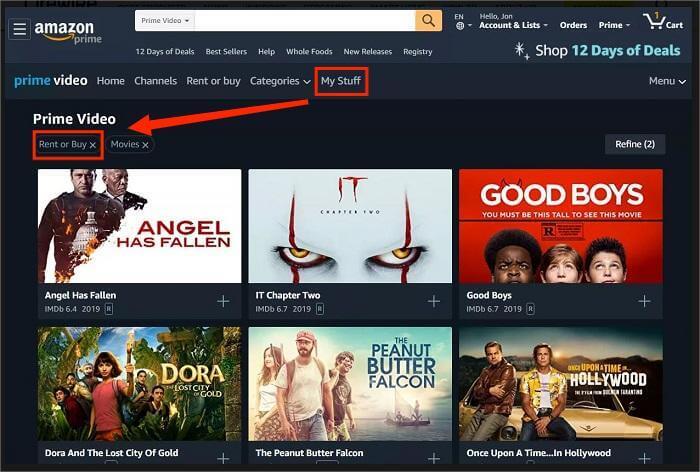
Step 3: Go to the “My Stuff” area in the app. Choose the “Rent or Buy” label to see all the films and shows you’ve purchased.
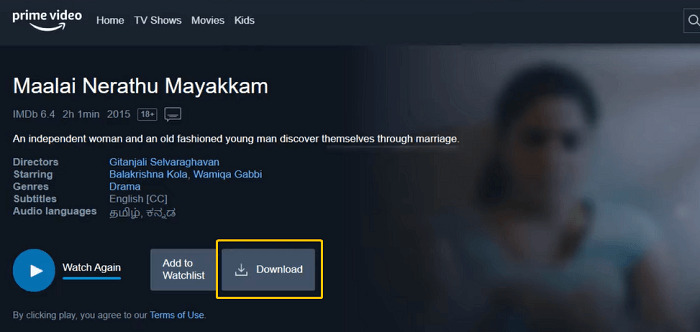
Step 4: Select the title you want to download. On the details page of the video, press the Download button.
Step 5: Select your desired download quality: Good, Better, or Best. After the download finishes, navigate to the “Downloads” area in the app. Choose your downloaded video to begin watching it offline.
How to Change Download Location on Windows Prime Video App
The Windows version of the Amazon Prime Video desktop app allows you to change the download storage location. Here are the steps:
- Launch the Amazon Prime Video app on your Windows computer.
- Select Settings in the left pane.
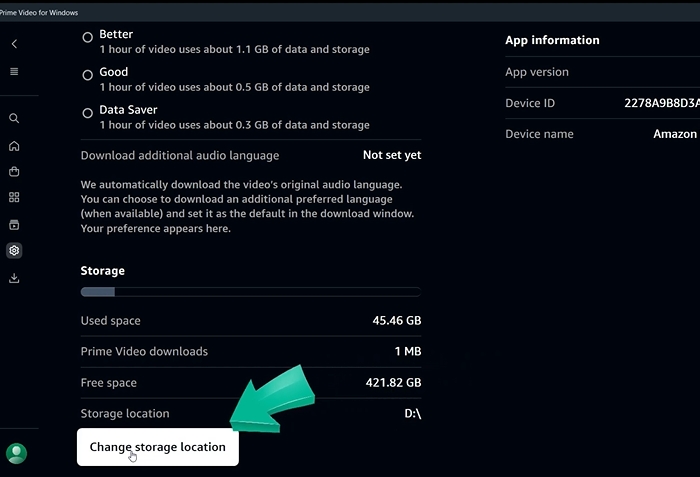
- Scroll down to Storage, locate Storage Location and click Change Storage Location.
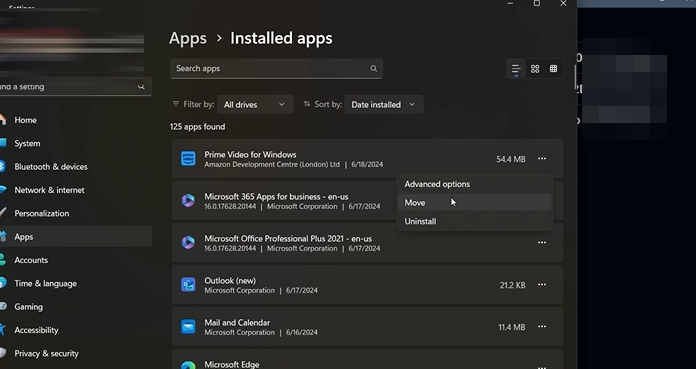
- You will be redirected to Settings. Locate Amazon Prime Video for Windows, open the drop-down menu, and select Move.
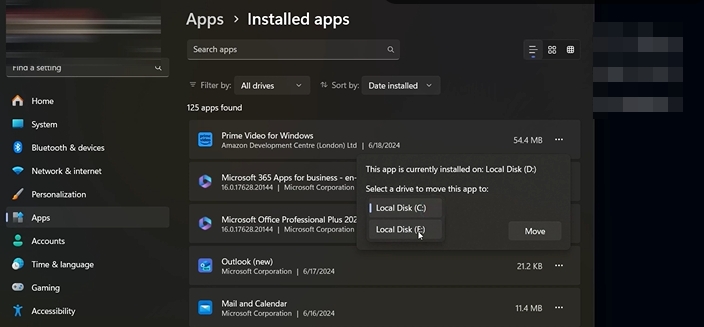
- Choose the folder where you want the downloads to be saved, then click Move.
FAQ: How to Download Movies Purchased from Amazon to External Hard Drive/USB
If you save downloaded Amazon purchased movies to an external hard drive, it is technically possible, but it is not officially recommended. Even if you do so, the downloaded videos are still encrypted and can only be played within the Amazon app.
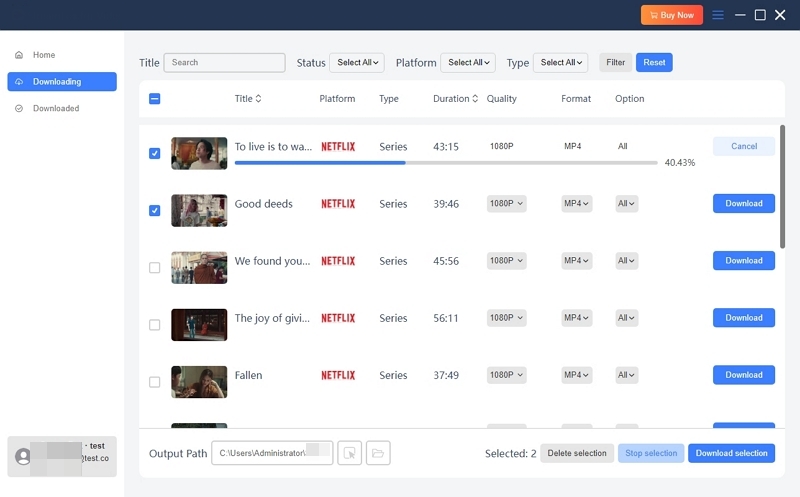
To save videos to an external storage device like a USB drive for playback on your TV, a tool like Mediaio Video Converter may help. With this software, you can log in to your Prime account and convert purchased videos into MP4 or other local formats, so you can store them on an external hard drive. The exported videos are high quality, up to 4K, and subtitles are fully preserved. You also don’t need to worry about long processing time, as Mediaio Video Converter supports up to 10X faster conversion speed, allowing you to save even long movies with ease.
How to Download Amazon Purchased Movies to Phone
In the Amazon Prime Video mobile app, downloading purchased movies is not difficult. Here are the step-by-step instructions:
Step 1: Obtain and set up the Amazon Prime Video application from the App Store or Google Play Store. Launch the app and log in with the Amazon account that was used to buy the video.
Step 2: Press the Profile icon. Go to Purchases to locate your acquired content.
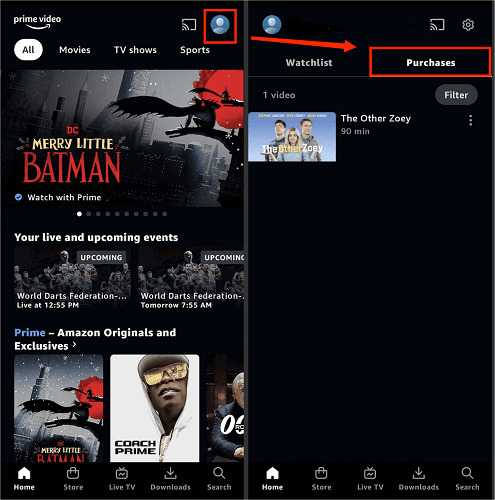
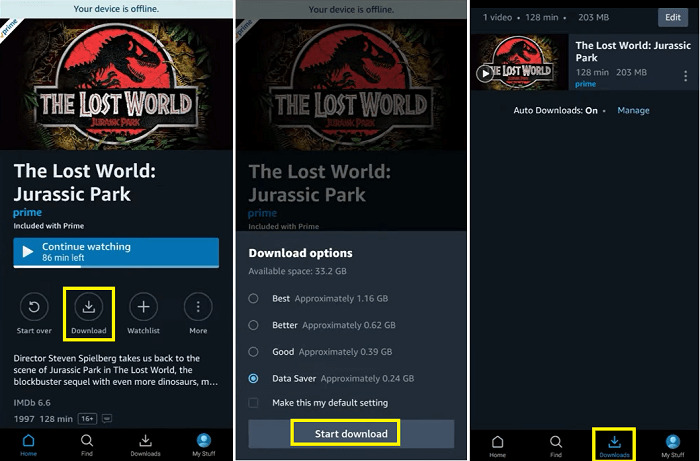
Step 3: Choose the movie or TV show you want. Click the Download button. For television series, you have the option to download single episodes or the complete season.
Step 4: Press the Downloads tab located at the bottom of the screen to access and enjoy your downloaded content.
Change Download Storage Location in Amazon Prime Video Android
- Open the Amazon Prime Video app on your Android device.
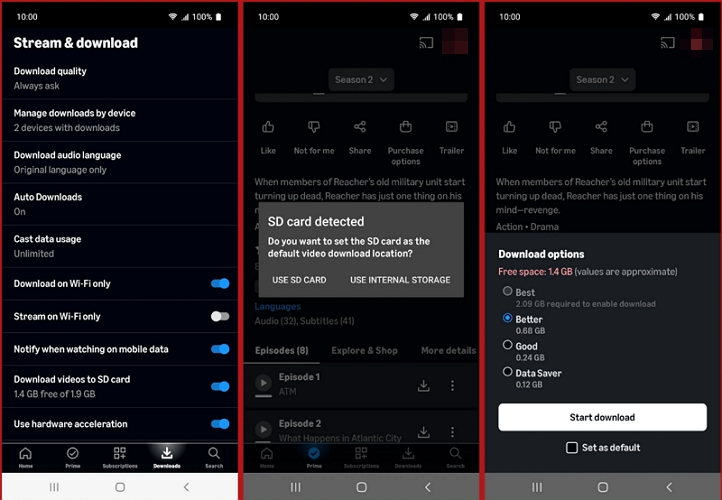
- Go to the Downloads > Stream & Download .
- Look for the option called Download videos to SD card . Turn this option on if you want to use external storage. If your phone has an SD card inserted, a prompt may appear asking whether you want to set it as the default download location. Choose Use SD card or keep internal storage depending on your preference. After that, any new downloads will be saved to the selected location automatically.
Tip: If you want to download the movies you purchased into a local format, you can use Mediaio Video Converter to first save them on your desktop as MP4, MOV, etc., and then transfer them from your desktop to your phone.
FAQs
What is the maximum number of devices I can use to download the movies I've bought?
Purchased titles can be downloaded on a maximum of 4 devices at the same time. If you hit this limit, you must remove content from one device before you can download it onto another.
Do purchased movies that are downloaded have an expiration date?
Typically, purchased movies do not expire and stay available as long as they’re listed in Amazon’s catalog. Nonetheless, Amazon retains the authority to eliminate content based on licensing contracts.
Is there a method to download acquired films in a portable format?
Yes, third-party applications such as Mediaio Video Converter enable you to download acquired films in formats such as MP4, MKV, or MOV. These files can be played on multiple devices and media players.
Final Thoughts
Although Amazon’s official app allows you to download movies you’ve bought, it includes DRM limitations and restricted playback choices. To enhance your experience across devices, you can try Mediaio Video Converter. It lets you store your films in portable formats, so you can watch them anytime, anywhere.