

There are often moments when you want to save on Amazon Prime Video and use it as wallpaper. Perhaps the frame looks cinematic enough for your desktop wallpaper, or it is a dialogue you want to remember.
The problem is that Amazon Prime Video does not offer a direct wallpaper download option. And even taking a normal screenshot will only give you a black screen instead of the actual scene. Luckily, that does not mean saving Amazon Prime videos’ thumbnails is impossible. This guide will show you all the ways to download Amazon Prime TV show and movie wallpapers, whether you want official posters or even exact scenes in any aspect ratio.
Quick Overview: Choose the Best Method Fast
Before we look at the methods in detail, here is a quick overview table to help you pick the right method for what you want.
Method 1. Download Amazon Prime TV Shows and Movies Wallpapers Using Developer Tools (Computer-Only)
Developer Tools is meant for developers to inspect how a webpage is built and loaded. And they expose everything your browser downloads from the Amazon Prime Video website when it loads. So you can access this built-in panel to get banners and background visuals for movies and TV shows you see across Amazon Prime Video pages.
There are two main ways to download images via the Developer Tools panel: the Network tab and the Sources tab. Both let you pull the same images. The only difference is that one is more organized than the other. So let’s break both methods down properly.
Overview — Developer Tools to Download Wallpapers
Option 1. The Network Tab Method
The Network tab captures everything your browser requests as an Amazon Prime Video page loads. That includes hundreds of assets, such as posters, banners, thumbnails, fonts, scripts, and other webpage elements.
The useful part is that browsers like Chrome automatically separate these requests into categories like IMG, Fonts, CSS, and more. So you can easily grab the wallpaper you want. Here’s what to do:
Step 1. Open Google Chrome. It is generally better to stick with Chrome for this method.
Step 2. Head over to the Prime Video site. Open the specific movie or TV show page that contains the wallpaper you want.
Step 3. Press F12 (or Fn + F12 combination) on Windows. On Mac, use the cmd + option + I to open Developer Tools.
Step 4. Switch to the Network tab.
Step 5. Just below it, you will see multiple filter categories. Click Img so the panel only displays the image files.
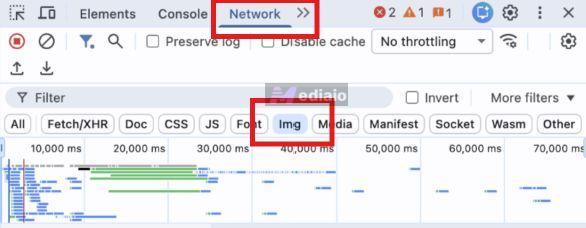
Step 6. Refresh the page. So that the Network tab captures all the posters and banners on the page properly.
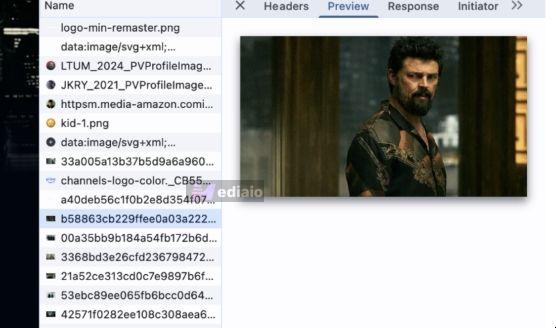
Step 7. You’ll see a long list of JPG and image files under the Name column. Click through the entries. Each selection will show a preview on the right. Use your arrow keys to find the exact poster you want.
Step 8. Once you find it, right-click the image preview. Then, choose Open in new tab.
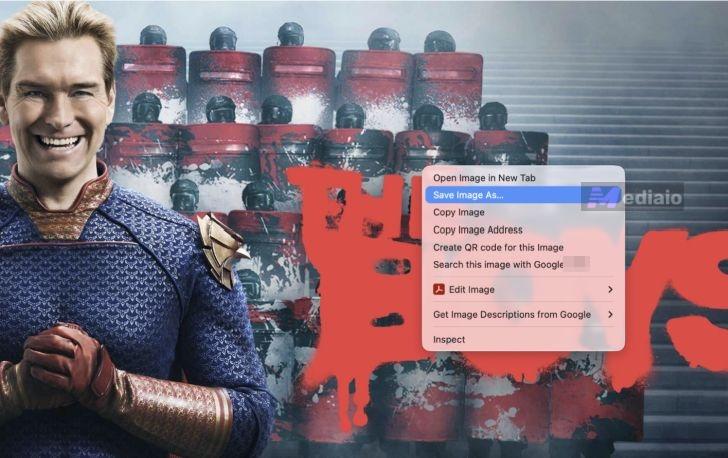
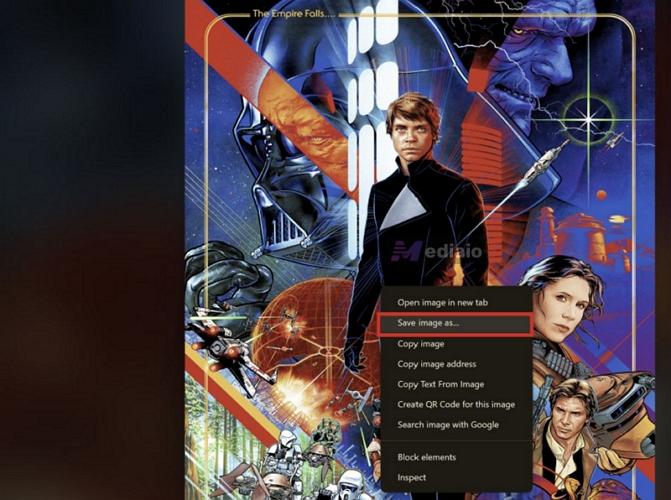
Step 9. The full-resolution version of the image will now open in a separate tab. Right-click the image again and then select the Save image as… option. This will save the banner on your computer.
That’s it. You can now use the downloaded banner or artwork as your wallpaper.
Option 2. The Sources Tab Method
The Network tab only captures the exact files being loaded on your screen at that particular moment. So the quality isn't always consistent. It depends on your screen size or connection speed, which makes this method less ideal for wallpapers.
That is where the Sources tab becomes much more useful. It lets you browse many of the resources the page has already loaded in the background. Plus, the files are also organized here. Once again, it is better to follow these methods inside the Chrome browser itself. Here’s how to use it:
Step 1. Head over to the Amazon Prime Video page for the movie or TV show containing the artwork.
Step 2. Access Developer Tools again.
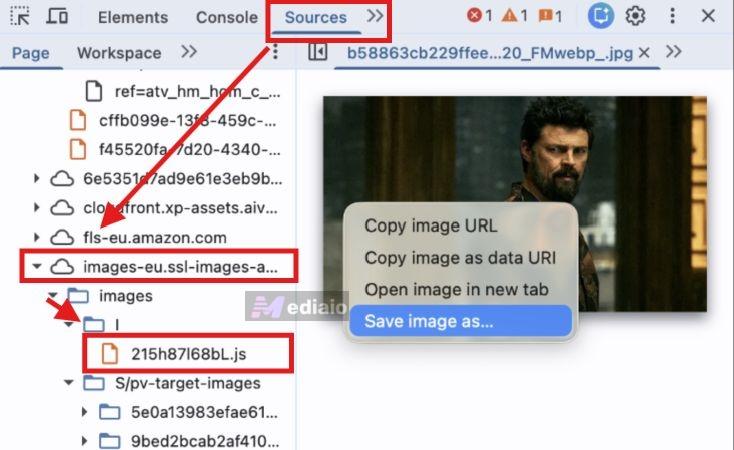
Step 3. This time, switch to the Sources tab from the top toolbar.
Step 4. On the far-left pane, you’ll find the website directories.
Step 5. Look for folders that start with names like images, visuals, hero, or something similar. Expand the dedicated directory and you’ll again see many folders inside it.
Keep opening the folders. They will contain the JPG and PNG files — the banners and background visuals that appear across the page. Clicking any file will instantly show a preview on the right side.
You will eventually come across exact artwork you were looking for. Right-click the image preview. Then, choose Save image as to store it on your computer.
Method 2. Download Amazon Prime TV Shows and Movies Wallpapers with Official Promotional Images
Developer tools often load compressed or screen-sized versions of artwork. And the resolution depends heavily on your display size, internet speed, and even your browser behavior.
So if image quality matters, it is better to go after the official promotional assets. They are uploaded in higher resolutions because they are meant for journalists and media outlets. So you can get much cleaner posters, cast photos, cinematic banners, and high-resolution promotional stills — sometimes even in near-4K quality.
One of the best sources for this is the official Amazon MGM Studios Press Site. Amazon itself uploads high-resolution promotional material of upcoming releases. You can also find assets related to most movies and TV shows available on Prime Video.
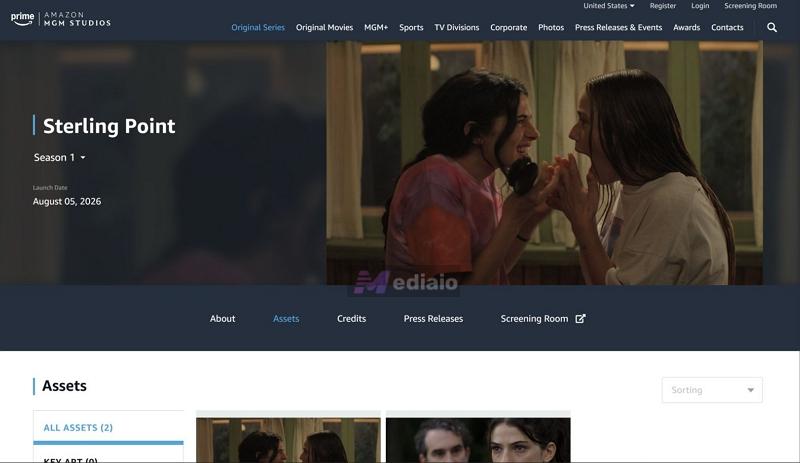
And yes, social media platforms like Instagram or X also upload promotional artwork regularly. But those platforms usually compress images heavily.
Overview — Download Official Promotional Images
Here’s how to download official Amazon Prime promotional images:
Step 1. Visit any official promotional asset page you want to explore, like the Amazon MGM Studios Press Site.
Step 2. Use the top navigation tabs to quickly navigate categories, such as Original Series, Movies, Upcoming Releases, or Featured Content. Or simply use the search bar to look for the movie or TV show directly.
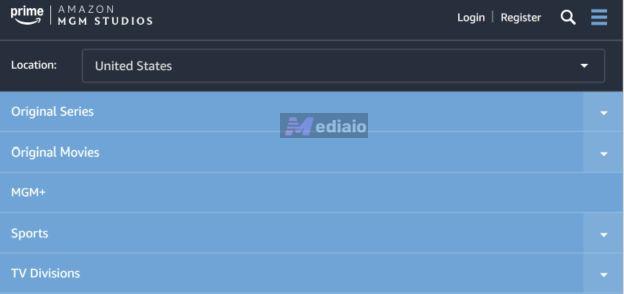
Step 3. Right-click the promotion image. Then choose Save image as… to download it. You can now use it as your wallpaper.
Method 3: Download Amazon Prime TV Shows and Movies Wallpapers by Taking Screenshots
Taking a screenshot is the simplest method. And it is the only method that lets you capture the exact scene you are currently watching. You can even turn on subtitles and preserve the dialogue along with the frame.
But there is a catch. Amazon Prime Video uses DRM protection for its streams. So you cannot simply snap screenshots whenever you want. Most of the time, you will hear the screenshot shutter sound, but the final saved image will only appear completely black. On desktop browsers, you can use a few small tricks to make screenshots work instantly. However, on mobile, there is no quick and reliable workaround for this.
Overview — Screenshot the TV Show Screen
Steps to Take Screenshots on Amazon Prime Video
Step 1. Play the movie or TV show on your desktop browser. Make sure the playback quality is set to Best.
Step 2. Pause at the exact frame. Then:
- On Windows: press the PrtSc key (or use the Windows + Shift + S), choose Windows or Rectangle and highlight the exact portion. Then, press Enter.
- On Mac: you’ll have to use Command + Shift + 4. Your cursor will turn into a selection tool. You can use it to capture the special area.
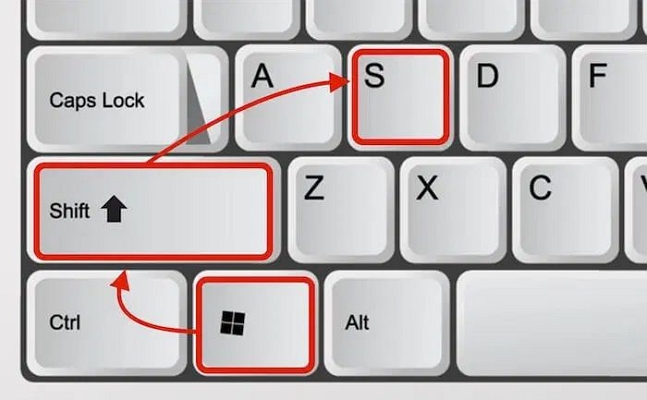
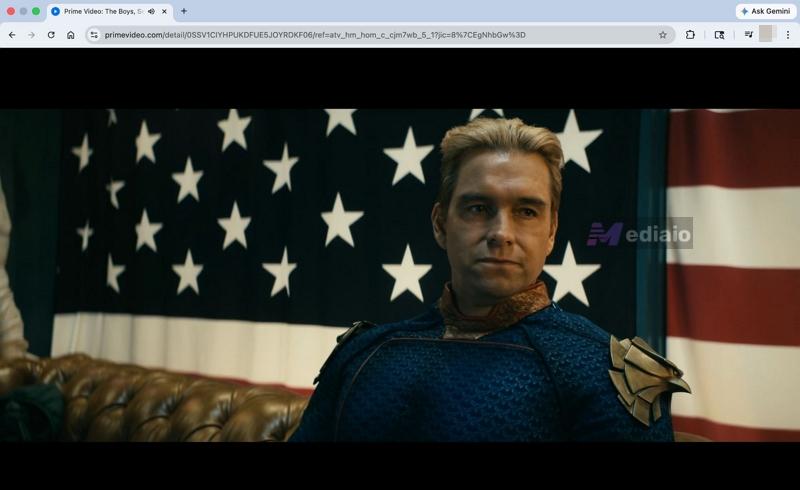
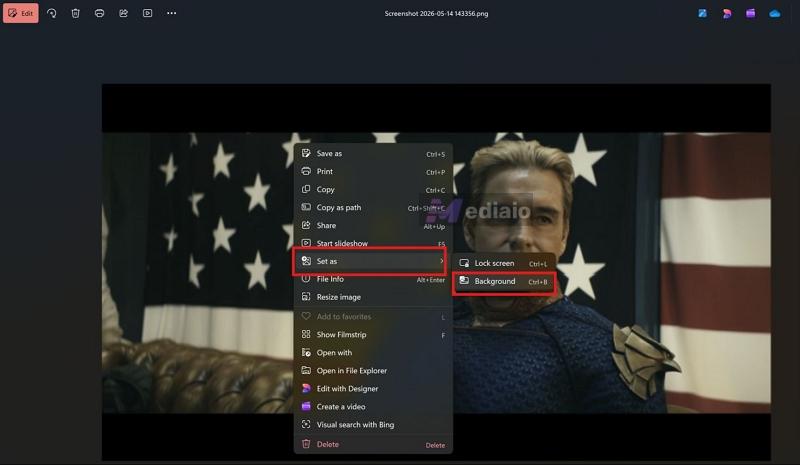
The screenshot will be saved to your default screenshots folder and you can use it as a wallpaper from there.
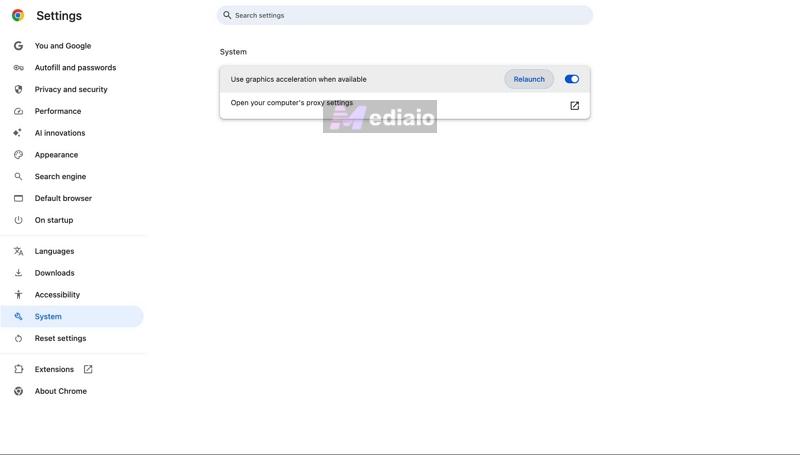
Note: If you’re only getting a black screen while capturing through the desktop browser, try this:
1. Open your browser settings.
2. Search for Hardware Acceleration.
3. Turn the toggle assigned to it off.
4. Restart the browser.
5. Reopen Prime Video and try capturing the frame again.
Method 4: Download Amazon Prime TV Shows and Movies Wallpapers from Wallpaper Sites
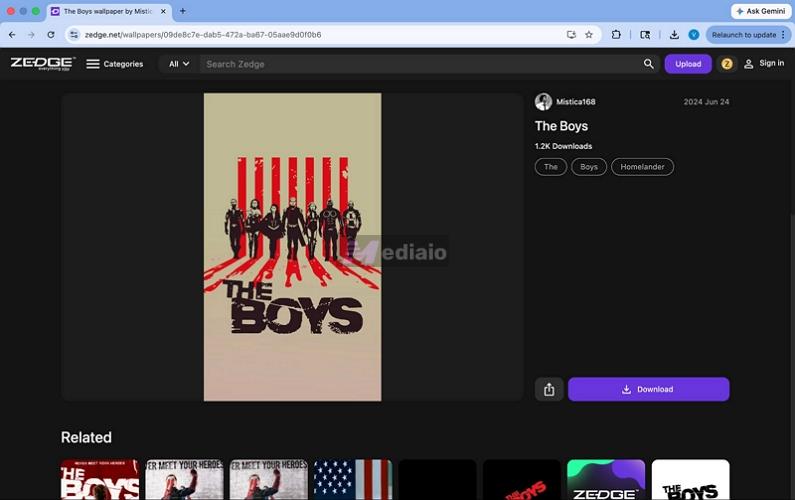
Wallpaper sites feature artwork from many popular TV shows and movies, including the ones on Prime Video. Plus, unlike the above methods, you are not limited to 16:9 desktop sizes only. You can even find wallpapers for phone screens, tablets, ultrawide monitors and other aspect ratios.
There is one thing to understand here. Most wallpaper sites are community-driven. So you will not always find the exact movie moment you wanted as wallpaper. You will have to choose from the content already uploaded to the site.
Overview — Save Prime Video Screens via Wallpaper Sites
Many sites offer multiple aspect ratios.
Steps to Download Prime Video Wallpapers from Wallpaper Sites
Step 1. Open wallpaper sites like Alpha Coders or Pinterest on your mobile or computer.
Step 2. Search for the movie or TV series name.
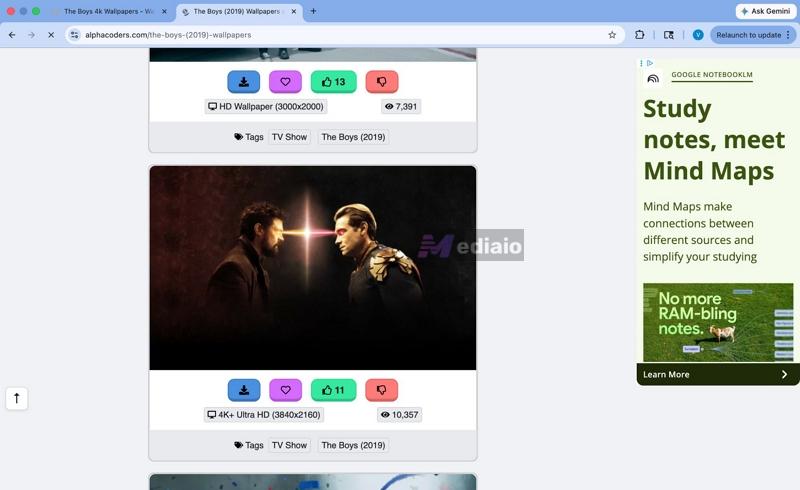
Step 3. Browse through the results. Sites like AlphaCoders also let you sort wallpapers.
Step 4. Use the download button to save it.
Pro Tip: Avoid right-clicking and saving the image whenever possible. Because many site only provides the full-resolution wallpaper via the actual download button. This is because they will force a short advertisement before the download starts, for example, AlphaCoders on free accounts require you to watch a short 5-second ad.
Method 5: Download Amazon Prime TV Shows and Movies Wallpapers via Communities
Communities often have better wallpapers than even dedicated wallpaper platforms. Because on platforms like Reddit, Discord servers, fan forums, or design communities, people also take requests. So if you want a very specific frame, subtitle scene, ultra-wide crop, AMOLED version, or a phone-sized wallpaper of a particular Prime Video show, somebody could already have it or even create it for you.
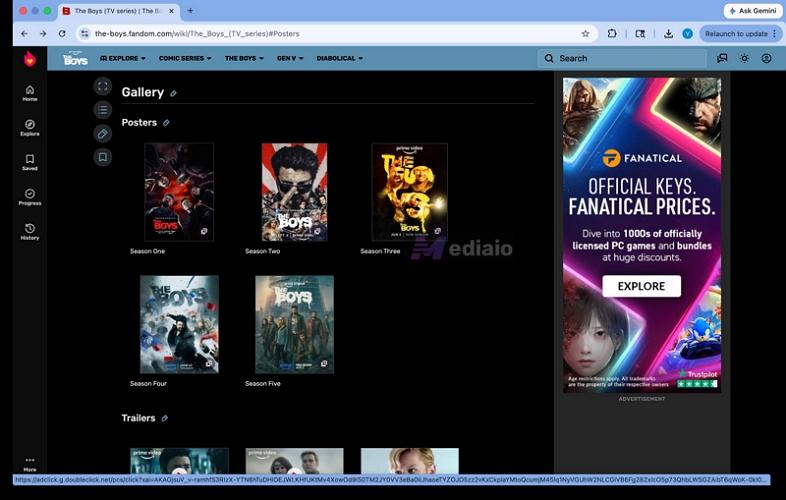
Mind this first: community sharing is much less organized. Many downloads redirect to Google Drive folders, Imgur albums, Dropbox links, or third-party hosting sites. So you always have to be careful before opening unknown links.
Overview — Get Prime Video Wallpapers from Communities
Steps to Download Prime Video Wallpapers from Reddit or Communities
Step 1. Go to wallpaper forums on your browser or mobile app. Some useful places for this are:
- r/Amoledbackgrounds,
- r/wallpapers,
- fan Discord servers,
- movie fandom forums,
- and design communities like DeviantArt.
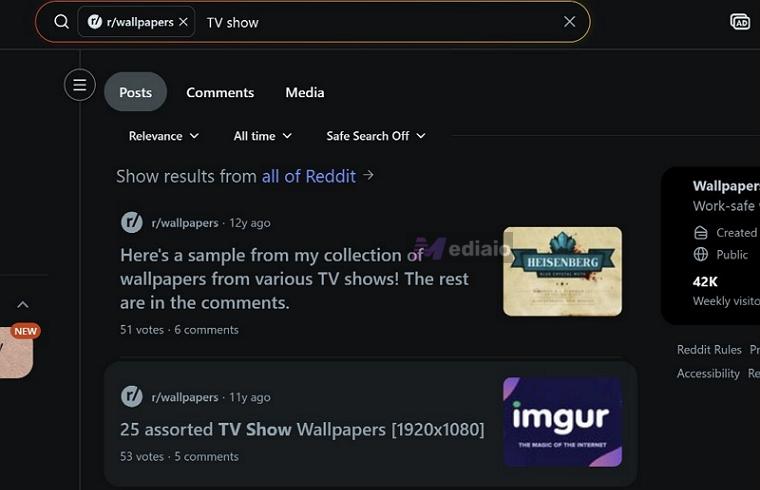
Step 2. Search using the movie or TV show name. You can also use keywords like wallpaper, 4K, AMOLED, poster, or ultrawide.
Step 3. Browse through posts. On Reddit, many creators attach external download links.
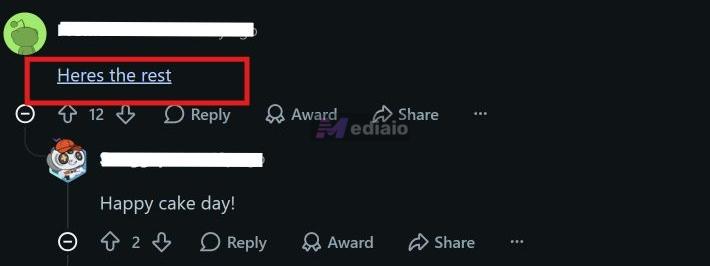
You can navigate to the link. Then, download the high-resolution wallpaper on your computer.
How to Save Amazon Prime TV Shows and Movies for Offline Watching
All the above methods will only allow you to save still images. But what if you want to save the entire movie or TV episode itself offline?
Yes, Prime Video already allows downloads. Those downloads remain locked within the Prime Video app. However, sometimes you need the files outside the app, like when you want to watch them on a device that doesn’t support the Prime Video app. For this, you can use Mediaio Video Converter.
Mediaio lets you export movies, TV series, and other Prime Video titles as regular MP4 files. These MP4 files will be saved in your computer’s Downloads folder. You can play them normally through apps like VLC Media Player. This will allow you to freely pause anytime and even capture the exact scene you want as wallpaper.
And there are no strict download limits either. You can use Mediaio to save entire seasons of a TV show and keep them stored locally. Plus, you can even move the files to other devices.
Final Thoughts
So there you go. You have many ways to grab the exact poster, banner, subtitle scene, or cinematic moment you want from movies and TV shows on Prime Video.
And if you need the entire movie or TV show itself offline, especially in up to 4K quality, then Mediaio Video Converter is the better option. Once the video is saved directly on your computer, you can watch them offline without Prime app. Moreover, you can freely pause scenes, take screenshots anytime you want, and create wallpapers from exact moments without dealing with browser restrictions or DRM limitations.