

The Nintendo Switch has an unusual advantage over most handheld consoles. It doubles as a gaming system and a portable entertainment device. Unlike many handhelds, it supports several major streaming apps, letting you watch movies and TV shows directly on the console. But when it comes to HBO Max, things get confusing fast. Some sources claim the app is available on Switch, whereas others suggest browser workarounds, and many guides online are outdated or flat-out inaccurate.
So, what actually works in 2026?
This guide breaks down every real option for watching Max on Nintendo Switch. You’ll learn:
- whether an official Max app exists,
- how to install and use it if supported,
- which methods seem possible but don’t actually work (including the hidden browser trick), and
- What alternatives do you have if you want offline viewing or a more reliable setup?
By the end, you’ll know exactly how to watch Max on Switch – and which method fits your situation best.
Does HBO Max Have an App on Nintendo Switch?
Yes — the Max (formerly HBO Max) app is available on Nintendo Switch. Warner Bros. Discovery released the official Max app on the Nintendo eShop in 2021, and it remains fully supported in 2026. You can download it directly from the eShop and start streaming within minutes.
Once installed, the app functions much like the mobile version. You can sign in with your existing Max account, browse the full catalog, continue watching your shows, and stream movies or shows directly on the console in handheld or docked mode.
To use Max on Switch, you’ll need:
- an active Max subscription (Basic, Ad-Free, or Ultimate),
- a stable Wi-Fi connection, and
- any compatible Nintendo Switch model (original, Lite, or OLED).
It’s also important to understand what doesn’t work. The Switch does not include a full web browser for streaming, and the hidden browser pages inside system settings cannot play Max videos. The Max web player requires codecs that the Switch browser doesn’t support, so browser-based “workarounds” simply fail.
Hence, the official eShop app is the only reliable method to watch Max on Nintendo Switch – a key detail often misreported in outdated online guides.
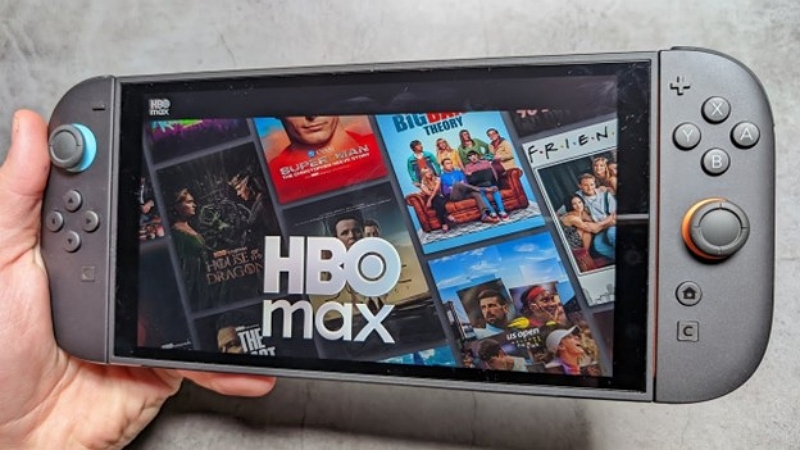
Method 1 — Download the Max App from Nintendo eShop
Downloading the Max app from the Nintendo eShop is the simplest and most reliable way to watch HBO Max content on your Switch. Since the app is officially supported, setup takes only a few minutes and works consistently across all current Switch models.
Step-by-Step Setup
Step 1: Power on your Nintendo Switch and connect to Wi-Fi.
Step 2: Open the Nintendo eShop from the home screen.
Step 3: Search for “Max.”
Step 4: Select the app and choose Download.
Step 5: Once installed, launch the app from your home menu.
Step 6: Sign in using your existing Max account.
Step 7: Start browsing and streaming movies, series, and documentaries.
The app supports all subscription tiers – Basic, Ad-Free, and Ultimate – so your existing plan works without any changes.
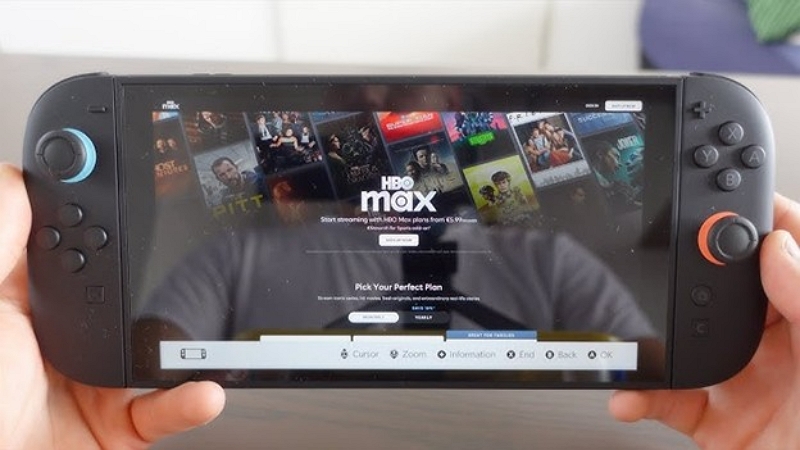
Playback Experience — What to Expect
The Max app on Switch behaves similarly to the mobile version. You can browse the full catalog, resume your shows, and stream in handheld or docked mode. Video quality depends on your subscription tier and connection strength, but most users can expect smooth playback at standard or HD resolution. The Switch does not support 4K output, so even Ultimate subscribers will be capped at HD.
Since the Switch uses Wi-Fi only, performance can vary if your network is congested. A stable 5 GHz connection typically delivers the best results.
Nintendo Switch Model Comparison
- Switch (Original): Full support, best experience in docked mode.
- Switch OLED: Same performance as the original, with a noticeably better screen for handheld viewing.
- Switch Lite: Fully compatible, handheld-only, but still excellent for streaming.
Method 2 — Watch HBO Max on TV via Switch Dock
Many users prefer watching Max on a larger screen, and the Nintendo Switch dock makes this easy. When you place the console into the official dock, it outputs video directly to your TV through HDMI, allowing you to stream Max just like you would on a streaming box or smart TV.
The Nintendo Switch dock allows the console to connect directly to a TV. To set it up, follow these steps:
Step 1: Place the Switch into the official dock.
Step 2: Connect the dock to your TV using an HDMI cable.
Step 3: Turn on the TV and select the correct HDMI input.
Step 4: Launch the Max app from the Switch home screen.
The console automatically switches to TV mode, allowing streaming up to 1080p. You can navigate the app by using Joy-Con controllers or the Nintendo Switch Pro Controller, both of which work smoothly for browsing and playback.
Network tip
Streaming in TV mode works best with a stable internet connection. You can connect an Ethernet adapter to the dock’s USB port to use wired internet instead of Wi-Fi. This helps reduce buffering and improve streaming stability.
Switch Lite limitation
The Switch Lite does not support TV output, so it cannot be connected to a television. Since it cannot be docked, users with a Lite model must stream Max on another streaming device – such as a laptop or a streaming box to get the big-screen experience.
Method 3 — Watch HBO Max on Switch Offline
Offline viewing is one of the most requested features among Max users, especially for travel. Unfortunately, this is where the Nintendo Switch platform has clear limitations. While the Max app supports downloads, the Switch version does not – and the system itself isn’t designed for local video playback.
The Honest Answer About In-App Downloads
Unlike the mobile version of Max, the Nintendo Switch app does not support offline downloads. There is no option to save episodes or movies for later viewing, and this isn’t a Max-specific restriction. Nintendo’s operating system does not allow apps to store or play downloaded video files in the same way mobile platforms do. As a result, offline viewing simply isn’t possible within the Switch app.
Possible Workaround — Download on PC First
If offline viewing is essential, the only practical workaround is to download videos to a computer first and watch them on another device.
A typical workflow looks like this:
- Download Max videos on a PC or Mac as MP4 files.
A tool like Mediaio Video Converter can help convert recordings into standard formats.
- Save the files using common codecs.
- Transfer the videos to a device that supports local playback.
Recommended settings include: MP4 format; H.264 video; 1080p resolution; external SRT subtitles (optional).
Why Offline Playback on Switch Is Difficult
Even if you copy MP4 files to the Switch’s microSD card, the Switch cannot play them. The system lacks a native video player, and apps like VLC or Plex are not available. The console is optimized for gaming and streaming – not local media playback – which makes it unsuitable as an offline video device. For true offline viewing, a smartphone or tablet with Max’s built-in download feature is a far better option.
Battery Life When Streaming
Streaming video consumes less power than most games.
Typical playback time: Switch Model Streaming Battery Life
- Standard Switch 3–4 hours
- Switch OLED 4–5 hours
For travel, carrying a USB-C power bank that supports Power Delivery (PD) can significantly extend your battery life.
Troubleshooting — Common Issues with Max on Switch
Let’s discuss some common issues with Max on Switch and how to resolve them.
Max App Not Available in My Region
The Max app only appears in the Nintendo eShop for regions where the service officially operates. If your local eShop doesn’t list it, the issue is usually tied to regional account settings.
Solution:
Create a Nintendo Account registered to a supported region (for example, the United States) and download the app from that region’s eShop. Once installed, you can sign in with your regular Max subscription regardless of your Nintendo Account region.
Video Buffering or Streaming Issues
Slow or unstable internet is the most common cause of buffering. Max recommends at least 20 Mbps for stable streaming.
Additional tips:
- Move closer to the Wi-Fi router.
- Switch to a 5 GHz Wi-Fi network.
- Use a wired Ethernet adapter in docked mode.
These steps help stabilize the connection and reduce interruptions during streaming.
Max App Crashes on Startup
If the app fails to launch or crashes immediately, try the following fixes:
- Close the app completely.
- Restart the Nintendo Switch.
- Clear the app’s stored data in system settings.
- Reinstall the Max app from the eShop.
These steps resolve most software-related issues.
“This Content Is Not Available in Your Region”
Content availability depends on regional licensing agreements. Even if the Max app works in your region, certain shows may still be restricted. The Switch cannot install VPN apps, so any VPN must be configured at the router level, which can be complex and may affect other devices on your network.
Frequently Asked Questions
No. The Max app is free to download from the Nintendo eShop, but you need an active Max subscription (Basic, Ad-Free, or Ultimate) to stream content. There is no free tier on Switch.
Yes. The Switch Lite can install and run the Max app normally. The only limitation is that the Lite cannot output to a TV, so all streaming must be done in handheld mode.
No. The Nintendo Switch hardware does not support 4K output. Even with the Ultimate plan, Max streams up to 1080p on TV and HD on handheld devices.
No. The Max app on Switch does not support offline downloads, and the console cannot play local video files. For offline viewing, a smartphone or tablet with Max’s download feature is the better option.
The Max app is available only in regions where the service officially operates. If it’s missing, your Nintendo Account is likely set to an unsupported region. Creating an account for a supported region, such as the US, allows you to download the app.
Conclusion
Watching HBO Max on the Nintendo Switch in 2026 is far simpler than many older guides suggest. The platform now supports an official Max app, making it easy to stream movies and TV shows directly on the console or on a TV through the Switch dock.
While the experience is smooth for most users, it’s important to understand the system’s limitations. The Switch doesn’t support offline downloads, 4K playback, or browser-based streaming workarounds. Network stability also plays a major role in overall performance, especially in docked mode.
For users who need offline viewing, the Switch simply isn’t the right device – a phone, tablet, or laptop remains the better choice. But for everyday streaming, especially when you want to switch between gaming and watching without changing devices, the Switch offers a convenient and reliable Max experience.