

Want to watch your favorite HBO Max movies and shows without relying on Wi-Fi? Let’s discuss two situations where it becomes essential.
Scenario A — Offline viewing
You want to watch HBO Max movies on a plane, road trip, or somewhere without internet access, and a USB drive is the easiest way to bring your videos with you.
Scenario B — Device storage limits
Your phone, tablet, or laptop doesn't have enough storage, so you want to move downloaded content to an external storage device, such as a USB drive.
However, there's one major obstacle.
HBO Max protects all its content with DRM encryption, which means you cannot simply copy the official downloads to a USB drive. They only play inside the app on the device where they were downloaded.
But once the videos are downloaded as standard MP4 or MKV files, transferring them to a USB drive is as easy as copying any normal video file. This guide walks you through everything – choosing the right format, picking reliable download tools, preparing your USB drive, transferring files, and playing them across multiple devices.
Why You Can't Copy HBO Max Videos Directly to USB
Most users run into the same problem when they try to move HBO Max downloads to a USB drive: the files won’t play. The reason is DRM encryption.
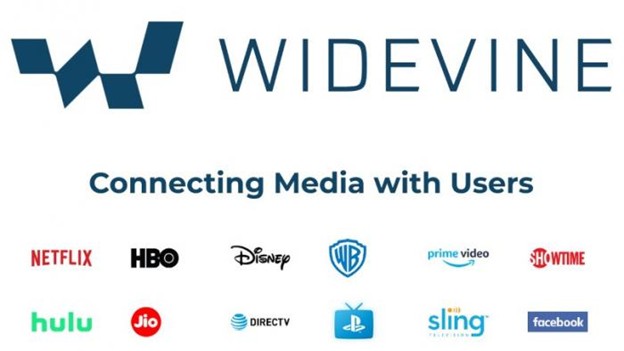
HBO Max uses Widevine DRM, a security system designed to prevent copying, sharing, or redistributing streaming content. Even when you download movies or episodes in the HBO Max app, the files are saved as encrypted .exo segments rather than in standard video formats.
These encrypted files are locked in three ways.
- Device-locked: They only work on the device where they were downloaded.
- App-locked: They can be opened only inside the HBO Max app.
- Player-blocked: Media players such as VLC, Plex, or Windows Media Player cannot play them.
If you copy these .exo files to a USB drive and try to open them, they won’t play.
The only workable approach is to download the videos as standard MP4 or MKV files using a tool that converts the stream into a normal video format. Once you have MP4/MKV files, you can copy them to USB drives, store them on external storage, and play them on TVs, laptops, tablets, or car entertainment systems.
Legal note: Rules around personal backups vary by country, so users should confirm their local copyright laws before downloading or transferring content.
Before You Download — Choose the Right Format and Quality
Choosing the right format and quality upfront determines how smoothly your HBO Max videos will play from a USB drive, how much space they’ll occupy, and whether they’ll work across all your devices. The goal is to balance compatibility, file size, and visual clarity so your offline viewing experience feels seamless.
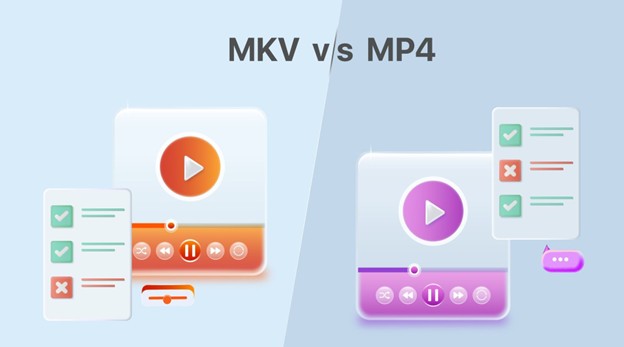
Video Format — MP4 vs MKV
Recommendation:
- Choose MP4 (H.264) for maximum compatibility across TVs, laptops, tablets, and car entertainment systems.
- Choose MKV (H.265) only if your devices support it and you need smaller file sizes due to limited USB storage.
Resolution and Bitrate
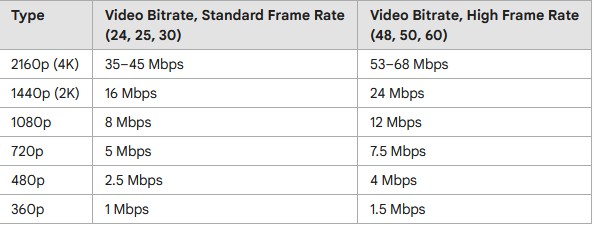
Resolution has the biggest impact on file size and playback performance.
Best choice for most users:
1080p offers the ideal balance of clarity and manageable file size, especially for USB playback on TVs and laptops.
Subtitles
Two subtitle formats are commonly used when downloading HBO Max videos.
- External subtitles (.SRT) – saved as a separate file, must match the video filename, and are automatically recognized by most players.
- Embedded subtitles – stored inside the video files, require no extra files, but usually lock you into one language.
Recommendation:
Use external SRT subtitles for greater flexibility, easier editing, and better device compatibility.
Choose Your USB Drive Wisely
Selecting the right USB drive ensures smooth transfers, reliable playback, and enough room for your HBO Max downloads. Capacity, speed, and file system format all play major roles in how well your videos perform when moved to external storage.
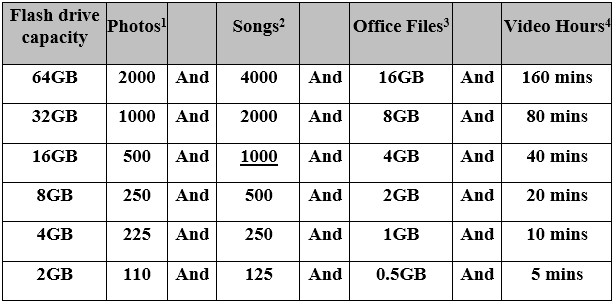
Capacity Planning
Estimate your storage needs based on the type and amount of content you plan to transfer.
Recommendation:
A 128 GB USB drive is the safest long-term choice if you plan to build a larger offline collection.
USB Speed — USB 3.0 vs USB 2.0
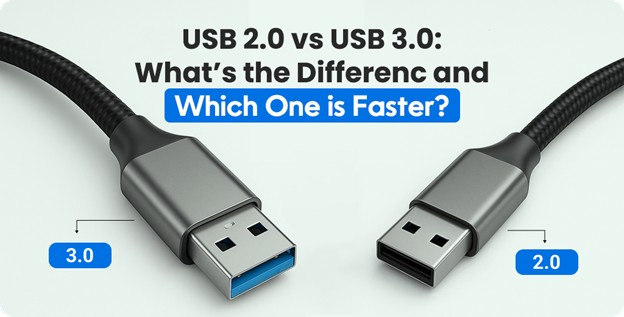
Transfer speed dramatically affects how long it takes to move your downloaded videos.
Recommendation:
Choose USB 3.0 whenever possible. You can identify it easily because the port interior is typically blue, and the connector often has a “SS” (SuperSpeed) label.
File System Compatibility
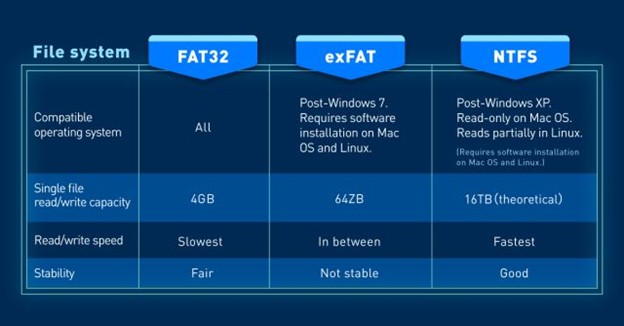
This is a frequently overlooked issue. The file system determines whether your USB drive can store large video files and work across different devices.
Best Choice:
Format your USB drive as exFAT. It supports large MP4/MKV files and works smoothly with Windows, macOS, and most modern smart TVs.
Windows formatting steps:
Right-click the USB drive → Format → choose exFAT → Start.
How to Download HBO Max Videos to Your Computer
Downloading HBO Max videos to your computer requires converting the encrypted stream into standard MP4 or MKV files. This is the key step that enables USB transfers. HBO Max’s built-in downloads remain locked inside the app, so you need a tool that can capture the stream and save it as a normal video file that any device can read. The right downloader ensures high-quality, properly formatted subtitles and smooth playback on TVs, laptops, and car systems once the files are moved to your USB drive.
What to Look for in a Download Tool
A reliable downloader should offer features that guarantee compatibility, quality, and ease of use.
- MP4 or MKV output formats: Ensures the files can be played on most devices.
- 1080p or higher resolution: Maintains clarity when viewed on larger screens.
- Subtitle export (.SRT): Gives you flexible, external subtitle support.
- Batch download support: Saves time when downloading full seasons or multiple movies.
- Windows and macOS compatibility: Lets you use the tool on any computer you own.
Tools that rely on screen recording should be avoided. They often produce lower-quality videos, inconsistent audio sync, and visible artifacts. You want a downloader that pulls the stream directly and converts it into a clean, high-quality file.
Recommended Tool: Mediaio Video Converter
Mediaio Video Converter is a strong choice for 2026 because it supports MP4/MKV output, high-resolution downloads, external subtitles, and batch processing. It also works on both Windows and macOS, making it a practical option for most users.
Transfer HBO Max Videos to USB Drive
Once your HBO Max videos are saved as MP4 or MKV files, moving them to a USB drive is a straightforward file transfer. There’s no DRM blocking, no app restrictions, and no special software required. You’re simply copying normal video files from your computer to external storage.
Basic Transfer (Windows / Mac)
The steps are nearly identical on both operating systems.
Step 1: Insert your USB drive and wait for it to appear on your desktop or in File Explorer.
Step 2: Open the folder where your downloaded HBO Max MP4/MKV files are stored.
Step 3: Drag and drop the video files into the USB drive window.
Step 4: Wait for the transfer to be completed.
Step 5: Eject the USB drive safely to avoid file corruption.
For large files (3-6 GB per hour at 1080p), USB 3.0 drives will transfer significantly faster than USB 2.0 drives.
Verify Before You Leave
Before disconnecting the USB drive or taking it on a trip, run a quick check to avoid surprises later:
- Test playback with VLC to confirm the video opens smoothly.
- Confirm subtitles load correctly, especially if you’re using external SRT files.
- Check remaining USB storage space to ensure you have room for additional episodes or movies.
A quick verification step saves you from discovering broken files when you’re already offline.
Play HBO Max Videos from USB on Different Devices
After transferring your MP4 or MKV files to a USB drive, you can watch them on a wide range of devices. Playback success depends on the device’s supported formats, USB port type, and file system compatibility.
Smart TVs (Samsung, LG, Sony)
Most modern smart TVs support MP4 (H.264) playback directly from USB.
Steps: Insert the USB drive → open the TV’s media player → select your video.
If you’re using MKV (H.265), ensure your TV model supports HEVC; older models may not. External SRT subtitles usually load automatically when the filename matches the video.
Car Entertainment Systems
Car systems vary widely in the formats they support.
Most accept MP4 (H.264) but may reject MKV or high-bitrate files.
If playback stutters, re-encode the video to 720p or a lower bitrate.
Use exFAT formatting for best compatibility with newer cars.
Game Consoles (PS5 / Xbox)
Both PS5 and Xbox consoles support USB playback through their built-in media players. MP4 (H.264) works flawlessly.
MKV (H.265) is supported on Xbox but may be inconsistent on PS5, depending on the audio codec.
External subtitles load only if the console’s media app supports SRT files.
Laptop or Desktop
Windows, macOS, and Linux systems can play MP4/MKV files instantly using VLC, Movies & TV, or QuickTime (with the appropriate codecs).
This is the most flexible playback option and ideal for travel.
When Videos Won't Play — Quick Fix
FAQs
No. HBO Max stores its app downloads as encrypted .exo files protected by Widevine DRM. These files cannot be copied, opened, or played outside the HBO Max app, even if moved to a USB drive. Only MP4 or MKV files created through a proper downloader will work.
Most modern TVs from Samsung, LG, Sony, and TCL work best with exFAT. It supports large video files, avoids the 4GB limit of FAT32, and is readable by both Windows and macOS.
A typical 1080p movie ranges from 3 to 6 GB per hour. On average, a 64 GB USB drive can hold 10–15 movies, depending on length, bitrate, and whether you use MP4 or more efficient MKV (H.265).
Yes. External .SRT subtitle files work on most TVs, laptops, and consoles as long as the subtitle filename matches the video filename. Embedded subtitles also work but offer fewer language-switching options.
Yes. Once the files are stored on your USB drive, they play completely offline on TVs, laptops, car systems, and game consoles — no Wi-Fi or HBO login required.
Conclusion
Transferring HBO Max videos to a USB drive becomes simple once the files are saved as standard MP4 or MKV formats. With the right downloader, proper video settings, and a well-prepared USB drive, you can build a reliable offline library that works across TVs, laptops, consoles, and even car systems. This guide walked you through every step – from choosing formats and storage to downloading, transferring, and troubleshooting playback issues. With these essentials in place, you can enjoy your HBO Max content anywhere, completely offline, and without device limitations.