

You want HBO Max content on a physical disc. Maybe you're watching in a room without reliable internet, giving a gift, or building a physical archive. Whatever the reason, understanding what's technically possible—and what isn't—saves you from wasting hours and blank discs on approaches that are guaranteed to fail.
This guide covers the full DVD creation process honestly: why certain approaches don't work, what actually does work, how to convert video files into a format DVD players understand, and how to troubleshoot discs that refuse to play.
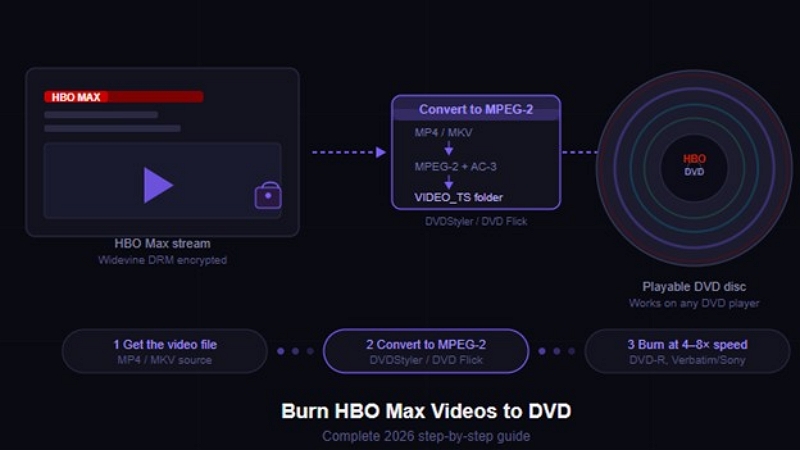
Why Standard Screen Recorders and Copy Tools Fail on HBO Max
HBO Max uses Widevine DRM (Digital Rights Management), the same encryption system used by Netflix, Disney+, and Prime Video. Widevine creates a protected video pipeline inside your device—only authorized apps can decode the stream. Tools like OBS, QuickTime, Bandicam, and browser-based recorders see a black screen because they're intercepting a signal that the system deliberately encrypts at that point.
The official HBO Max offline downloads are equally unusable for DVD burning—they're stored as encrypted .exo fragments that can only be decrypted by the HBO Max app itself, not opened, converted, or processed by any third-party software.
This isn't a bug or a settings problem. It's the intended behavior of Widevine, and it affects every device and operating system the same way.
The Legal Reality (Read Before Proceeding)
Under Section 1201 of the DMCA in the US, and equivalent laws in most countries, circumventing DRM protection is prohibited—even for personal backup purposes. The distinction matters: making a backup copy of content you own is generally treated differently from bypassing the technical protection measures that enforce that protection. Most legal systems treat DRM circumvention as a separate violation.
This guide focuses on the DVD creation process using files you have legitimate access to. What constitutes a legal source varies by jurisdiction, so verify the rules in your country before proceeding.
Legitimate sources for video files you can actually burn to DVD:
- Purchased digital downloads — some platforms (Vudu, Apple TV, Amazon) offer DRM-free downloads or allow download in formats that can be processed locally
- Physical disc ripping — you own the DVD or Blu-ray and are creating a personal backup; legality varies by country but has clearer legal standing than streaming DRM circumvention in many jurisdictions
- Personal video files — recordings you made yourself, independent content, files you produced
- Public domain films — content with expired or no copyright restrictions, freely available from archive.org and similar sources
The technical process below works the same regardless of the source.
Converting your source files to MP4 before authoring
If your source files are in mixed or less common formats—AVI, WMV, FLV, or older container formats from downloaded content—standardizing them to MP4 (H.264) first makes the authoring step more predictable. Mediaio Video Converter handles this prep step cleanly: it converts 1000+ formats to MP4 in batch, preserves embedded subtitles during conversion, and processes full seasons at once rather than file by file. Once you have clean MP4 files, DVDStyler or any all-in-one suite accepts them without issues.
Understanding the DVD Format (Why You Can't Just Copy an MP4)
This is the part that confuses most people and causes most failed burns.
A standard DVD player does not play MP4, MKV, H.264, or HEVC files. It only understands one specific structure:
- Video codec: MPEG-2
- Audio codec: Dolby Digital AC-3 (or MPEG Audio Layer 2)
- Container structure: VIDEO_TS folder containing VOB, IFO, and BUP files
- Disc structure: UDF filesystem with specific sector layout
If you burn an MP4 file to a DVD disc as a data file, it creates a data DVD—which plays on computers and some smart TVs but not on standalone DVD players. The disc has to be authored into the VIDEO_TS structure to work in a player.
This is a two-step process: convert to MPEG-2 → author to DVD structure. One tool handles both steps for simplicity, or you use two separate tools for more control.
Choosing the Right Blank Disc
Disc types:
Recommended brands: Verbatim and Sony consistently produce fewer burn errors than generic brands. The quality difference matters—cheap discs are the single most common cause of playback problems that have nothing to do with encoding.
Capacity planning:
- Single-layer (4.7 GB): approximately 2 hours of MPEG-2 video at standard DVD bitrate (6–8 Mbps)
- Dual-layer (8.5 GB): approximately 3.5–4 hours, depending on quality settings
For a standard 2-hour film at DVD quality, a single-layer DVD-R is usually sufficient.
Method 1: Two-Tool Workflow (DVDStyler + ImgBurn)
Best for: Maximum control over encoding settings, chapter placement, and menu design. Works on both Windows and Mac.
Important note about HandBrake: HandBrake is an excellent video converter, but it does not output MPEG-2—it only outputs H.264, H.265, and AV1. HandBrake cannot create DVD-compatible MPEG-2 files or DVD folder structures. Use DVDStyler or DVD Flick for this workflow instead.
Step 1: Convert to DVD-Compatible Format with DVDStyler
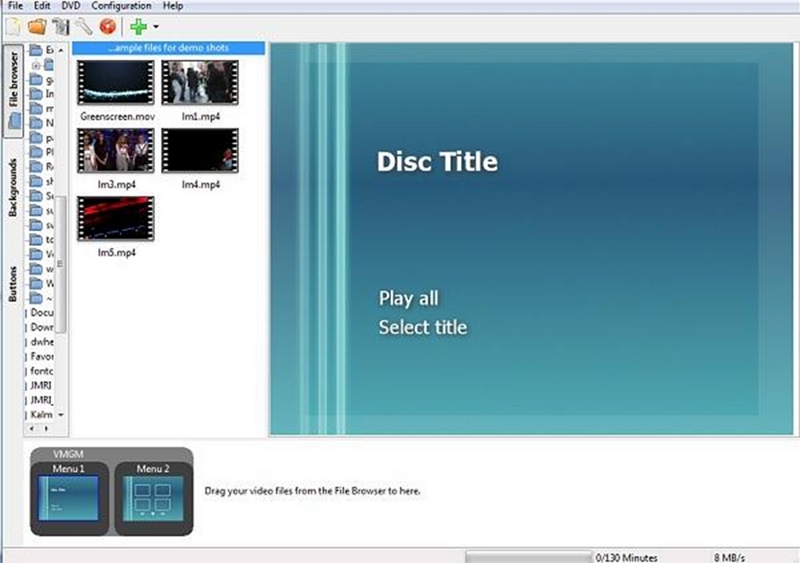
DVDStyler (free, Windows/Mac/Linux) handles both MPEG-2 encoding and DVD authoring in one application. It accepts MP4, MKV, AVI, and most common video formats as input and converts them to the VIDEO_TS structure automatically.
- Download DVDStyler from dvdstyler.org (official site)
- Open DVDStyler → File → New Project
- Set your disc format:
- NTSC for US, Canada, Japan, Mexico
- PAL for Europe, Australia, UK, most of Asia
- Getting this wrong means the disc won't play on your local hardware
- Drag your video file into the DVDStyler window
- DVDStyler automatically handles the MPEG-2 conversion at the correct bitrate
- Add a menu (optional — useful for multi-episode burns or chapter navigation)
- File → Burn DVD → select your DVD drive → set burn speed to 4x–8x
DVD Flick (Windows, free) is an alternative with a simpler interface for users who don't need menu design.
Step 2: Verify After Burning
After burning, run DVDStyler's verify function or use ImgBurn's Verify mode to confirm the disc was written correctly. Then test on an actual standalone DVD player before assuming success—computer playback and standalone player playback can differ.
Method 2: All-in-One Suite (Simpler Workflow)
Best for: Users who want a single application to handle everything without configuring separate tools.
Several paid applications combine import, conversion, authoring, and burning:
WinX DVD Author (Windows, free) — straightforward interface, handles the full workflow from MP4 to playable DVD disc. Good menu templates included.
Leawo DVD Creator (Windows/Mac, paid) — handles conversion from 180+ formats, menu templates, subtitle embedding, chapter markers. Faster than manual workflows for large batches.
Roxio Easy Media Creator / CyberLink Power2Go (Windows, paid) — comprehensive suites with advanced menu design if aesthetics matter for gifting or archival purposes.
General workflow for any all-in-one suite:
- Import the video file
- Select disc format (NTSC or PAL — always set this explicitly)
- Configure chapters and menu template
- Preview before committing
- Insert blank disc and burn at 4x–8x
The tradeoff: you have less control over specific encoding parameters (bitrate, two-pass encoding, audio channel configuration) compared to the manual workflow. For most personal projects, the default settings produce perfectly watchable results.
NTSC vs. PAL: The Setting That Causes Most Region Problems
This single setting is responsible for more "disc won't play" problems than any other encoding issue.
- NTSC (29.97 fps, 720×480): United States, Canada, Mexico, Japan, most of Latin America
- PAL (25 fps, 720×576): Europe, UK, Australia, New Zealand, most of Africa and Asia
If you encode in NTSC and try to play in a PAL country (or vice versa), many players will refuse entirely or display distorted video. Set this correctly before encoding—fixing it afterward requires re-encoding from scratch.
Quick check: If you're in the US, use NTSC. If you're in Europe or Australia, use PAL. Most authoring software defaults to NTSC, so European users need to change this explicitly.
Key Encoding Settings for Best Quality
When you have control over encoding parameters (Method 1 workflow):
On burn speed: Slower burns produce more reliable discs. 4x–8x is the sweet spot—fast enough to be practical, slow enough to minimize write errors. Never burn at maximum speed if you want the disc to last.
Troubleshooting: When the Burned DVD Won't Play
FAQ
No. DVD's MPEG-2 format is limited to 720×480 (NTSC) or 720×576 (PAL). 4K source material must be downscaled to standard definition for DVD. If you want HD quality on disc, Blu-ray is the appropriate format—but it requires a Blu-ray burner and compatible blank discs.
DVDStyler handles the complete workflow (conversion, authoring, and burning) for free. DVD Flick is simpler for Windows users who don't need menu design. ImgBurn is the best free tool specifically for writing ISO images to disc.
Generally yes, if the disc is authored in VIDEO_TS format, uses the correct NTSC or PAL standard, and is burned on DVD-R. Older DVD players can be more selective about disc type and encoding.
A single-layer DVD (4.7 GB) holds about 2 hours of MPEG-2 video at standard quality. A dual-layer DVD (8.5 GB) can store approximately 3.5–4 hours. Lowering the bitrate increases capacity but may reduce video quality due to compression artifacts.
Yes. Tools like DVDStyler, DVD Flick, and other DVD authoring software support chapter markers and menu templates. For simple personal discs, a basic Play menu is enough. For gifts or archived videos, adding chapters and title menus makes the disc look more professional.
Slightly. Converting modern formats like H.264 (MP4) to DVD's MPEG-2 requires re-encoding, which can introduce minor quality loss. Using higher bitrates (around 7–8 Mbps) and two-pass encoding helps minimize this. However, the biggest change usually comes from converting HD or 4K video to DVD’s standard definition.
Conclusion
Burning HBO Max videos to DVD isn’t as simple as copying a file or running a screen recorder. DRM encryption makes that impossible with standard tools. But with the right workflow, you can still create a fully playable DVD for personal offline viewing.
- Method 1 gives you maximum control over quality, encoding, and disc structure.
- Method 2 offers a simpler, all-in-one experience for users who prefer convenience.
Choosing the correct disc type, converting it to proper DVD-compatible formats, and burning at stable speeds ensures your final disc works on any standard DVD player.
Whether you’re archiving a favorite series, creating a gift, or building a physical collection, the steps in this guide make the process straightforward, even for beginners.